

Add knowledge from Slack
Time to complete: ~5 minutes (message shortcut); 10–15 minutes to set up emoji-based updates
Prerequisites: The ConveyorAI Slack app is installed, and you have a Conveyor Admin role or higher. For emoji-based updates, the ConveyorAI bot must be invited to the channels it operates in (use /invite).
Overview
When a subject-matter expert shares new information in Slack, a Conveyor admin can add it to the Knowledge Library without leaving the conversation. There are two ways to do it:
- Create a Curated Q&A — a message action for turning a single message into a curated Q&A on the spot.
- Knowledge Update via Slack — react to a message with a configured emoji, and ConveyorAI extracts Q&A pairs from the whole thread for review.
Create a Curated Q&A from a Message
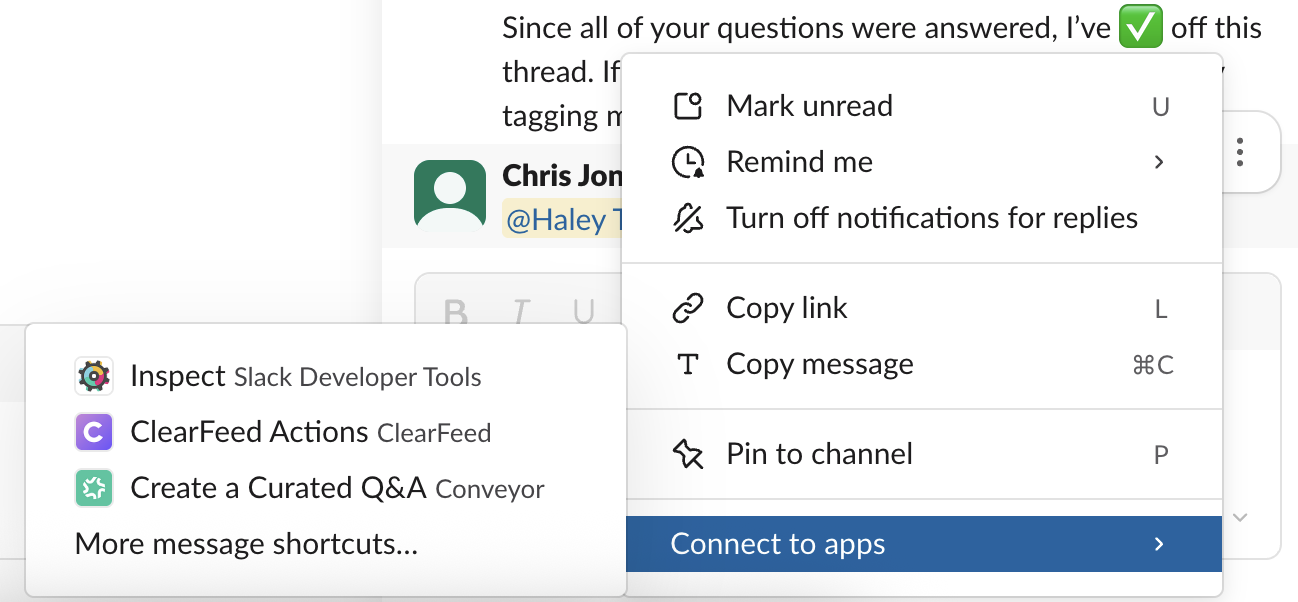
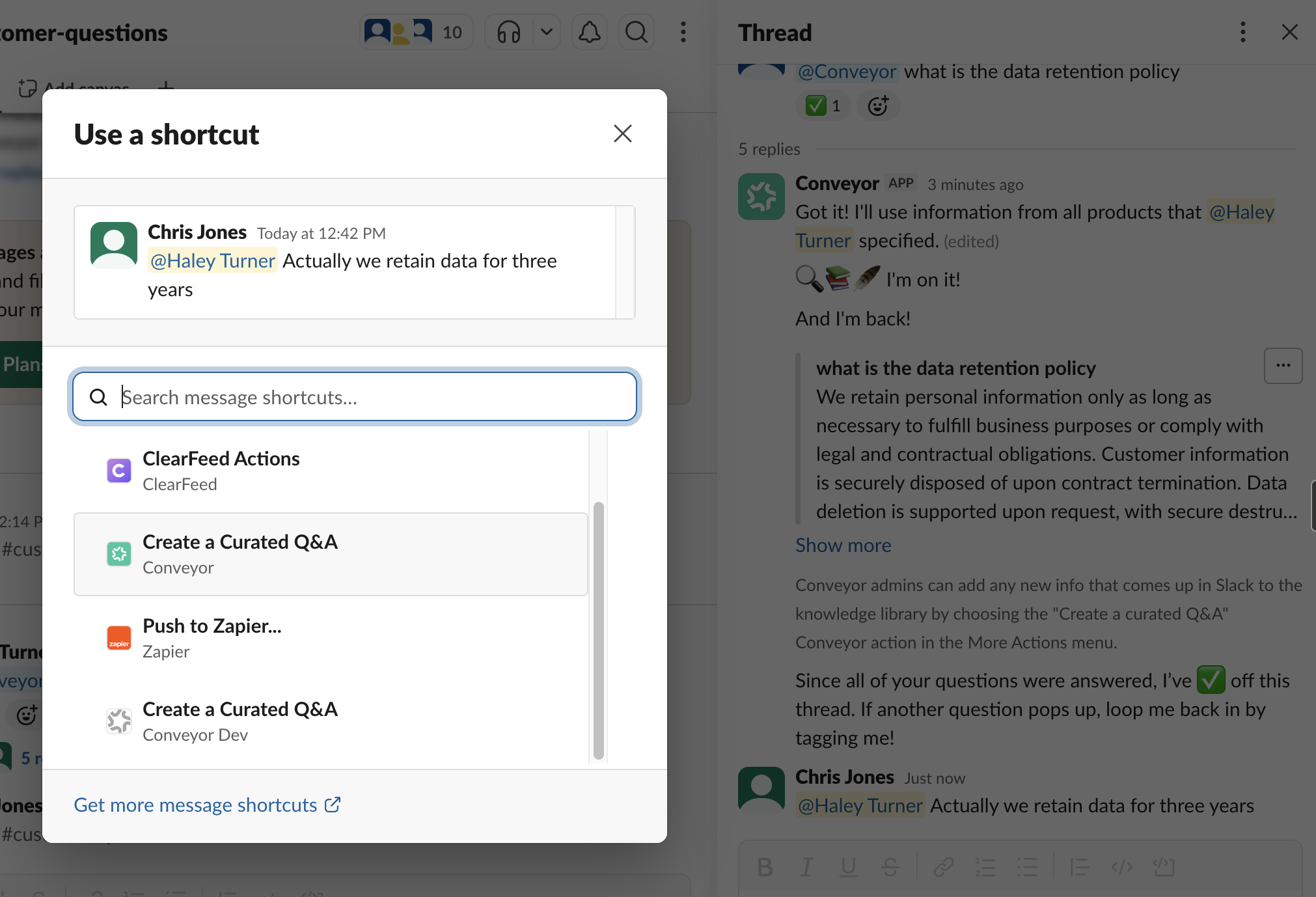
- Hover over the message with the new information, open More actions (the ⋮ menu), and choose Create a Curated Q&A from the Connect to apps section.
- In the Create Q&A modal, review or edit the Question and Answer, and optionally set a Product Line Scope. Then click Save to KB.
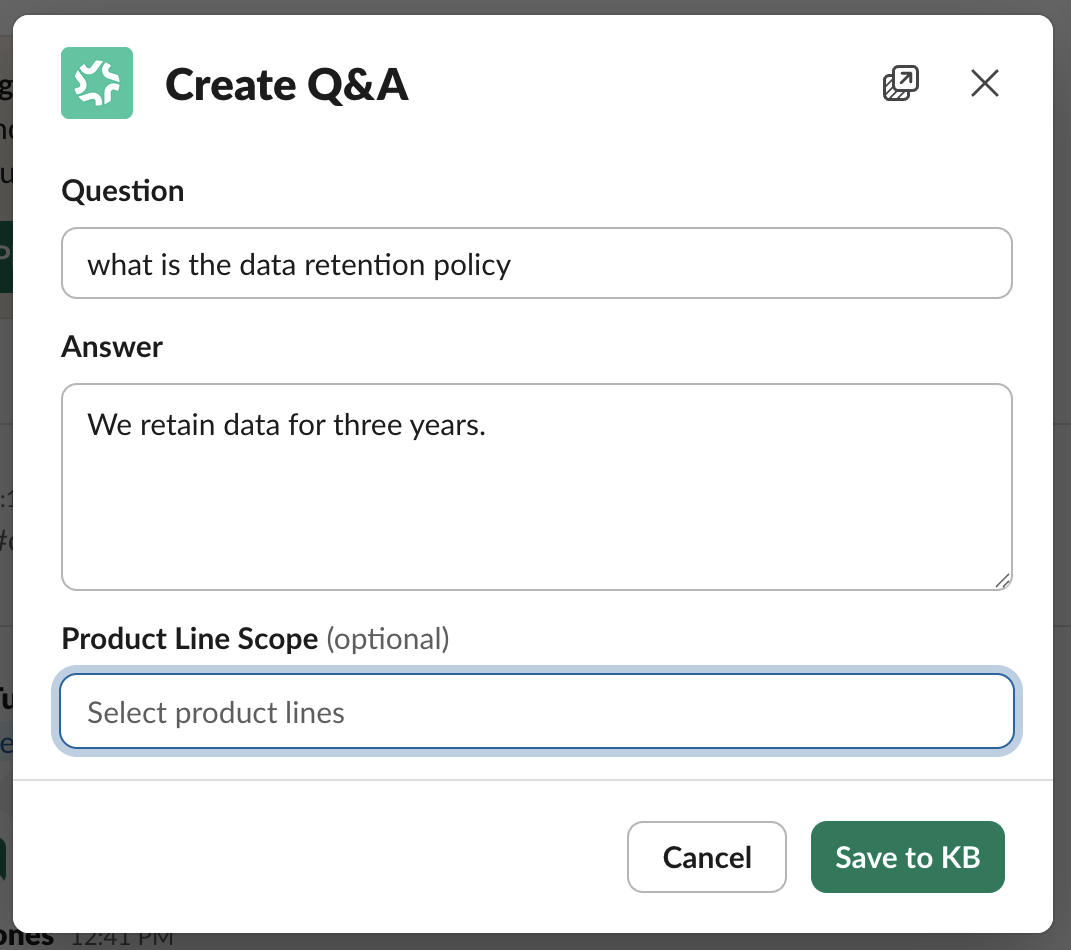
If the message is a reply within a one-off question thread, ConveyorAI takes that question into account, rephrases the new information for your knowledge base, and pre-fills the Question, Answer, and any relevant product lines.
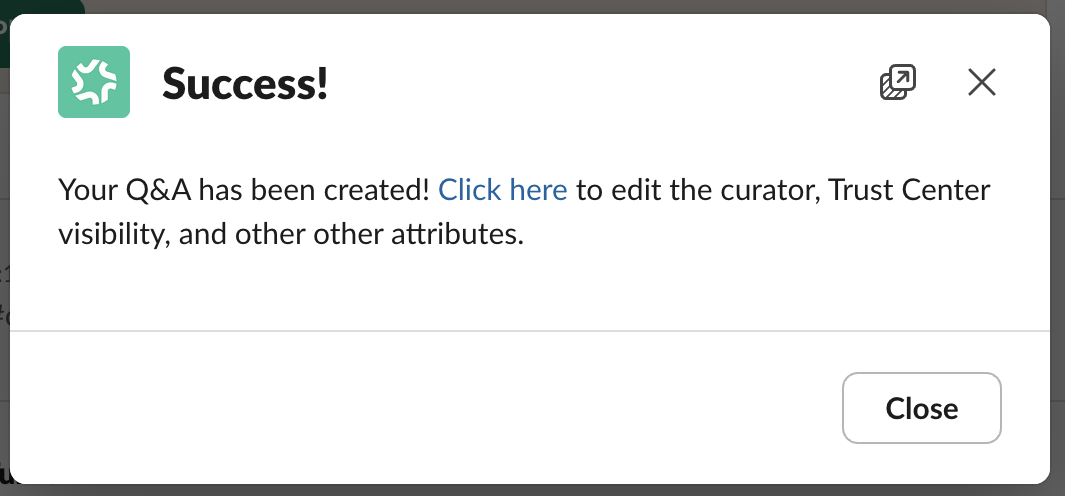
- A Success! message confirms the Q&A was created. Select Click here to edit the curator, Trust Center visibility, and other attributes.
Knowledge Update via Slack (Emoji Reaction)
When your team discusses security questions, compliance topics, or product details in Slack, those answers often contain valuable knowledge that belongs in your Knowledge Library. With a single emoji reaction, ConveyorAI extracts curated Q&A pairs from the conversation and adds them directly to your library.
How It Works
🎥 Watch a video overview here!
- A team member reacts to a Slack message with your configured emoji (e.g.
:brain:). - ConveyorAI reads the full thread and extracts Q&A pairs from the conversation.
- ConveyorAI checks each extracted pair against your existing Knowledge Library for potential conflicts.
- A summary of the extracted Q&A pairs — along with any conflicts — is posted back to Slack.
- You review, edit, and confirm which pairs to save directly from Slack.
Set Up Knowledge Update via Slack
Before you begin, make sure the ConveyorAI Slack app is installed, you have a Conveyor Admin role or higher, and the ConveyorAI bot has been invited (with /invite) to any channel where it needs to operate — both the public channels where emoji-triggered extraction will be used and any private channel used as a review destination.
- Navigate to Settings → Auto-Ingest Knowledge.
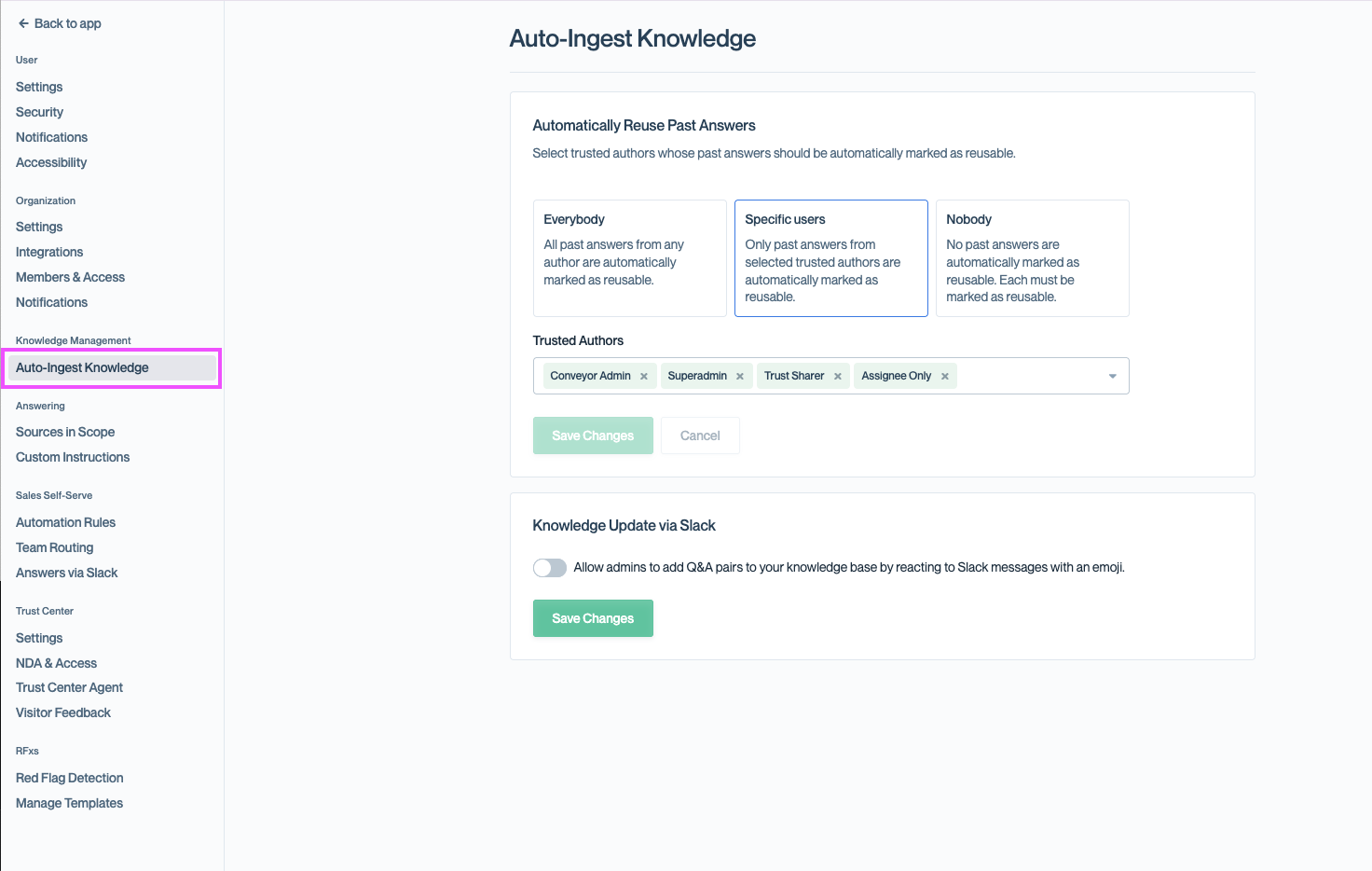
- Scroll to the Knowledge Update via Slack card and enable the toggle.
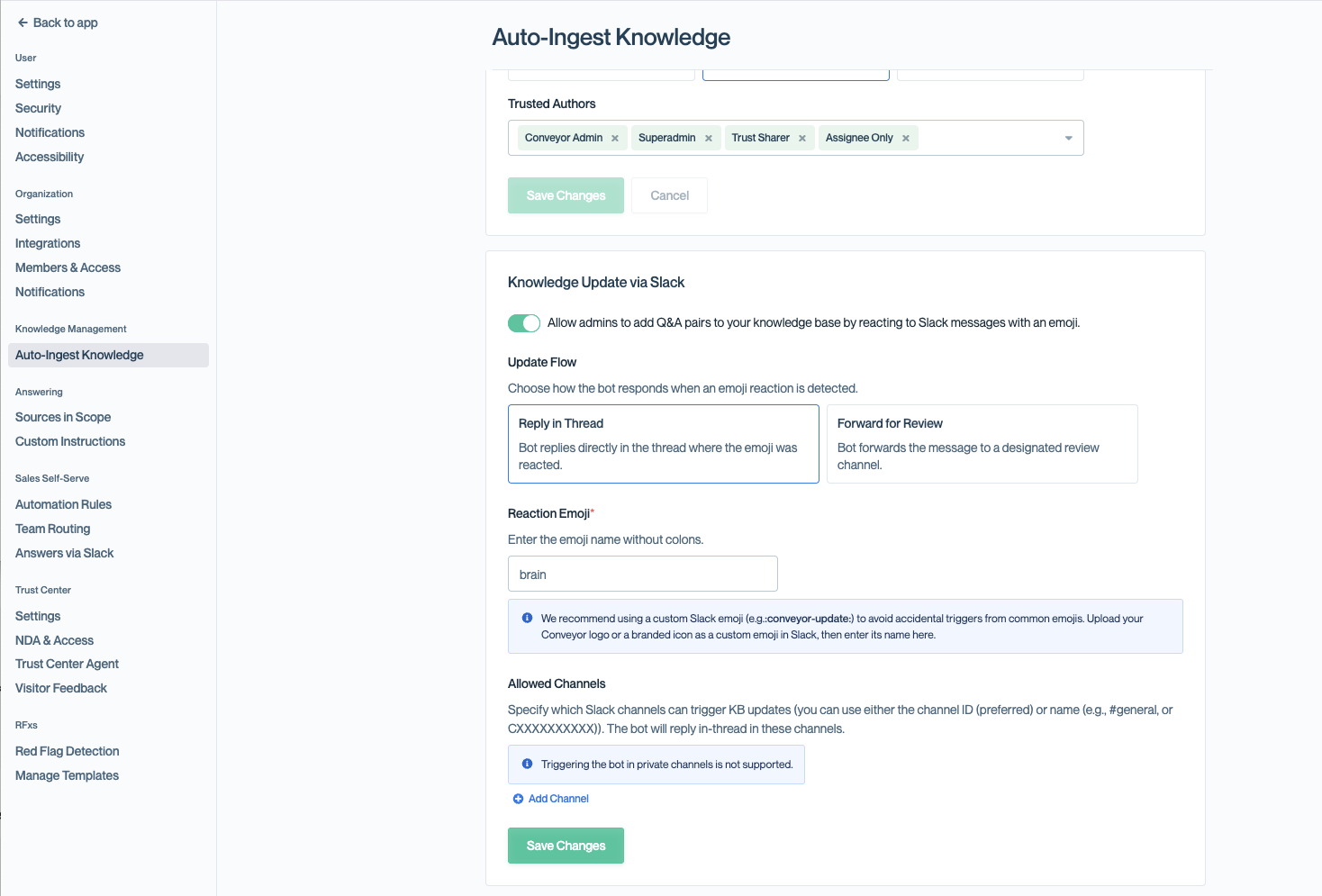
- Configure the following settings:
| Setting | Description |
|---|---|
| Update Flow | Choose how the bot responds when an emoji reaction is detected. Reply in Thread — the bot replies directly in the thread where the emoji was reacted. Forward for Review — the bot forwards the message to a designated review channel. |
| Reaction Emoji | The emoji that triggers Q&A extraction. Enter the emoji name without colons (e.g. brain). Only this emoji will activate the feature. 💡 We recommend uploading a custom Slack emoji (e.g. :conveyor-update:) to avoid accidental triggers from common emojis. |
| Allowed Channels | The Slack channels that can trigger Q&A extraction. Click Add Channel and enter the channel ID (preferred) or name (e.g. #general or CXXXXXXXXXX). Reactions in other channels are ignored. |
| Admin Review Channel (Forward for Review only) | The channel where flagged messages are forwarded for admin review instead of the original thread. Only channel IDs are supported (e.g. CXXXXXXXXXX). This should be a private channel — only Conveyor admins should have access. Non-admin users will not see forwarded messages or AI-generated suggestions. |
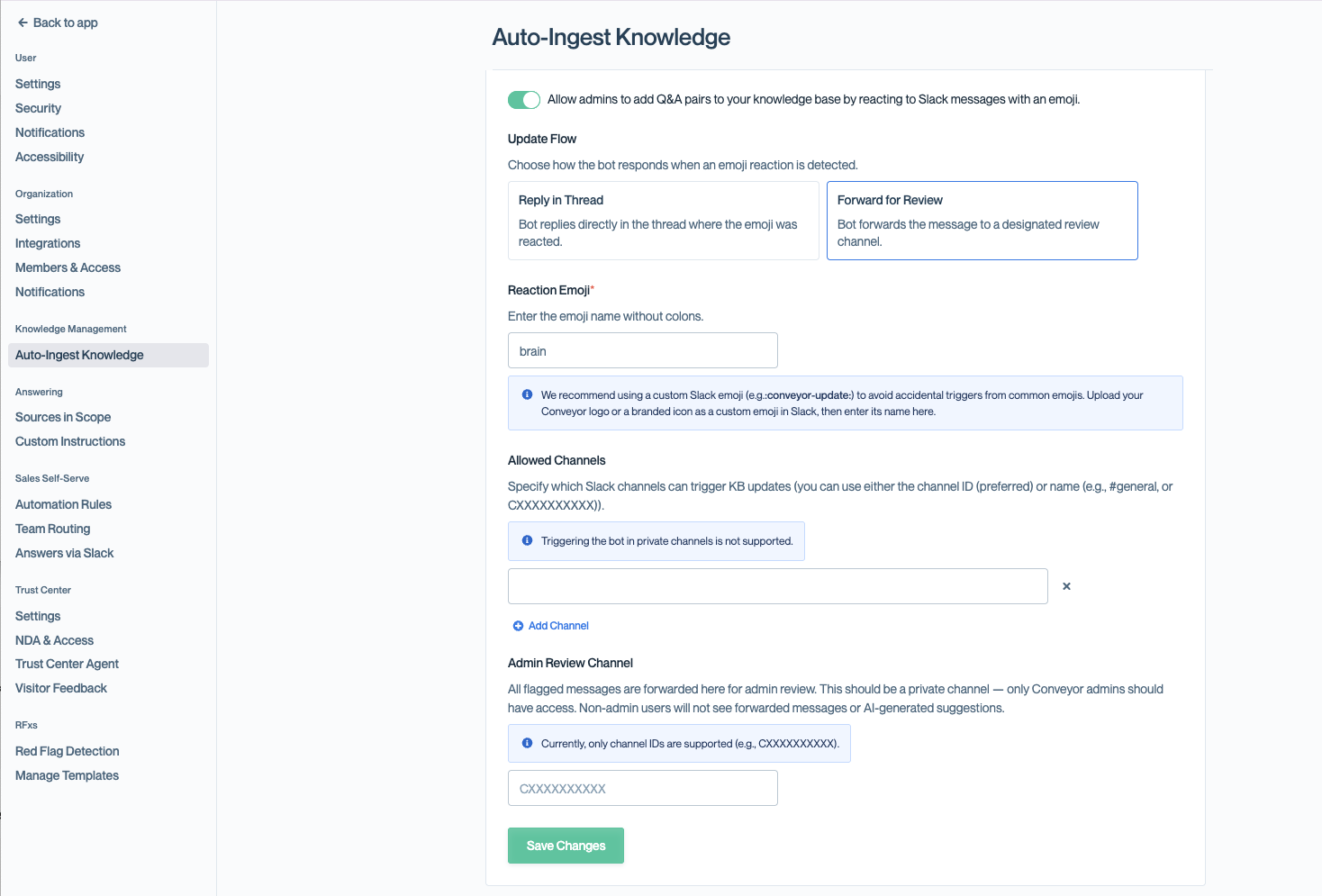
- Click Save Changes.
Important: Q&A extraction can only be triggered in public channels. Private channels are supported only as a destination channel for routed reviews.
Extract Q&A Pairs from a Thread
To extract Q&A pairs from any Slack thread in an allowed channel, react to any message in that thread with your configured emoji. ConveyorAI will:
- Post a loading message to let you know it's working.
- Read all messages in the thread.
- Use AI to identify and extract up to 10 distinct Q&A pairs from the conversation.
- Check against your existing Knowledge Library for conflicts.
- Update the Slack thread with a summary of the results.
TipYou only need to react once per thread. Reacting to any message in the thread processes the entire thread. Duplicate reactions on the same thread are automatically ignored.
Review Extracted Q&A Pairs
Once extraction and conflict detection are complete, ConveyorAI presents the results in one of two formats depending on how many Q&A pairs were found.
Fewer than 4 Q&A pairs (inline review). When ConveyorAI finds 3 or fewer Q&A pairs, they are displayed directly in the Slack message. Each pair shows its question and answer text, with any detected conflicts below it. Three actions are available: Accept All (save all pairs as-is), Edit Q&As (open a modal to review, edit, or deselect pairs before saving), and Ignore All (in the ... menu, to dismiss without saving).
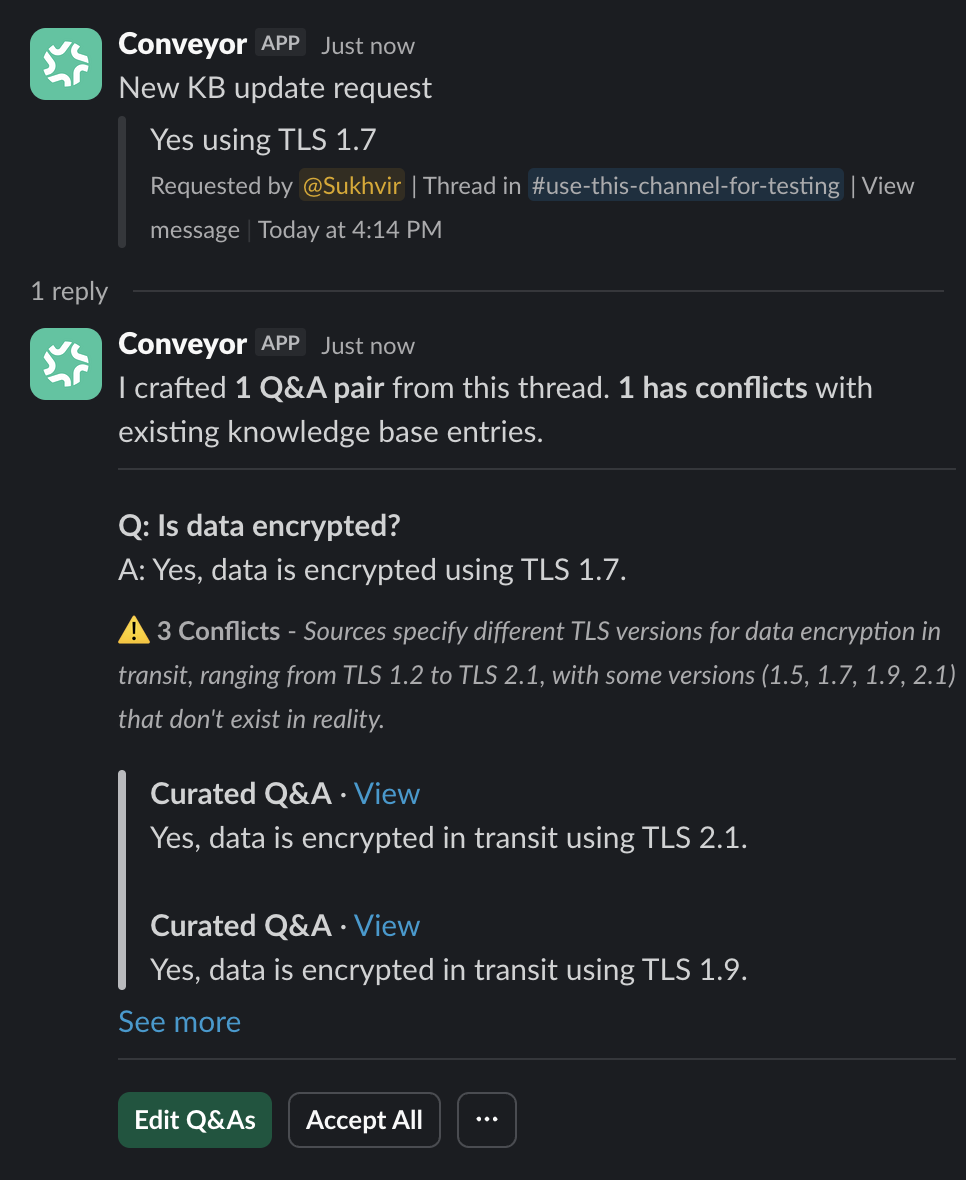
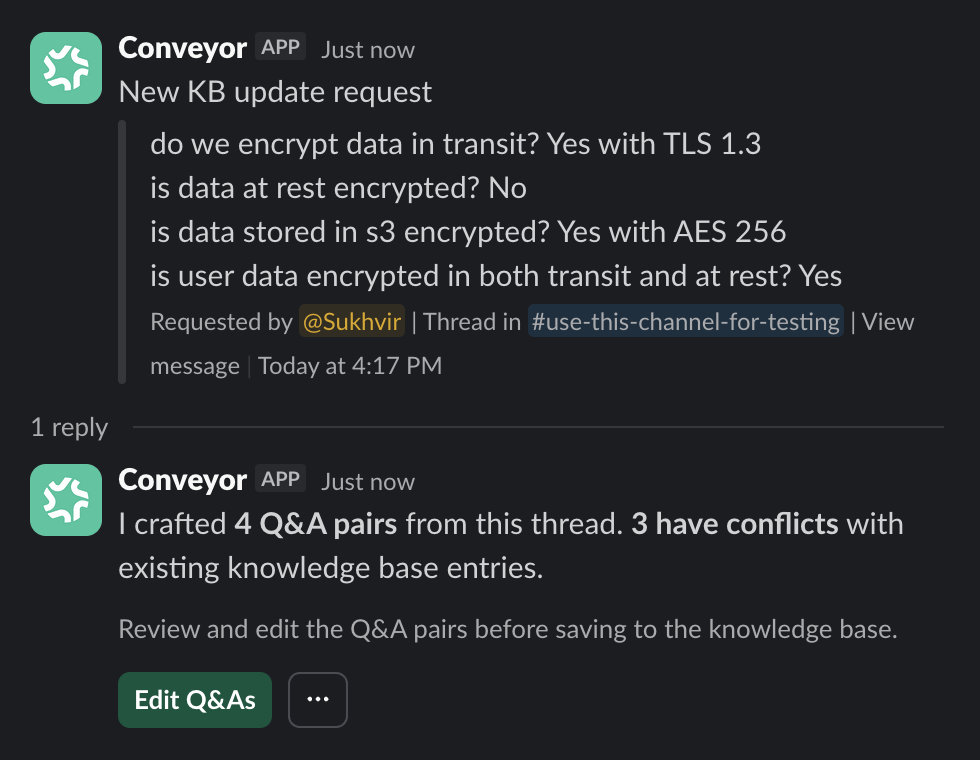
4 or more Q&A pairs (summary view). When ConveyorAI finds 4 or more Q&A pairs, a compact summary shows how many pairs were extracted and how many have conflicts. Two actions are available: Edit Q&As (open a modal to review all pairs in detail) and Ignore All (in the ... menu).
Edit Q&A Pairs in the Modal
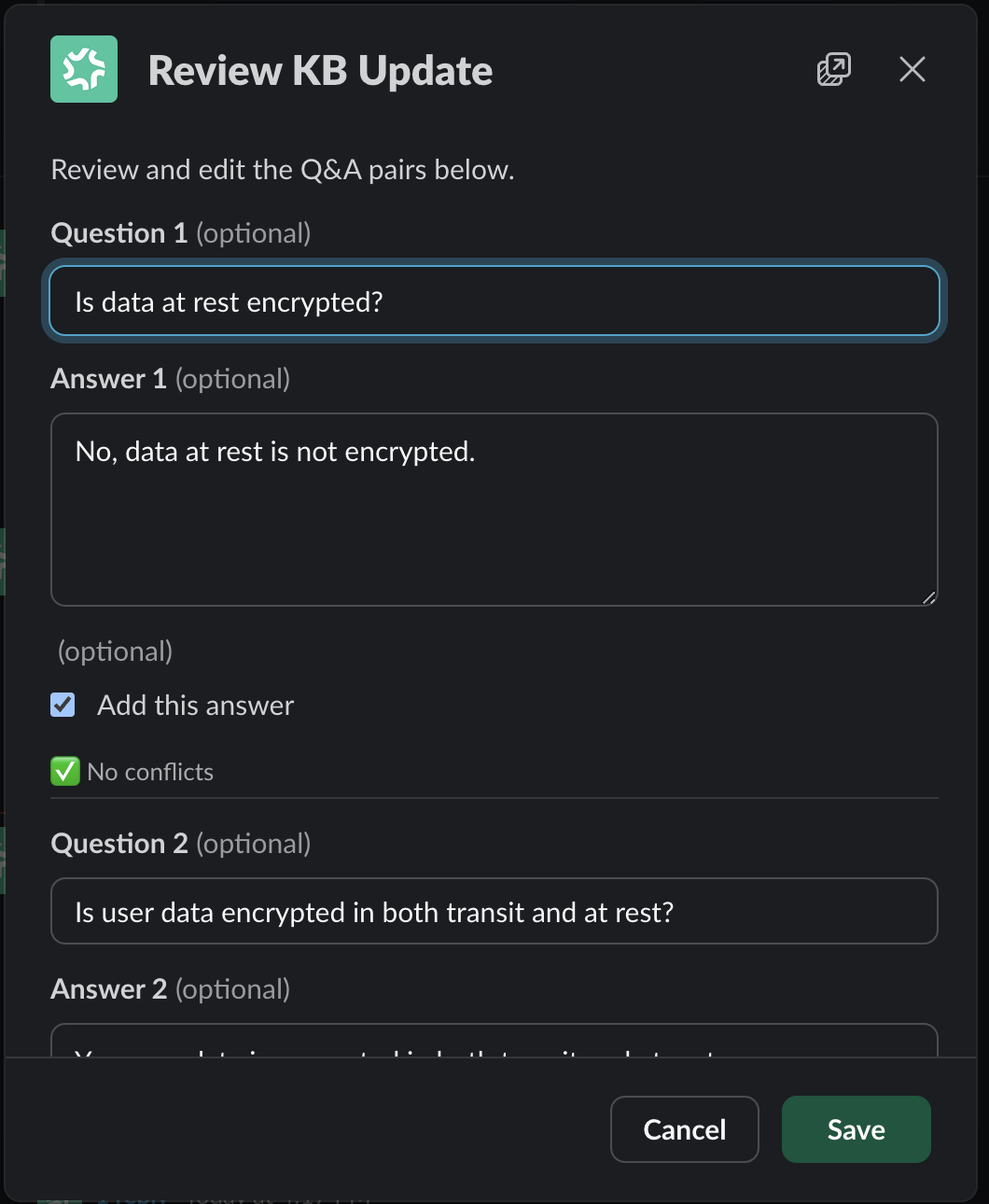
Clicking Edit Q&As opens a modal where you can:
- Edit questions and answers — modify the text of any extracted pair.
- Assign product lines — tag each pair with one or more product lines (if configured for your organization).
- Select which pairs to save — use the Add this answer checkbox to include or exclude individual pairs.
- Review conflicts — see conflict details inline for each pair, including the conflicting source and a brief explanation.
- Add new pairs — empty slots let you manually add Q&A pairs that ConveyorAI may have missed.
When you're ready, click Save to add the selected pairs to your Knowledge Library.
Conflict Detection
ConveyorAI automatically checks each extracted Q&A pair against your existing Knowledge Library to identify potential conflicts — cases where a new answer might contradict or overlap with existing content. A conflict is flagged when an extracted pair covers similar subject matter to an existing entry but provides a different or potentially contradictory answer.
For each pair with conflicts, you'll see the number of conflicts, a brief explanation of why each was flagged, and the source of the conflicting content (a curated Q&A, past answer, or document) with an excerpt and a link to the original entry.
Conflicts are informational — they don't prevent you from saving a pair. Use them to spot outdated entries, decide whether the new pair should replace or supplement existing content, and keep your library consistent.
Ignoring Extracted Q&A Pairs
If the extracted pairs aren't useful, select Ignore All from the ... overflow menu to dismiss the extraction without saving anything. After ignoring, the pairs remain visible for reference; for summary views (4+ pairs), a View Q&As button opens them in a read-only modal; and the Accept All, Edit Q&As, and Save options are disabled.
After Saving
Once pairs are saved, the Slack message updates to confirm what was added. For each saved pair, you'll see the question title, a snippet of the answer, and a View in library link that takes you directly to the entry in your Knowledge Library within Conveyor.
Permissions
Who can trigger Q&A extraction:
- Reply in Thread (no review channel configured): only users with a Conveyor Admin role or higher can trigger extraction by reacting with the configured emoji.
- Forward for Review (review channel configured): any Slack user can react to trigger extraction. If the user doesn't have a Conveyor account, the organization's fallback user is used.
Who can review and save: Only users with a Conveyor Admin role or higher can use the review buttons (Accept All, Edit Q&As, Ignore All) and save pairs via the modal.
Common Questions
What are the two ways to add knowledge from Slack?
The Create a Curated Q&A message action (via More actions) turns a single message into a curated Q&A. Knowledge Update via Slack uses an emoji reaction to extract Q&A pairs from a whole thread for review.
Who can add knowledge from Slack?
A Conveyor Admin role or higher. (For Forward for Review, any Slack user can trigger extraction, but only admins can review and save the results.)
Can I use the emoji feature with private channels?
Extraction can only be triggered in public channels in your Allowed Channels list. With the Forward for Review flow, you can set a private channel as the review destination by channel ID — make sure the ConveyorAI bot has been invited there with /invite.
I just added new knowledge, but conflict detection isn't picking it up. Why?
A: Newly added Knowledge Library content takes some time to be indexed and may not surface in conflict detection right away. Wait a bit and try again.
I triggered extraction, but I need to re-trigger it in the same thread. Why isn't it working?
A: Extraction can't be re-triggered on a thread once it has run — this prevents duplicate processing. To extract from similar content, start a new thread and trigger there.
Can I set up separate emoji reactions for different Slack features?
Q&A extraction uses its own dedicated emoji, separate from other features like @Conveyor mentions. You can't configure multiple emojis for different extraction behaviors.
Where do saved Q&As go?
Into your Curated Q&A library, where you can edit the curator, Trust Center visibility, and other attributes.
What's Next?
- Answer one-off questions — Where a lot of new knowledge originates.
- Adding Q&As — Add curated Q&A pairs directly in Conveyor.
- Curated Question & Answers — Manage everything saved to your library.
Need help? Visit the Troubleshooting guide or contact [email protected].
Updated 3 months ago