

Documents
Time to complete: 5 minutes to understand
Prerequisites: None. This is an overview of Documents capabilities.
Documents are security and compliance materials you share with customers via your Trust Center or use internally to power ConveyorAI's questionnaire responses. Upload SOC 2 reports, policies, certifications, and other materials to create a comprehensive Knowledge Library that serves both customer-facing and internal needs. Documents support flexible organization, granular access controls, and advanced features like watermarking and direct linking.
Documents are complete files (PDFs, policies, certifications) that customers can download, while Q&As are individual question-answer pairs displayed as text for quick reference.
Both power ConveyorAI's questionnaire responses and can be shared with customers, but documents work best for comprehensive materials like SOC 2 reports, and Q&As work best for frequently asked questions.
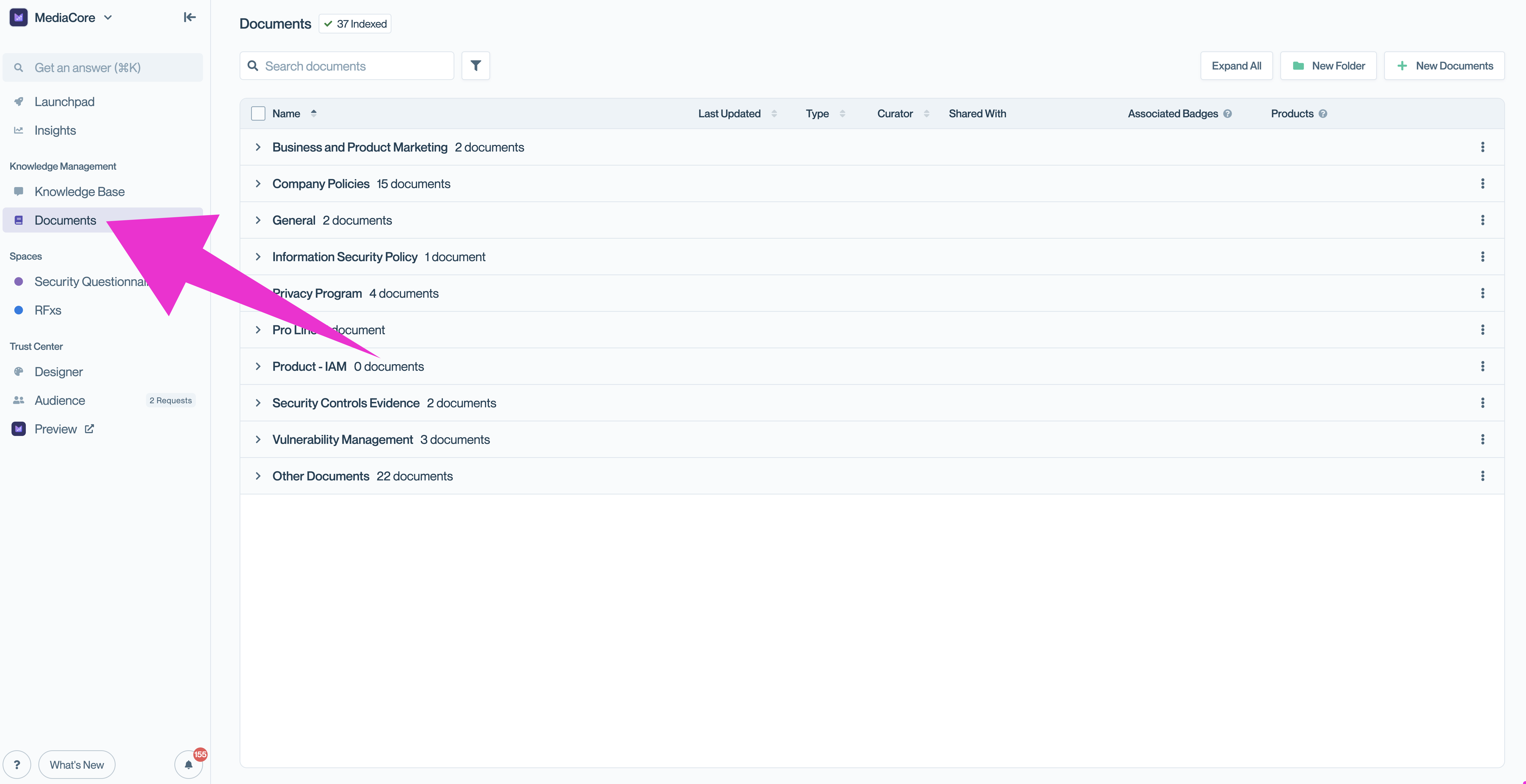
Access Documents under Knowledge Management
What you can do with Documents
Navigate to Documents in the left sidebar to manage your security and compliance materials.
-
Adding new documents: Upload PDFs, Word docs, spreadsheets, and more. Choose whether documents are used by ConveyorAI only, shared in your Trust Center, or both.
-
Editing documents: Update files, change titles and descriptions, assign curators, set expiration dates, and configure access levels after upload.
-
Organizing documents with folders: Create folders to group related materials, making navigation easier for customers and your team.
-
Managing document access: Control visibility with four access levels and access groups: internal only, public, some approved customers, or gated with NDA.
-
Document watermarking: Add custom watermarks to PDFs when customers download them, helping track document distribution and discourage unauthorized sharing.
-
Linking to Trust Center documents: Generate direct links to specific documents in your Trust Center for easy sharing in emails, sales materials, or customer communications.
-
Featuring documents: Highlight important documents on your Trust Center's public view to showcase key certifications or recent audit reports.
Quick actions
Hover over any document row to reveal quick action icons for common tasks: copy link, download, preview, edit, and more.
- Click Activity & Versions to view the document's history and previous versions.
- Click Copy Links to copy shareable links for all selected documents to your clipboard.
- Click Download to download your document, one by one or in bulk.
- Click Preview to view your document.
- Click Edit to edit your document information.
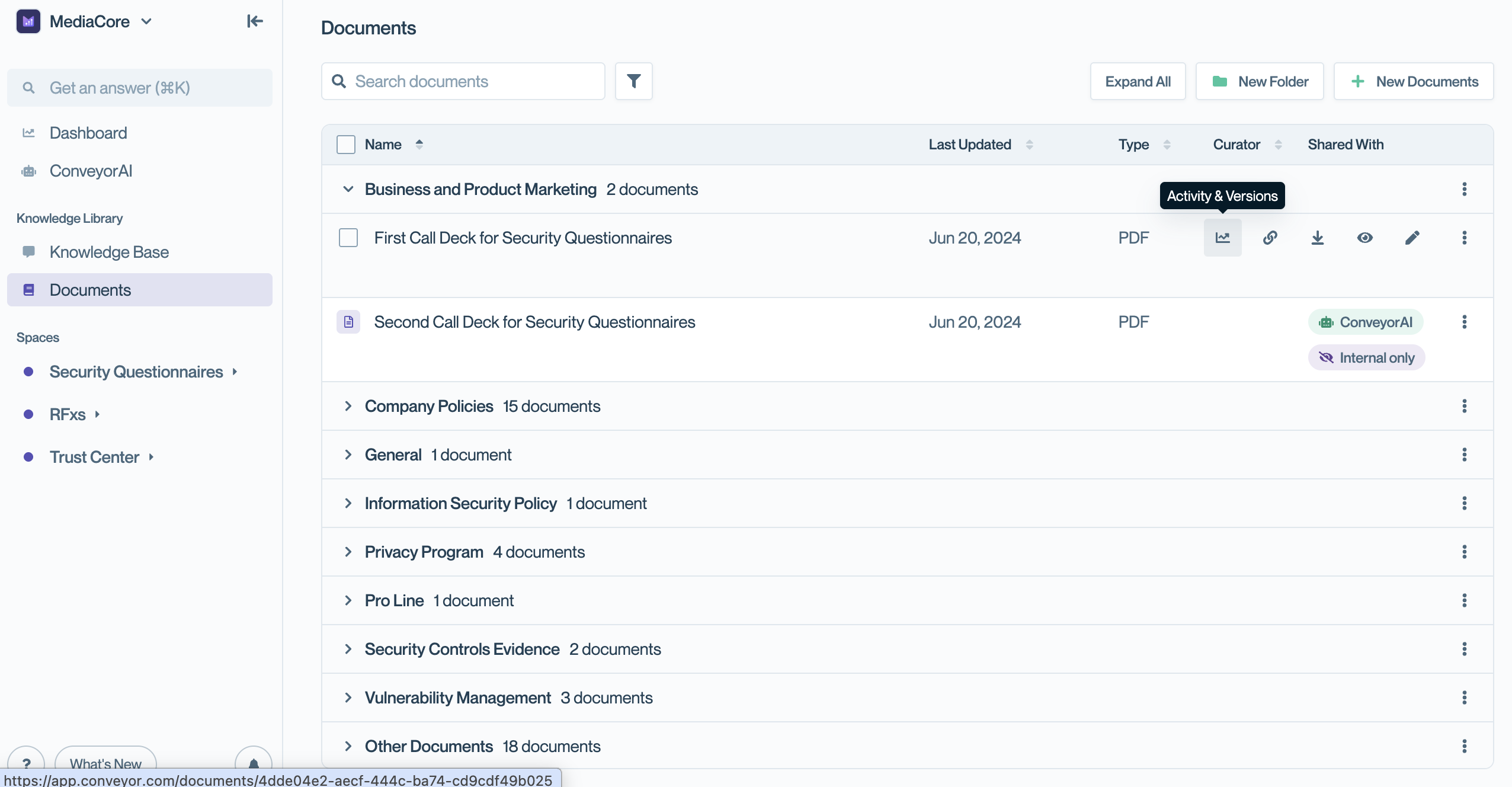
View document actions for each document by hovering over.
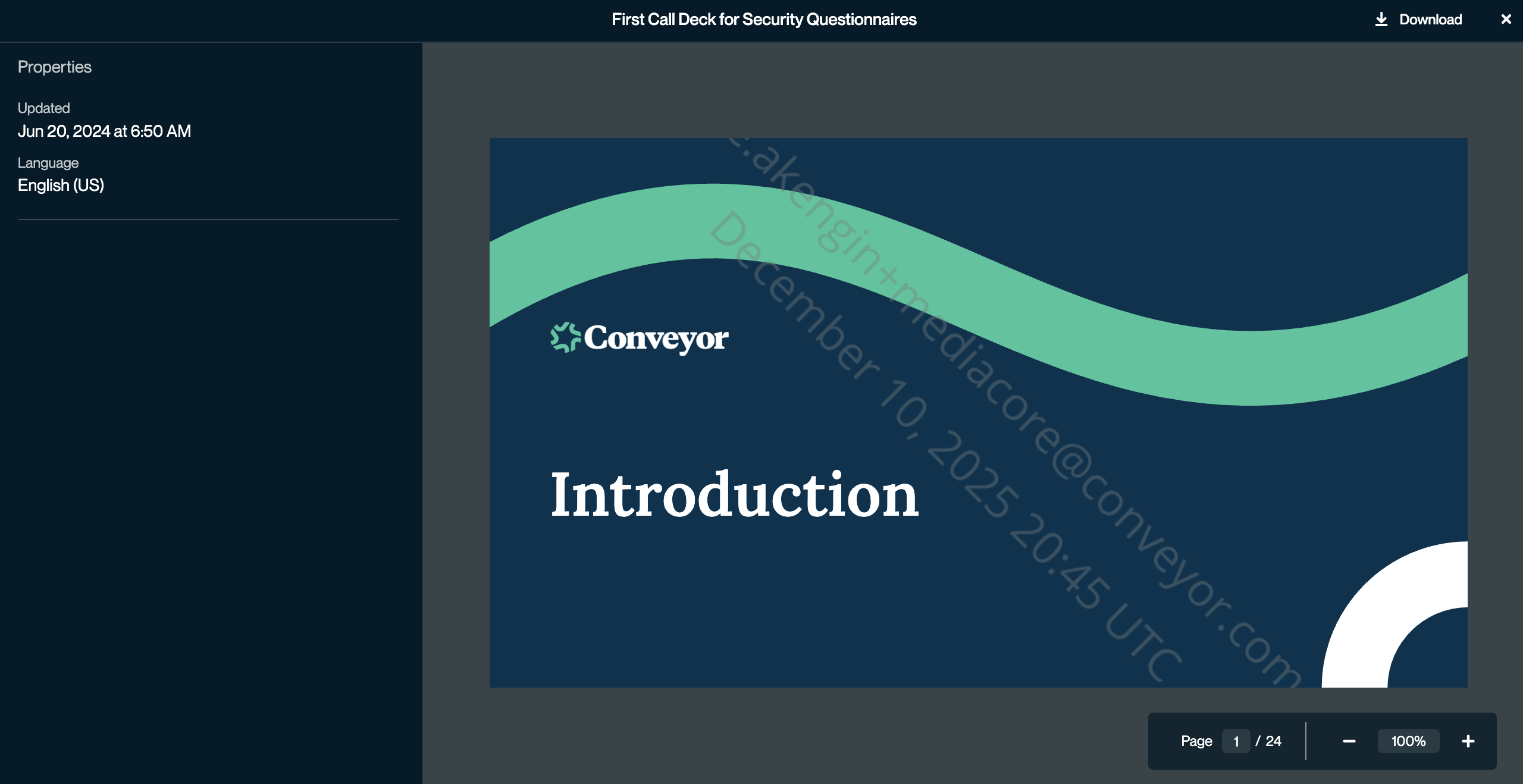
Document Preview
Document activity and versions
Click on any document name to view its detail page, which shows the document's properties, engagement history, and version history.
Historical Engagement displays a chart of interactions over the past year, along with a detailed log showing the date, contact email, connection, language, and version for each interaction.
Version History tracks all versions of the document. Click Add New Version to upload an updated file while preserving the document's history and analytics. Click View to see any previous version.
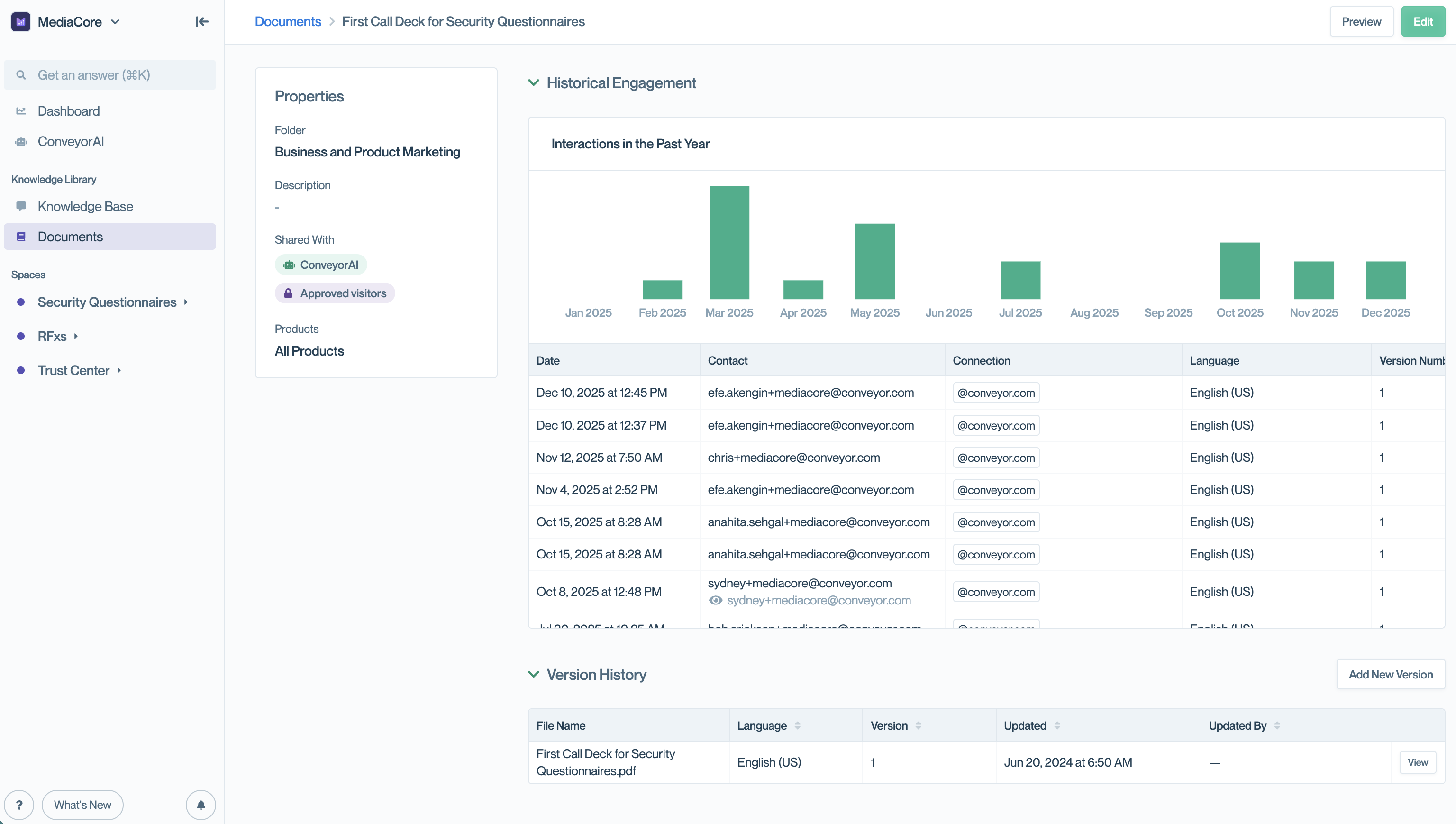
View document activity for engagement, version history and properties.
Common questions
What file types can I upload?
PDFs, Word docs (DOC, DOCX), Excel spreadsheets (XLS, XLSX, XLSM), PowerPoint presentations, plain text files (TXT), CSV files, and JSON files. Maximum file size is 100MB.
Can I upload the same document with different access levels?
No need. Each document has a single access level, but you can use access groups to show it to specific customer segments. Upload once and control visibility through access settings.
Do documents expire automatically?
No. Expiration dates serve as reminders for curators to review and update documents. Expired documents continue to be used by ConveyorAI and remain visible in your Trust Center until you update or remove them.
What's next
- Adding New Documents
- Managing Document Sharing and Access
- Organizing Documents with Folders
- Document Watermarking
Need help? Visit the Troubleshooting guide or contact [email protected]
Updated 7 months ago