

Triage questionnaire requests in Slack
Time to complete: ~5 minutes
Prerequisites: The ConveyorAI Slack app is installed, and questionnaire triage is enabled for Slack.
Overview
Use Slack as the intake channel for incoming questionnaire requests. When triage is Slack-enabled, new requests post to a designated channel where your team can review the summary and route the work — without leaving Slack. This page covers the Slack-specific pieces; for the full triage workflow, see Triage (Intake) Automation and Triaging requests in Slack.
Set a Triage Channel
Run /conveyor subscribe questionnaire in the channel you want to use for intake. That channel becomes the triage channel and starts receiving incoming questionnaire requests. Run /conveyor unsubscribe questionnaire to stop.
What a Triage Request Looks Like
When a request comes in, ConveyorAI posts a message to the triage channel, tags the requester, and confirms it received the request. The message summarizes the request with the same details captured at intake:
- Domain — the customer or prospect's web domain.
- Product(s) — the products the customer is reviewing.
- Attachments — any questionnaire files that were uploaded.
ConveyorAI then works the request in that thread, so the whole intake conversation stays in one place — acknowledging the request, sharing a link to the questionnaire in Conveyor, and following up as it progresses.
How the request is triaged and how the questionnaire is completed after intake depend on your organization's setup — for example, expected turnaround and whether ConveyorAI completes the questionnaire automatically or after your team's review. See Triage (Intake) Automation for the full workflow.
Submit a Questionnaire from Slack
Open the questionnaire intake modal with either /conveyor questionnaire or /conveyor sq — the two commands are interchangeable. Both require the channel to be subscribed to questionnaire triage first (see Set a Triage Channel).
In the modal, provide:
- Customer/prospect web domain — for example,
google.com. - Which products is this customer reviewing? — select the product(s) from the list.
- Attachments — click Upload File to attach the questionnaire.
- Any additional details? (optional) — links, credentials, NDA status, and anything else the team should know.
Click Submit to create the triage request.
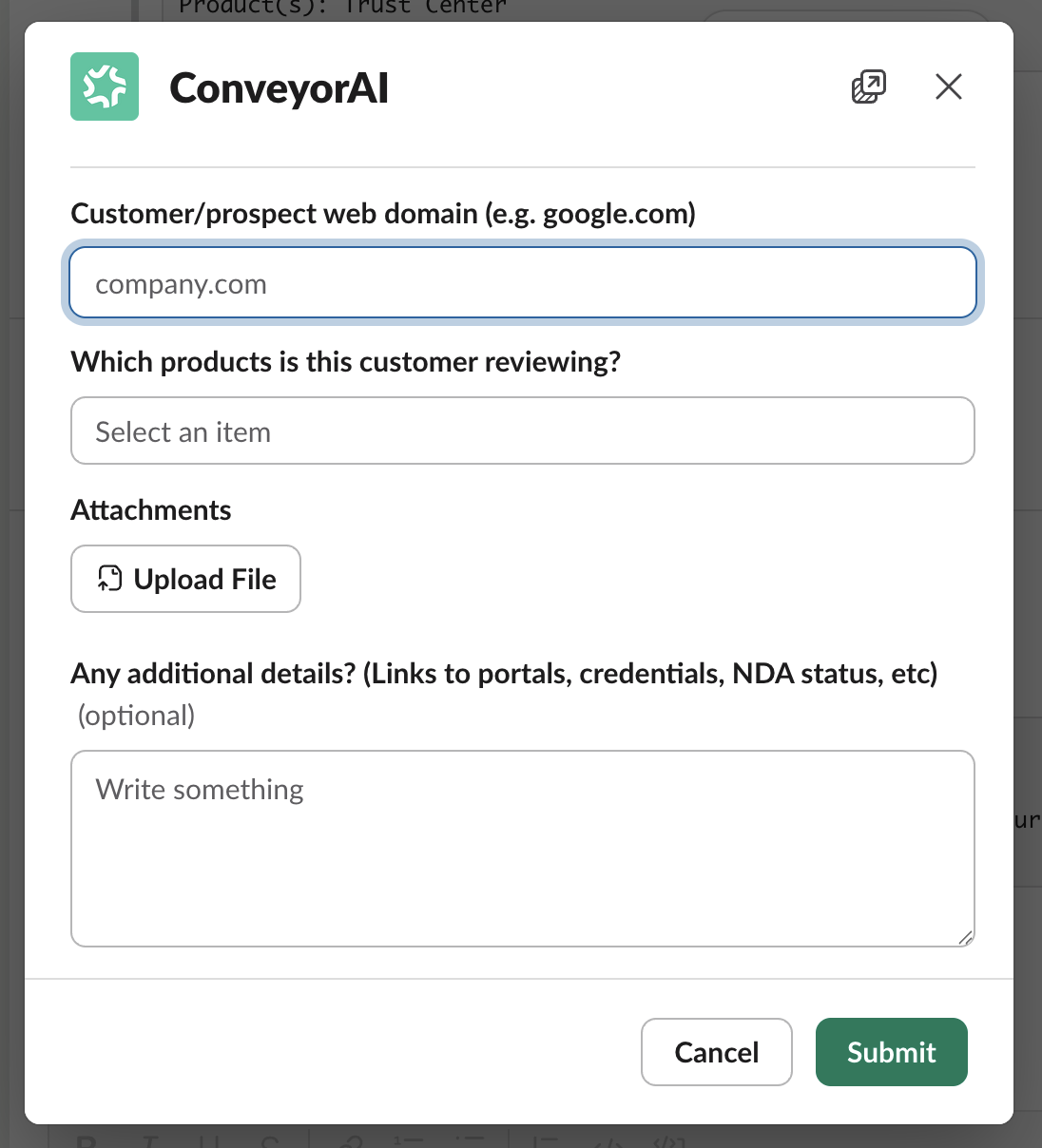
Run /conveyor questionnaire or /conveyor sq to open the intake modal and submit a questionnaire request.
Common Questions
Q: How is this different from the main Triage (Intake) page?
A: This page covers the Slack surface — setting the triage channel and the intake modal. The end-to-end triage workflow (queues, routing, best practices) lives in Triage (Intake) Automation.
Q: /conveyor questionnaire or /conveyor sq isn't opening the modal — why?
A: Both commands require the channel to be subscribed to questionnaire triage. Run /conveyor subscribe questionnaire in the channel first.
What's Next?
- Triage (Intake) Automation — The full triage workflow.
- Triaging requests in Slack — Using Slack as the main triage channel.
- Slack command & notification reference — Every command and notification in one place.
Need help? Visit the Troubleshooting guide or contact [email protected].
Updated 12 days ago