

Adding Q&As via Slack
Time to complete: 10–15 minutes
Prerequisites: The Conveyor Slack integration installed; a Conveyor Admin role; Conveyorbot invited in desired channel
When your team discusses security questions, compliance topics, or product details in Slack, those answers often contain valuable knowledge that belongs in your Knowledge Library. With a single emoji reaction, ConveyorAI extracts curated Q&A pairs from the conversation and adds them directly to your library.
How It Works
🎥 Watch a video overview here! 🎥
- A team member reacts to a Slack message with your configured emoji (e.g. 🧠).
- ConveyorAI reads the full thread and extracts Q&A pairs from the conversation.
- ConveyorAI checks each extracted pair against your existing Knowledge Library for potential conflicts.
- A summary of the extracted Q&A pairs — along with any conflicts — is posted back to Slack.
- You review, edit, and confirm which pairs to save directly from Slack.
Setup
Enable Q&A Extraction from Slack
- Make sure that the Conveyor bot is invited to the channel where you wish to add Knowledge Update capabilities. Use the
/invitecommand to add the bot. - Navigate to Organization Preferences → Auto-Ingest Knowledge.
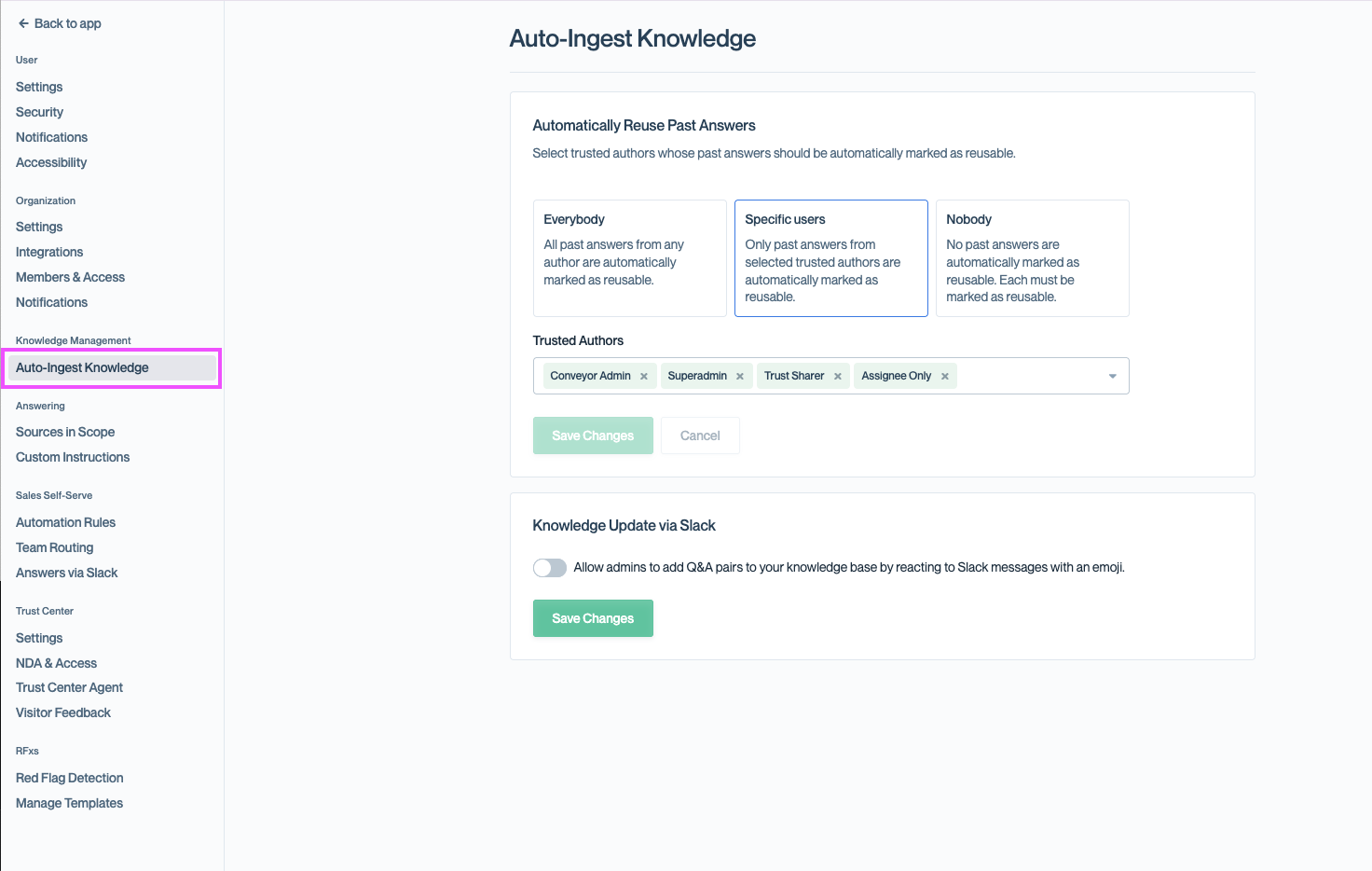
Find the Knowledge Update via Slack settings under Organization Preferences → Auto-Ingest Knowledge.
- Scroll to the Knowledge Update via Slack card and enable the toggle.
- Configure the following settings:
| Setting | Description |
|---|---|
| Update Flow | Choose how the bot responds when an emoji reaction is detected. Reply in Thread — the bot replies directly in the thread where the emoji was reacted. Forward for Review — the bot forwards the message to a designated review channel. |
| Reaction Emoji | The emoji that triggers Q&A extraction. Enter the emoji name without colons (e.g. brain). Only this emoji will activate the feature. 💡 We recommend uploading a custom Slack emoji (e.g. :conveyor-update:) to avoid accidental triggers from common emojis. |
| Allowed Channels | The Slack channels that can trigger Q&A extraction. Click Add Channel and enter the channel ID (preferred) or name (e.g. #general or CXXXXXXXXXX). Reactions in other channels are ignored. |
| Admin Review Channel (Forward for Review only) | The channel where flagged messages are forwarded for admin review instead of the original thread. Only channel IDs are supported (e.g. CXXXXXXXXXX). This should be a private channel — only Conveyor admins should have access. Non-admin users will not see forwarded messages or AI-generated suggestions. |
- Click Save Changes.
Important: Q&A extraction can only be triggered in public channels. Private channels are supported only as a destination channel for routed reviews.
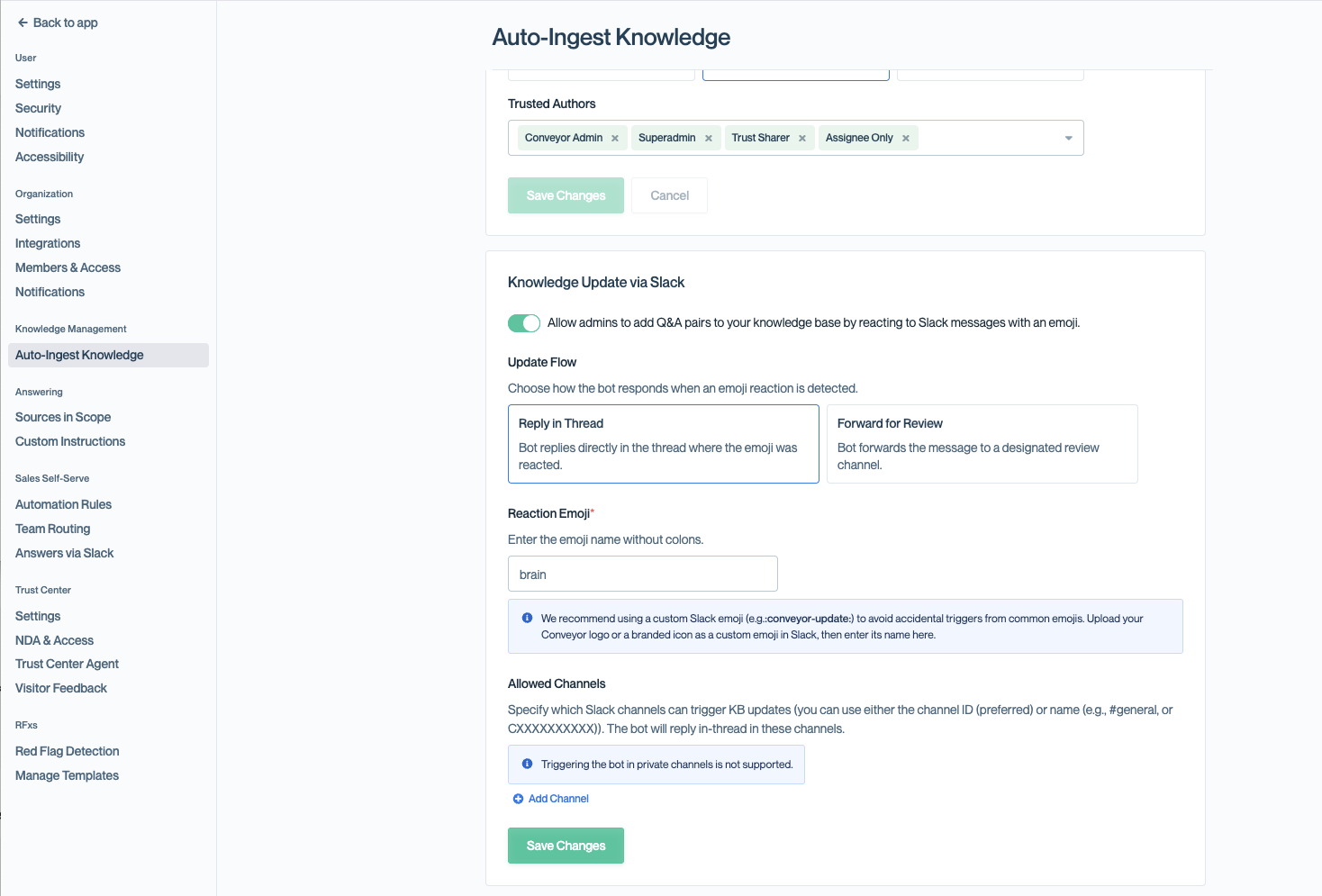
Configure the Update Flow, Reaction Emoji, and Allowed Channels, then click Save Changes.
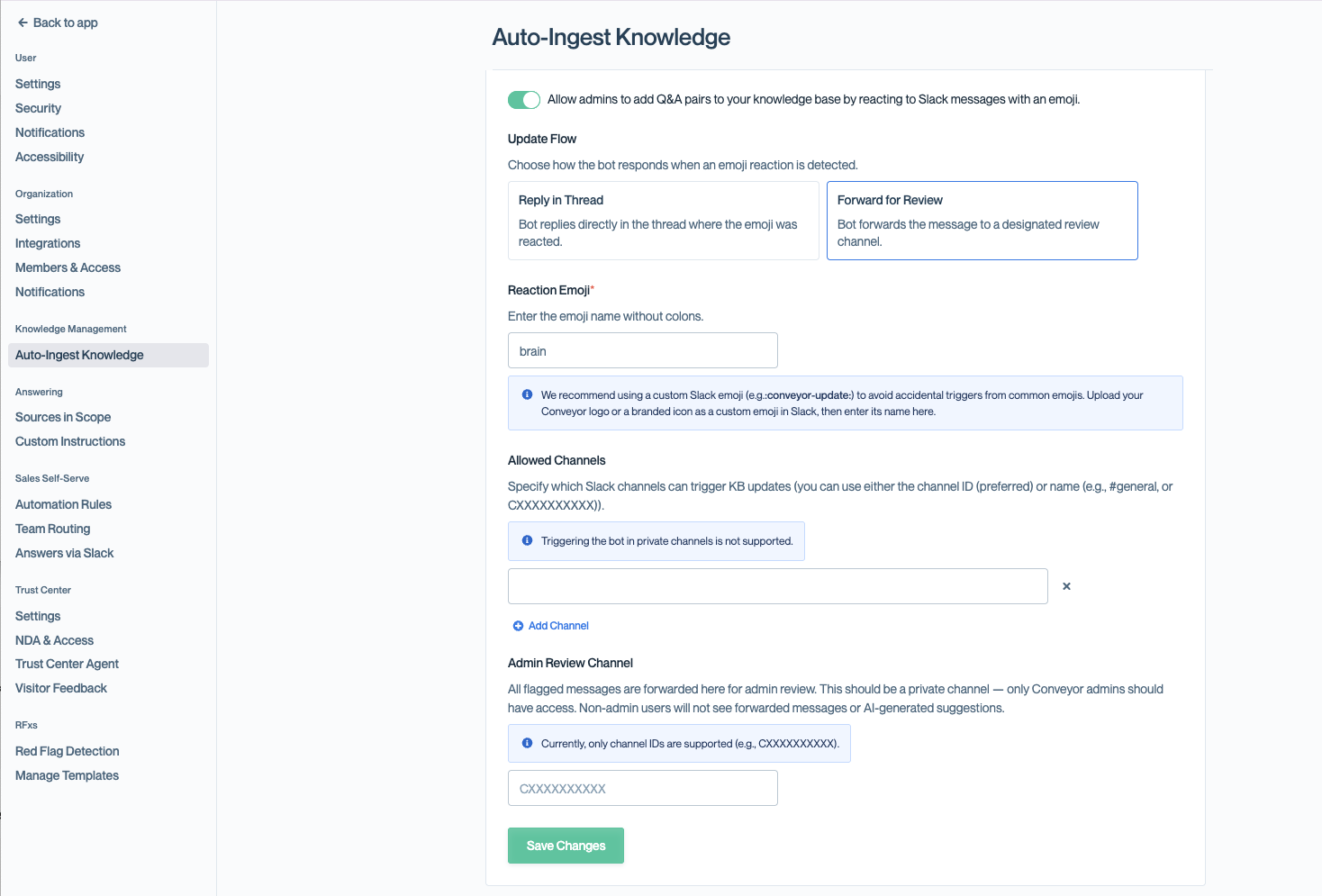
Selecting Forward for Review reveals the Admin Review Channel field, where flagged messages are routed for review.
Updating Knowledge from a Slack thread
To extract Q&A pairs from any Slack thread in an allowed channel, react to any message in that thread with your configured emoji.
ConveyorAI will:
- Post a loading message to let you know it's working.
- Read all messages in the thread.
- Use AI to identify and extract up to 10 distinct Q&A pairs from the conversation.
- Check against your existing Knowledge Library for conflicts.
- Update the Slack thread with a summary of the results.
TipYou only need to react once per thread. Reacting to any message in the thread processes the entire thread. Duplicate reactions on the same thread are automatically ignored.
Reviewing extracted Q&A pairs
Once extraction and conflict detection are complete, ConveyorAI presents the results in one of two formats depending on how many Q&A pairs were found.
Fewer Than 4 Q&A Pairs (Inline Review)
When ConveyorAI finds 3 or fewer Q&A pairs, they are displayed directly in the Slack message:
-
Each Q&A pair is shown with its question and answer text.
-
If conflicts were detected, they appear below the relevant pair with details about the conflicting Knowledge Library entry.
-
Three action options are available:
- Accept All — Save all extracted Q&A pairs to your Knowledge Library as-is.
- Edit Q&As — Open a modal to review, edit, or deselect individual pairs before saving.
- Ignore All (in the
...menu) — Dismiss all extracted pairs without saving.
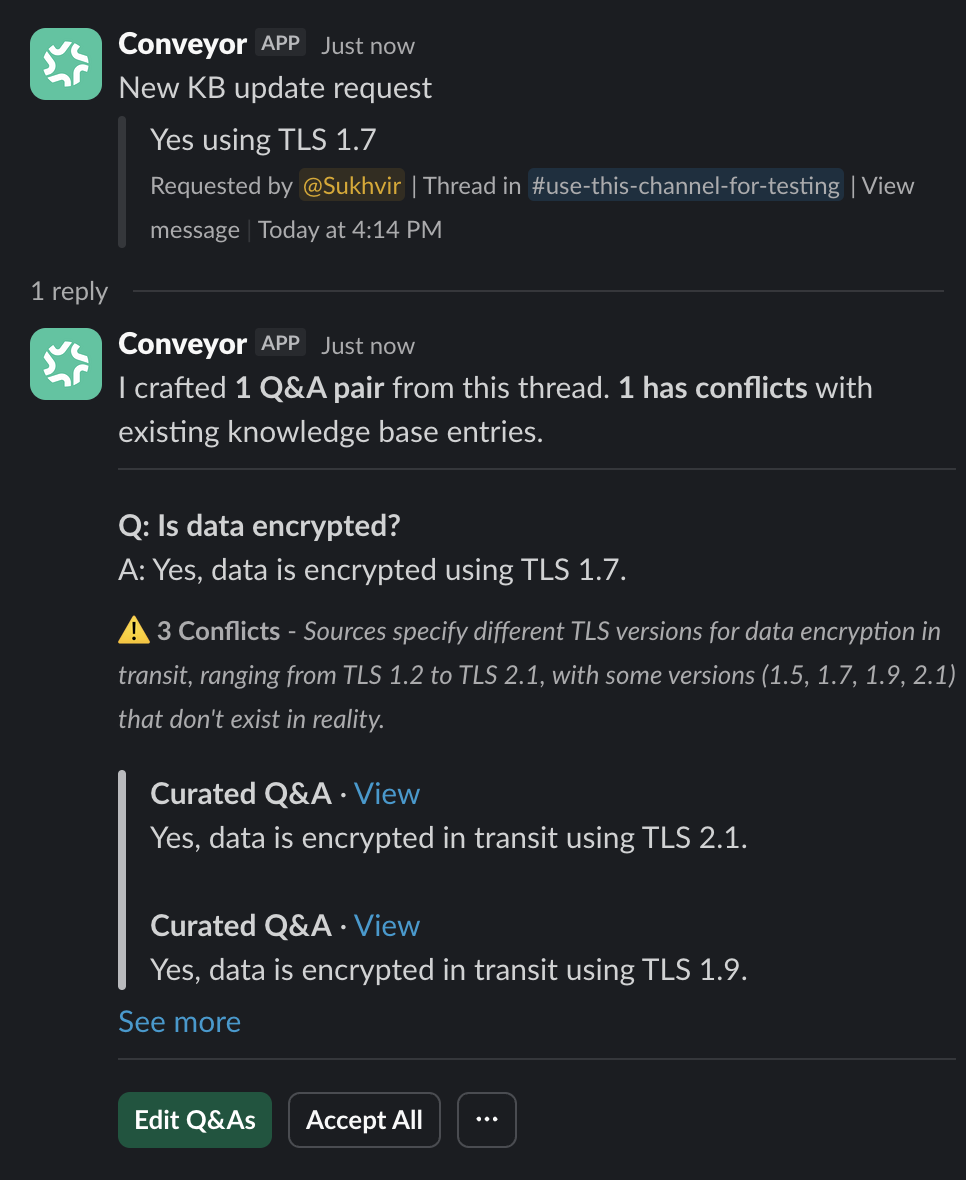
With 3 or fewer pairs, review and accept the extracted Q&As directly in the Slack thread.
4 or More Q&A Pairs (Summary View)
When ConveyorAI finds 4 or more Q&A pairs, a compact summary is shown:
-
The message indicates how many Q&A pairs were extracted and how many have conflicts.
-
Two action options are available:
- Edit Q&As — Open a modal to review all pairs in detail.
- Ignore All (in the
...menu) — Dismiss all extracted pairs without saving.
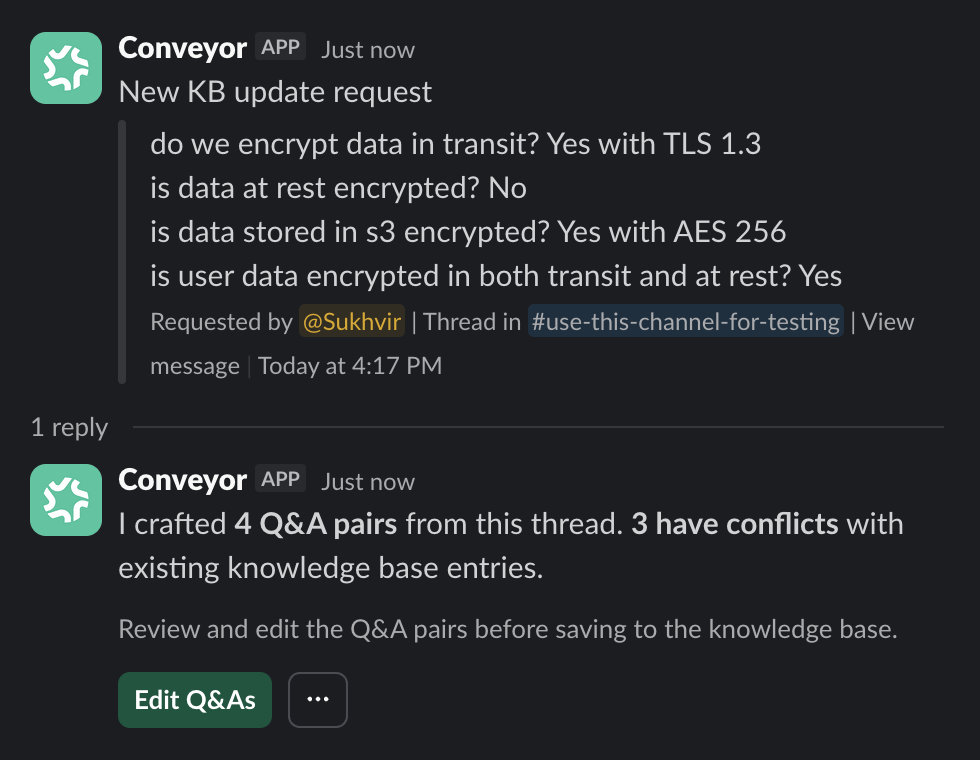
With 4 or more pairs, a summary is posted — click Edit Q&As to review the details.
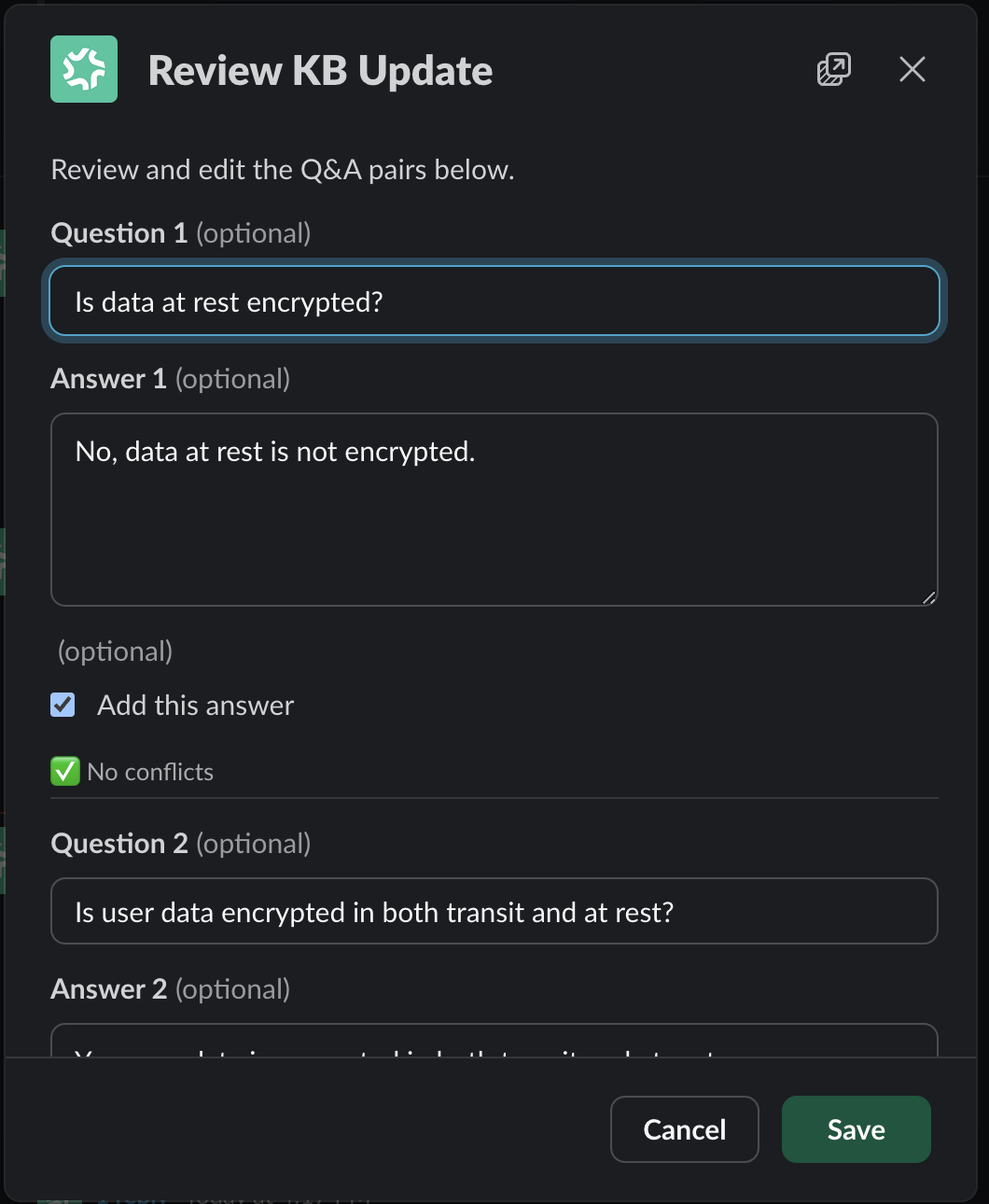
The detail view in a modal window after clicking the Edit Q&As button.
Editing Q&A Pairs in the Modal
Clicking Edit Q&As opens a modal where you can:
- Edit questions and answers — Modify the text of any extracted pair.
- Assign product lines — Tag each pair with one or more product lines (if configured for your organization).
- Select which pairs to save — Use the Add this answer checkbox to include or exclude individual pairs.
- Review conflicts — See conflict details inline for each pair, including the conflicting source and a brief explanation.
- Add new pairs — Empty slots are provided so you can manually add Q&A pairs that ConveyorAI may have missed.
When you're ready, click Save to add the selected pairs to your Knowledge Library.
Conflict Detection
ConveyorAI automatically checks each extracted Q&A pair against your existing Knowledge Library to identify potential conflicts — cases where a new answer might contradict or overlap with existing content.
What Counts as a Conflict
A conflict is flagged when an extracted Q&A pair covers similar subject matter to an existing Knowledge Library entry but provides a different or potentially contradictory answer. ConveyorAI evaluates this using AI analysis of both the new and existing content.
What You'll See
For each Q&A pair with conflicts, ConveyorAI shows:
- The number of conflicts detected.
- A brief explanation of why each conflict was flagged.
- The source of the conflicting content (e.g., a curated Q&A, past answer, or document) along with a text excerpt and a link to view the original entry.
What to Do About Conflicts
Conflicts are informational — they don't prevent you from saving a Q&A pair. Use them to:
- Identify outdated entries in your Knowledge Library that need updating.
- Decide whether the new Q&A pair should replace, supplement, or be discarded in favor of existing content.
- Keep your Knowledge Library consistent and free of contradictions.
Ignoring Extracted Q&A Pairs
If the extracted Q&A pairs aren't useful, select Ignore All from the ... overflow menu. This dismisses the extraction without saving anything to your Knowledge Library.
After ignoring:
- The Q&A pairs remain visible in the message for reference.
- For summary views (4+ pairs), a View Q&As button lets you open the pairs in a read-only modal.
- The Accept All, Edit Q&As, and Save options are disabled — no pairs can be saved from a dismissed session.
After Saving
Once Q&A pairs are saved, the Slack message updates to confirm what was added. For each saved pair, you'll see:
- The question title.
- A snippet of the answer.
- A View in library link that takes you directly to the entry in your Knowledge Library within Conveyor.
Permissions
Who Can Trigger Q&A Extraction
- Reply in Thread (no review channel configured): Only users with a Conveyor Admin role or higher can trigger extraction by reacting with the configured emoji.
- Forward for Review (review channel configured): Any Slack user can react with the emoji to trigger extraction. If the user does not have a Conveyor account, the organization's fallback user is used.
Who Can Review and Save Q&A Pairs
Only users with a Conveyor Admin role or higher can interact with the review buttons (Accept All, Edit Q&As, Ignore All) and save Q&A pairs via the modal.
Common Questions
Can I use this feature with private channels?
Q&A extraction can only be triggered in public channels that are included in your Allowed Channels list. However, with the Forward for Review update flow you can configure a private channel as the review channel using the channel ID — extracted Q&A pairs will be routed there for review. To do this, make sure the Conveyor bot has been invited to the private channel using the /invite command.
I just added new knowledge, but conflict detection isn't picking it up. Why?
Newly added Knowledge Library content takes some time to be indexed. It may not surface in conflict detection right away. If you're not seeing expected conflicts, wait a bit and try again.
I triggered Q&A extraction, but now I need to re-trigger it in the same thread. Why isn't it working?
Q&A extraction cannot be re-triggered on the same thread once it has already run. This prevents duplicate processing. To extract Q&A pairs from similar content, start a new thread and trigger extraction there.
Can I set up separate emoji reactions for different Slack features?
Q&A extraction uses its own dedicated emoji configured in your Organization Preferences. This emoji is separate from other Conveyor Slack features (such as @Conveyor mentions for one-off questions). However, you cannot configure multiple emojis for different extraction behaviors.
Do you offer limited permissions for users who only need emoji-based features?
No. There are no separate permission roles for emoji-only features at this time. Users who trigger or review extracted Q&A pairs must have a Conveyor Admin role or higher. If you need to limit who can review results, consider using the Forward for Review update flow with a dedicated review channel.
What's Next?
- Adding Q&As — add curated Q&A pairs directly in Conveyor
- Managing individual Q&As — edit, verify, and maintain your saved pairs
- Slack Overview — everything the Conveyor Slack integration can do
Need help? Visit the Troubleshooting guide or contact [email protected].
Updated 3 months ago