

🤖 Agentic Answer Engine
ConveyorAI's new-and-improved answer generation pipeline
Time to complete: 2–5 minutes
Prerequisites: Admin access to Conveyor settings
Overview
The Agentic answer engine is ConveyorAI's upgraded way of answering security questionnaires, RFPs, and one-off questions. It plans before it answers, follows your instructions closely, and shows you exactly why it answered the way it did — so your team can spend less time reviewing and editing.
What's Better with the Agentic Answer Engine
ConveyorAI's ability to provide accurate, customer-ready answers helps you shorten SLAs, close deals faster, and win over your customers. And now, ConveyorAI is even better:
- More accurate product-specific answers. It tells your products apart and answers for the one the question is about, even when your knowledge base covers several.
- Answers that follow your instructions. Custom instructions can change how questions are answered — which sources to rely on, what to include, how to structure the answer — not just adjust the tone after the fact.
- Plans before it answers. For questionnaires and RFPs, the agent reviews the whole document first. It answers related questions together, avoids repeating itself, and picks up instructions scattered through the questionnaire.
- Uses more of the right context. It draws on RFP Background Materials, custom instructions, and whole source documents when a question calls for it (for example, "Summarize our security posture").
- Smarter at finding information. It searches your knowledge base more thoroughly to find the right Q&A pair, document, or external source.
- Easier to review. Citations are attached line by line, and the Timeline tab shows why it answered the way it did, what instructions it followed, the sources it cited, and the search terms it used.
- Fewer false flags. Reviewers can focus on the answers that actually need attention.
- Won't guess on what it can't know. Details like signatures, attestations, and deal-specific details (names, budgets, timelines) are left for your team to fill in instead of being copied from an old answer that may be out of date.
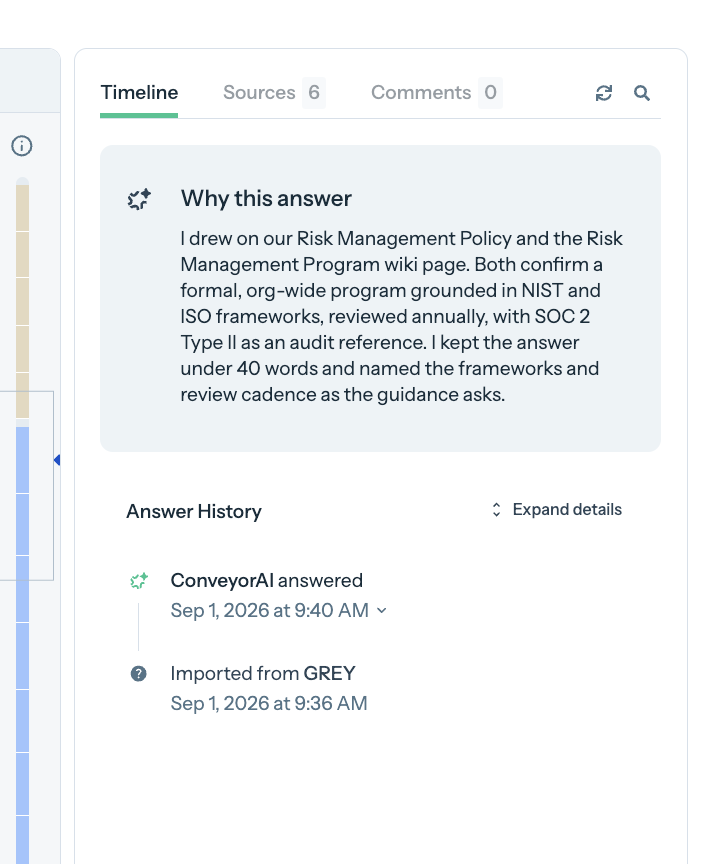
The "Timeline" tab will now show "Why this answer." You can expand the details to see the full trace of how the agent found and wrote this answer.
Check or Change Your Answering Engine
You can set the answering engine separately for each type of question.
- Go to Settings → Pipeline and Instructions.
- For each type — Security questionnaires, RFPs, and One-off questions — choose Agentic or Legacy.
- Click Save Changes.
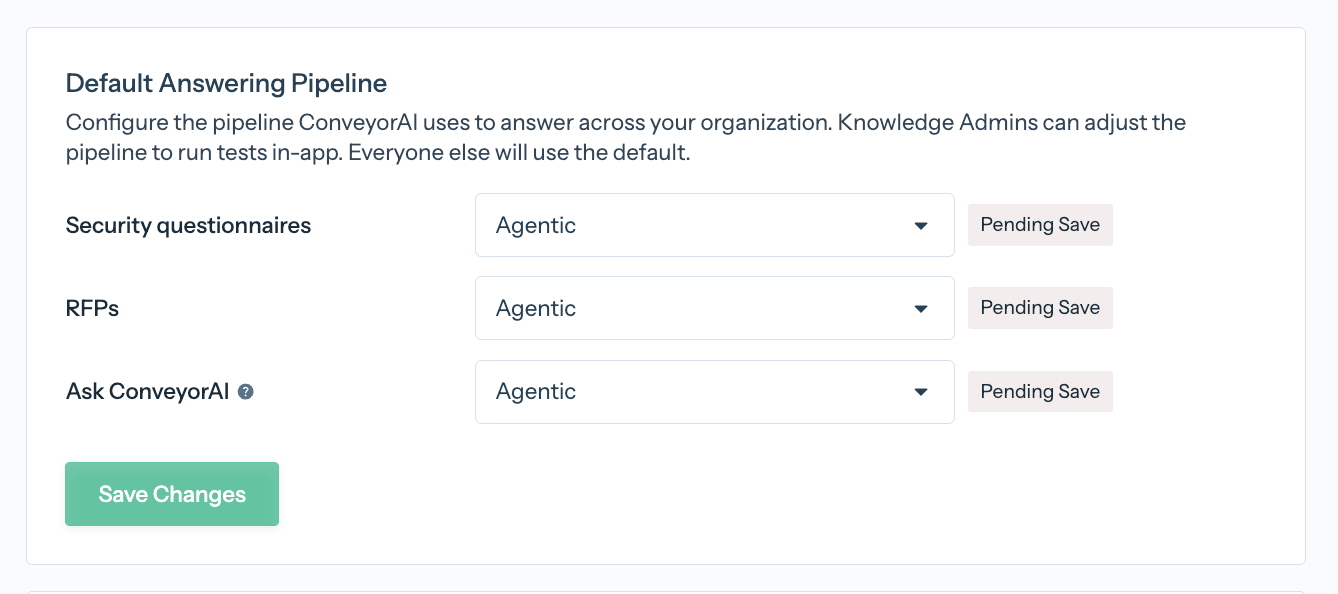
Your one-off question setting applies wherever one-offs are asked: in the web app, in Slack, in the browser extension, using our API, and using our MCP Connector.
Answers look different than you'd like?Agentic answers may read differently than our Legacy answers, but the agent is much more responsive to instructions on how to answer. You can set your preferred length and structure using custom instructions — for example, "Answer Yes or No first, then one or two sentences."
Compare Agentic and Legacy Answers
Want to see the difference for yourself? You can run the same question or questionnaire through each answering engine and compare the results. There are two ways to do it:
- One question at a time in cmd+k (Mac) / ctrl+k (Windows) — see Legacy and Agentic answers side by side in seconds.
- A full questionnaire as a test — see how each engine handles a whole document, without using a credit.
Who can do this: Knowledge Admins, Questionnaire Admins, and Superadmins.
Compare a Single Question in cmd+k / ctrl+k
- Press cmd+k (Mac) or ctrl+k (Windows) to open ConveyorAI, and make sure Ask ConveyorAI is selected.
- Type your question — ideally one your team answers often, or one you've had to edit before.
- Click the pipeline settings button next to Products. It shows your current settings, for example Agentic, Live sources.
- Under Pipeline settings, choose Compare all to run both engines at once. To run just one, choose Legacy or Agentic.
- Optionally, change Sources to test with a different set of sources. Click Reset to go back to your defaults.
- Submit your question.
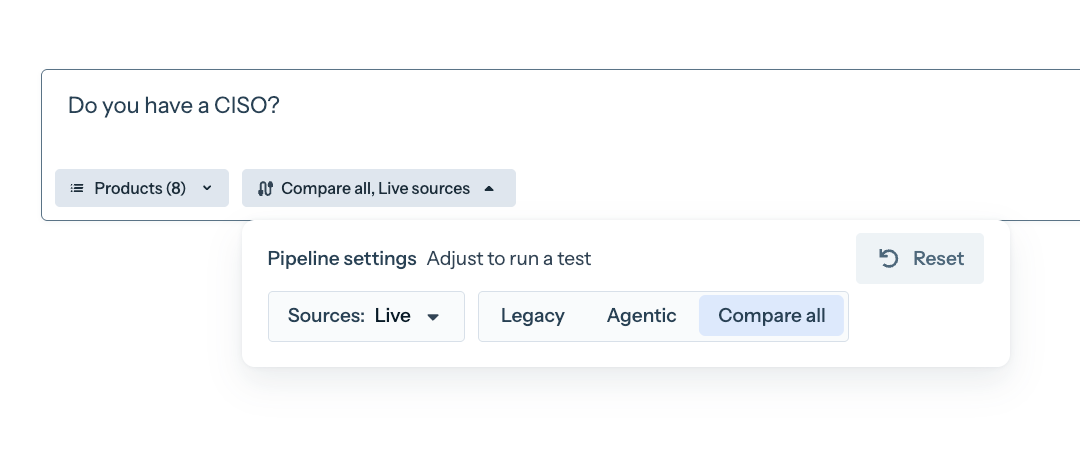
Choose Compare all under Pipeline settings to run both engines on the same question.
Legacy and Agentic answers appear side by side, each with how long it took, its answer status and the sources used.
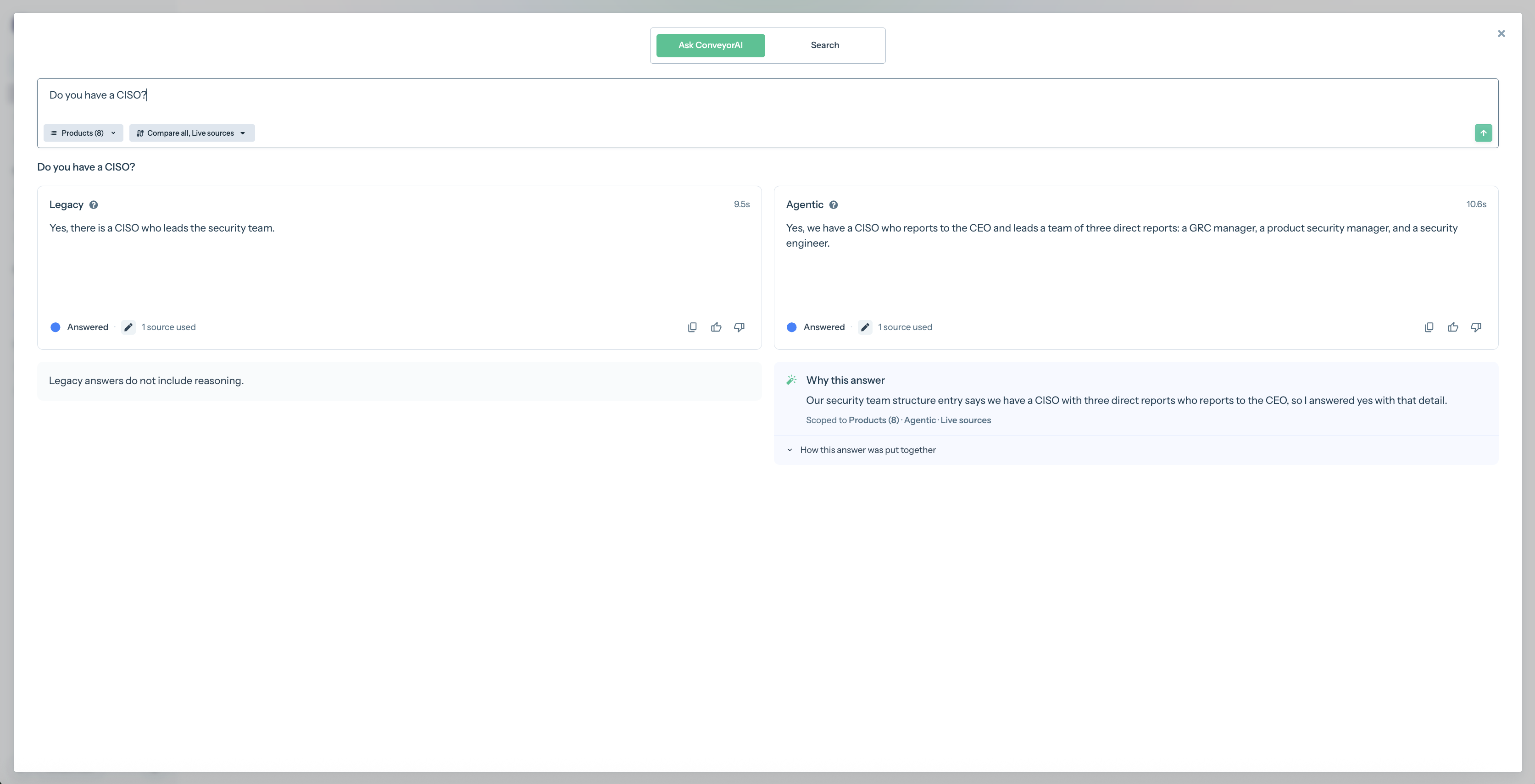
Legacy and Agentic answers appear side by side so you can compare detail and sources.
Under the Agentic answer, Why this answer explains its reasoning and shows the settings it used (products, engine, sources). Expand How this answer was put together to see each step: the searches it ran, what it found, and how it drafted the answer. Legacy answers don't include reasoning.
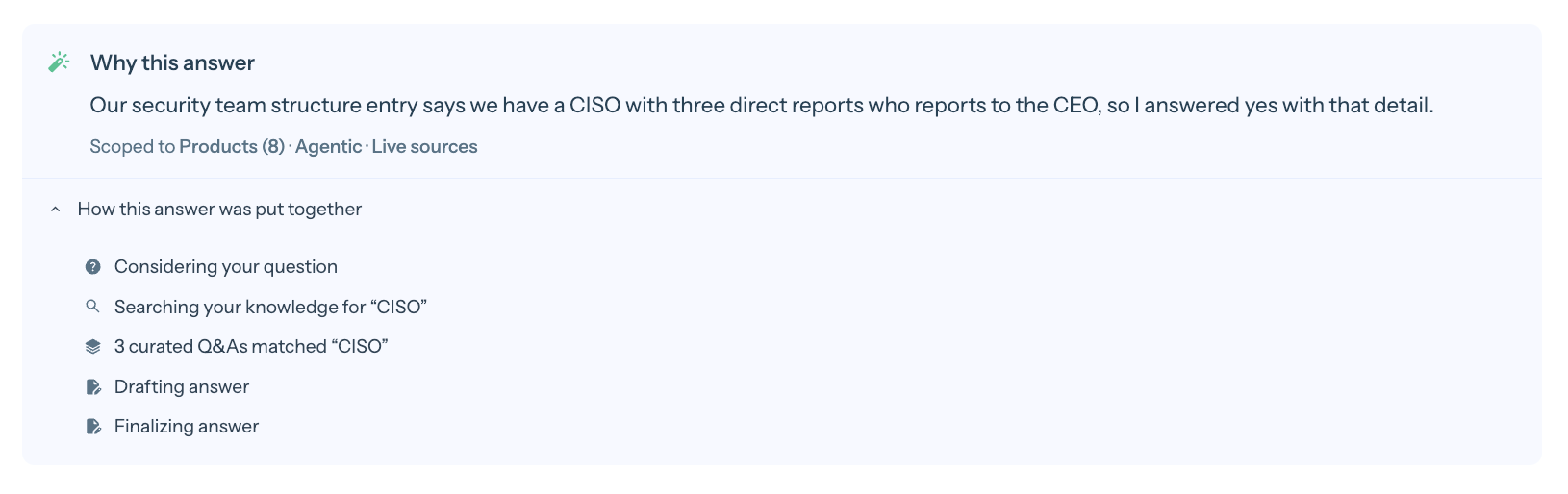
Agentic answers explain their reasoning and show each step they took.
Test a Full Questionnaire
Some of the Agentic answer engine's biggest improvements — planning across the whole questionnaire, answering related questions together, and using context from elsewhere in the document — only show up on full questionnaires. Running a test lets you see them without using a credit.
- Click Add Questionnaire.
- Turn on Run a test.
- Choose Legacy or Agentic, and choose which Sources to use.
- Fill in the rest of the questionnaire details and upload it as usual.
- To compare, upload the same questionnaire again as a second test, using the other engine.
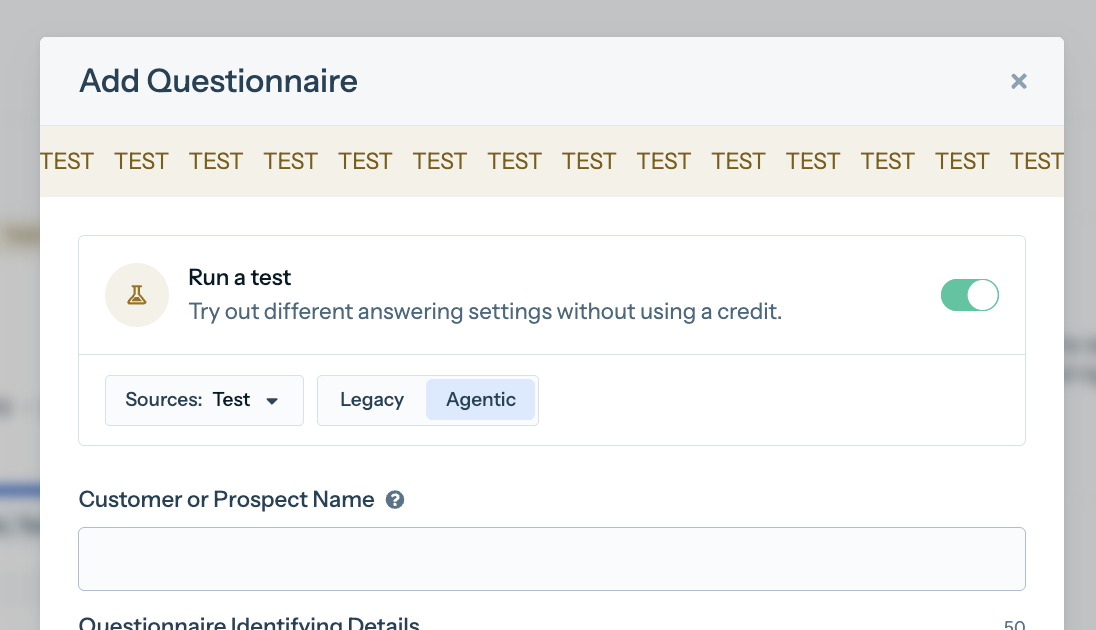
Turn on Run a test to choose the engine and sources without using a credit.
Test questionnaires are marked with a TEST banner and label. A tag on the questionnaire card shows which settings it used, for example Test: Agentic, Test sources.
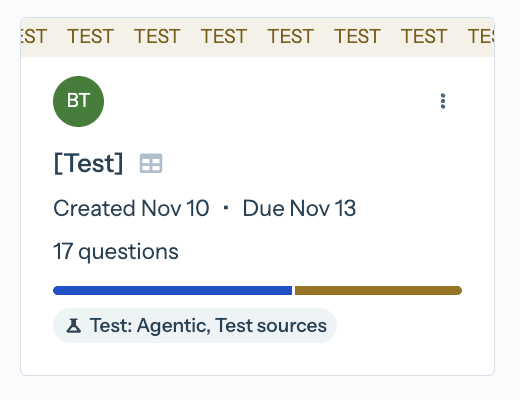
The tag on a test questionnaire shows which engine and sources it used.
Tips for a Useful Comparison
- Pick questions that matter. Product-specific questions, ones your team often edits, and ones with nuance (exceptions, "only at hire", scoped requirements) show the biggest difference.
- Look past the wording. Check the citations and the reasoning, not just which answer reads better.
- Test a recent real questionnaire. It's the best preview of how your next one will go.
Common Questions
Q: Can I switch back to Legacy?
A: Yes. You can switch any question type back to Legacy in Settings at any time up until our official sunset date of January 9, 2027. Please note that Legacy is no longer being improved, and new capabilities will only be built on the Agentic answer engine.
Q: Do tests use a credit?
A: No. Test questionnaires don't use a credit.
Q: Why can't I see the pipeline settings?
A: You need to be a Knowledge Admin or Questionnaire Admin to run tests and compare engines.
Q: Why are some questions left unanswered?
A: The Agentic answer engine won't guess when it can't find a solid source. You'll most often see this on signatures, attestations, and deal-specific details, where reusing an old answer would likely be wrong. If an unanswered question points to a real gap, add the information to your knowledge base so it can be answered next time.
Q: Which sources does it use?
A: The agent uses the same sources as the legacy pipeline – your curated Q&As, past answers, documents, and approved external sources.
Q: How can I tell how a question was answered?
A: You can open the Timeline tab on any answer to see why it was answered that way, the sources it cited, and the search terms it used.
Q: Does this change how my data is processed?
A: No, there are no changes to data processing from the legacy pipeline.
Q: Is there an extra cost?
A: No. The Agentic answer engine is included in your current subscription.
What's Next?
Adjusting tone and verbosity — use custom instructions to shape how answers are written
Topic preferences — prioritize sources or flag answers for specific topics
Review and edit answers — approve, edit, and flag AI-generated answers
Best practices for your knowledge base — keep your sources accurate and up to date
Need help? Visit the Troubleshooting guide or contact [email protected].
Updated 13 days ago