

Enabling the Trust Center Agent
Time to complete: 5–10 minutes
Prerequisites: You must be an Organization Owner or Admin with access to the Trust Center Designer.
Overview
Conveyor's Trust Center Agent uses AI to help verified visitors self-serve faster by surfacing relevant documents and answering questions. This page walks through how to enable the Agent in your Trust Center, configure its capabilities and messaging, and customize its branding.
Enable the Agent in Designer
- Open Trust Center Designer.
- Navigate to Designer → ConveyorAI Configuration.
- Switch on Enable ConveyorAI Trust Center Agent.
- Choose which capabilities you want the agent to include:
- Document searching and retrieval and one-off questions
- Questionnaire and bulk question answering
Note Agent capabilities and disclaimer text configurations can also be managed from Settings → Trust Center Agent, accessible via your profile menu in the top-left corner of the application.
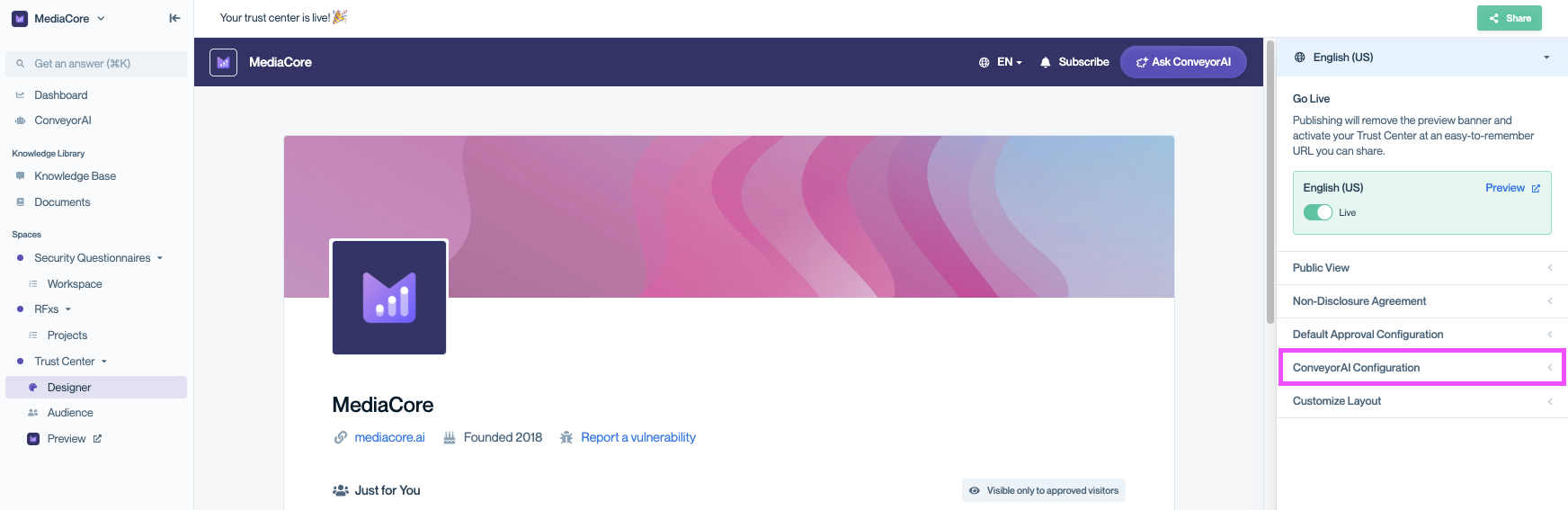
Collapsed view of the ConveyorAI Configuration section before expanding to manage agent settings.
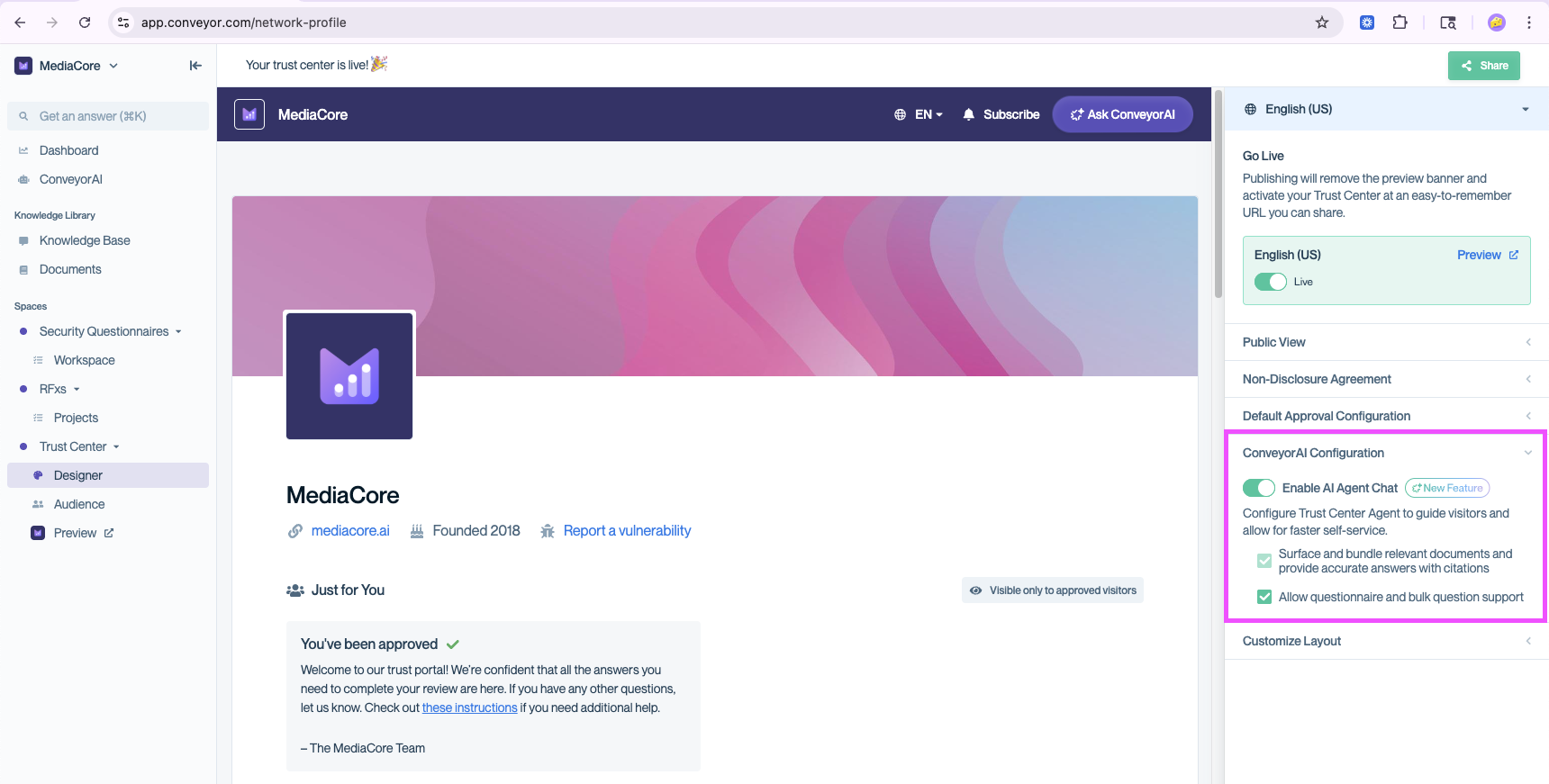
Shows where to turn on the Trust Center AI Agent and enable capabilities including questionnaires support.
Customize the Agent Top Bar Color
The Agent uses a new organization setting — Primary Color — to style its top bar. If no color is set, the top bar will default to 50% of your organization's selected accent color.
To update your primary color:
- Go to Organization Preferences → Brand Settings.
- Under Primary Color, enter a hex value or choose a color.
- Click Save.
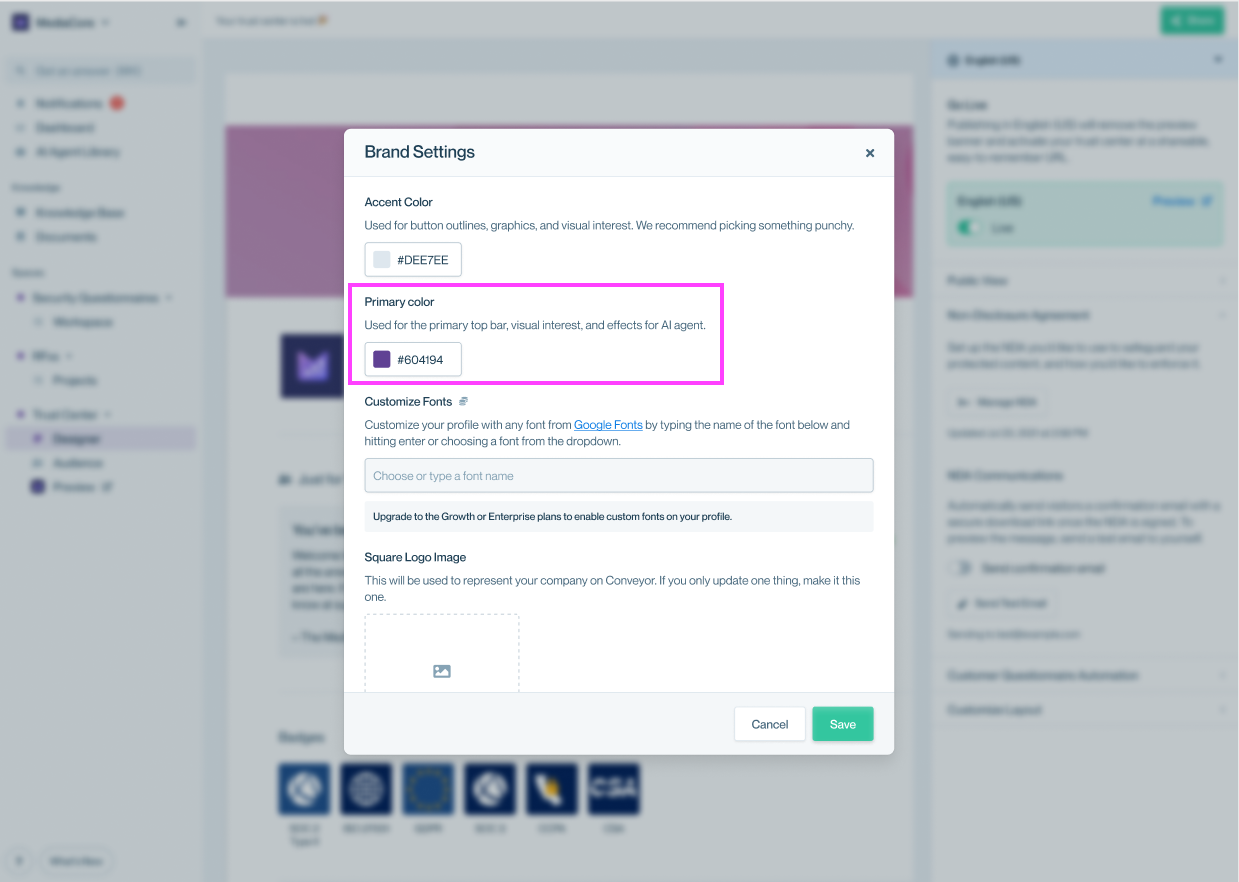
This shows where you set your Trust Center's primary color used for the primary top bar and effects for the Agent.
Customize Agent Configurations
Admins can customize the Agent's messaging and response behavior directly from the Trust Center Agent settings page. To configure these options:
- Click your organization name in the top-left corner of the application and select Settings.
- In the left sidebar under Trust Center, select Trust Center Agent.
- Review the Agent Configurations section.
- Update any of the following settings:
| Setting | Description | Default |
|---|---|---|
| AI Disclaimer Text | Appears at the bottom of the Agent Chat window. | "ConveyorAI can make mistakes. Check important information." |
| File Disclaimer Text | Appears in the header of ConveyorAI returned questionnaire .csv files. | "Answered by ConveyorAI" |
| Fallback Text | Appears in ConveyorAI returned questionnaire .csv files when the AI cannot answer a question. | "Reach out to [Your Company] Support for help." |
| Verbosity | Controls how detailed the Agent's responses are for both individual questions and questionnaires. Choose Minimal, Standard, or Detailed. | "Standard" |
- Click Save Changes to apply your updates, or Reset to revert to defaults.
These settings let you tailor the Agent's messaging and response style to match your organization's tone and support processes — for example, directing unanswered questions to your specific support channel, adjusting the AI disclaimer for your audience, or tuning how concise or detailed the Agent's answers should be.
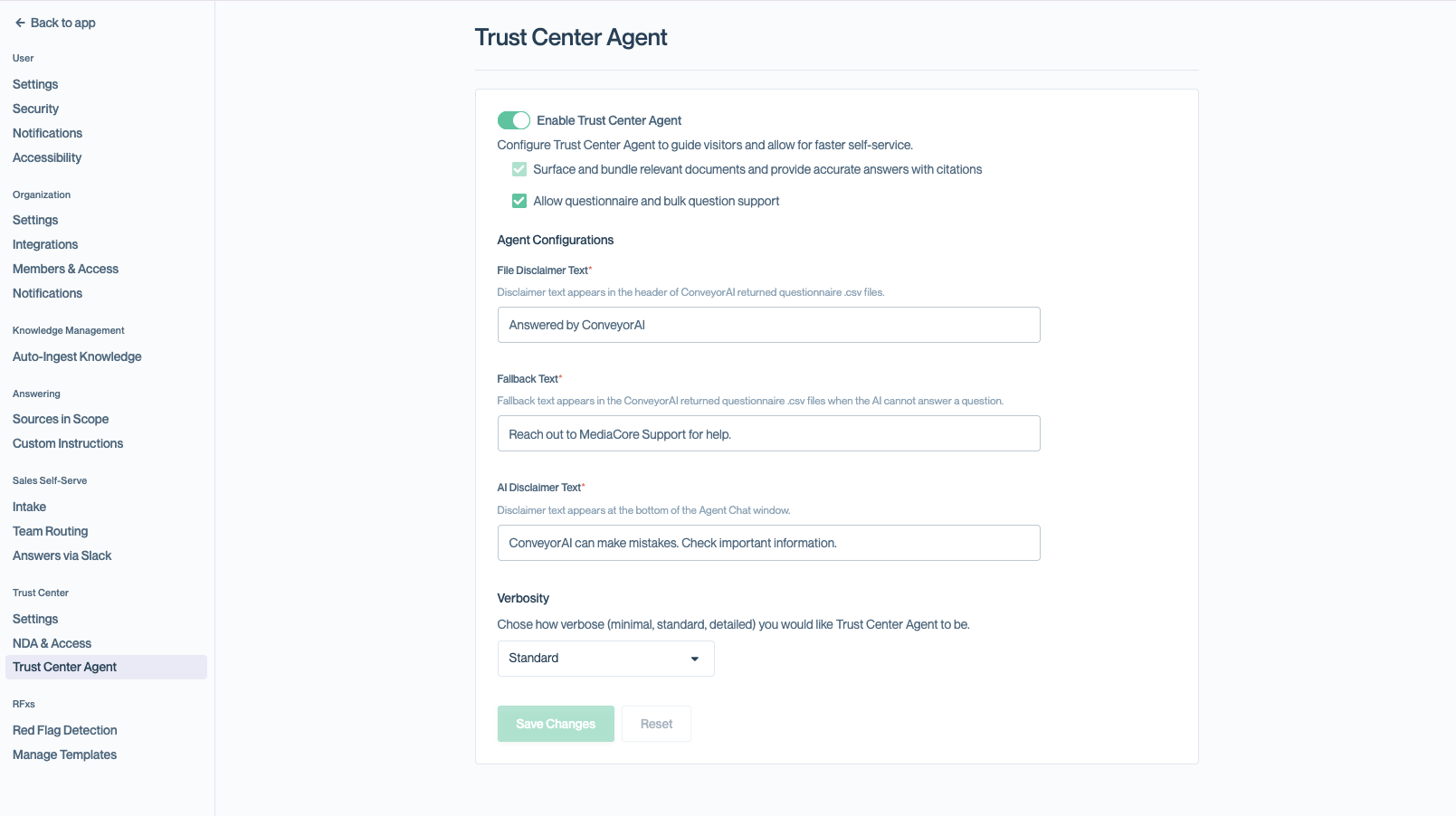
Trust Center Agent settings area
Test the Experience
Once the Agent is enabled:
- Utilize the Trust Center Preview in Designer by navigating to Preview in the left side navigation.
- Choose an authenticated permission type and click on the ConveyorAI button in the header to open the agent and test interactions.
- Validate that permissions and visibility are working as expected.
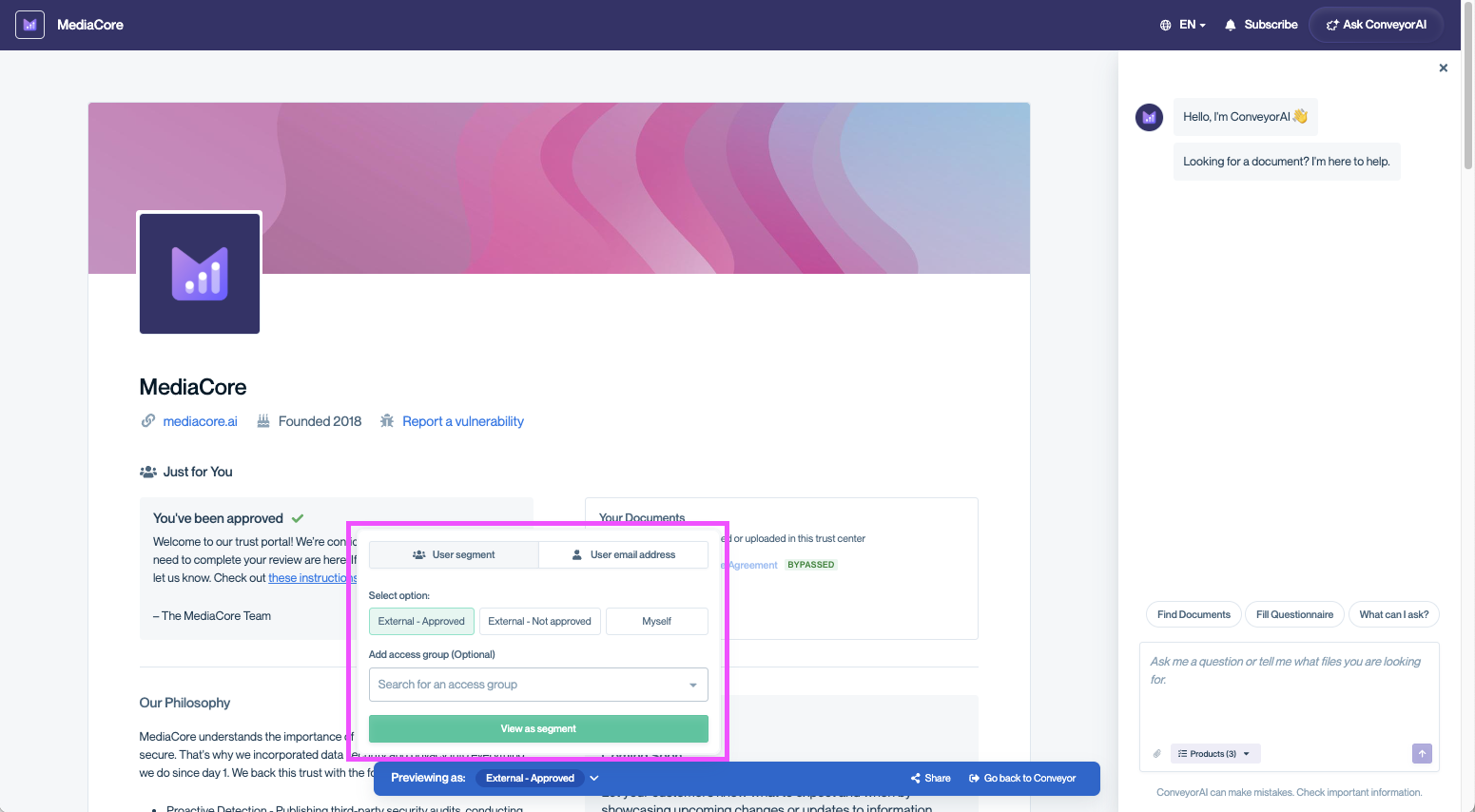
Use preview mode to test what the Trust Center Agent will show for different visitor types — by selecting a user segment, choosing an access group, or entering a specific user.
Note when testing questionnaire capabilities in preview mode, testing is only available if you preview as "myself". All other agent capabilities can be tested as any permission type.
Common Questions
What happens if no primary color is set?
The top bar will default to 50% of your organization's selected accent color.
What happens if I want to use the agent but I have no gated Trust Center content?
Your Trust Center will be displayed with the new top bar experience (including the "Request Access" button, which cannot be disabled at this time). Customers can still access all of your content with no change and without requesting access; however, they will need to request access to your Trust Center to engage with the Agent.
How does Verbosity affect the Agent's answers?
Verbosity applies to both individual chat questions and questionnaire responses:
- Minimal — only the bare minimum information needed to answer the question.
- Standard — not brief, but also not overly detailed. This is the default.
- Detailed — as many relevant details as ConveyorAI has access to.
What's Next?
- Managing Connections — control who can access and interact with your Trust Center Agent.
- Maintaining Your Trust Center — keep your content fresh so the Agent surfaces the right documents.
Need help? Visit the Troubleshooting guide or contact [email protected].
Updated 6 months ago