

Connecting Your AI Client
Time to complete: 2–5 minutes
Prerequisites: A Conveyor account. For API token authentication, a Conveyor API token.
Overview
This page walks through connecting your AI client to the Conveyor AI Connector. Pick the option that matches your client: OAuth for Claude, ChatGPT, and other modern MCP clients; API token for Bearer-capable clients; or JSON configuration for clients like Cursor and Claude Code.
Every option points at the same server URL:
https://mcp.conveyor.com/mcp
Enterprise accountsSome AI providers (ChatGPT Business, Claude Enterprise, etc.) require an organization admin to register custom connectors before individual users can use them. If Conveyor doesn't appear in your connector list after following these steps, ask your IT admin to add it once for the whole organization.
Option 1 — OAuth (Claude, ChatGPT, Any Modern MCP Client)
For OAuth-capable clients, add the server URL as a custom connector or app. The client handles the rest of the flow — you'll log in to Conveyor in the browser and pick which organization to authorize.
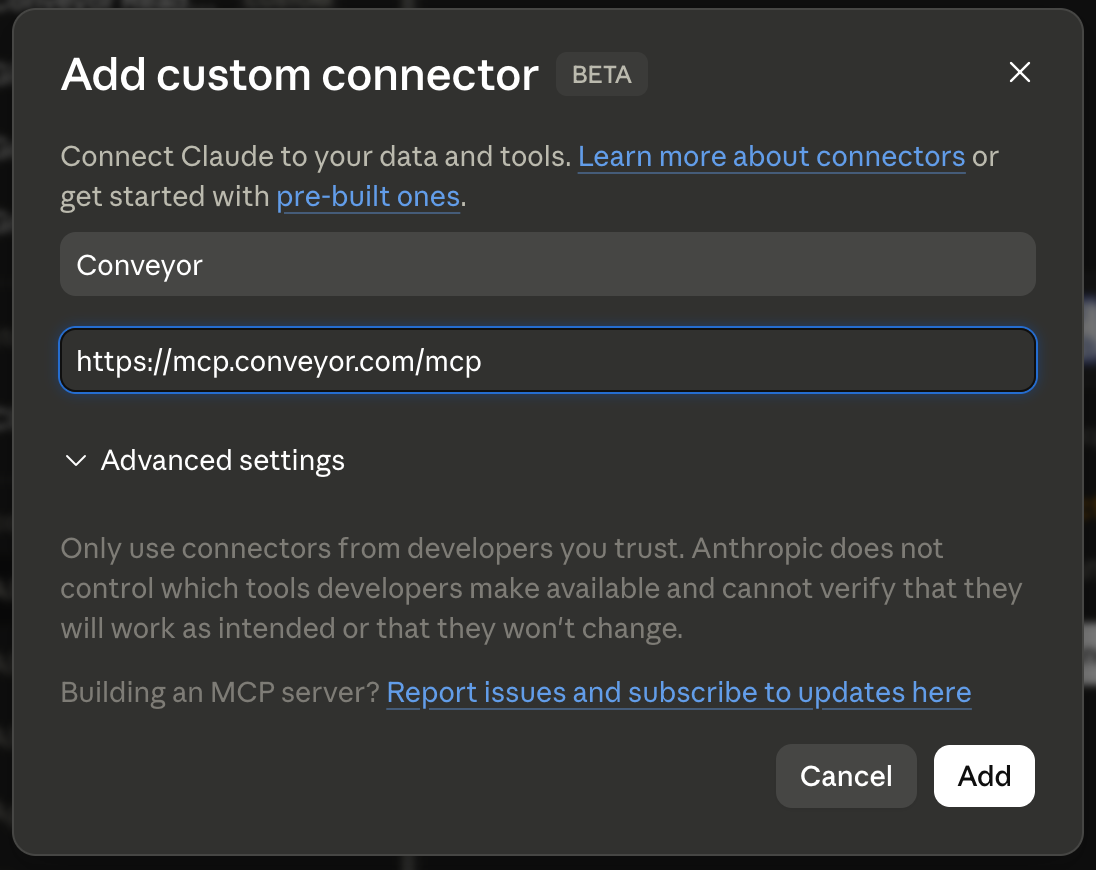
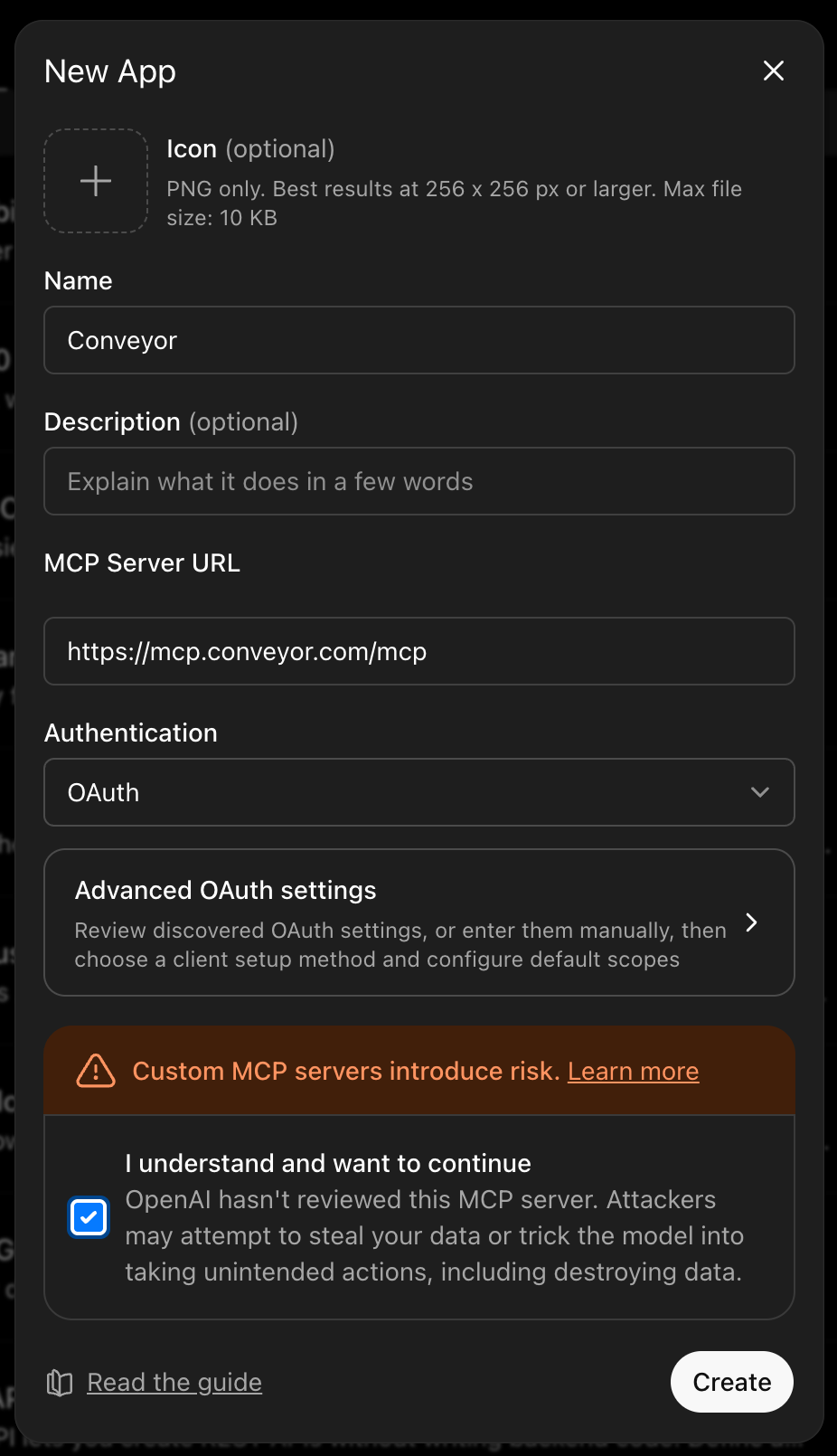
Once the connector is registered, connect from inside your client:
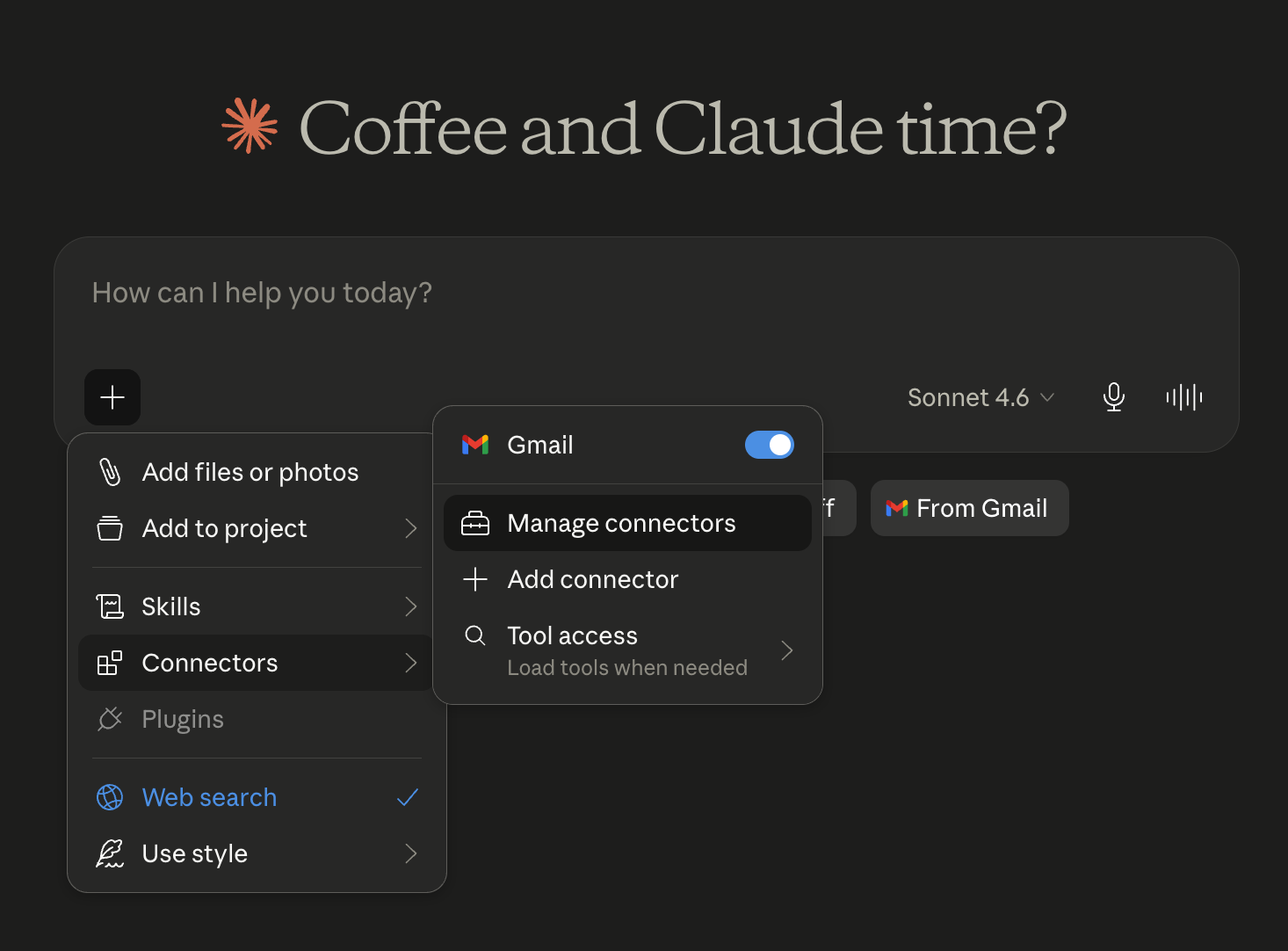
Connect in Claude
- Select the + icon → Manage connectors.
- Select the Conveyor connector and click Connect. Since it's a custom connector, it appears under whatever name your admin gave it when registering it.
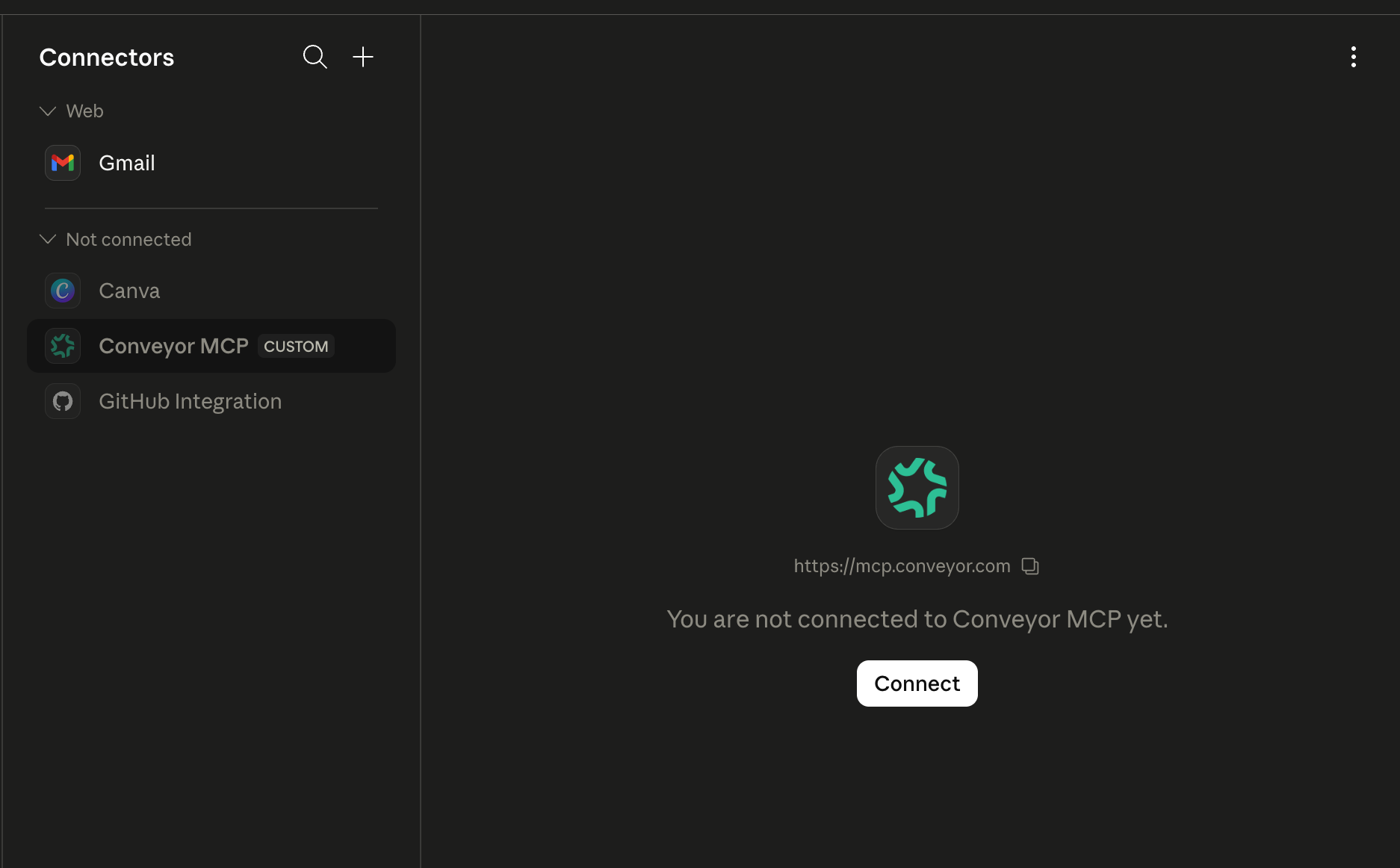
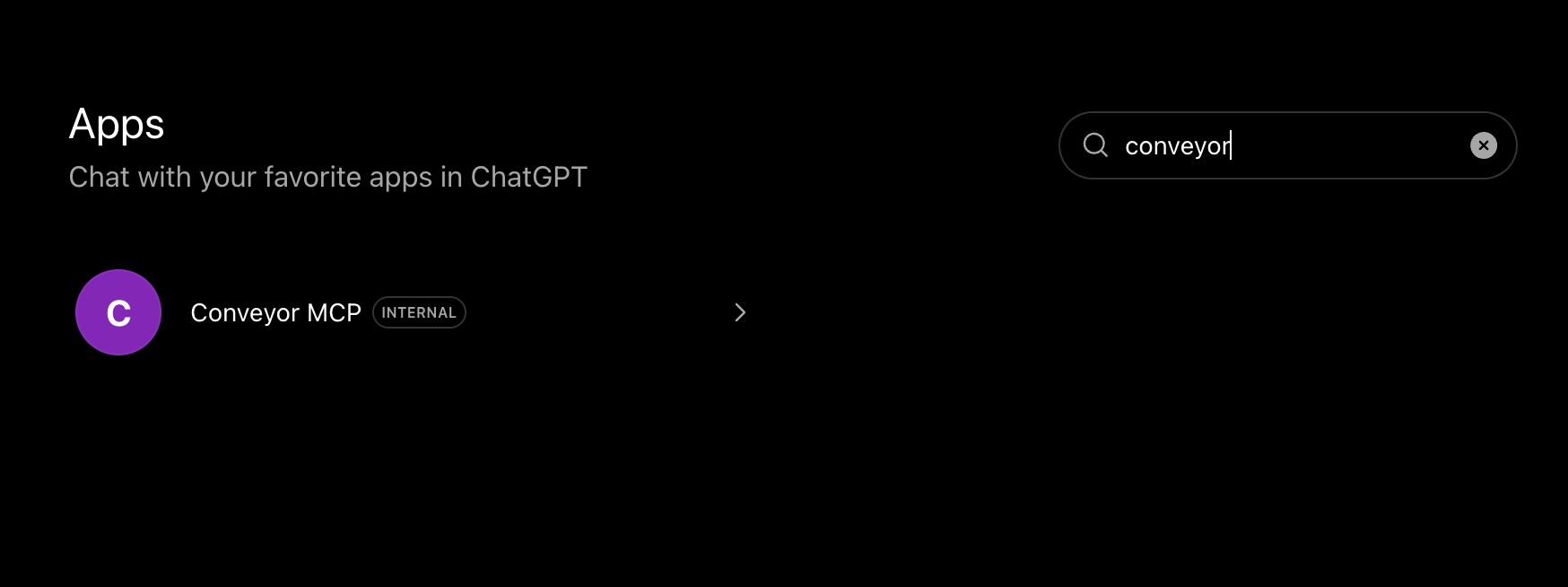
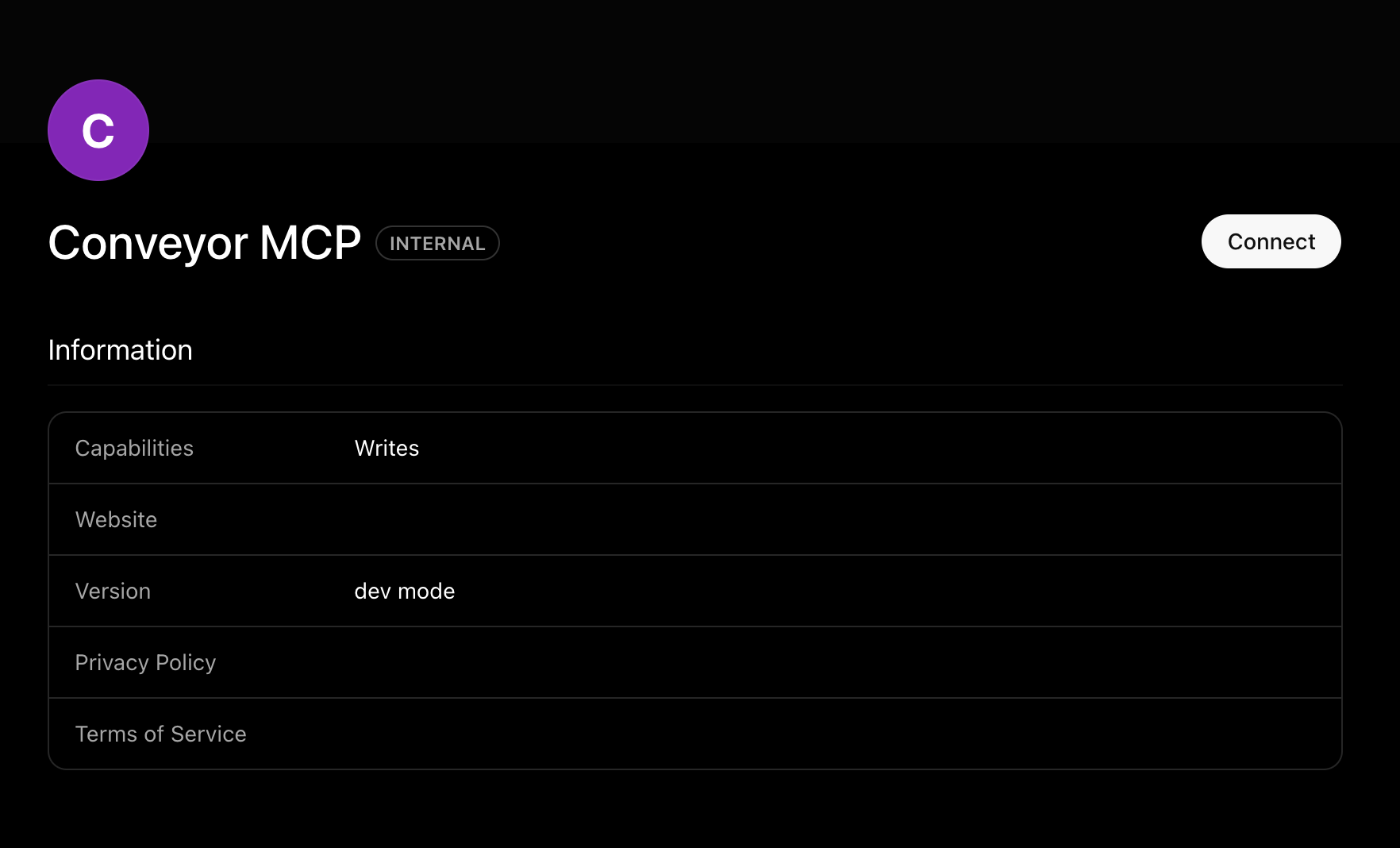
Connect in ChatGPT Business
- Search for Conveyor in the app list.
- Select Connect.
Option 2 — API Token (Bearer-Capable Clients)
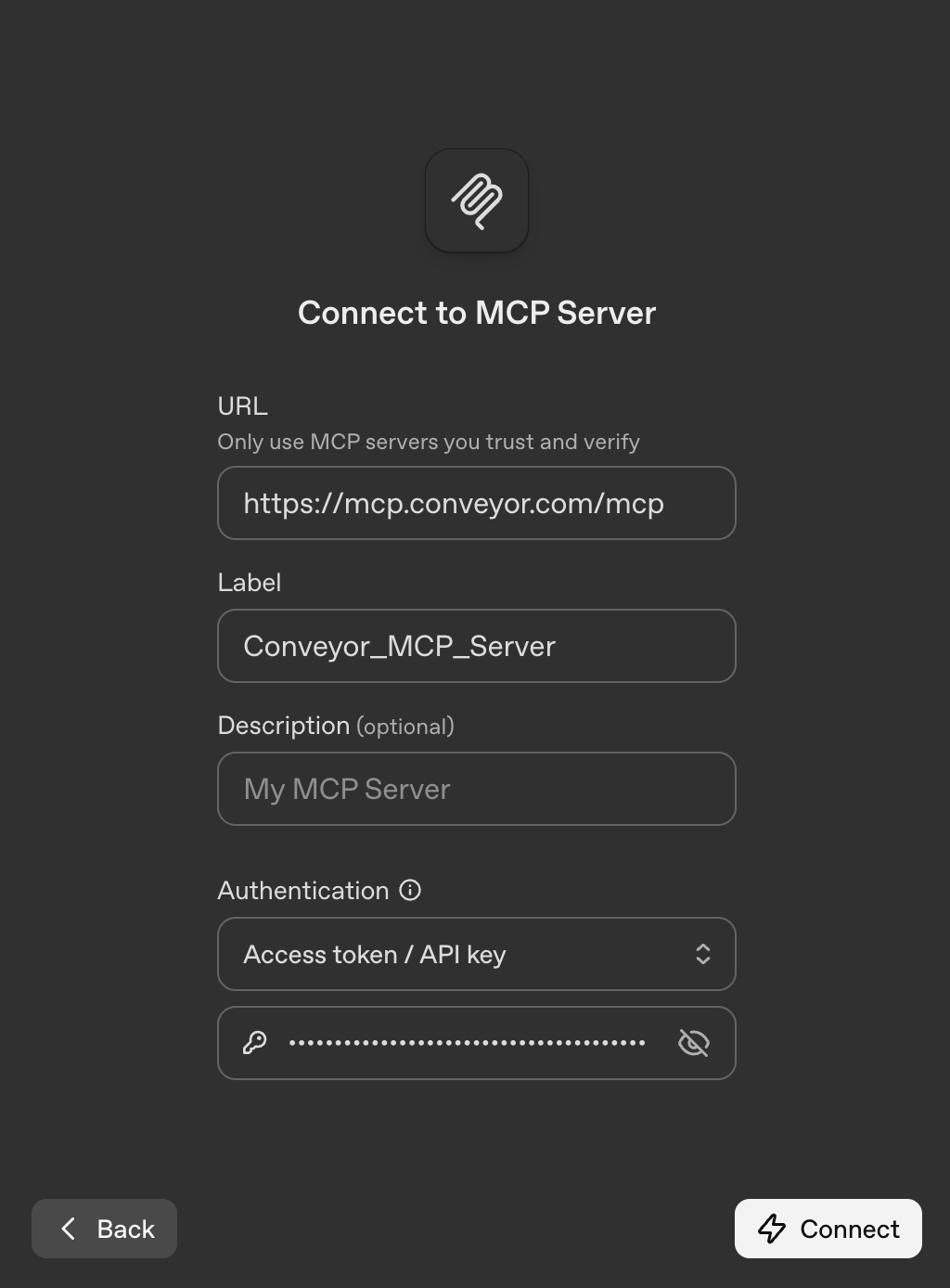
Any MCP-compatible client can connect by pointing to the server URL and including your API token as a Bearer token in the Authorization header:
| Setting | Value |
|---|---|
| Server URL | https://mcp.conveyor.com/mcp |
| Auth type | Bearer token |
| Token | Your Conveyor API token |
Refer to your client's documentation for where to configure remote MCP servers. For example, in the OpenAI Playground:
Option 3 — JSON-Configured Clients (Cursor, Claude Code, etc.)
Add the following configuration to the client's JSON settings:
{
  "mcpServers": {
    "conveyor": {
      "url": "https://mcp.conveyor.com/mcp",
      "headers": {
        "Authorization": "Bearer YOUR_API_TOKEN"
      }
    }
  }
}
For Claude Code, you may also run the following command to add Conveyor to your MCP server list:
claude mcp add --transport http Conveyor https://mcp.conveyor.com/mcp --header "Authorization: Bearer YOUR_API_TOKEN"Common Questions
Q: Do I need engineering help to set this up?
A: No. For OAuth-capable clients, add the server URL as a custom connector and the client handles the rest. For token-based clients, you paste a URL and a token — no custom integration, no API scripting.
Q: Which option should I pick if my client supports both?
A: OAuth. It's tied to your Conveyor user and inherits your per-organization permissions — see Authentication for the full comparison.
Q: My client connected, but the assistant isn't using Conveyor. What now?
A: Ask it explicitly — e.g. "Using the Conveyor connector, show me questionnaires due this week." Assistants with many connectors sometimes need a nudge toward the right tool.
What's Next?
- Using the AI Connector — example workflows to try with your newly connected client.
- Generating an API Token — create and scope a token for Bearer-based clients.
Need help? Visit the Integration Issues guide or contact [email protected].
Updated 3 months ago