

✨ What's new: Trust Center improvements
Learn what changed in the Trust Center layout, how to preview the new experience, and what to review before it goes live.
We've made improvements to the first thing visitors see when they land on your Trust Center. These changes are designed to help visitors self-serve faster and with more confidence: better search, a cleaner header, all designed to help put the most important information front and center.
Preview available Want to see how your Trust Center will look before these changes go live? Use the preview link https://app.conveyor.com/trust-center/coming-soon/ to see the updated layout applied to your own Trust Center. The preview period runs until May 11 — use this time to review the new layout and make any necessary adjustments.
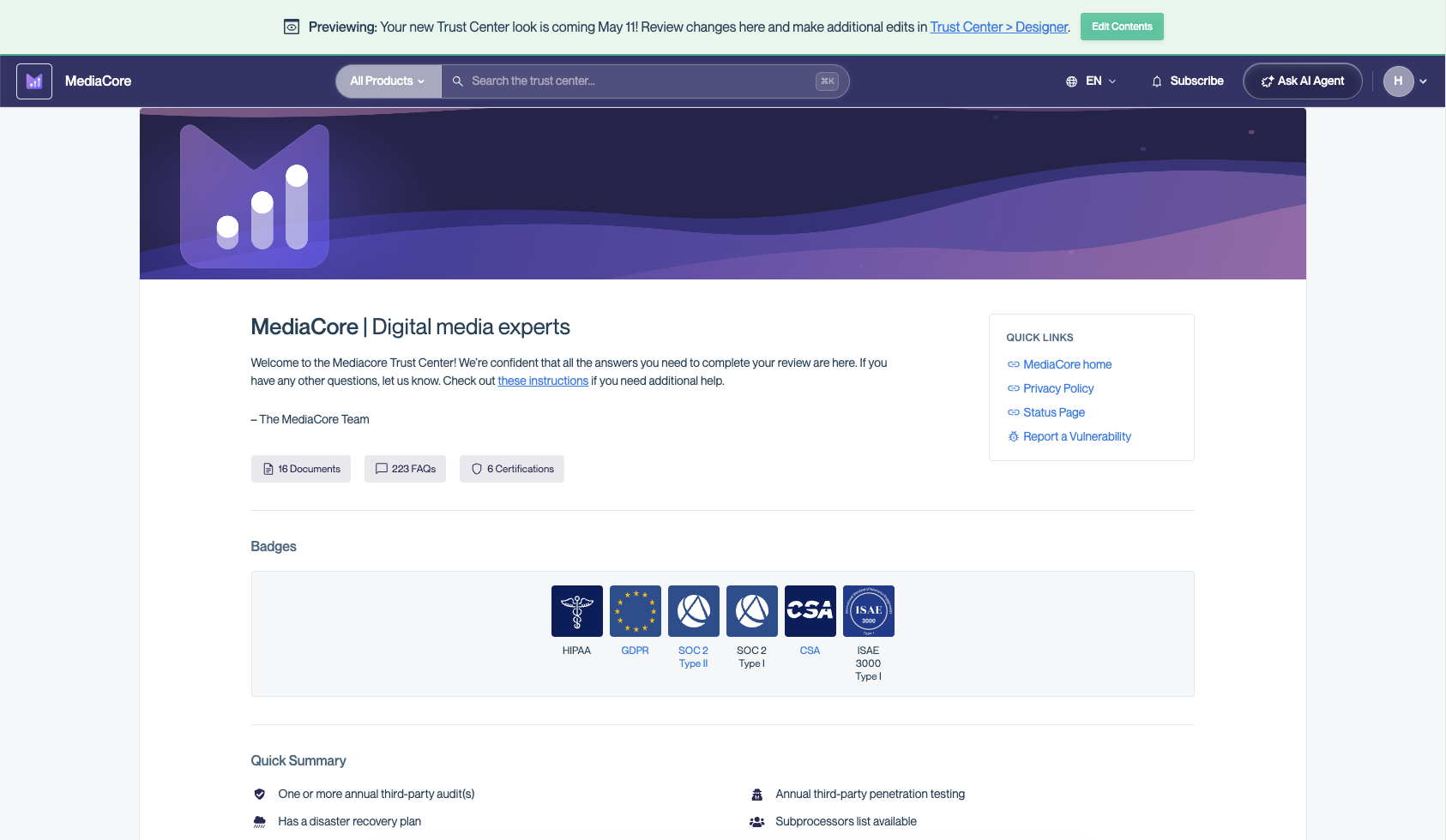
The refreshed Trust Center layout puts your company's important information front and center and helps visitors orient quickly to find the answers they need.
Why we made these changes
Before building anything, we spoke with various security professionals — both admins who manage Trust Centers and TPRM visitors who evaluate vendors through them. We asked them to explore prototype layouts, sort proposed improvements, and tell us what would actually make a difference in their day-to-day. The results were clear: 100% of participants said these changes would improve the Trust Center experience, and 0% expressed concern about the overall direction.
Three themes came up in nearly every session, regardless of whether participants managed a Trust Center or evaluated one:
- Speed to the right document. Every visitor opened with the same goal: get to the right document with as few clicks as possible. Every admin shared the same worry: are my visitors finding what they need?
- Search should be front and center. Without prompting, multiple participants pointed to the current "Find an Answer" section below the fold and asked why it wasn't at the top of the page. Search visibility was the single most consistent piece of feedback across all nine sessions.
- Compliance first, everything else second. Badges, certifications, and key reports are what visitors navigate to first. Admins know this and want those elements surfaced immediately.
What's changing
Here's a summary of what's new and how it improves the visitor experience:
Global search
There's now a prominent search bar at the top of every Trust Center. Visitors can search across your documents, certifications, Q&As, and sections all from one place.
- What this means for your visitors: Instead of scrolling through categories or browsing sections to find a specific document, visitors can type what they're looking for and get results immediately.
- What this means for you as an admin: No configuration needed. Search is automatically enabled and indexes all of your Trust Center content.
- Why this change: Global search was the single most requested improvement in our research — 100% of participants were excited about it. Multiple participants pointed to the existing below-the-fold search and asked why it wasn't at the top of the page.
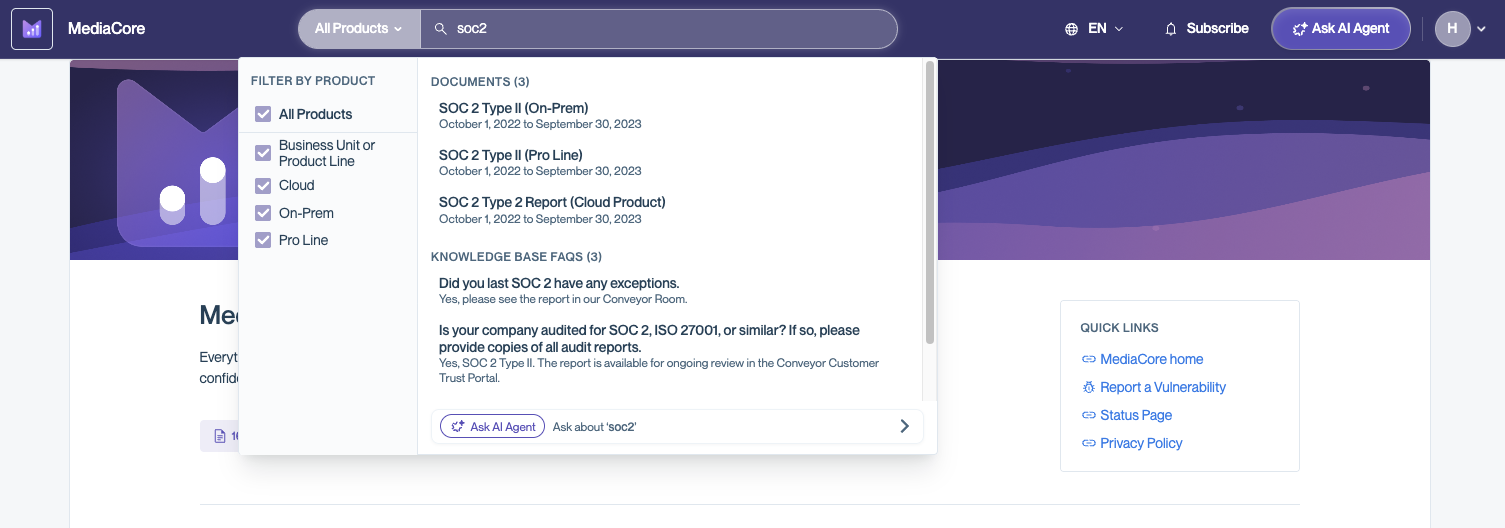
The new global search bar appears at the top of every Trust Center. Visitors can search across all Trust Center content including documents, Q&As, announcements, and overview info - directly from the header.
Updated header bar
The header has been redesigned to be cleaner and more functional. It brings navigation, search, and key actions into a single consistent home at the top of the page.
- What changed: The header is more compact and organized, with better visual hierarchy. Your branding (logo, colors) is preserved.
- Why this change: 94% of participants were excited about the updated header, with the remaining 6% neutral. The consistent feedback was that the top of the Trust Center should be where things happen, not just where a logo sits.
New user menu
Custom documents, feedback options, and account-related actions are now consolidated in a user menu in the header bar.
- What this means for your visitors: Less clutter on the main page. Visitors can find their documents, provide feedback, or manage their account from a single menu.
- What this means for you as an admin: The custom documents section no longer takes up space on the main Trust Center page. Your visitors' custom documents are still fully accessible — they've just moved to a more logical home.
- Why this change: This relocation was accepted across the board. Admins liked the cleaner main view it creates, and visitors appreciated having their documents consolidated in one logical place.
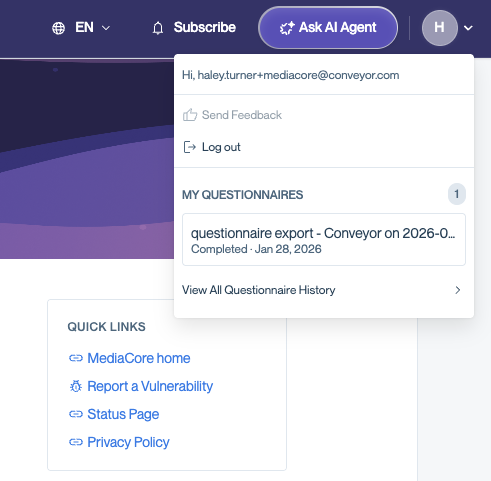
The user menu gives visitors quick access to their questionnaires, feedback, and account actions.
Refreshed layout
The above-the-fold area (the first area visitors see) has been redesigned with improved information density. 78% of participants were excited about the new layout direction, with the remaining 22% neutral.
What changed: Visitors can now see more at a glance — certifications, key documents, and last active date — without needing to scroll. The layout surfaces links, and key resources immediately so visitors can see what's available at a glance and decide where to go.
Company summary
There's a new section where you can add a quick greeting, company summary, or anything else you'd like visitors to see when they first arrive.
- What this means for your visitors: Instead of landing on a page with just documents and sections, visitors get immediate context about who you are and what your Trust Center offers.
- What you need to do: This is the one section that requires configuration. Go to https://app.conveyor.com/trust-center/coming-soon/ and select Edit Contents to edit your company summary. If you don't add one, this section will remain as default text. You can configure this during the preview period or at any time after launch.
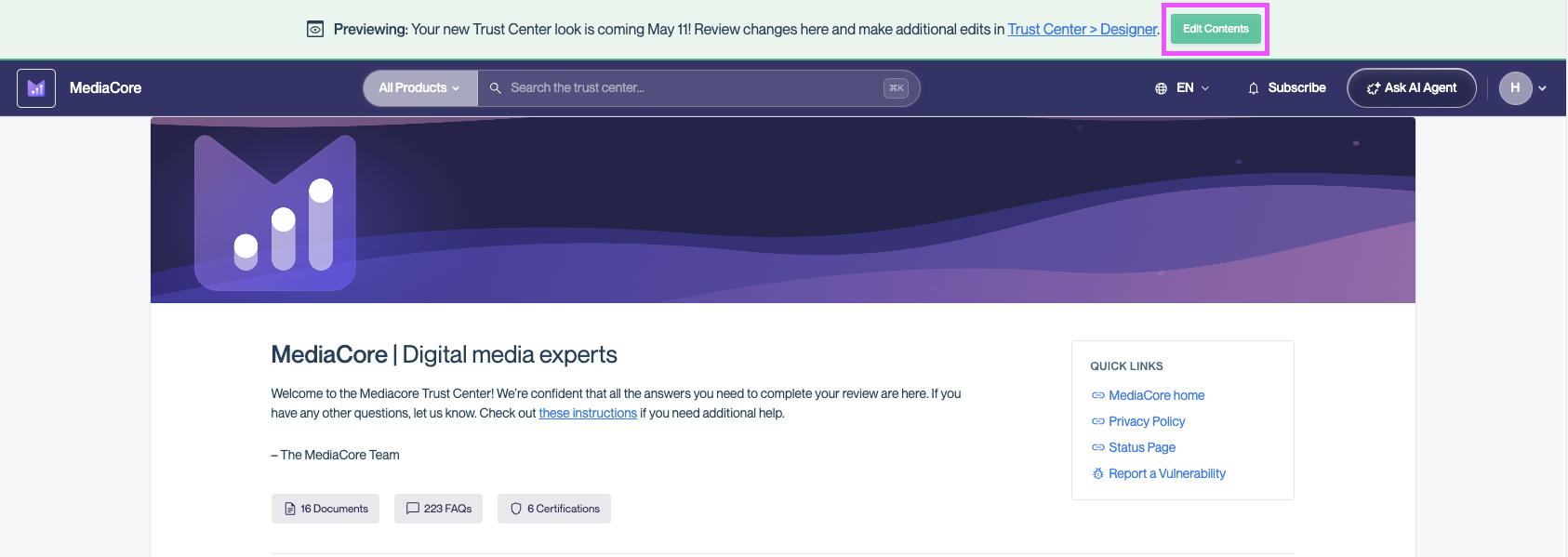
Click Edit Contents in the preview banner to add or update your company summary and make any other updates before the changes go live.
Action needed The company summary is the one new element that won't be migrated with any of your existing content automatically. We recommend adding yours during the preview period so it's ready when the changes go live on May 11.
Preview the Trust Center changes
We've built a new preview capability specifically for this launch! This gives you time to check your banner, confirm colors, add your company summary, and communicate the change internally before your visitors see it.
Visit https://app.conveyor.com/trust-center/coming-soon/ to view the new layout with your own Trust Center content
What you should check during the preview period While no reconfiguration is required, we recommend reviewing a few things during the preview period:
- Add your company summary: This is the one new section that requires input from you. Go to https://app.conveyor.com/trust-center/coming-soon/ and select Edit Contents to add it.
- Review your brand colors: The new layout supports both a primary and an accent color. If you haven't had the option to set an accent color before, now is a good time to check that color settings.
- Check your banner and logo: Your existing branding is preserved, but the new layout displays differently so confirm everything looks how you want
Common questions
Will my branding and customizations be affected?
Your logo, custom sections, and all content remain exactly as they are. Brand color settings are preserved; and you now have the option to set both a primary and accent color if you haven't already, even without the ConveyorAI Agent.
Do my visitors need to do anything differently? No. The experience is improved but familiar. Visitors will see the same content in a better layout. There's no new login flow or access change.
Can I preview the changes before they go live? Yes! Use the preview link https://app.conveyor.com/trust-center/coming-soon/. The preview shows your actual Trust Center content in the new layout.
What's the company summary, and do I have to fill it in? The company summary is a new text section at the top of your Trust Center where you can describe your security posture or compliance approach. It's optional, if you don't add one, the section remains blank. You can add or edit it at any time in Designer.
What if I notice an issue after the update goes live? Contact your CSM or email [email protected] and we'll be here to support you through all the changes.
Does this affect the ConveyorAI Agent? No. The AI Agent works independently of these layout changes. If you have the Agent enabled, it will continue to function as before within the new layout.
I don't have the Agent enabled — does this affect my settings? Yes, in a good way! Previously, the accent color option as well as the new header which makes it easier for your users to gain access to your Trust Center was only available to Trust Centers with the Agent enabled. With this update, all Trust Centers can set both a primary and an accent color and will. Check your brand settings in the Designer to make sure your colors look right.
Will the rest of the Trust Center page look different too? These improvements are focused on the above-the-fold area which is the top area of the page that visitors see first when they arrive. The rest of the page remains the same with all sections in the order that you have configured.
Is there a way to opt out? These changes apply to all Trust Centers to ensure a consistent, high-quality visitor experience. If you have a specific concern, reach out to your CSM or to [email protected] and we'll work with you.
What's next?
Want to learn more about your Trust Center capabilities?
- New to Trust Centers? Start with Design and setup for the foundational walkthrough.
- Looking for visitor guidance? Share our Visitor's Guide to Conveyor Trust Centers with your prospects and customers.
- Want to customize further? Head to Advanced customization for localization and other options.
- Have feedback or questions? We'd love to hear from you - reach out to [email protected].
Updated 5 months ago