

Topic Preferences
Time to complete: 5-10 minutes per topic to set up
Prerequisites: Knowledge:Editor (or higher) access to your Conveyor instance (see Enterprise Roles and Permissions)
Introduction
Topic Preferences lets you control how ConveyorAI answers questions about specific topics. Instead of relying solely on your Knowledge Library, you can define a topic (such as breaches, liability, or data residency) and tell ConveyorAI exactly how to handle questions that fall under it.
This gives you more consistency and control on sensitive or high-stakes topics, where a precise, vetted response matters more than a generated one. As your team provides feedback on how questions are classified, ConveyorAI refines its understanding of each topic and gets more accurate over time.
Topic Preferences is useful when you want a guaranteed answer for a legal or security-sensitive subject, when a particular topic should always draw from one authoritative source, or when certain questions should be routed to a specific team rather than answered automatically.
How it works
A defined topic has three parts:
- A name and description for your own organization and labeling. ConveyorAI uses your description to build the underlying classification prompt, so you don't need to write the prompt yourself.
- A classification prompt generated by ConveyorAI from your description. It defines what counts as the topic and what doesn't. ConveyorAI runs this prompt against incoming questions to decide whether a topic applies.
- An action: what ConveyorAI does when it detects the topic on a question.
When a question comes in, ConveyorAI classifies it against your topics. If a topic matches, it applies that topic's action. Your team can then confirm or correct each classification through the Feedback module, which feeds back into the topic's accuracy.
Topics are available under Knowledge Library - Knowledge Tools and can only be configured by roles with Knowledge:Editor capabilities (or higher).
Create a topic
-
Go to Knowledge Tools and open Topics Preference.
-
Click Create Topic.

-
Enter a name and description. Keep the name short — it's a label for your team. For the description, briefly explain what the topic covers and, where helpful, what it does not cover. You don't need to write a perfect prompt; a plain-language description is enough.
For example, for a "Breaches" topic: "Contains questions about whether we've experienced a security breach, hack, or unauthorized access to our systems or data. Does not contain questions about incident response plans, breach notification timelines, vulnerability/pen test findings, subprocessor breaches, cyber insurance, or preventive access controls"
-
Click Generate a starter prompt. ConveyorAI expands your description into a full classification prompt using its subject-matter expertise.
-
Review the generated prompt. You can accept it as-is, or expand it with the collapse control to fine-tune the wording. This prompt is what ConveyorAI follows when classifying questions into the topic.
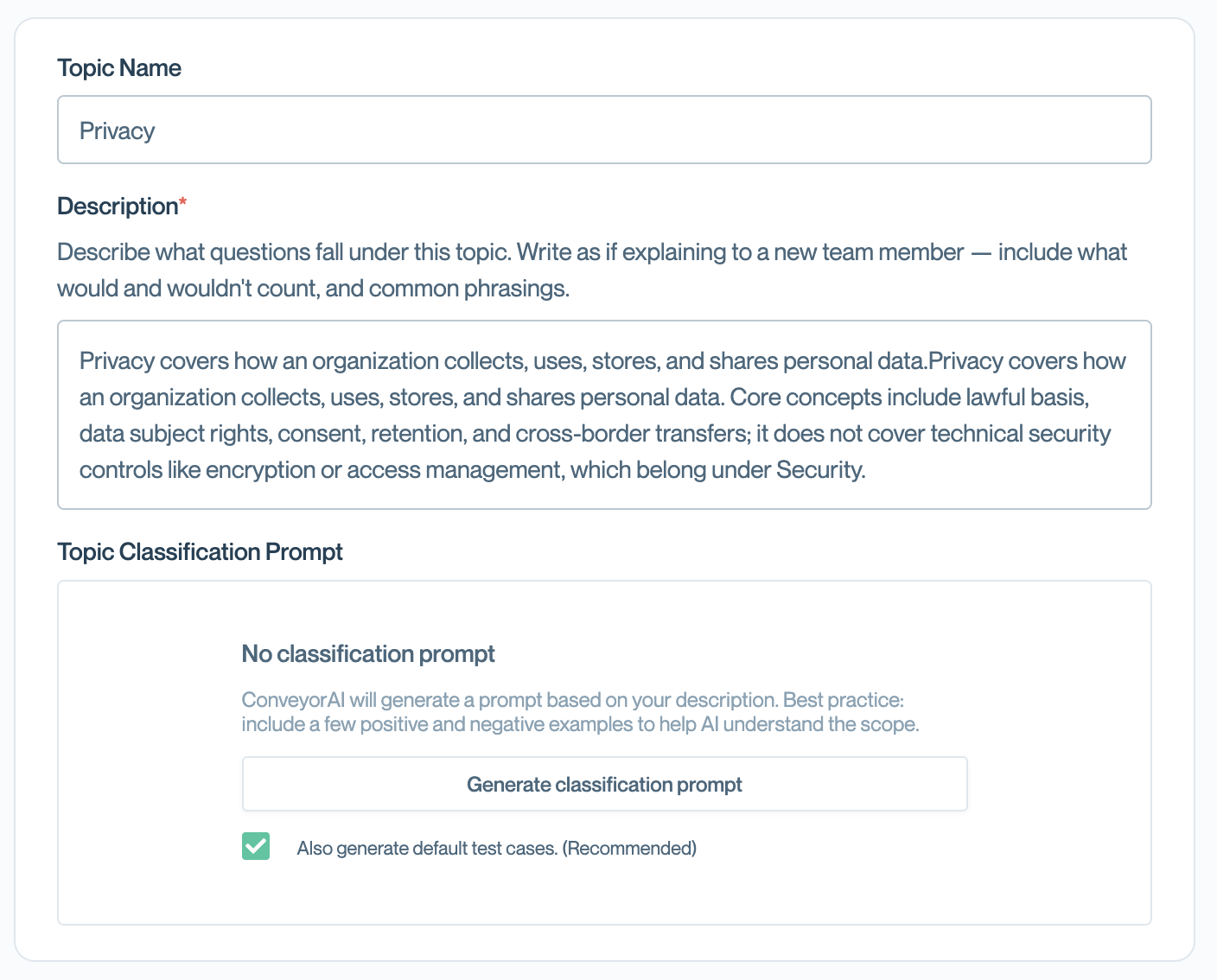
Enter a name and description, then generate a starter classification prompt.
You don't need to be a prompt engineerThe name and description exist for human labeling — ConveyorAI handles the prompt for you. Adding a clear "what's included / what's not included" description gives the best starting accuracy, but you can always refine it later through feedback.
Choose an action
The action determines what ConveyorAI does when it detects the topic on a question.
- Verbatim answer — ConveyorAI always responds with the exact text you provide. Best for legal or sensitive topics where wording is fixed, or when you want to hand a topic off to a specific team. You can provide a unique verbatim answer per product line.
- Prioritized Sources — ConveyorAI always draws from a specific source (such as a document or curated Q&A) when responding to the topic. Useful when one authoritative policy document should govern a subject.
- Flag for Review — Guarantees that any answer to a question matching the topic is flagged for review.
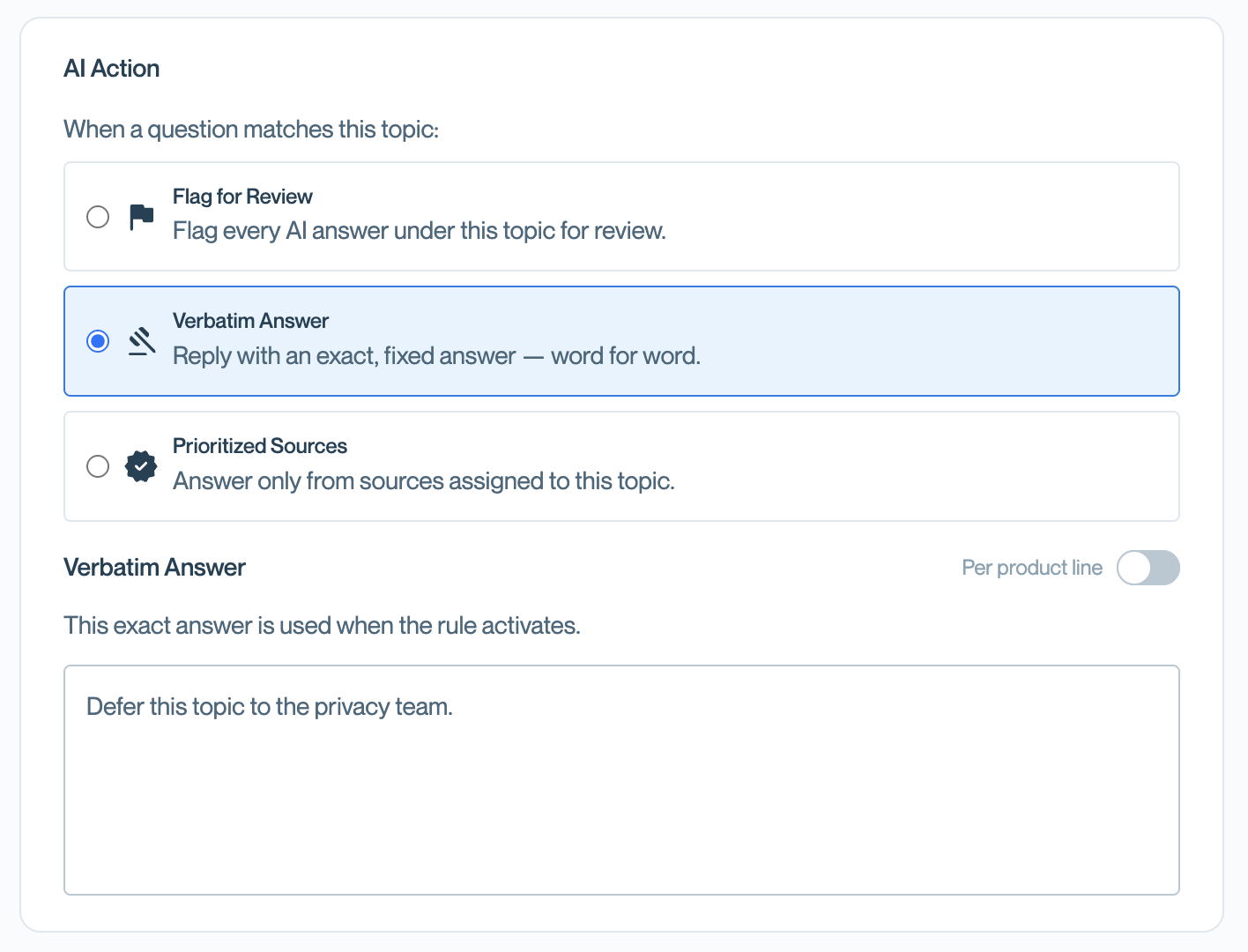
Pick the action ConveyorAI takes when it detects the topic
Publish the topic
Once you've chosen an action, click Publish to open the Publish the topic dialog. This is where you decide where the topic is active and whether it improves itself over time.
Choose which environments to apply to:
- Live environment — "For answering customer questionnaires." ConveyorAI detects the topic in live, customer-facing one-offs and questionnaires.
- Test environment — "For internal testing only." ConveyorAI detects the topic only in test one-offs and test questionnaires. You can enable one or both. Turning on Test environment alone is the safest way to launch — you can validate the topic with no risk to live answers, then turn on Live environment once you're confident.
Set prompt to auto-improve:
- Auto-improve — When enabled, ConveyorAI refines the topic's classification prompt once a day based on the feedback your team has provided. This is how a topic gets more accurate over time without manual prompt editing. When the settings look right, click Publish to make the topic active in the environments you selected, or Cancel to discard.
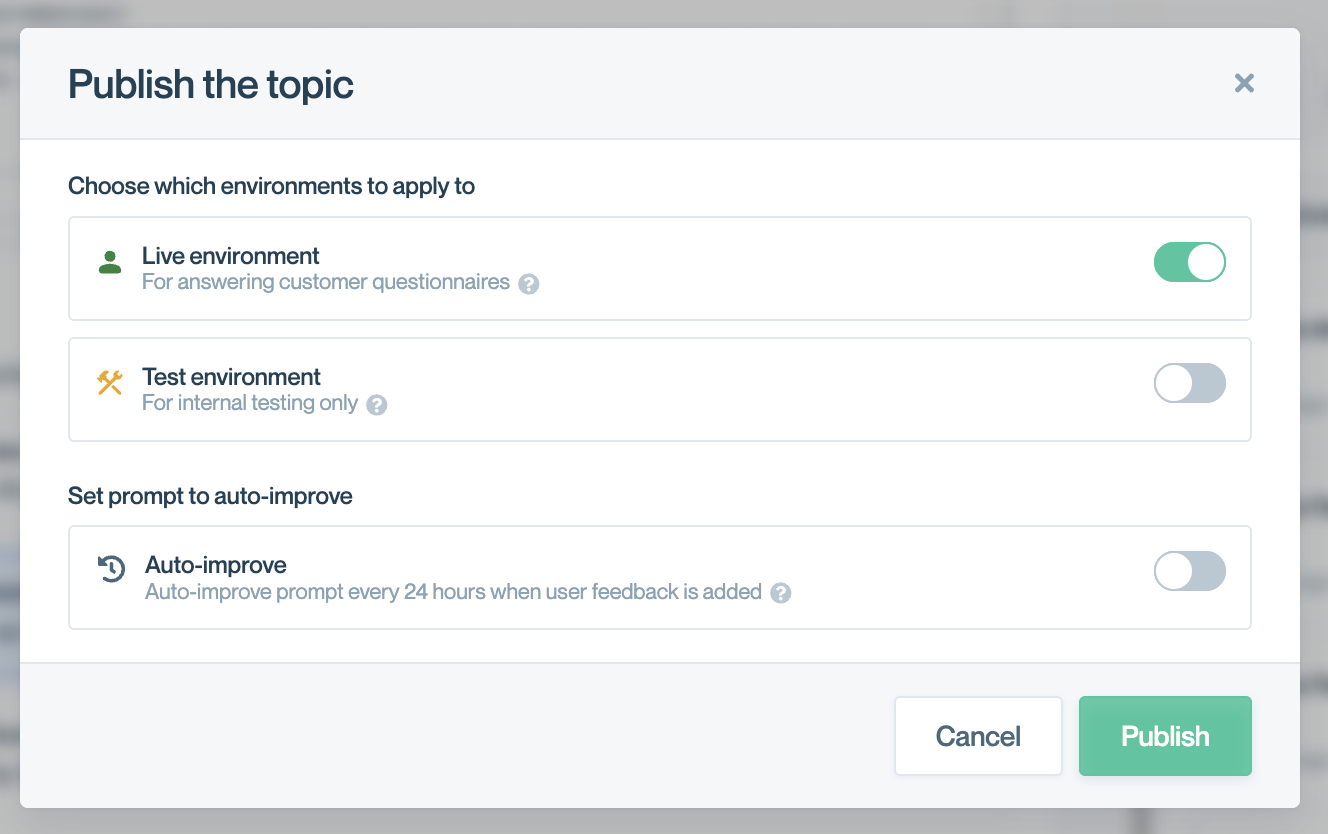
choose which environments the topic applies to and whether its prompt auto-improves.
Feedback works on test-only topicsYou can still provide feedback on a test-only topic, so you can tune it fully before turning on Live access.
Test Environment
Test Environment lets you safely validate a topic before it affects live work. It's available in both one-off questions and questionnaires.
- Test Mode does not consume credits, so you can run as many test questions as you need.
- Test Mode does not affect your accuracy dashboard — test activity is kept separate from your production metrics.
- A topic with only test environment access enabled is detected only when Test Mode is active.
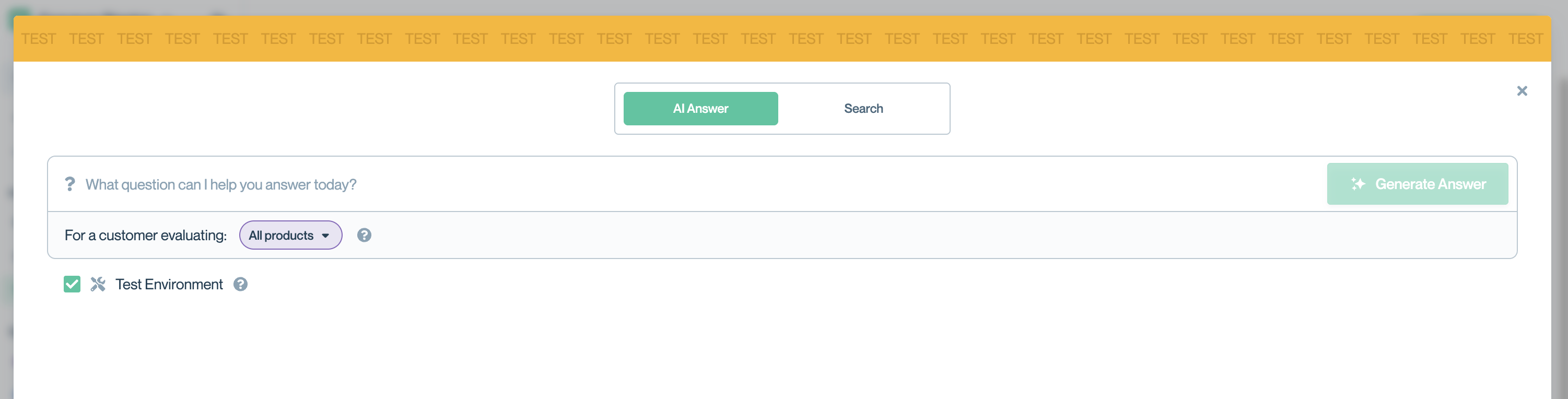
Start with Test EnvironmentAccess Test Environment before enabling the topic in the live environment. This lets you validate classification behavior without affecting customer-facing answers.
Review the Test Set
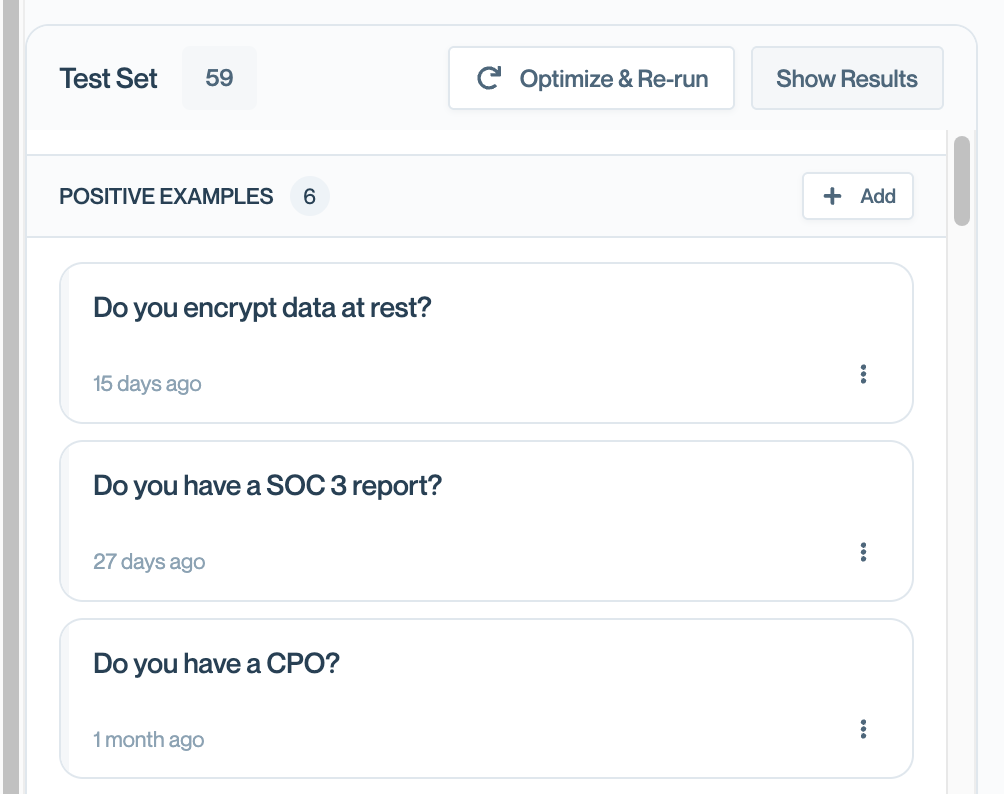
After you publish a topic, review its Test Set — a collection of sample questions used to check that the topic's classification prompt behaves the way you expect. Reviewing the set is the fastest way to catch misclassifications before they reach customers.
The Test Set is split into two kinds of examples.
- Positive examples are questions that should match the topic — ConveyorAI should detect it and apply its action (for a "Breaches" topic, "Have you ever been breached?").
- Negative examples are questions that should not match, even though they look related — ConveyorAI should leave these alone (for "Breaches," "Have any of your subprocessors been breached?" — adjacent, but not about you). Good negative examples matter as much as positive ones: they're what stop a topic from over-triggering on questions that only look similar.
Each example appears as a card under Positive examples or Negative examples. ConveyorAI seeds these for you, but you know your content best, so tune the set before testing: click + Add to add your own example to either group, and use the ⋮ menu on any example to edit or remove it. Drop anything that doesn't reflect a question you'd actually expect to see, and fix any example labeled in the wrong category. The cleaner your examples, the more reliable the test that runs against them.
Once your examples look right, click Optimize & Re-run to refine the topic's classification prompt against your current examples and re-classify the whole set. The result shows how the topic classified each example, and review any misses: a positive that didn't match means the topic isn't catching something it should; a negative that matched means it's over-triggering. Adjust the examples and run Optimize & Re-run again until the results look right.
This is the same positive/negative logic the Feedback module uses once a topic is live (see Provide feedback) — you're just doing the first pass up front, before any customer sees the topic.
Provide feedback
The best way to improve a topic's accuracy is to tell ConveyorAI when it classifies a question correctly — or incorrectly. You do this through the Feedback module, available in both one-off questions and the questionnaire view.
When ConveyorAI detects a topic, it shows a topic label on the answer. To give feedback:
- Use thumbs up to confirm the classification was correct, or thumbs down to open the feedback panel.
- In the panel, answer "Did the AI pick the right topic?" If the label is wrong, adjust it — choose the correct topic, or select No topic if none should apply.
- Add a comment explaining why. ConveyorAI reads these comments to understand the reasoning behind your correction and improve future classifications.
If you have sufficient permissions, the panel also shows an Improve prompt now button. This applies your feedback immediately rather than waiting for the daily auto-improve run. It can take from 30 seconds to a few minutes, and updates the topic's classification prompt.
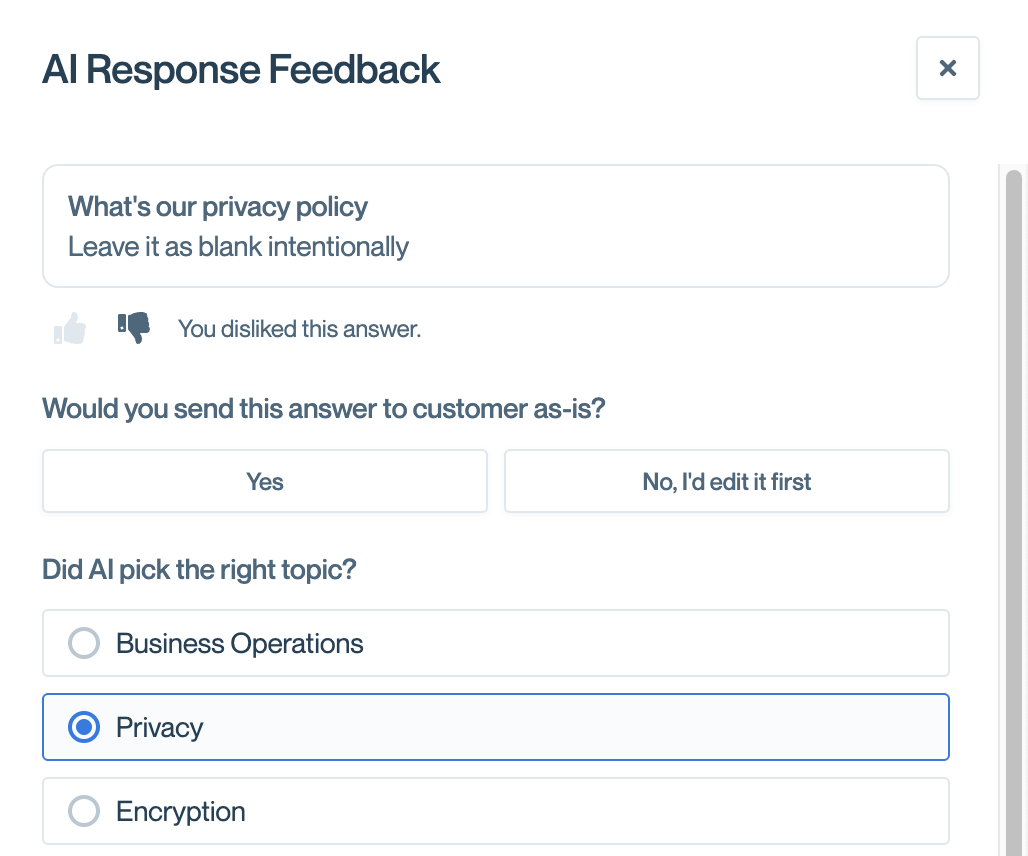
Confirm, correct, and comment on how ConveyorAI classified the question.
Topic usage and history
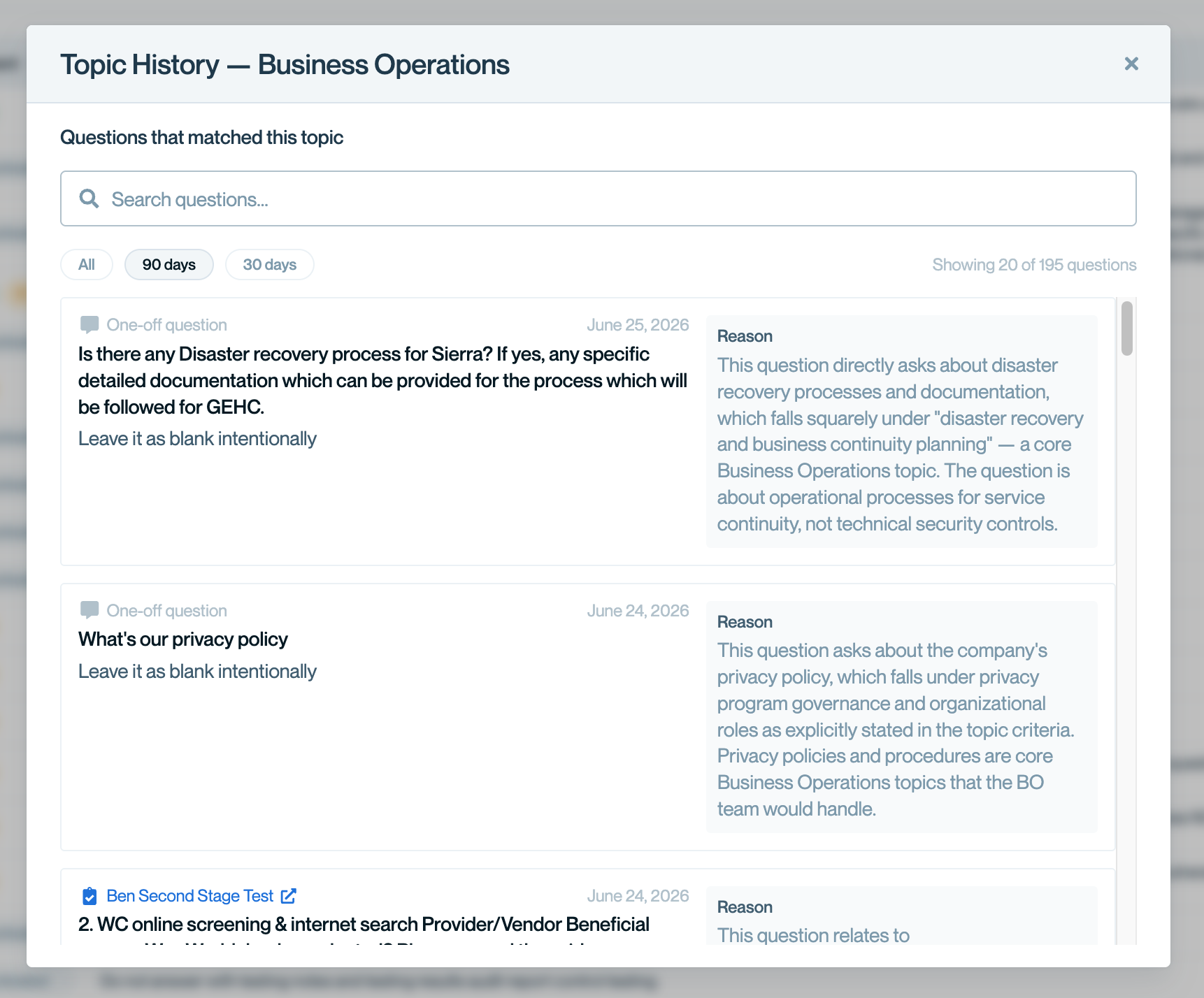
Each topic tracks how many questions have matched it over the past 90 days (shown in the Usage column of the Topics overview). Open Topic History to see the individual questions behind that count, along with the reason ConveyorAI classified each one under the topic.
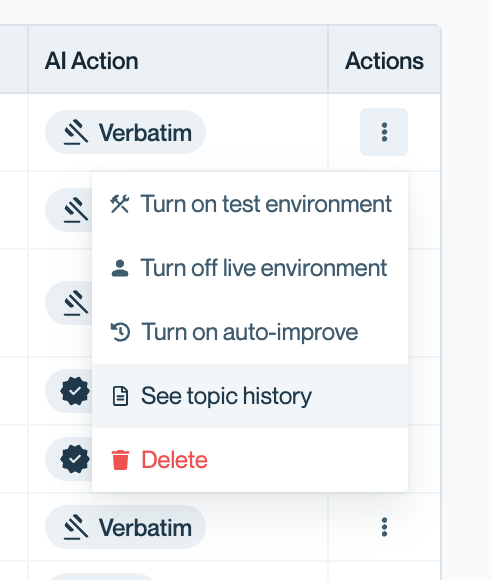
Open it from the ⋮ (Actions) menu and select See topic history — available both on a topic's row in the Topics overview and from the header menu inside a topic.
Topic history opens the list of questions that matched the topic in one-offs and questionnaires.
Example: controlling answers about breaches
A common use case is enforcing a precise, vetted answer for a sensitive topic. Here's how you'd set up a "Breaches" topic and tune it.
Scenario: You want ConveyorAI to give one exact answer whenever a question is genuinely about whether you've been breached — but not when a question is only adjacent to the subject.
- Create a topic named Breaches with the description "Contains questions about whether we've experienced a security breach, hack, or unauthorized access to our systems or data. Does not contain questions about incident response plans, breach notification timelines, vulnerability/pen test findings, subprocessor breaches, cyber insurance, or preventive access controls"
- Click Generate a starter prompt and accept it.
- Set the action to Verbatim answer with text such as "We have not suffered a breach in the past three years."
- Click Publish, turn on Test environment (leave Live environment off for now), and publish.
- Open the one-off tool, enable Test Mode, and ask "Have you ever been breached?" Confirm ConveyorAI detects the Breaches topic and returns your verbatim answer.
- Once satisfied, publish again with Live environment turned on so the same behavior applies to live questions and questionnaires across your team.
- Later, if a question like "Have any of your subprocessors been breached?" wrongly triggers the topic, open the Feedback module, set it to No topic, add a short comment, and (as an admin) click Improve prompt now. ConveyorAI adds a negative example so the topic stops firing on subprocessor questions.
- Conversely, if a borderline question like "Has there ever been an outside incident that risked customer data?" should have triggered Breaches but didn't, reassign its label to Breaches and improve the prompt to capture it next time.
This loop — set up in test, validate, promote to production, then refine with feedback — is how topics get more accurate the more you use them.
Common questions
Who can create and configure topics?
Only roles with "Knowledge:Editor" (or higher) can create, edit, or delete topics. Anyone on your team can provide feedback on how questions are classified, but only Knowledge:Editors (or higher) can click the Improve prompt now button.
Will a new topic affect customer questionnaires immediately?
Only if you turn on production (live) environment access. With test access only, the topic is detected exclusively in Test Mode, so live questionnaires are unaffected.
Does Test Mode use credits or change my metrics?
No. Test Mode doesn't consume credits and doesn't affect your accuracy dashboard.
What's the difference between Auto-improve and Improve prompt now?
Auto-improve refines the prompt automatically once a day based on accumulated feedback. Improve prompt now (limited by permissions) applies feedback immediately, in 30 seconds to a few minutes.
Can I give a different verbatim answer for different products?
Yes. The Verbatim answer action supports a unique answer per product line.
Need help? Visit the Troubleshooting guide or contact [email protected].
Updated 3 months ago