

Document sharing and access
Time to complete: 10 minutes
Prerequisites: Documents uploaded to your Knowledge Library
Control who can view your Trust Center documents by setting access levels.
Every document can be configured from fully public to internal-only, with options in between for approved visitors or specific customer groups. This lets you share marketing materials openly while restricting sensitive documents like penetration test reports to select customers. You can also edit if ConveyorAI can use the document for Q&A responses.
Share your documents
When you are adding a new document or editing, you can set up if you want the Trust Center Audience or ConveyorAI to have access to it.
Under Share With before finishing to add the document, you will be able to configure if ConveyorAI or Trust Center Audience has access to it.
Share with Conveyor AI
ConveyorAI: By default, our AI system has access to use it for answering questionnaires. You can toggle this off to remove its access.
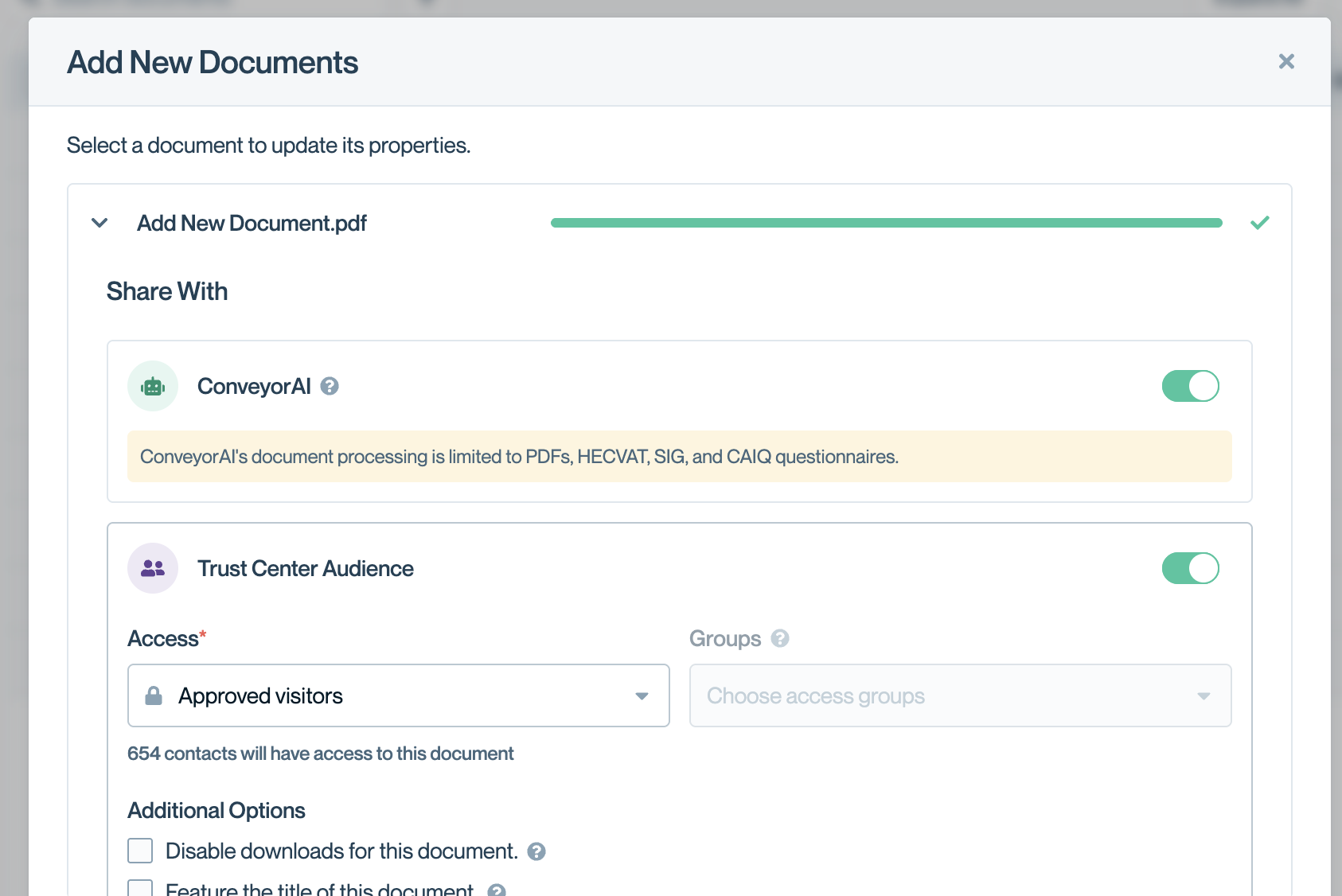
Share access to the document for ConveyorAI or Trust Center Audience
Share with Trust Center visitors
Trust Center Audience: Access on the Trust Center is set to "no" by default. When you toggle this to "yes", you will have the following options:
- Access: Control visibility with three levels:
- Any visitor (default): Visible on public Trust Center view
- Approved visitors: All approved users can access this content
- Some approved visitors: Only approved users in these groups you choose can access this content.
- Groups: When "Some approved customers" is selected, choose which access groups can view the document.
- Additional Options:
- Disable downloads for this document: For PDFs only, allow viewing but prevent downloading.
- Disable watermarking: Useful for public documents and unrestricted white paper content. Select this option if you do not require a watermark to be added to the document when sharing. Learn more about document watermarking
- Feature the title of this document: Display document titles on the public view of your Trust Center to highlight key materials.
- Require an additional NDA approval: For every customer requesting access, requires approval. Only available if you check "Approved visitors" or "Some approved visitors" for Access.
- NDA Content: If you check the NDA approval requirement, you will see a box to customize the Non-Disclosure Agreement content that customers will need to accept before viewing this document. This supports Markdown formatting as well.
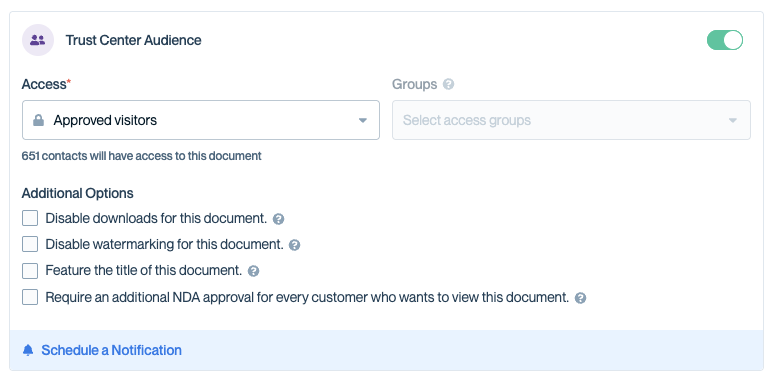
Options for Trust Center Audience
Document notifications
- Schedule a Notification: You can select to update visitors if a document has a new version or changes are made to the document. Notifications will include the document name and link. Users who are not currently approved to access this document will not be notified. Notifications to the same user in the same day will be batched. You can toggle between the following:
- Users who subscribed to trust center updates
- Users who interacted with a previous version of this document
- All users with access to this document
Setting access groups for documents
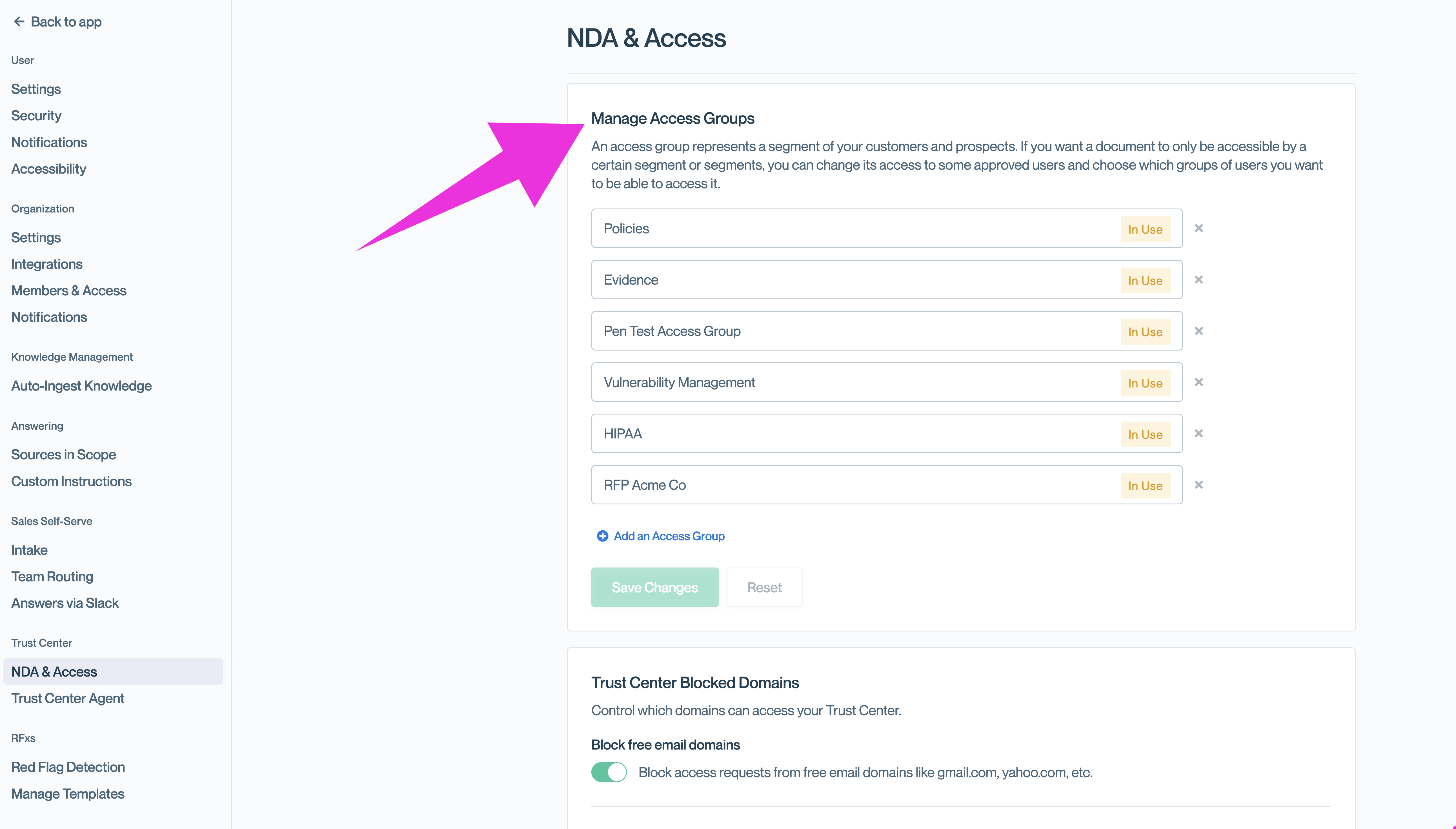
An access group represents a segment of your customers and prospects. If you want a document to only be accessible by a certain segment or segments, you can change its access to some approved users and choose which groups of users you want to be able to access it.
The documents that you add to your Trust Center can be set to four levels of access, from internal to public access.
- Anyone: These documents are available on the Public view of your Trust Center, meaning they do not require access approval or an NDA. Great for marketing materials like SOC 3s.
- Approved visitors: These documents are available to all Trust Center visitors whom you have authorized to access your gated content and who have an NDA in place. Great for most confidential documents, like your SOC 2 Type II report.
- Some approved visitors: These documents are only available to approved Trust Center visitors with the appropriate access groups (see below). You can then grant specific user emails or entire customer domains these elevated permissions. Great for more sensitive documents, like your Full Pentest Report, or customer-specific information.
- Internal Only (Default): When you don't toggle the "Trust Center Audience", these documents are not visible to any of your visitors. They are for internal purposes only, such as a source of knowledge for the Questionnaire Automation. ☝️Note: "Internal Only" is the default access level when adding new documents.
Creating and assigning access groups on individual docs
Whether you are adding a new document or editing an existing one, you can create and assign access groups at that time (see Editing Documents). Select "Some approved customers" under "Access" to bring up the existing Access Groups:
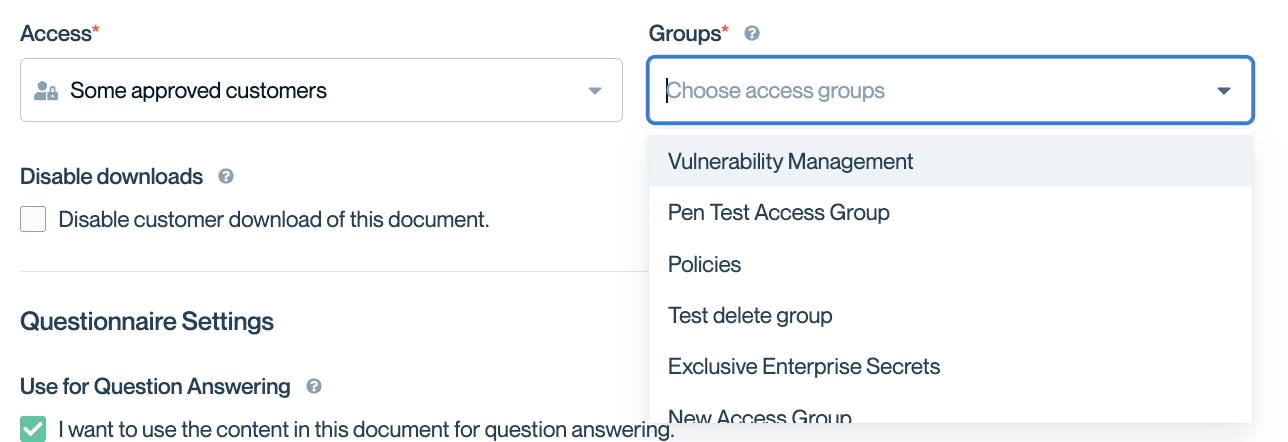
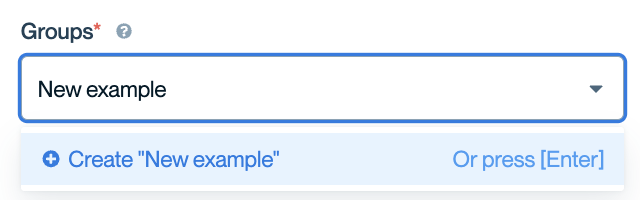
If you need to create a new access group, you can just type the new access group name in this field and hit Enter.
Bulk update access groups
If you need to update the access groups on multiple documents at once, it is easier to use the Bulk editor. Start clicking on the check boxes to the right of your documents one by one.
In Select mode, you can then select single documents or entire folders. Conveyor will tally the number of documents you have selected at any point in time at the bottom of your screen.
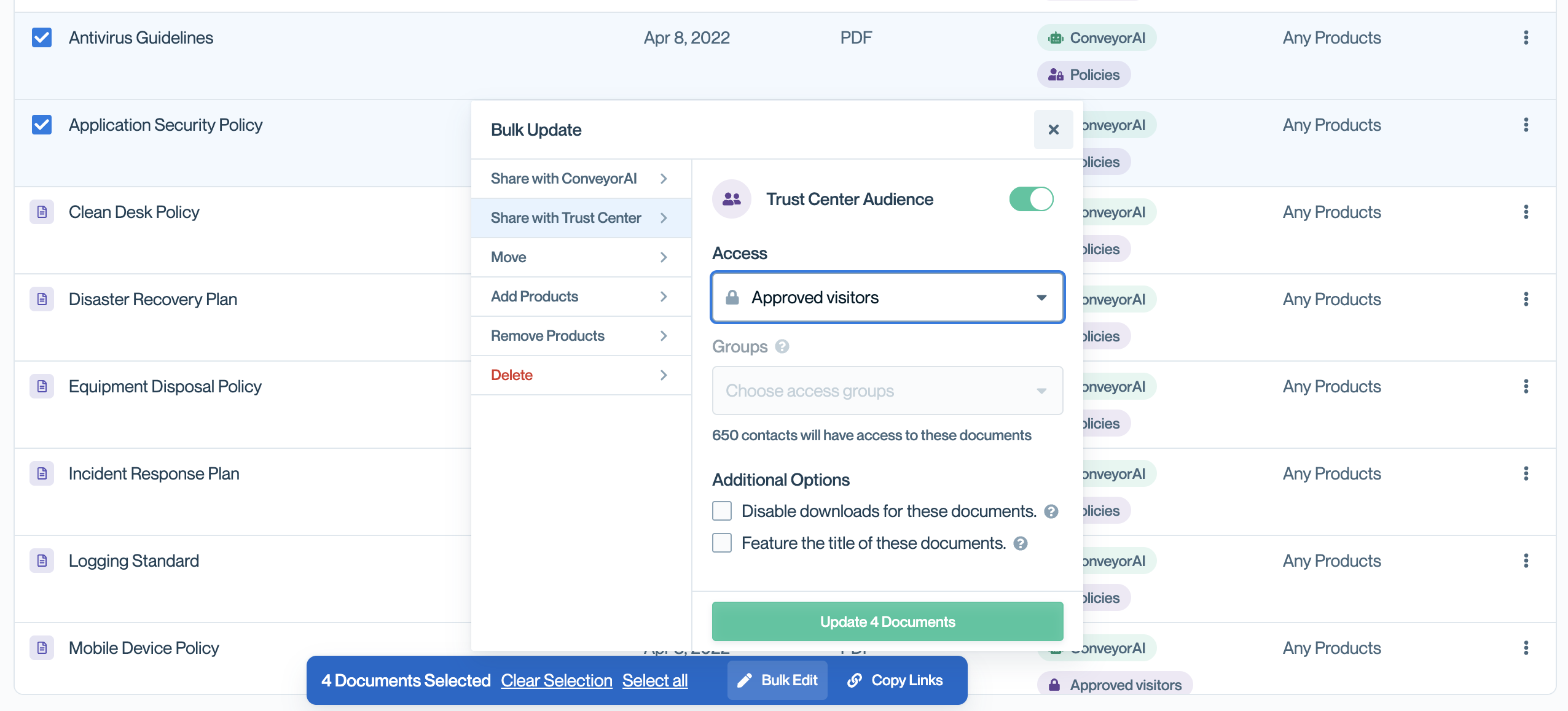
To bulk-edit access groups, click "Change access" after you have selected the relevant documents. After choosing the options, click "Update Documents" button. You can then click "Clear Selection" to clear your document selection.
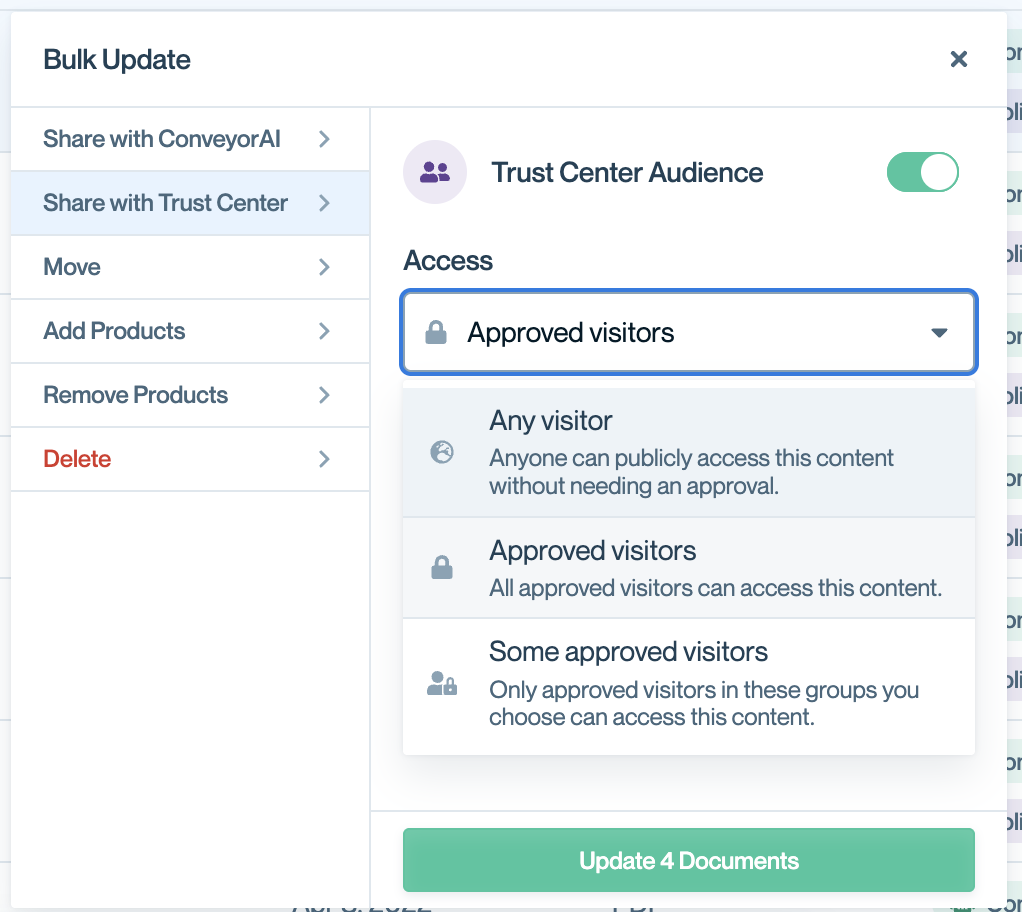
Select access levels of any visitor, approved visitors, some approved visitors
Managing, editing, and deleting access groups
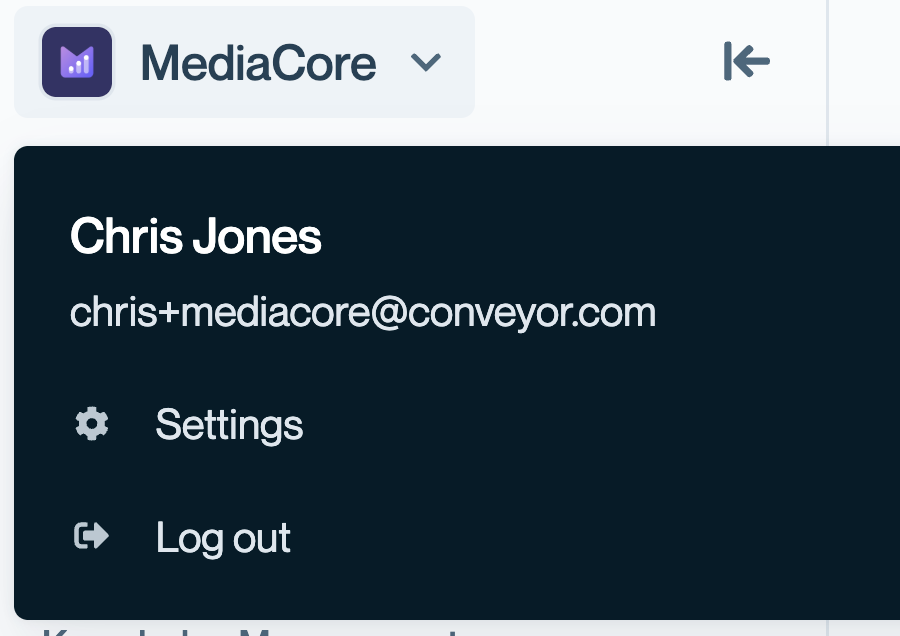
If you need to edit the name of a given access group or delete one, navigate to "Settings" under your organization name in the upper-left.
By scrolling down or clicking on "Manage Access Groups", you will see all current access groups and can edit and remove from here.
Common questions
What is the default access level for new documents?
Internal Only. New documents are not visible to Trust Center visitors until you explicitly change the access level.
Can I change access levels after a document is uploaded?
Yes. Edit the document at any time to update its access level, or use bulk actions to update multiple documents at once.
What's the difference between "Approved visitors" and "Some approved visitors"?
"Approved visitors" grants access to all authorized Trust Center visitors with an NDA in place. "Some approved visitors" restricts access further to only those in specific access groups you define.
Do access groups apply to the entire customer domain or individual users?
Both. You can grant access group permissions to specific email addresses or entire customer domains.
Are Internal Only documents still used by ConveyorAI?
Yes. Internal Only documents are indexed by ConveyorAI for questionnaire answering—they're just not visible to Trust Center visitors.
What's next
- Creating and managing access groups – Set up access groups in Organization Preferences
- Adding Connections to access groups – Grant customers access to restricted documents
- Editing documents – Update document settings including access levels
Need help? Visit the Troubleshooting guide or contact [email protected]
Updated 6 months ago