

Editing documents
Time to complete: 5 minutes
Prerequisites: At least one document uploaded to your Trust Center
After uploading documents to your Knowledge Update, you can update their files, metadata, and access settings at any time. Click Update on any document card to open the edit modal.
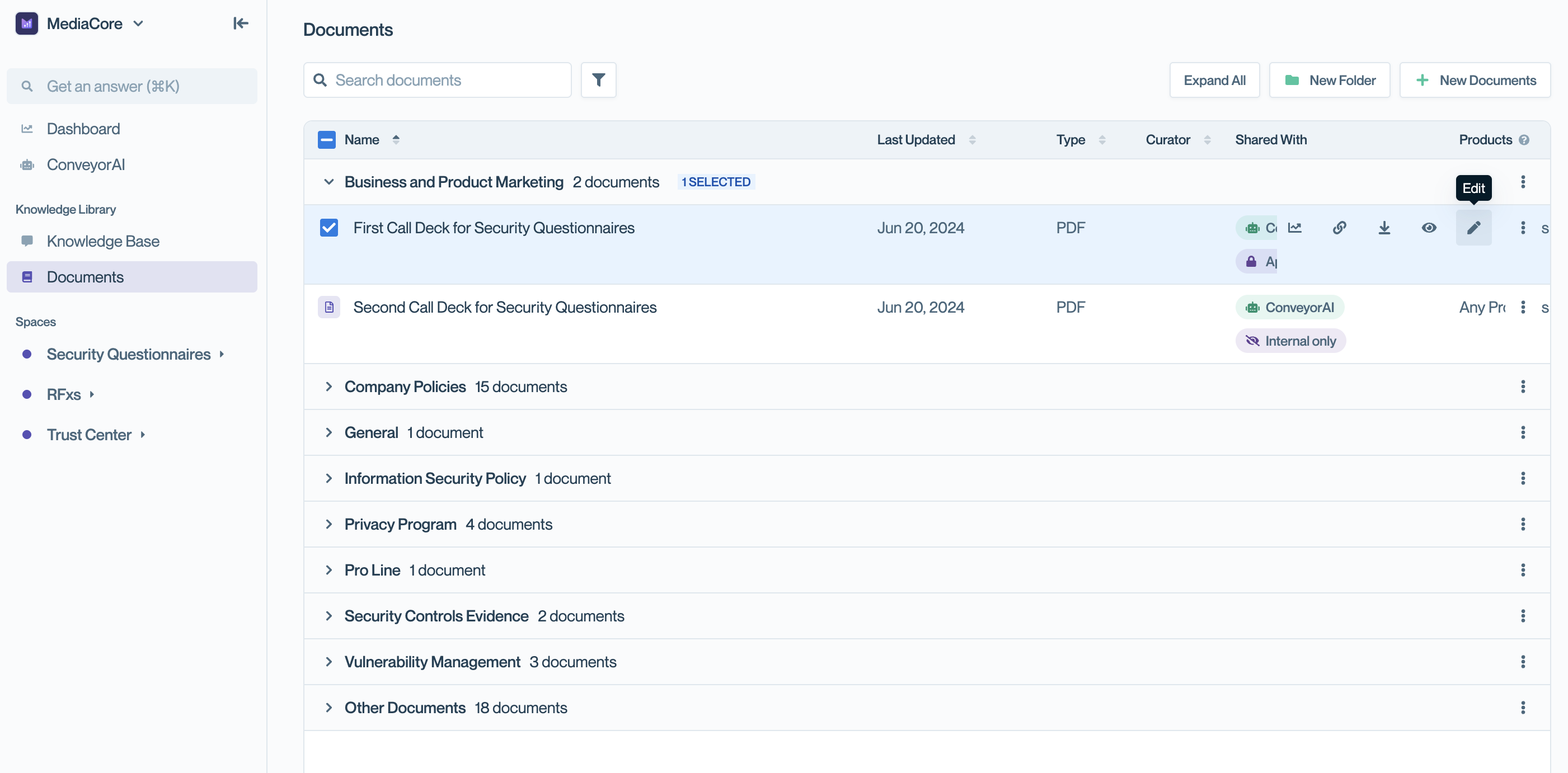
Edit a document uploaded.
The following modal will appear, which contains the same fields as when you create a document:
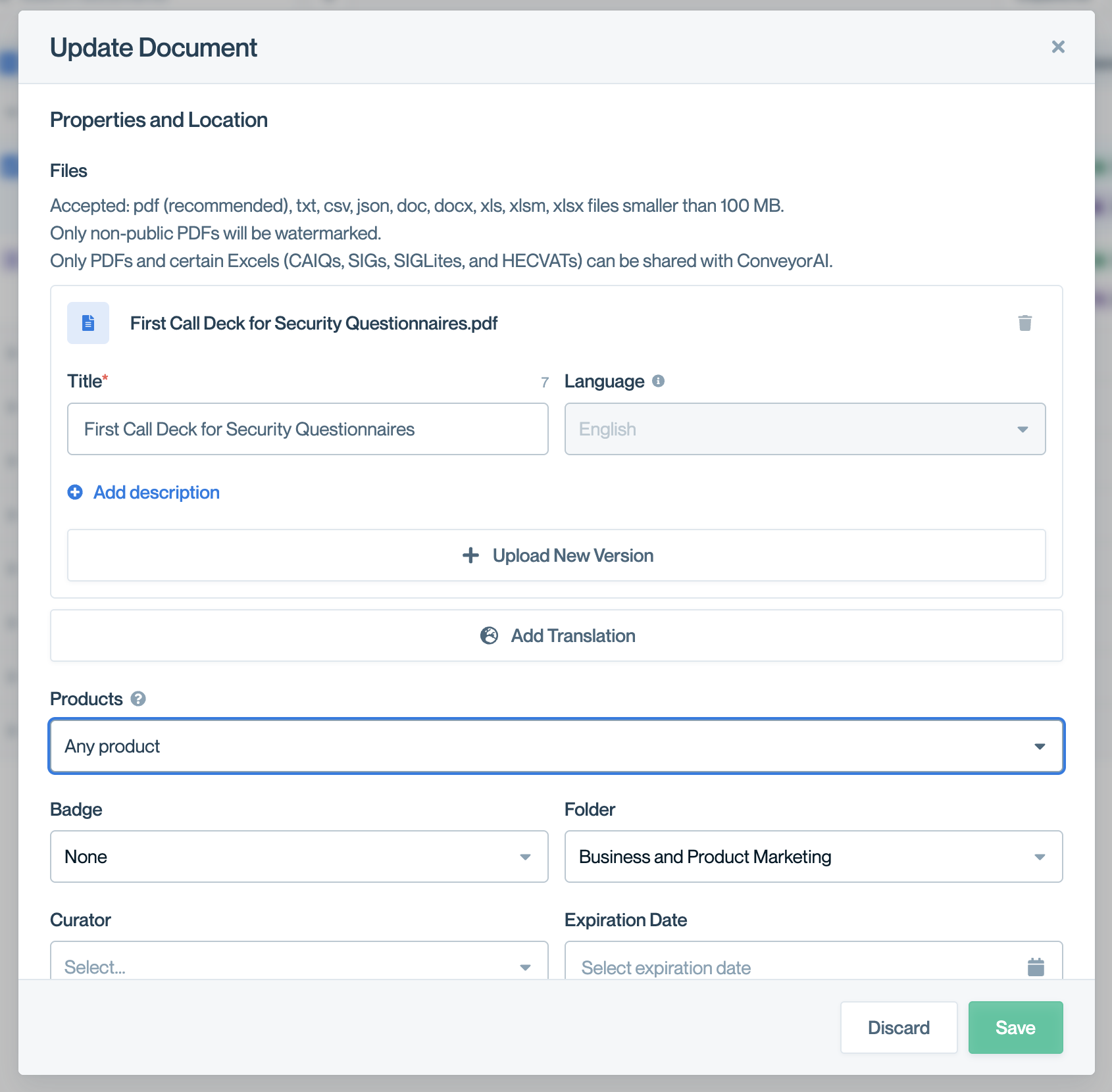
Review and edit document details.
Edit document settings
Under Properties and Location, configure how documents are used.
- Title: The document name as it appears to ConveyorAI and Trust Center visitors.
- Description: Optional additional information like reporting periods or version numbers.
- Language: An English language default is required. For translated versions, French, German, Japanese, Portuguese and Spanish are available.
- Add translation: Use this for adding the same document in multiple languages.
- New version: Click on this and upload a different document to change the uploaded file.
- Products: Tag documents that apply to specific product lines. Leave blank for documents relevant to all products.
- Badge: Select an icon for common report types (SOC 2, ISO 27001, etc.) to help customers quickly identify documents.
- Folder: Organize documents into folders for easier navigation. Create folders first, then assign documents during upload.
- Curator: Assign a team member responsible for maintaining the document. They receive notifications when expiration dates are reached.
- Expiration Date: Set when the curator should be reminded to update the document. Expired documents remain active. This is a reminder system, not an automatic cutoff. An example is policies that needs to be kept up to date on a regular basis.
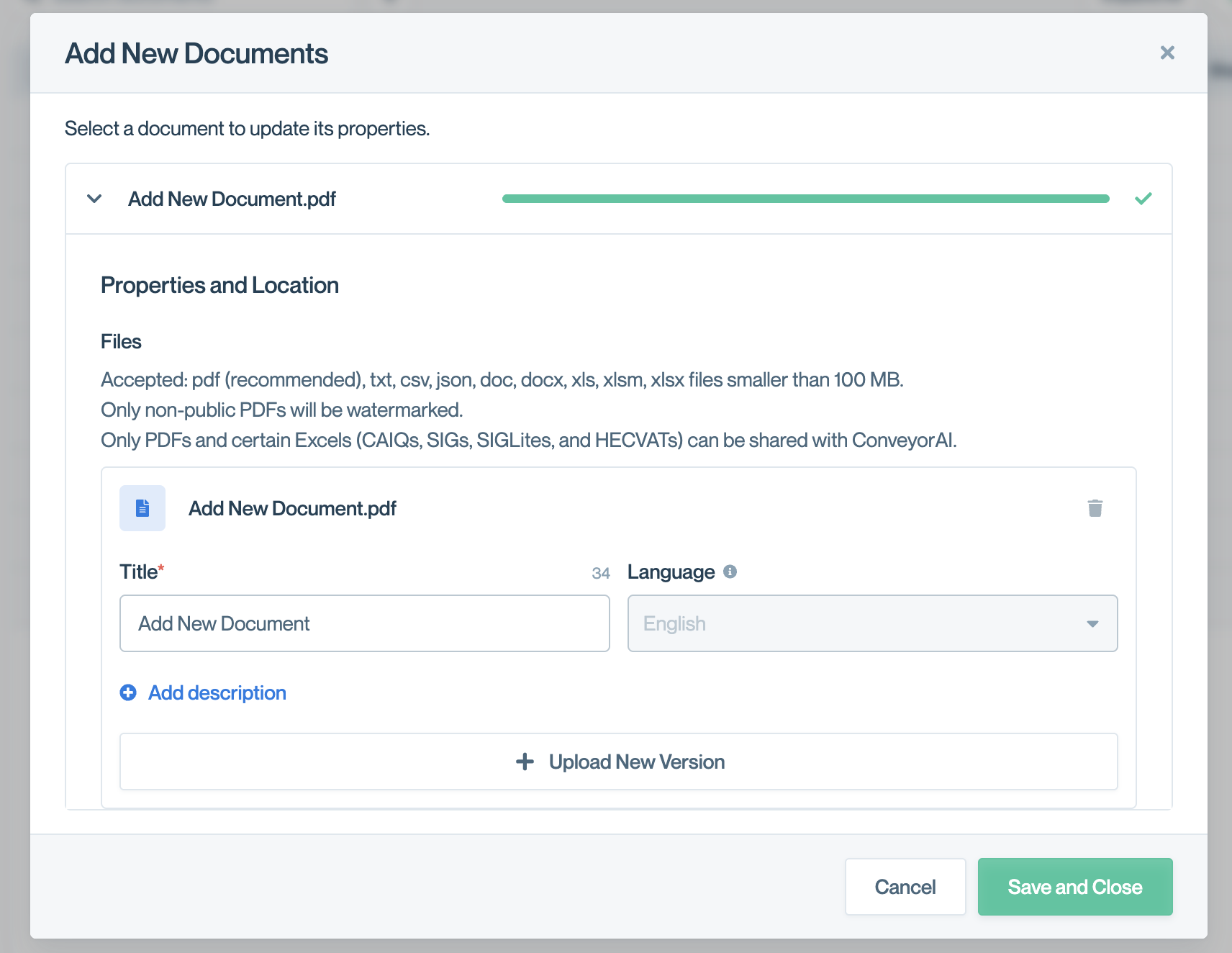
Set properties: Title, language, description, new version, add translation, product line selection, badge, folder, curator, expiration date
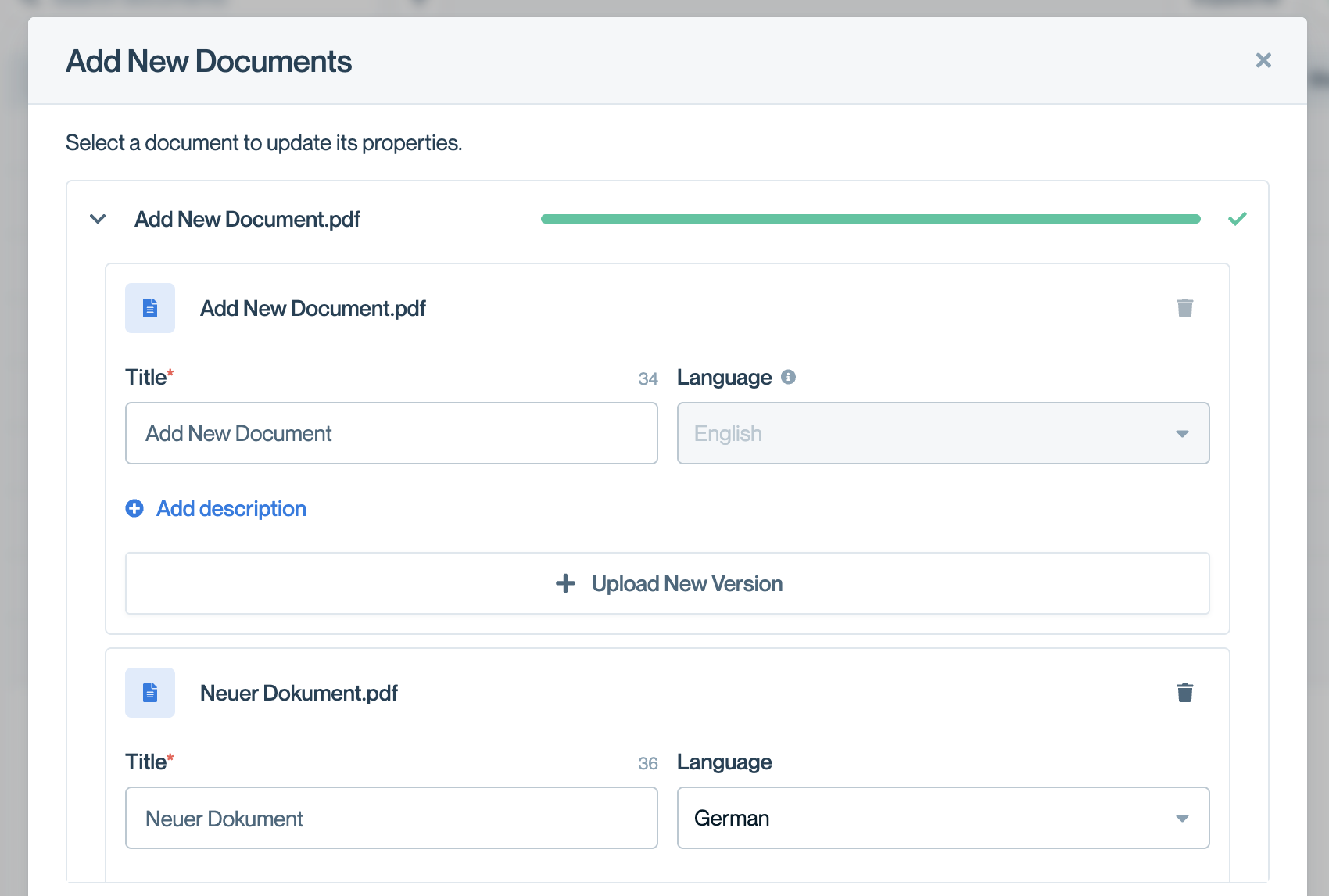
Upload a translation by clicking on "Add Translation"
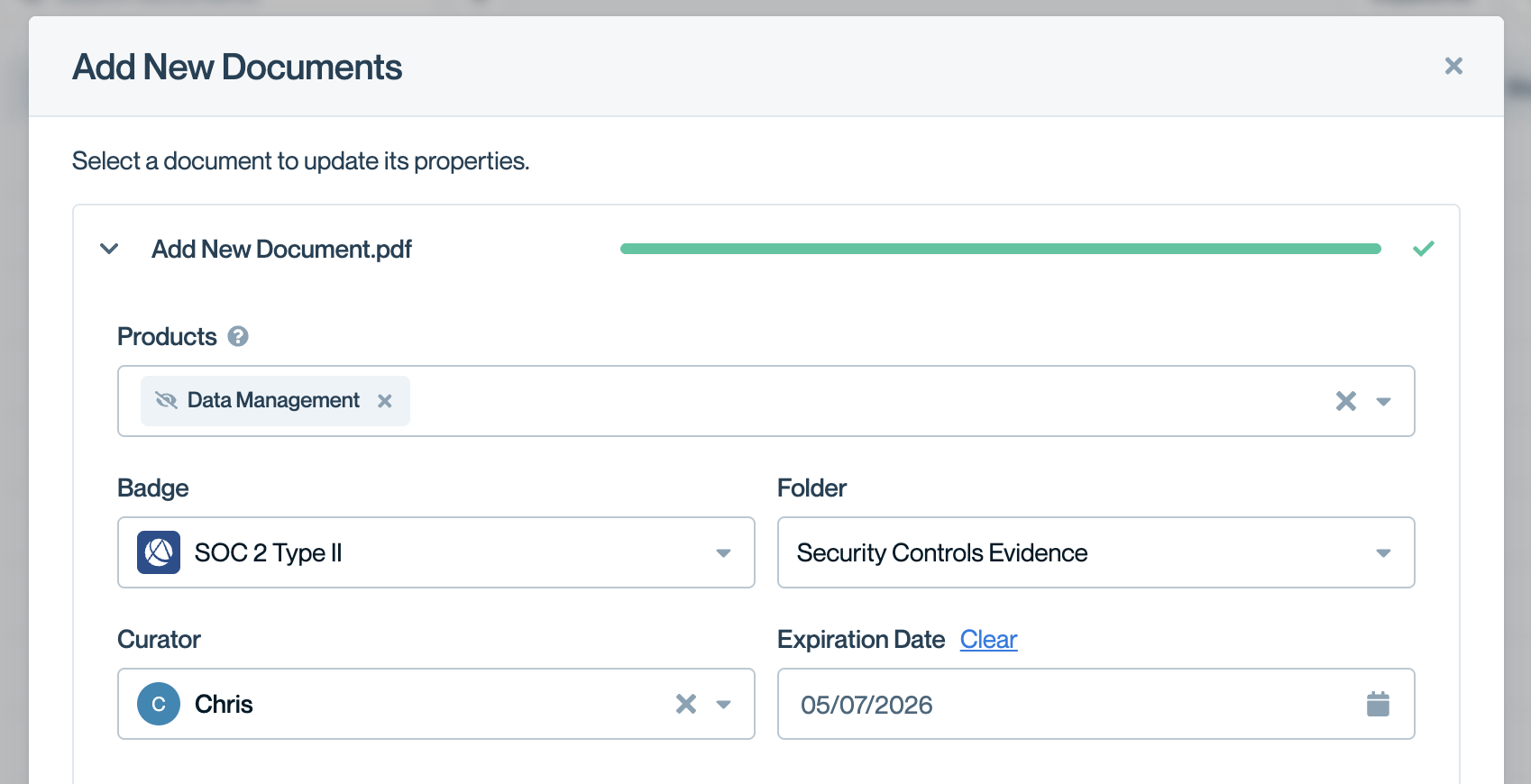
Set the product it is relevant to, badge, curator, folder and expiration date
Edit document sharing
Under Share With before finishing to add the document, you will be able to configure if ConveyorAI or Trust Center audience has access to it. Please refer to Document sharing and access for more details.
Deleting a document
You can delete a document by selecting the three dots on the document tile, then selecting "Delete." Please note that deleting the document will remove all metrics associated with that document.
Sometimes, rather than deleting the document, it may be better to:
- If the document is no longer current, and you have a new version --> Just click "Edit", then change the file.
- If you are just looking to remove it from your customer experience of you Trust Center, but you want to retain the analytics --> Set the access to "Internal Only," and move it to a folder such as "Archive."
- If you want to exclude it from ConveyorAI --> disable "Use for Question Answering."
Common questions
What happens when a document expires?
Expired documents remain active and accessible. The expiration date triggers a reminder to the assigned curator—it's not an automatic cutoff.
Can I update a document without losing analytics?
Yes. Click Edit and upload a new version rather than deleting and re-uploading. This preserves all metrics and lets you notify past visitors.
How do I remove a document from ConveyorAI but keep it in my Trust Center?
Toggle off ConveyorAI access under Share With. The document will remain visible to Trust Center visitors but won't be used for question answering.
What's next
- Adding new documents – Upload documents to your Trust Center
- Document Access – Configure access groups for your documents
- Organizing documents with folders – Structure your Trust Center content
Need help? Visit the Troubleshooting guide or contact [email protected]
Updated 10 months ago