

Organizing documents with folders
Time to complete: 5 minutes
Prerequisites: At least one document uploaded to your Trust Center
Folders help you organize documents for both your internal team and customers visiting your Trust Center. Group related documents together—such as compliance certifications, company policies, or product-specific materials—to make navigation easier and keep your Trust Center tidy.
Adding a folder
Click New Folder in the top right of the Documents page to open the Add Folder modal.
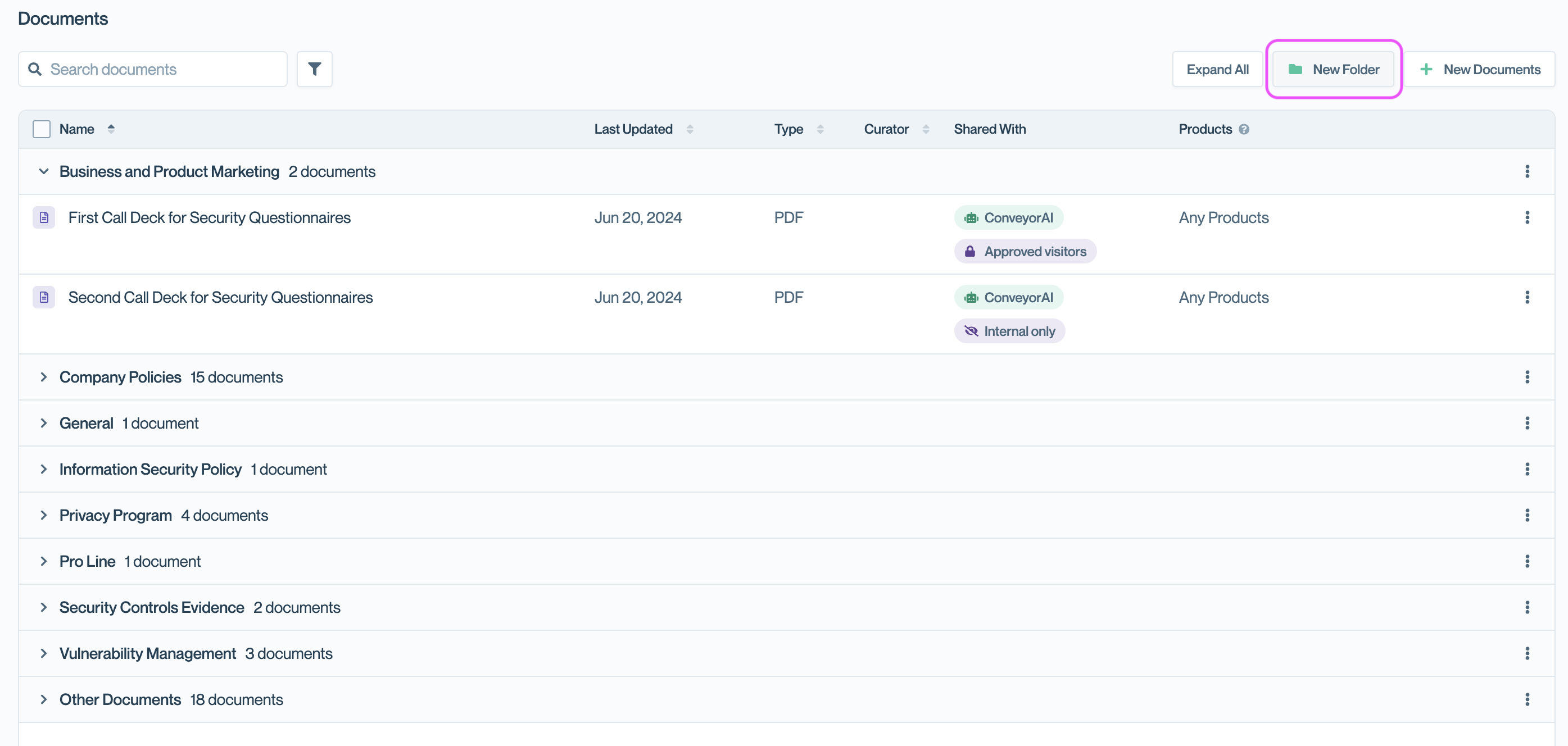
Click New Folder in the top right to create a folder._
Enter the folder name and any other details, then save.
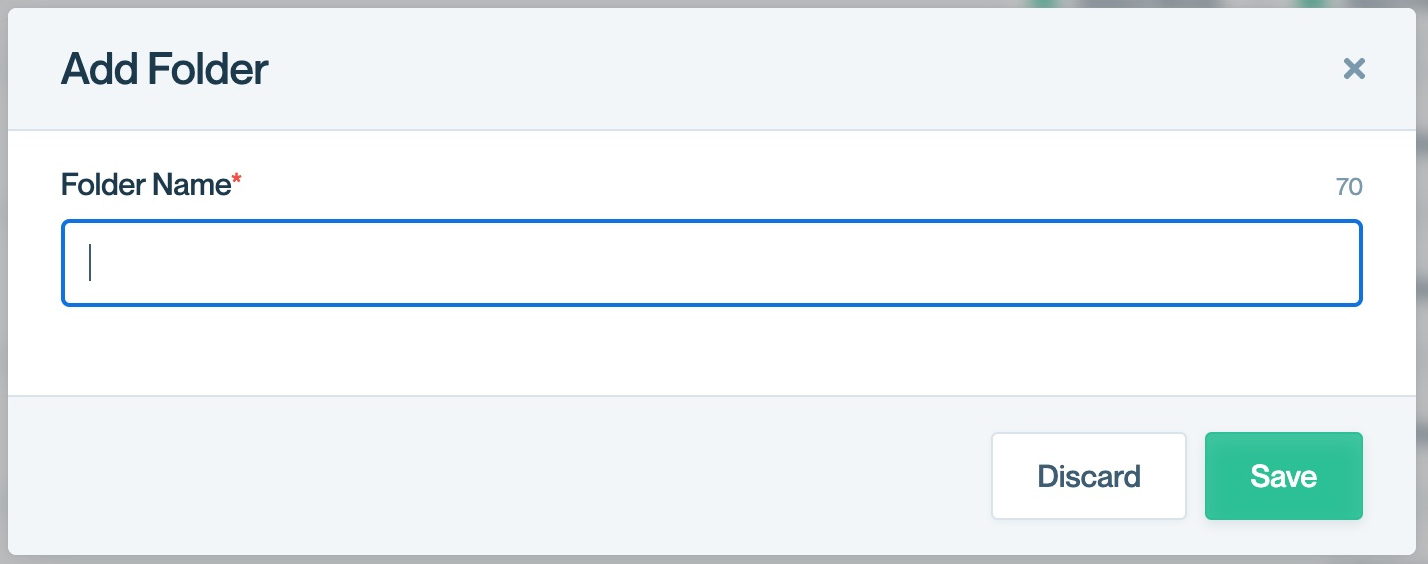
Fill out the folder details in the modal.
Adding documents to a folder
Hover over a folder and click the + icon to add a document directly to that folder. The Add New Document modal opens with the folder pre-selected.
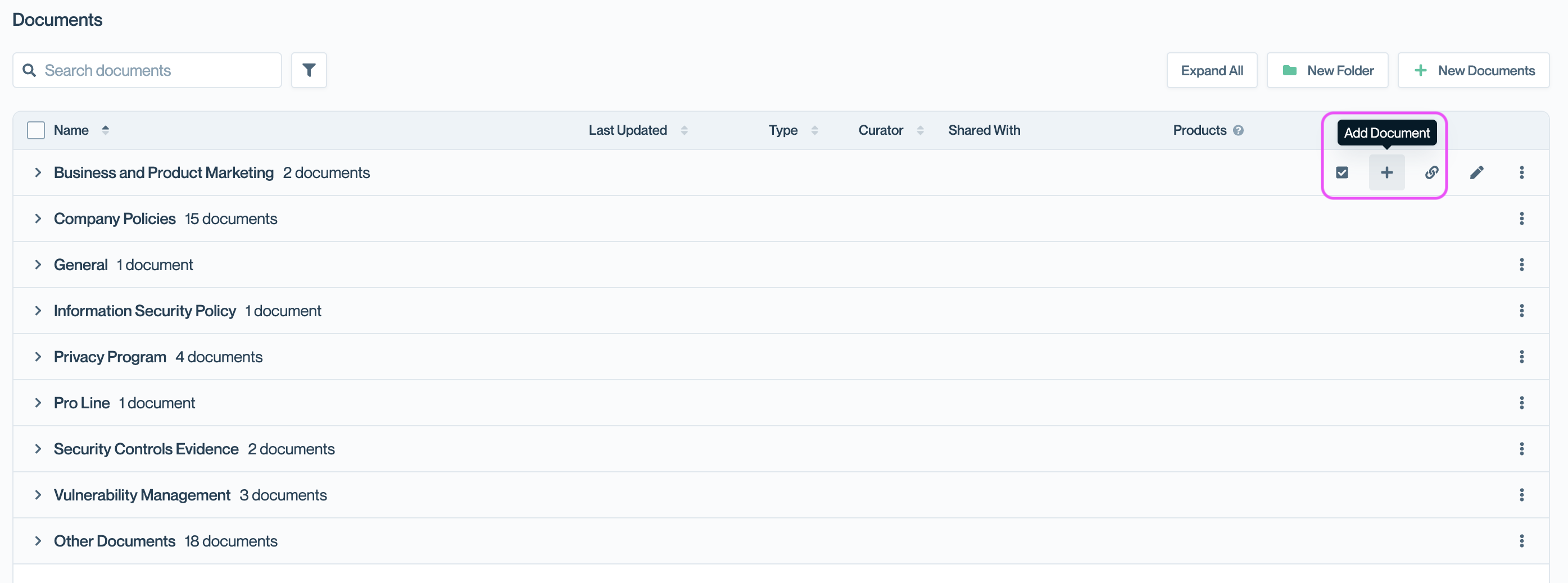
Hover over a folder and click the + icon to add a document.
Moving documents between folders
Select documents by clicking the checkbox next to each document name, then click Bulk Edit and choose Move. You can select individual documents or entire folders. The toolbar at the bottom shows how many items are selected.
👉 See Bulk actions for documents to learn more.
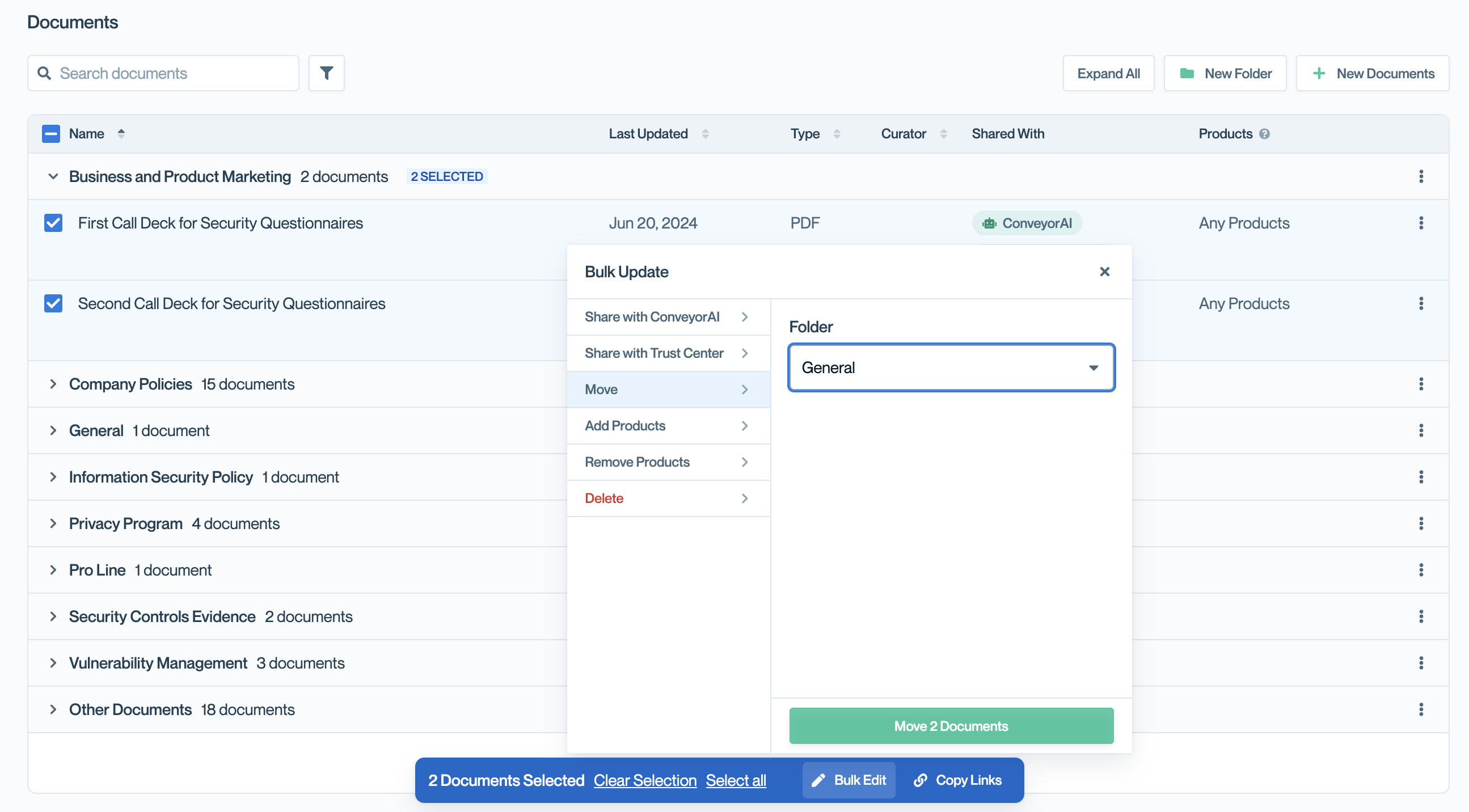
Select documents, click Bulk Edit, then Move to relocate them to another folder.
Renaming a folder
Hover over the folder row and click the pencil icon next to the three-dot menu to rename the folder.
Copying folder and document links
You can copy shareable links in two ways:
- Individual document links – Select documents and click Copy Links in the bottom toolbar to copy links for all selected documents.
- Folder link – Click the link icon next to the folder name to copy a link to that folder's Trust Center page.
Deleting a folder
Deleting a folder permanently removes the folder, all documents inside it, and their associated activity from your Trust Center and metrics dashboard.
Click the three-dot menu next to a folder and select Delete. A confirmation modal will appear.
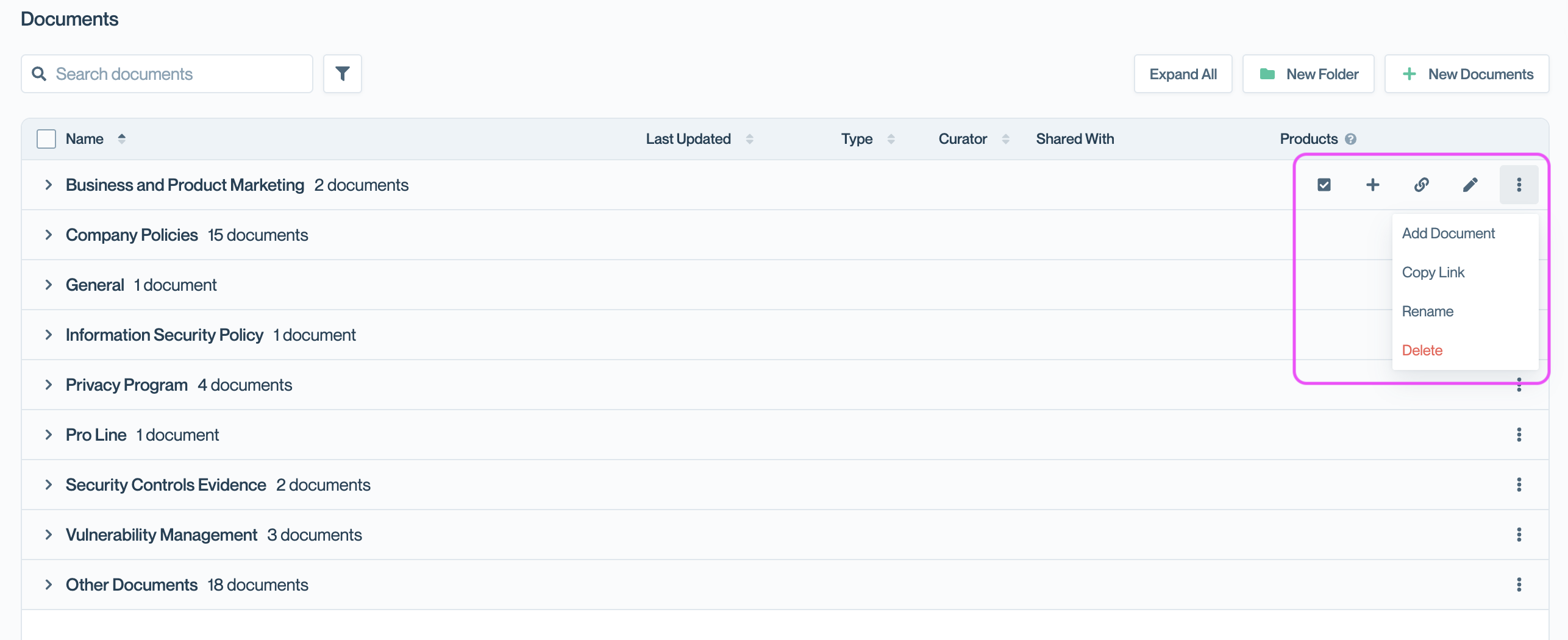
Click the three-dot menu and select Delete to remove a folder.
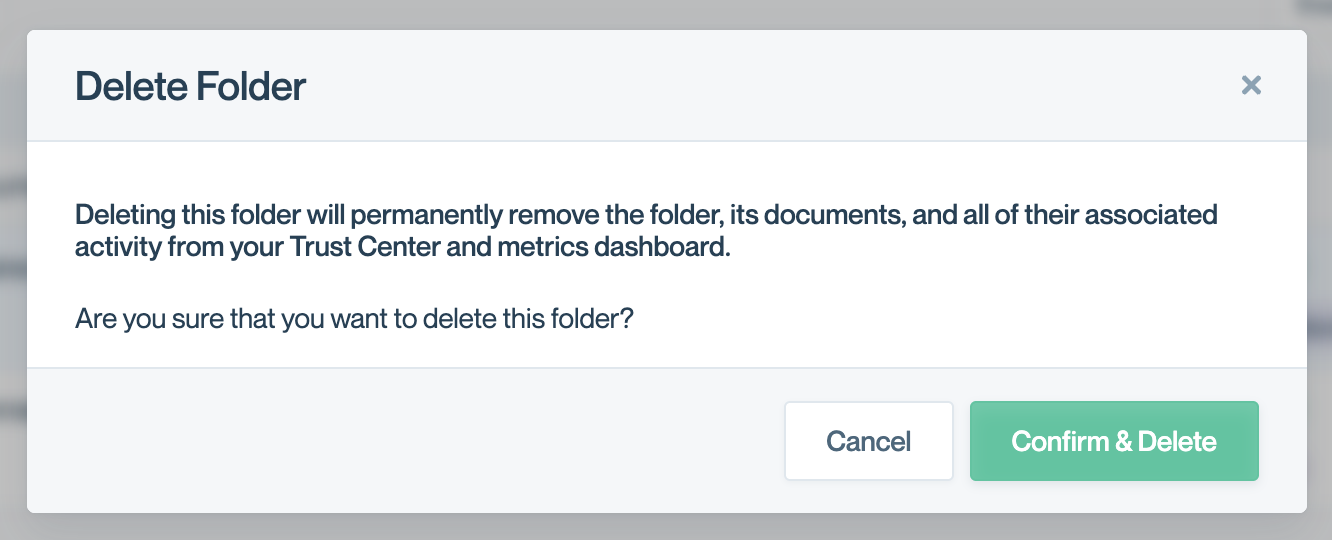
Confirm deletion in the modal. This action cannot be undone
You can also select multiple folders and documents to delete in bulk.
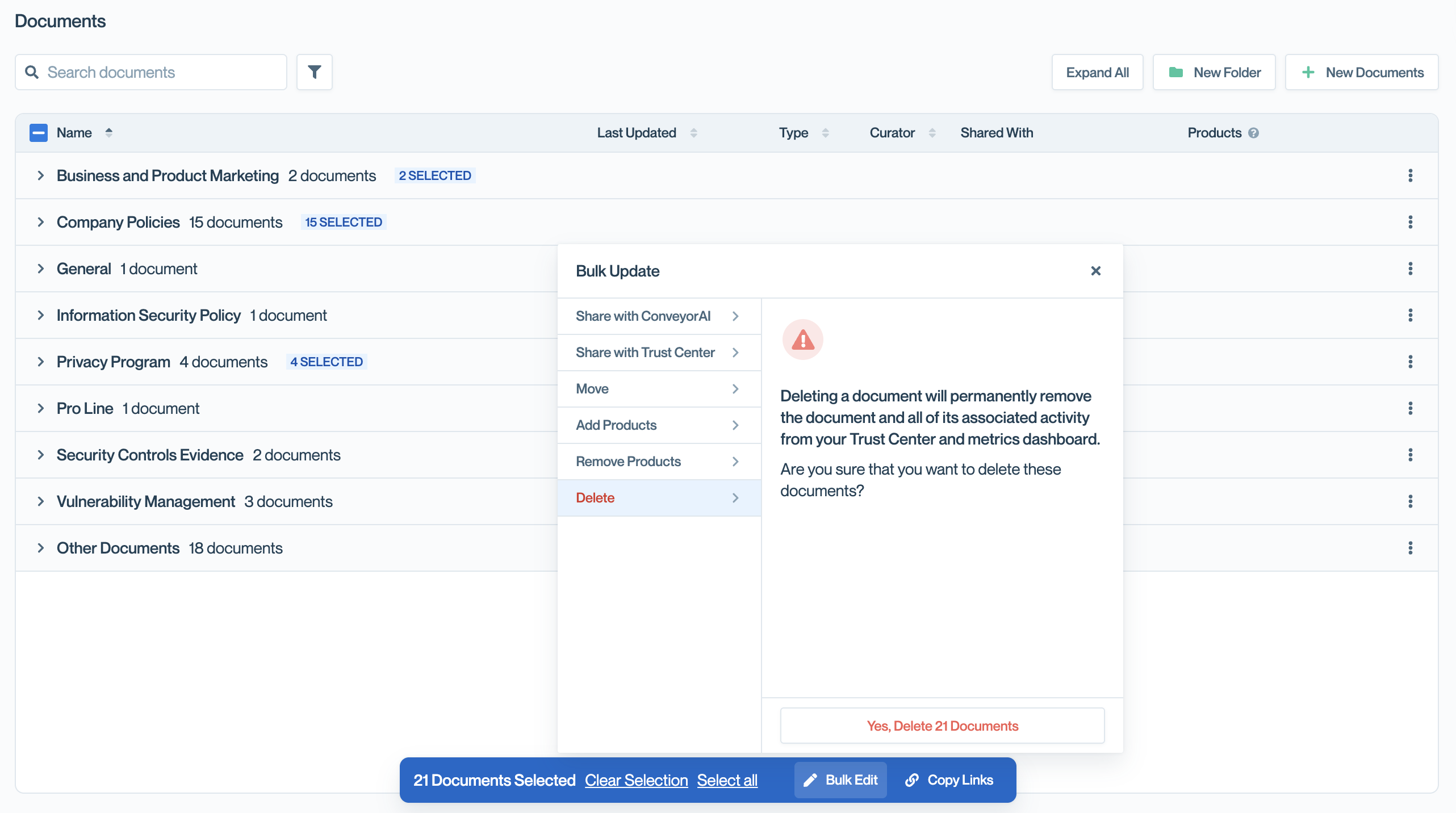
Select multiple folders or documents for bulk deletion.
Common questions
Do folders appear to Trust Center visitors?
Yes. Folders are visible to visitors and help them navigate your documents. Make sure folder names are clear and customer-friendly.
Can I nest folders inside other folders?
No. Conveyor supports a single level of folder organization.
What happens to documents if I delete a folder?
All documents in the folder are permanently deleted along with their activity history and metrics. Consider moving documents to another folder before deleting.
Can I reorder folders or documents?
Folders and documents are displayed alphabetically by name. To control the order, use naming conventions (e.g., "1. Certifications", "2. Policies").
What's next
- Adding new documents – Upload documents to your Trust Center
- Bulk actions for documents – Update multiple documents at once
- Document Access – Configure who can view your documents
Need help? Visit the Troubleshooting guide or contact [email protected]
Updated 10 months ago