

Adding new documents
Time to complete: 10-20 minutes (depending on number of documents)
Prerequisites: Document files prepared for upload (PDFs, Word docs, spreadsheets, etc.)
Upload security and compliance documents to power ConveyorAI's questionnaire responses and share materials with customers via your Trust Center. Documents can be added individually or in bulk, with options to control visibility, assign curators, and configure how they're used across Conveyor.
Add documents
Supported file types: PDF, Word (DOC, DOCX), Excel (XLS, XLSX, XLSM), PowerPoint, plain text (TXT), CSV, JSON document types up to 100MB per file
Upload documents to your Knowledge Library following these steps.
- Navigate to Documents in the left sidebar
- Click New Documents
- Drag and drop files or click to browse your computer
- Upload one or multiple documents at once. When this step is complete, the document is already added to your Knowledge Library. Next steps let you configure settings.
- Set Properties and Location for each document (more on this under Document Settings section below)
- Set if you want to share this document with: ConveyorAI (PDFs, or HECVAT/SIG/CAIQ questionnaires in the standard .xlsx template) or Trust Center Audience.
- Click Save and Close.
👉 See Editing Documents for details on updating settings after upload.
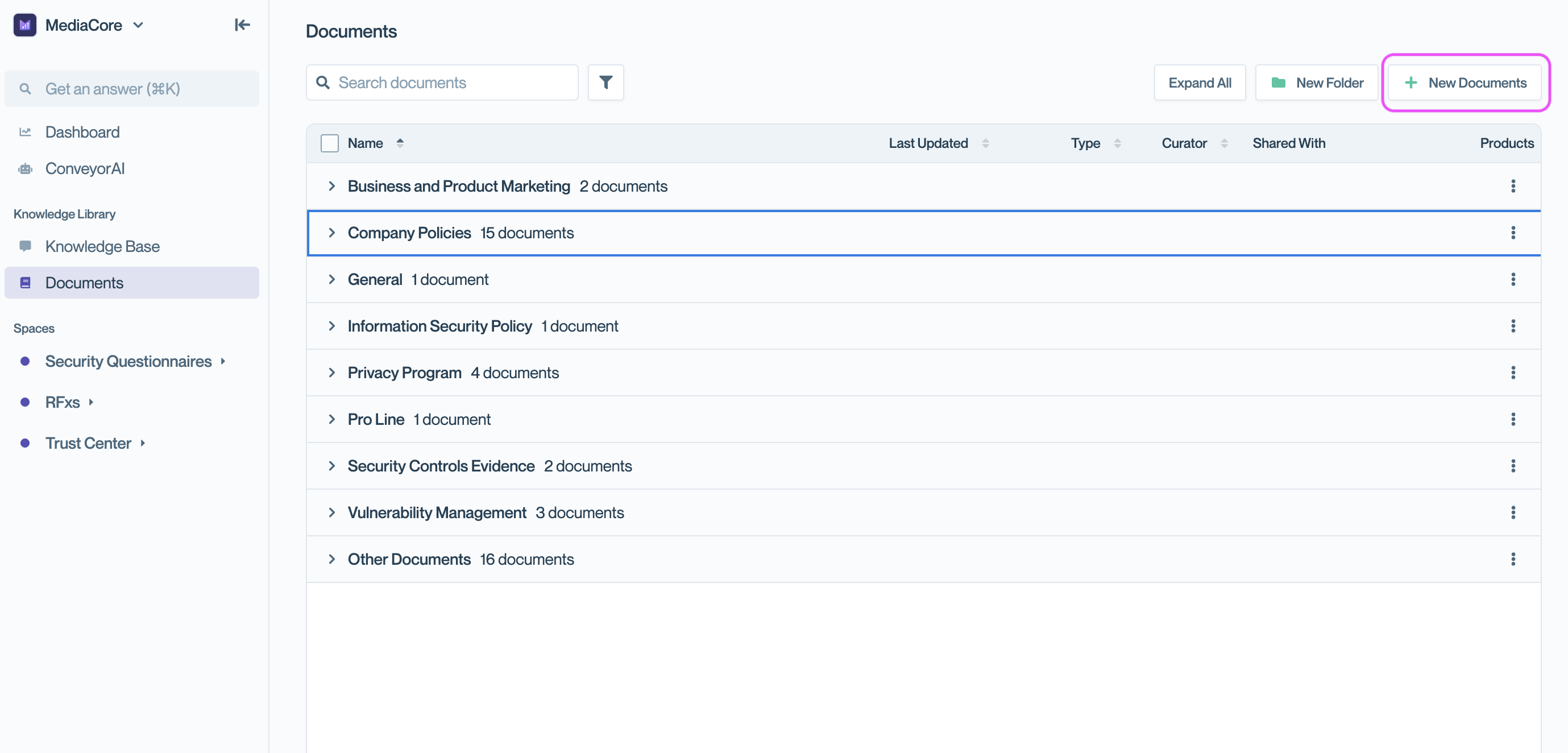
Click New Documents to begin uploading.
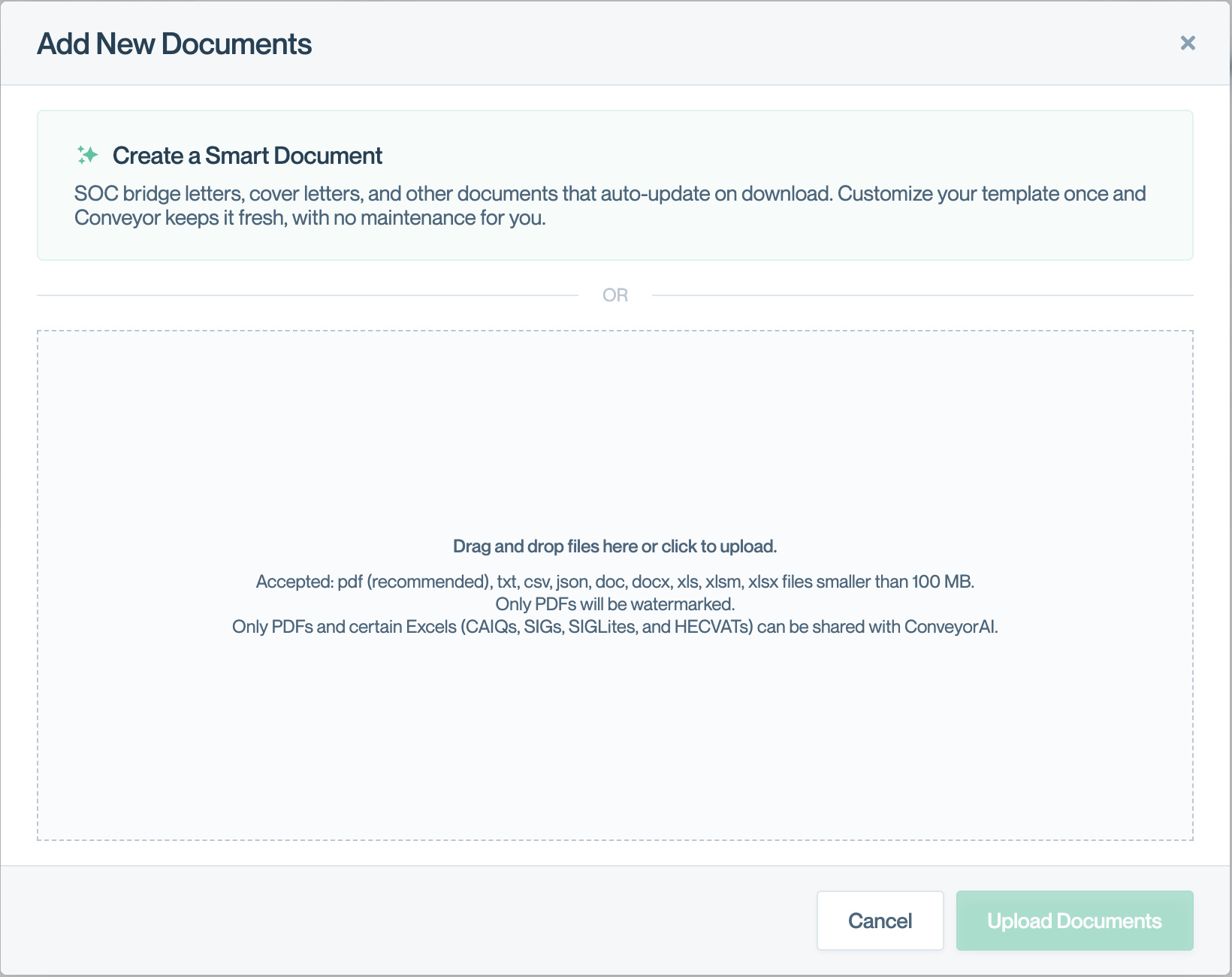
Drag and drop files or click to select from your computer.
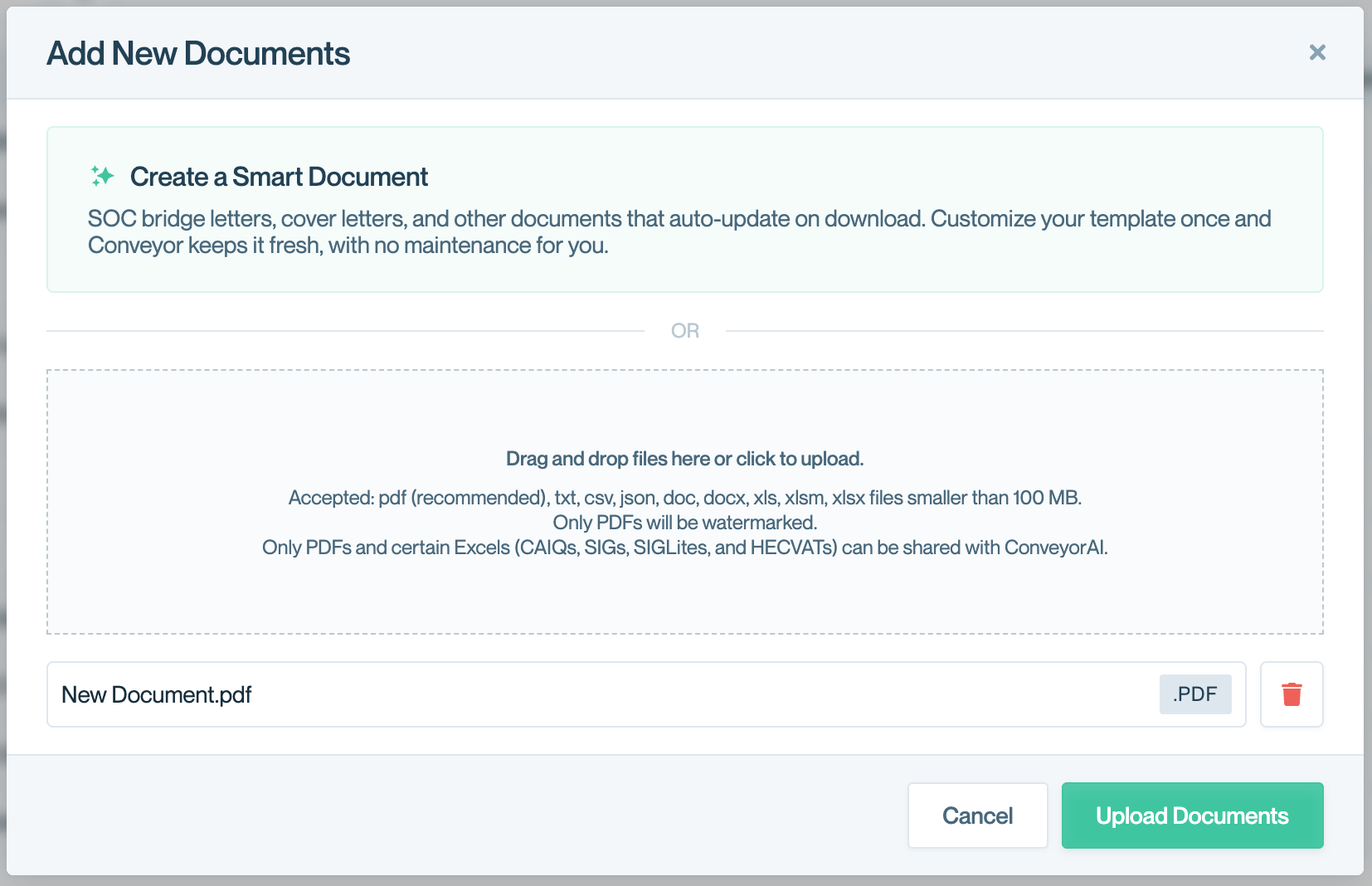
Click "Upload Documents", you can drag and drop multiple files.
After uploading documents
Once documents are uploaded, you can:
Update: Click Update on the document card to:
- Replace the file with a new version
- Change title, description, or badge
- Update access levels or folder assignments
- Modify curator or expiration settings
- Optionally announce the update to visitors who previously interacted with the document
Preview: Click Preview to see how the document appears to Trust Center visitors, including any watermarks.
Use Quick Add for common documents
For new organizations, Conveyor suggests commonly uploaded document types:
- Navigate to Documents
- Click Our Suggestions if you see the prompt
- Drag your files onto the corresponding tiles (SOC 2, policies, etc.)
- Documents upload with pre-configured metadata
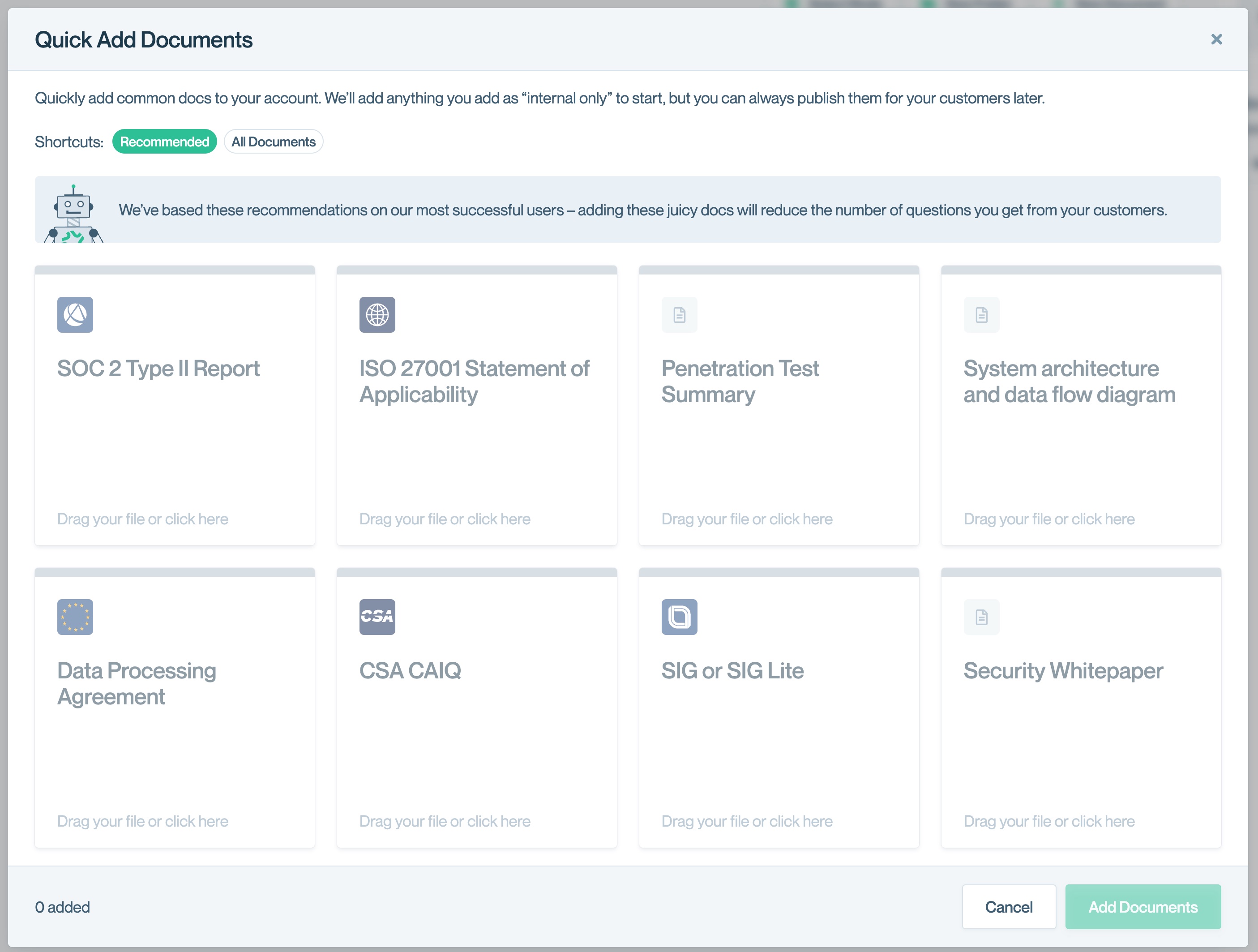
Quick Add suggests common document types to get you started faster.
💡 Note: Quick Add documents are set to Internal Only by default, meaning they're used by ConveyorAI but not visible to Trust Center visitors. Update access levels after upload to share with customers.
Need content suggestions?
Not sure what to upload? See Content Best Practices for recommendations on:
- Common documents for security questionnaires (SOC 2, policies, pen test reports)
- Common documents for RFPs (company decks, sales materials, product documentation)
- How many documents to start with (5-10 core documents)
- Tips for maintaining document quality over time
Common questions
Can I upload multiple documents at once?
Yes. The upload modal accepts multiple files in a single drag-and-drop or file selection action.
What happens if I upload a document with the same name as an existing one?
Conveyor creates a separate document. To replace an existing document, use the Update function on that document's card instead.
How do I know which documents ConveyorAI is using for answers?
Navigate to a questionnaire and click the gear icon to see Manage Sources. You can toggle individual documents on or off for answer generation.
Can I bulk-change access levels after uploading many documents?
Yes. Select multiple documents using checkboxes, then click Bulk Edit to update access levels, groups, or other properties at once. 👉 See Managing Document Access
Do I need to upload documents if I'm using Google Drive or Confluence integration?
No. Integrations automatically sync documents from those sources. Use manual upload for documents not stored in connected systems.
What's next
Need help? Visit the Troubleshooting guide or contact [email protected]
Updated 3 months ago