

Review and Edit Answers
Time to complete: 10–25 minutes
Prerequisites: A questionnaire has been imported and ConveyorAI has drafted answers.
Overview
Once ConveyorAI finishes drafting answers, you’ll review and refine them in the Answers Tab.
Here, you can see every question, AI-generated response, and its supporting sources in one view.
This guide explains how to navigate the Answers Tab, filter and lock questions, and edit or replace AI-generated answers using your Knowledge Library. From the Answers Tab, you can:
- Filter & lock w/ the toolbar
- Review and edit answers
- Work with sources
- Conditional Questions
- Adjust ConveyorAI's settings
- Approve or flag answers
Toolbar and Filters
Use the Toolbar at the top of the Answers tab to quickly find and organize questions, and perform other global actions.
Filter options
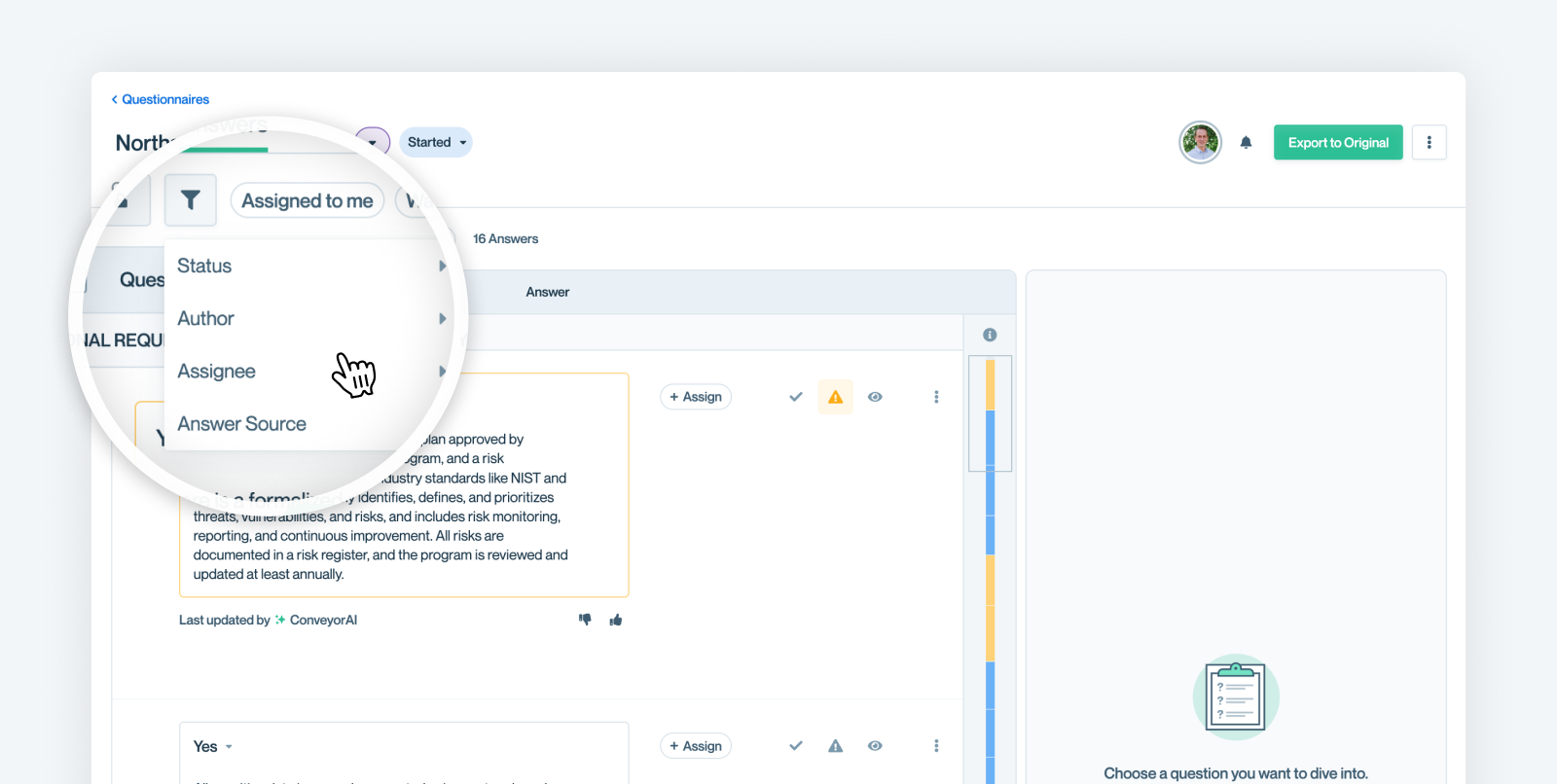
Utilize the filter to sort which questions are presented to you in the Answers tab.
| Filter | Description |
|---|---|
| Status | Narrow results to questions marked Approved, Ready to Approve, Flagged, Answered, or Unanswered. |
| Author | Filter by who wrote the answer (ConveyorAI, Imported, or a specific teammate). |
| Assignee | Filter by who’s responsible for the question. |
| Answer Source | Filter by how the answer was created: Exact Match, Direct from Sources, AI-Generated, Team-Written, or Imported. |
Quick Tip - Combine FiltersYou can select multiple filters to further refine which answers are presented.
Assigned to me / Collaborating on
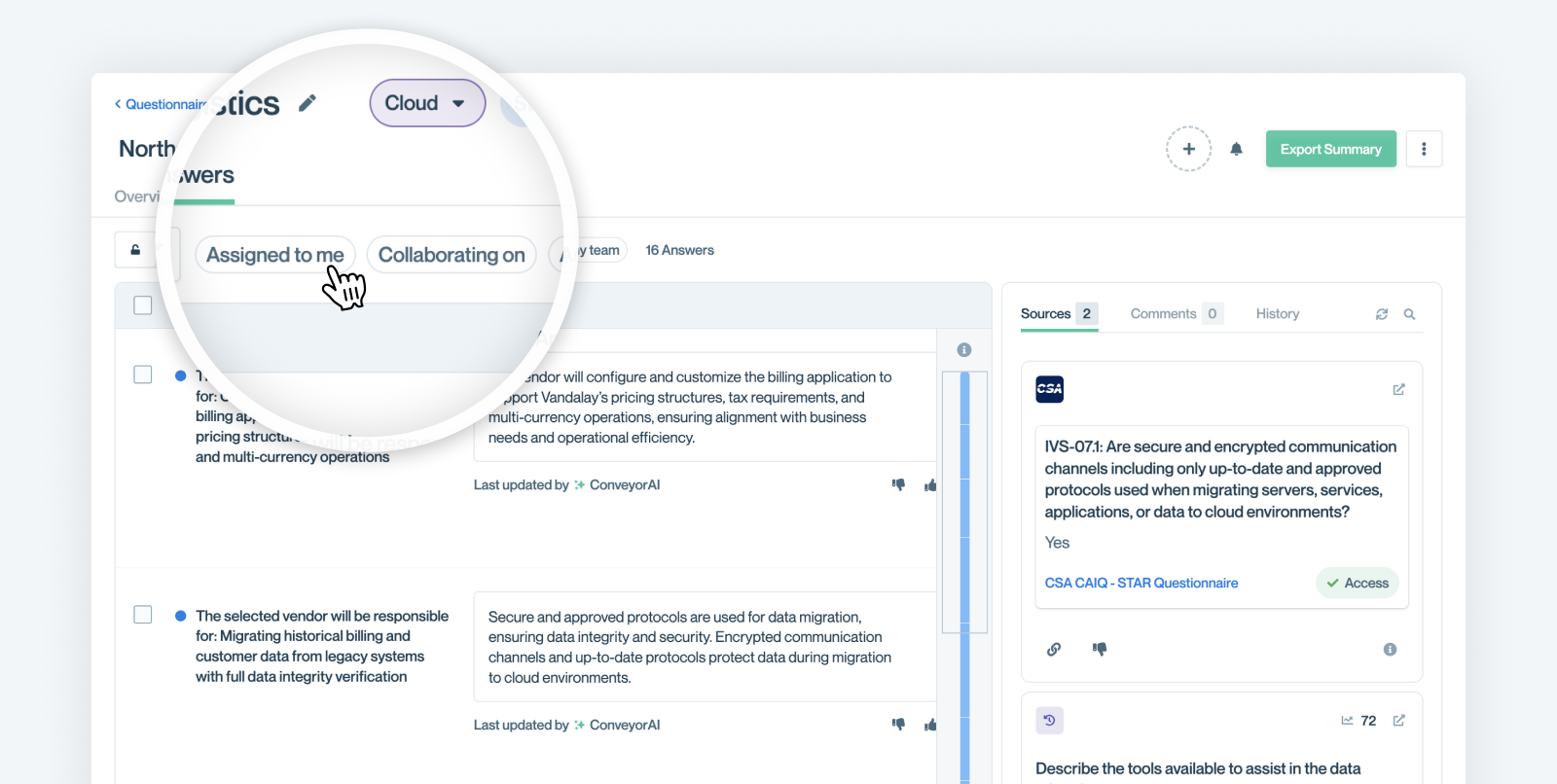
Sometimes when you visit a questionnaire you're just interested in questions that directly relate to your own workflow. We've got quick filters for questions that are "Assigned to me" or that you are "Collaborating on".
Locking and unlocking answers
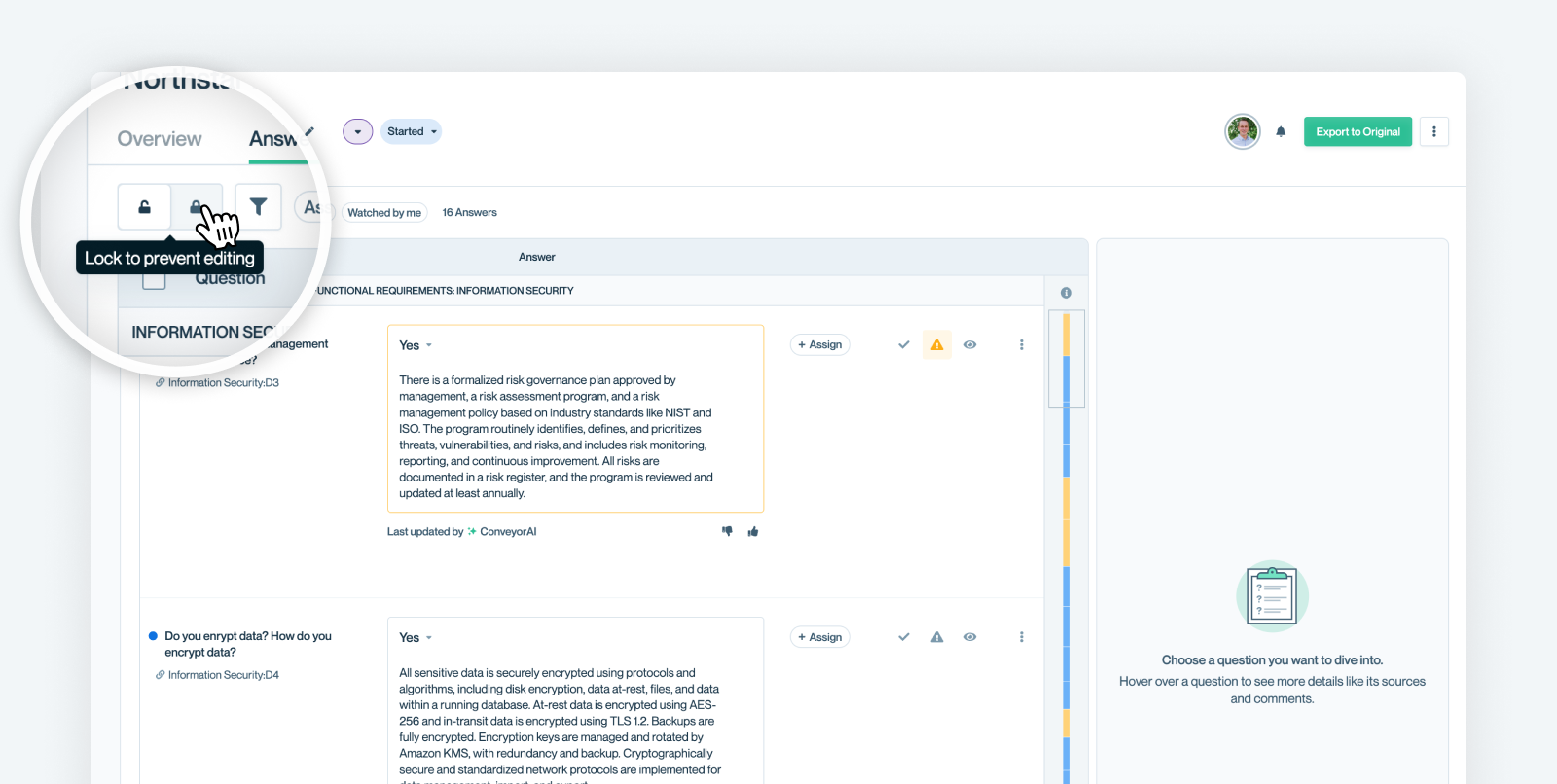
Use the lock icon to prevent accidental edits once answers have been finalized. This allows you to still view the responses but no changes can be made until you click the unlock icon.
Reviewing & Editing Answers
You can edit AI-generated answers in two modes depending on how you prefer to work.
Tweak Mode (inline editing)
Tweak Mode is the default view — ideal for quick edits or small wording changes. Simply click into any answer cell and start typing.
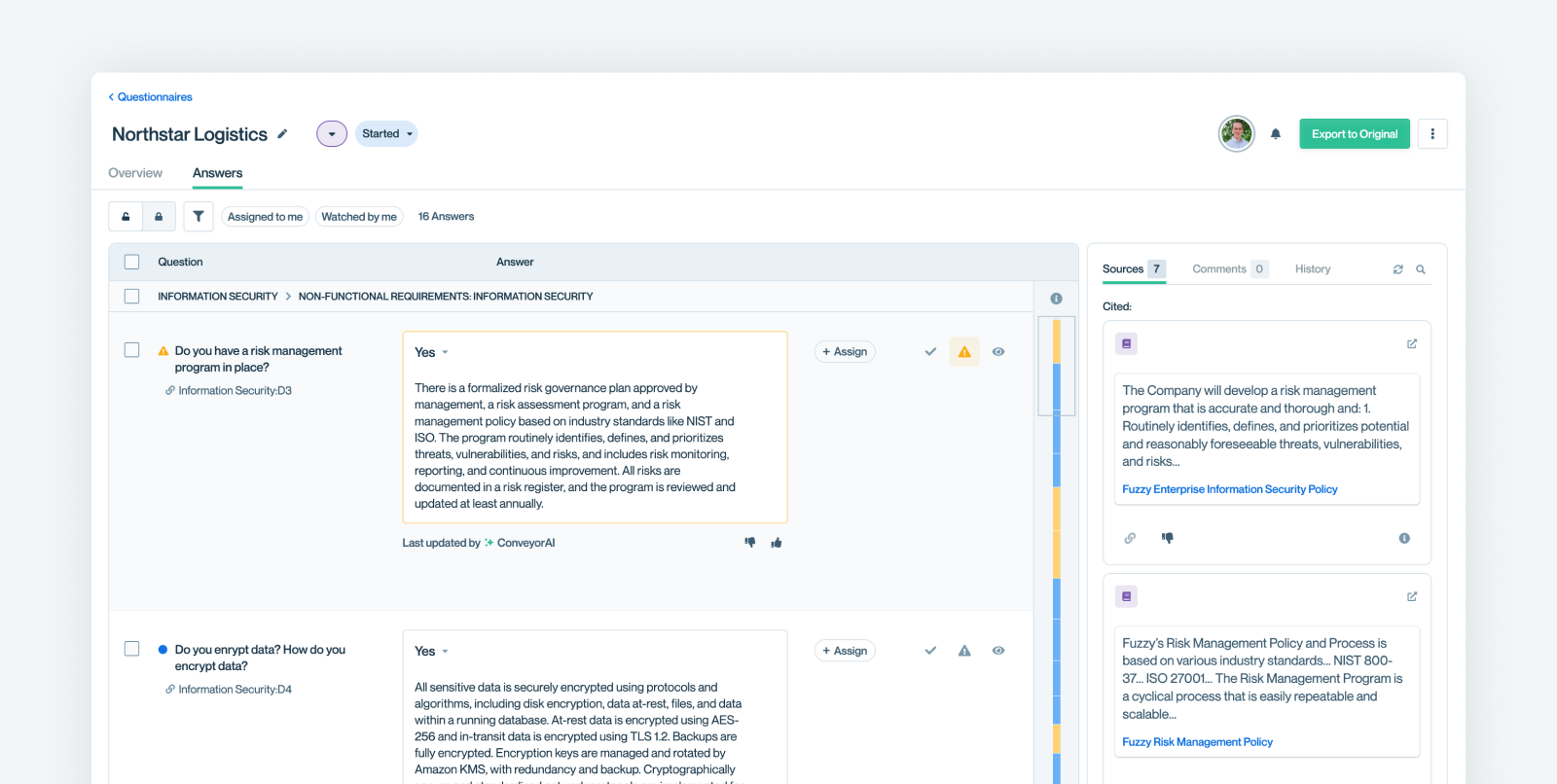
Use this mode when you want to review multiple answers quickly and make light edits.
Focus Mode (single question view)
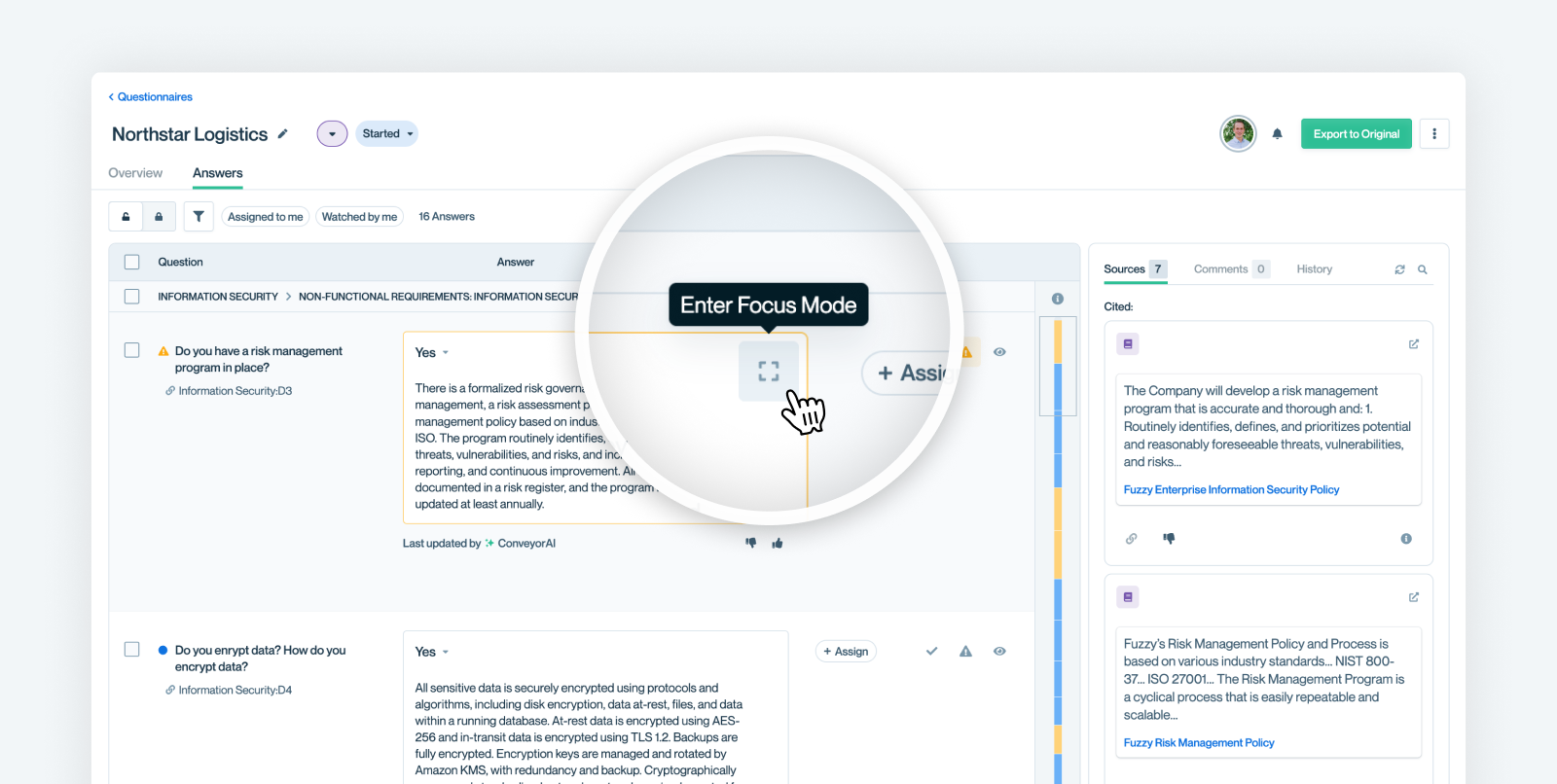
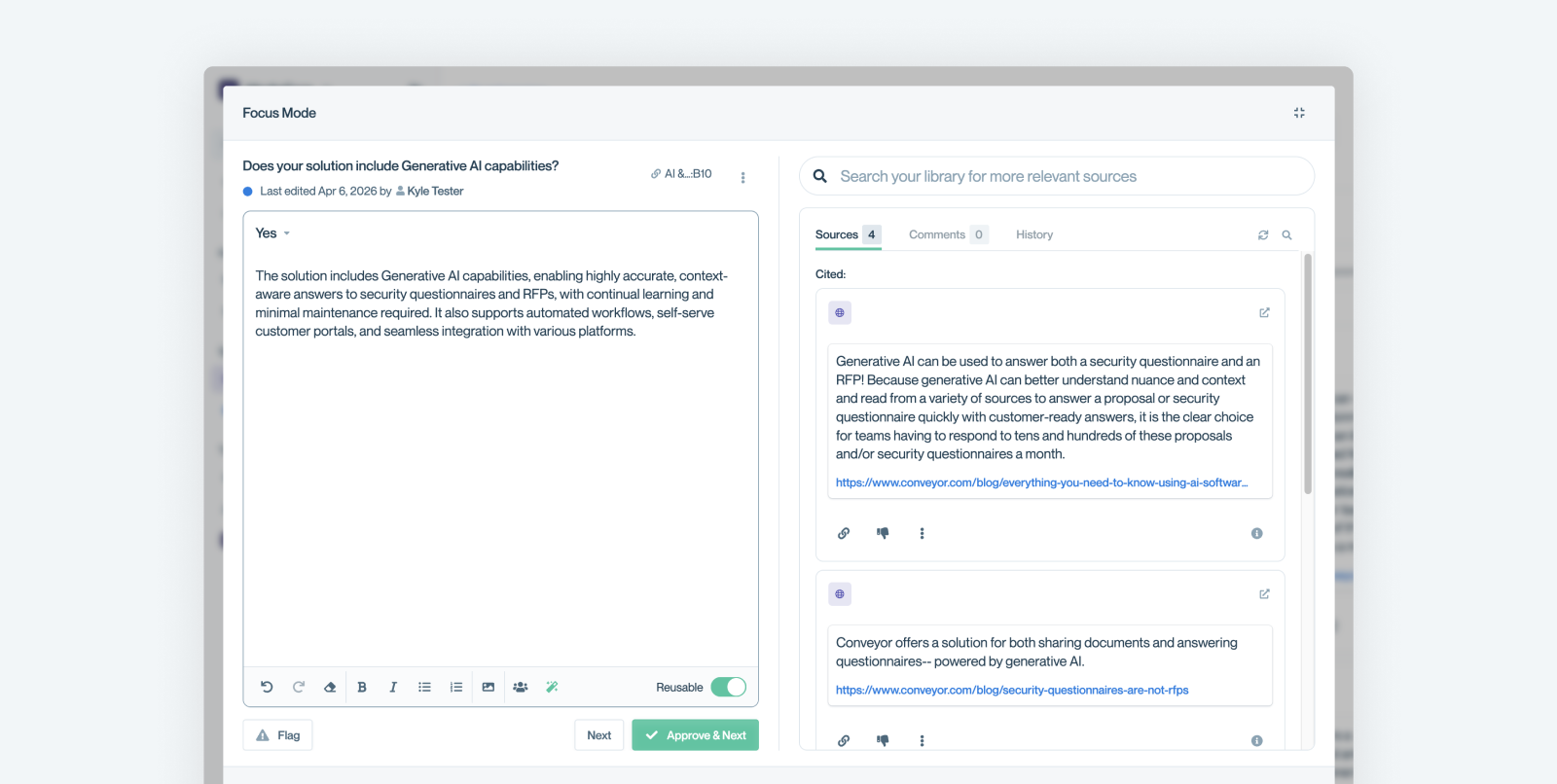
Click the Focus Mode icon on any question to expand it into a dedicated view.
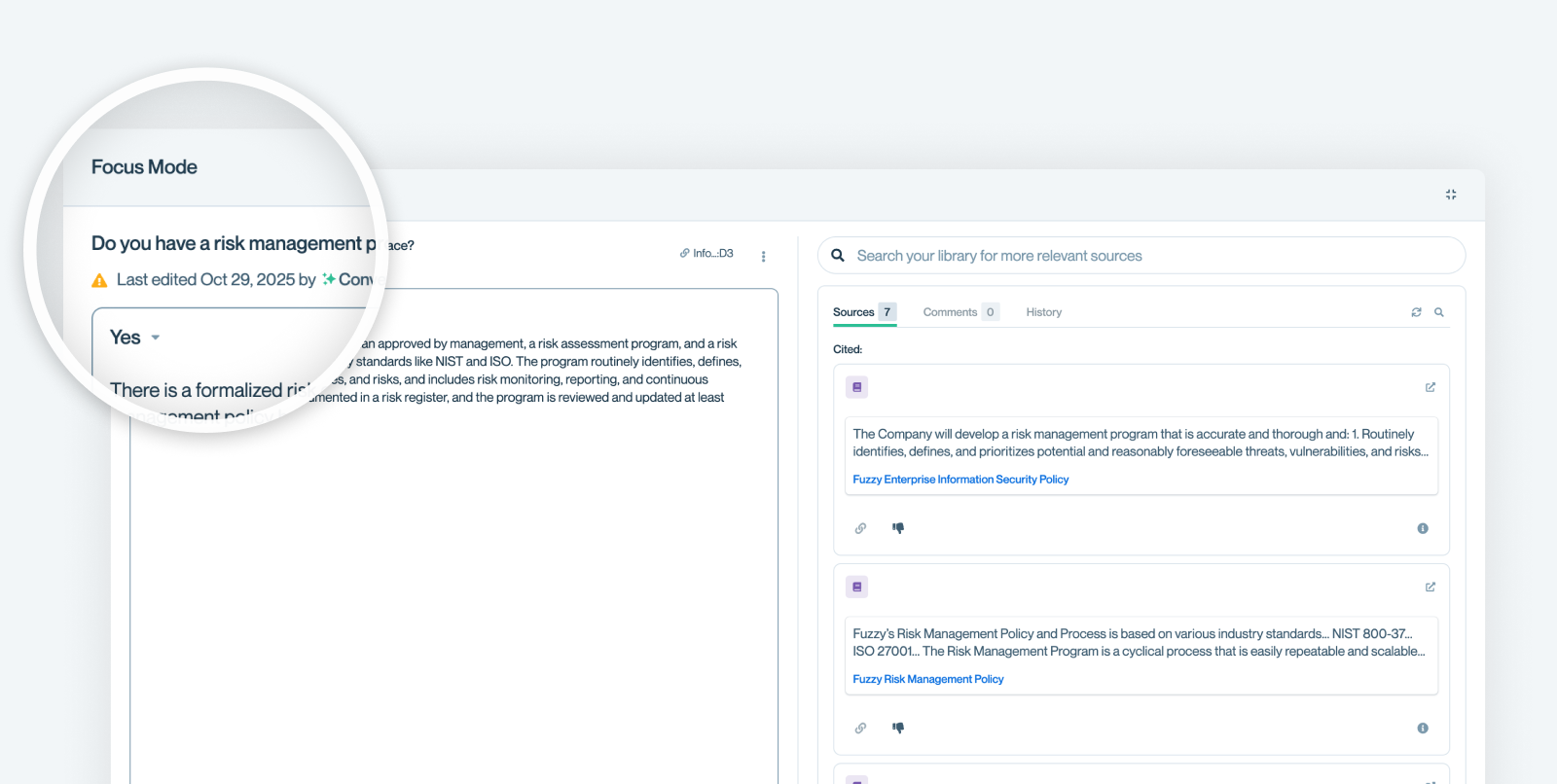
Focus Mode shows:
- The full question and AI-drafted answer
- All cited sources used to create it
- Comments, history, and answer confidence
This mode is best for complex or high-impact questions that need thorough review.
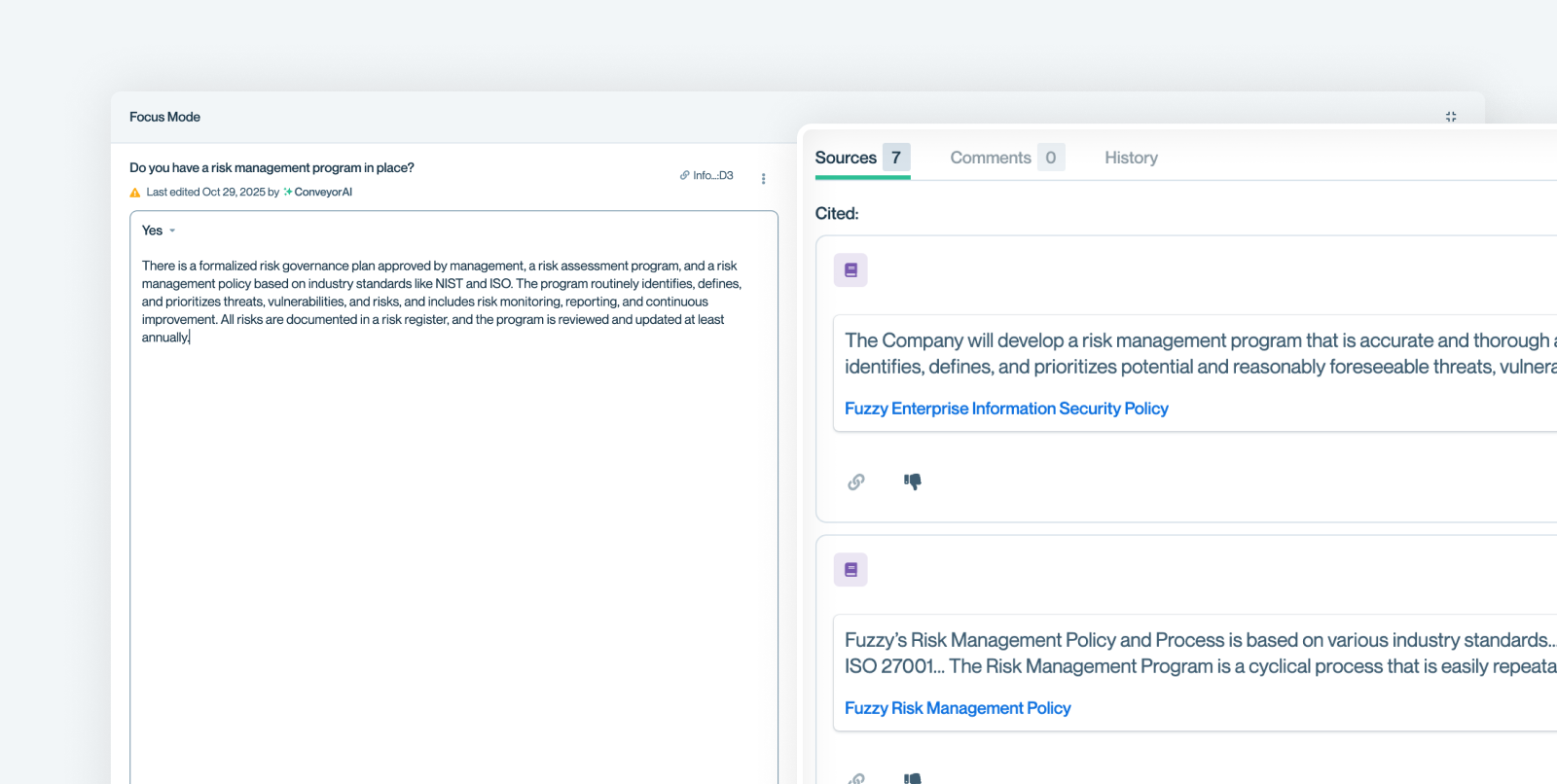
Working with sources
Each AI answer includes a list of cited sources (from your Knowledge Base, Documents, or past answers).
Use these to verify accuracy or refine the language.
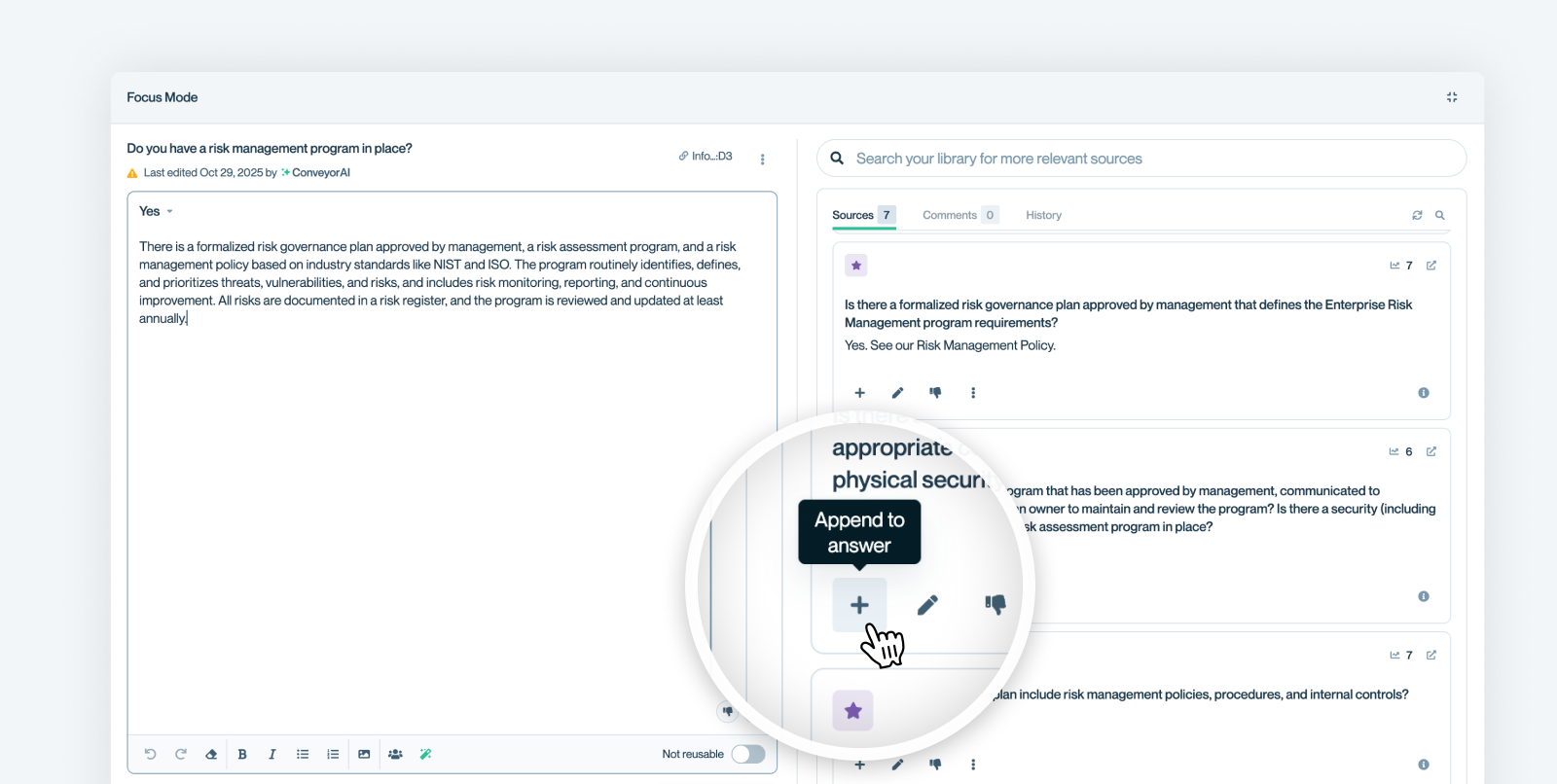
Appending Source Q&A
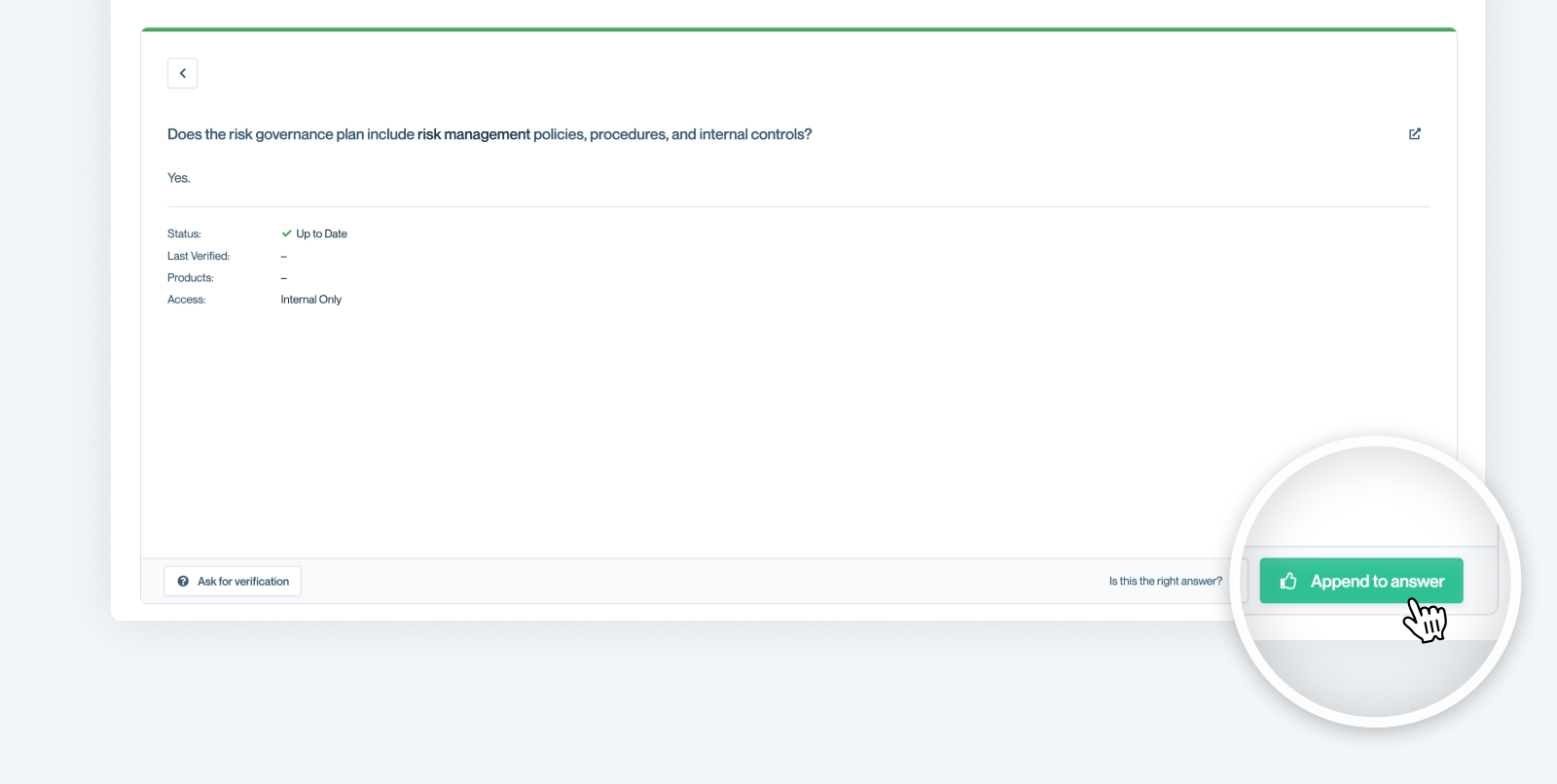
If you find the perfect Q&A in the sources list, click the + Append to answer button to insert that text directly into your draft.
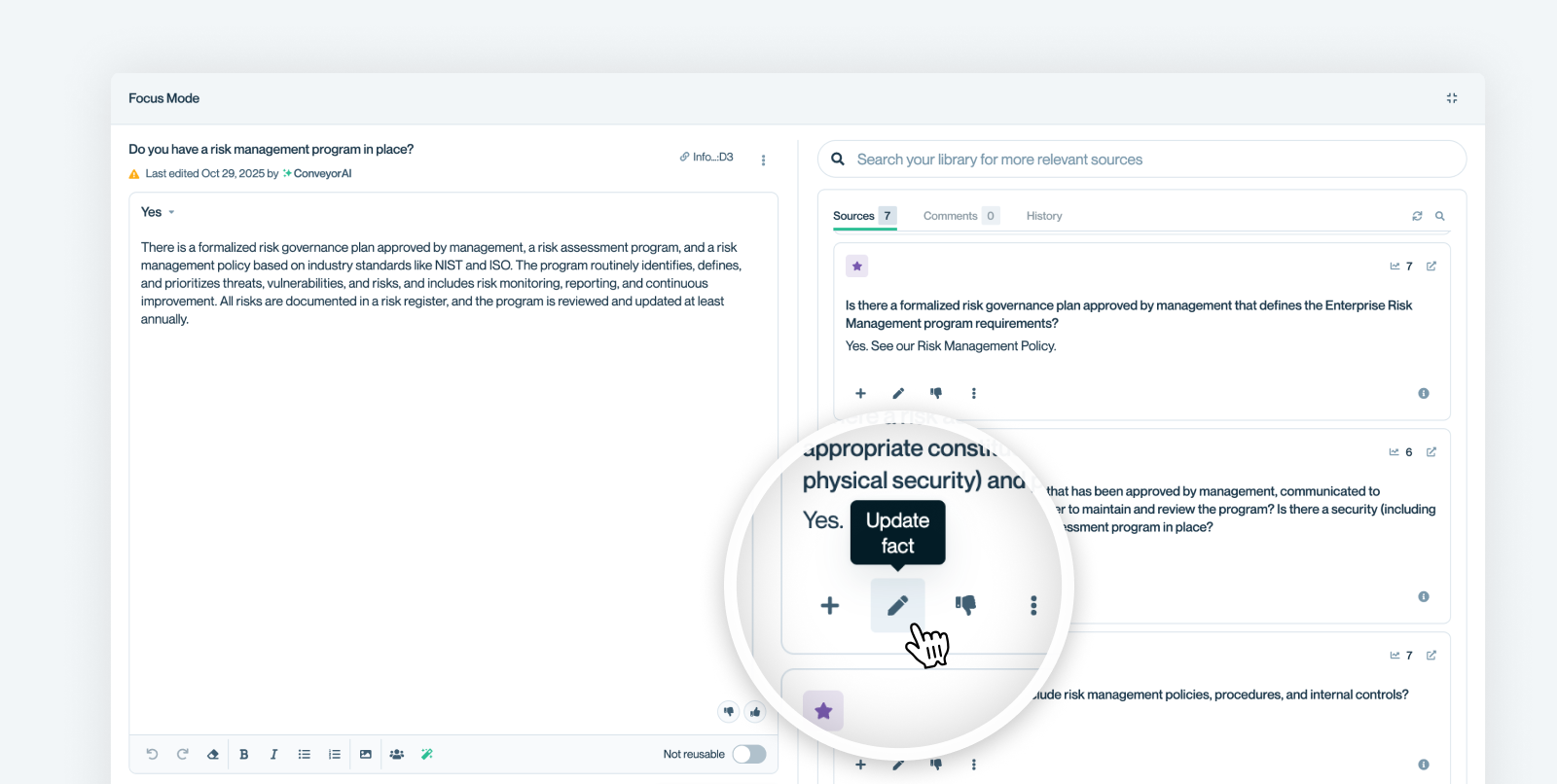
Update Fact
Occasionally, you'll notice that one of the Q&As that ConveyorAI cites is out of date. You can quickly make the edit, and that change is reflected in that source going forward.
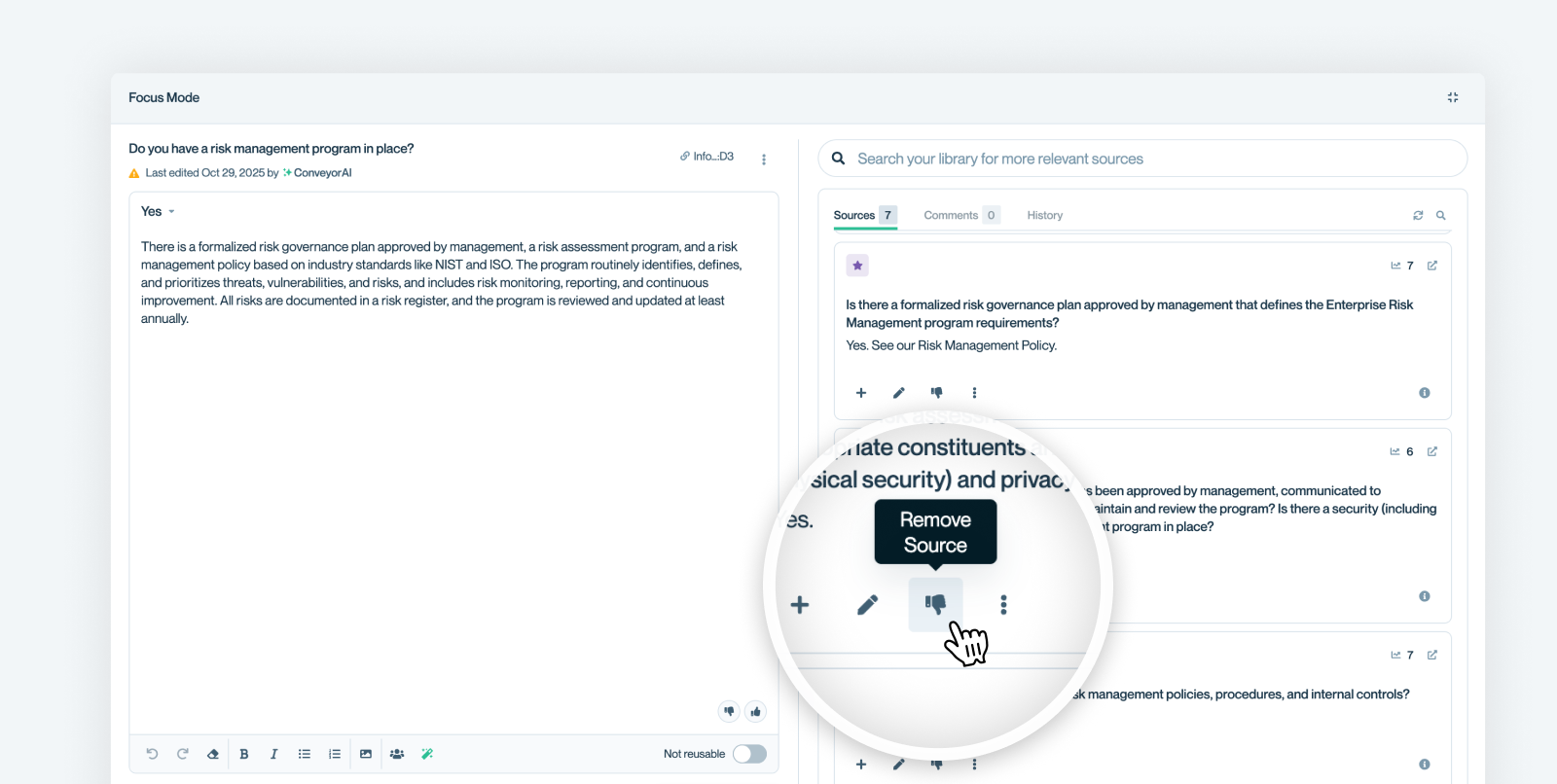
Removing a Source
Sometimes, ConveyorAI will cite a source that you don't think it should have. Simply click the "Remove source" option to get rid of it.
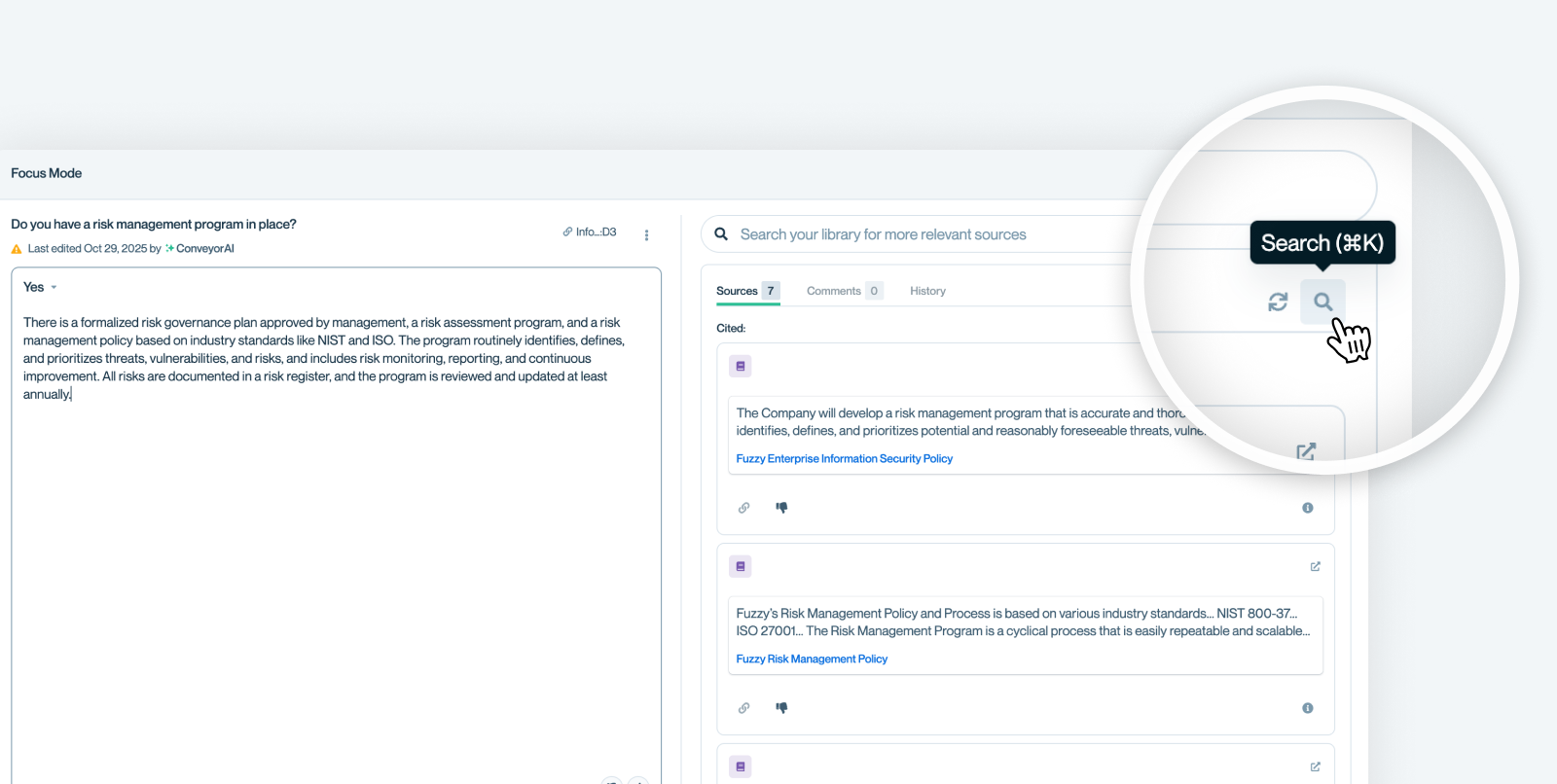
Searching for Better Content
If the best answer isn’t listed in your sources, search your Knowledge Library manually. Click the magnifying glass icon , or press Cmd + K / Ctrl + K.
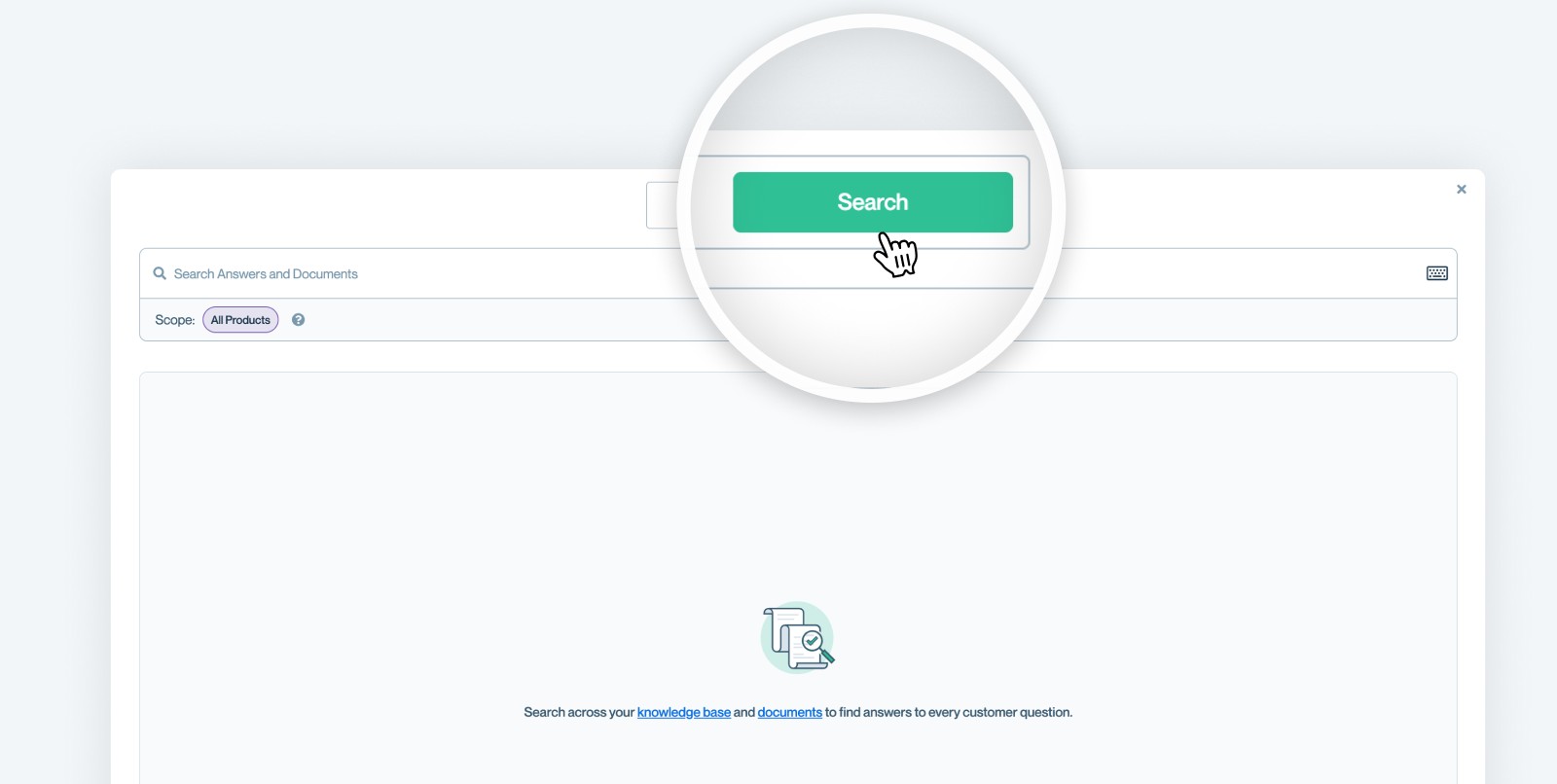
Toggle to the Search Tab. Enter keywords or phrases - Conveyor searches across your Knowledge Base Q&As and Documents.
Review the results, click on the one you like, and click Append to answer to insert a stronger response.
You can also copy snippets directly from the search results without replacing the full answer.
Re-answer Using New Sources
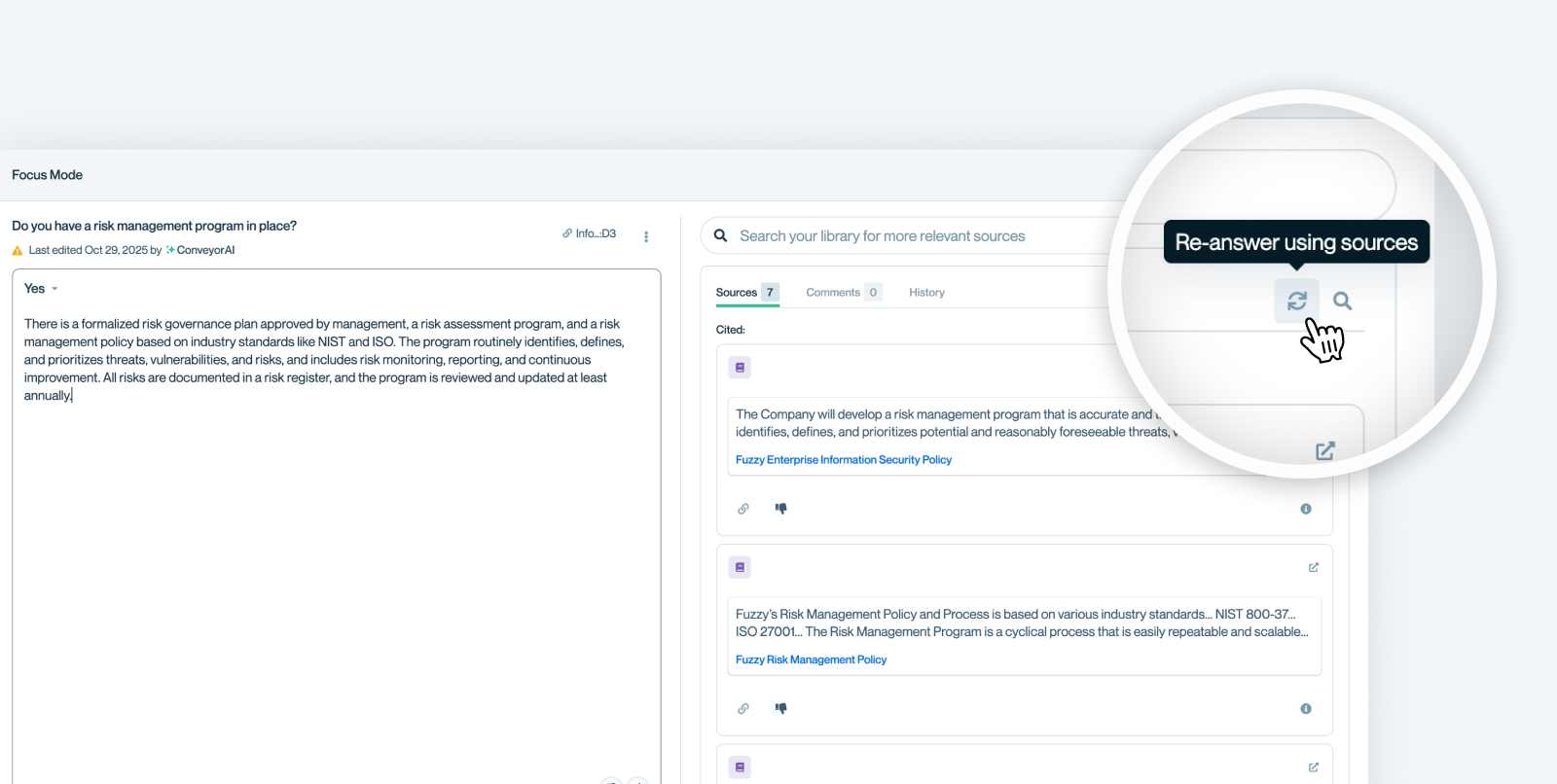
If you've removed a source or edited any cited sources, you'll like want to re-run the answer to take into account those adjustment. You can do that quickly by clicking the icon pictured below.
Conditional Questions
Security questionnaires often include conditional logic, follow-up questions that only apply depending on a prior answer. For example, a questionnaire might ask "Does your solution include generative AI capabilities?" and then list child questions like "If yes, please describe your AI data handling practices" that should only be answered if the parent answer is affirmative.
Conveyor automatically detects these parent/child relationships during import and uses them to produce more accurate answers and reduce manual cleanup.
🎥 Conditionals Walkthrough Video
How it Works
With conditional question detection here's what changes behind the scenes:
- Parent questions are answered first - Conveyor sequences answering so that parent questions are always resolved before their children.
- Child questions get parent context - When answering a child question, ConveyorAI uses the parent question, parent answer, and parent sources as additional context — which dramatically improves accuracy on vague follow-ups like "Please describe."
- Inapplicable sections are automatically marked N/A - If a parent answer indicates the section doesn't apply (e.g., the answer is "No" to a gating question), Conveyor automatically marks all child questions as Not Applicable rather than generating irrelevant answers.
Identifying Conditional Questions in the Answers Tab
You won't notice anything different on the Mapping screen, conditional questionnaires are mapped the same way as any other. The differences appear in the Answers tab. When you select a child question, you'll see a conditional context card in the sources panel.
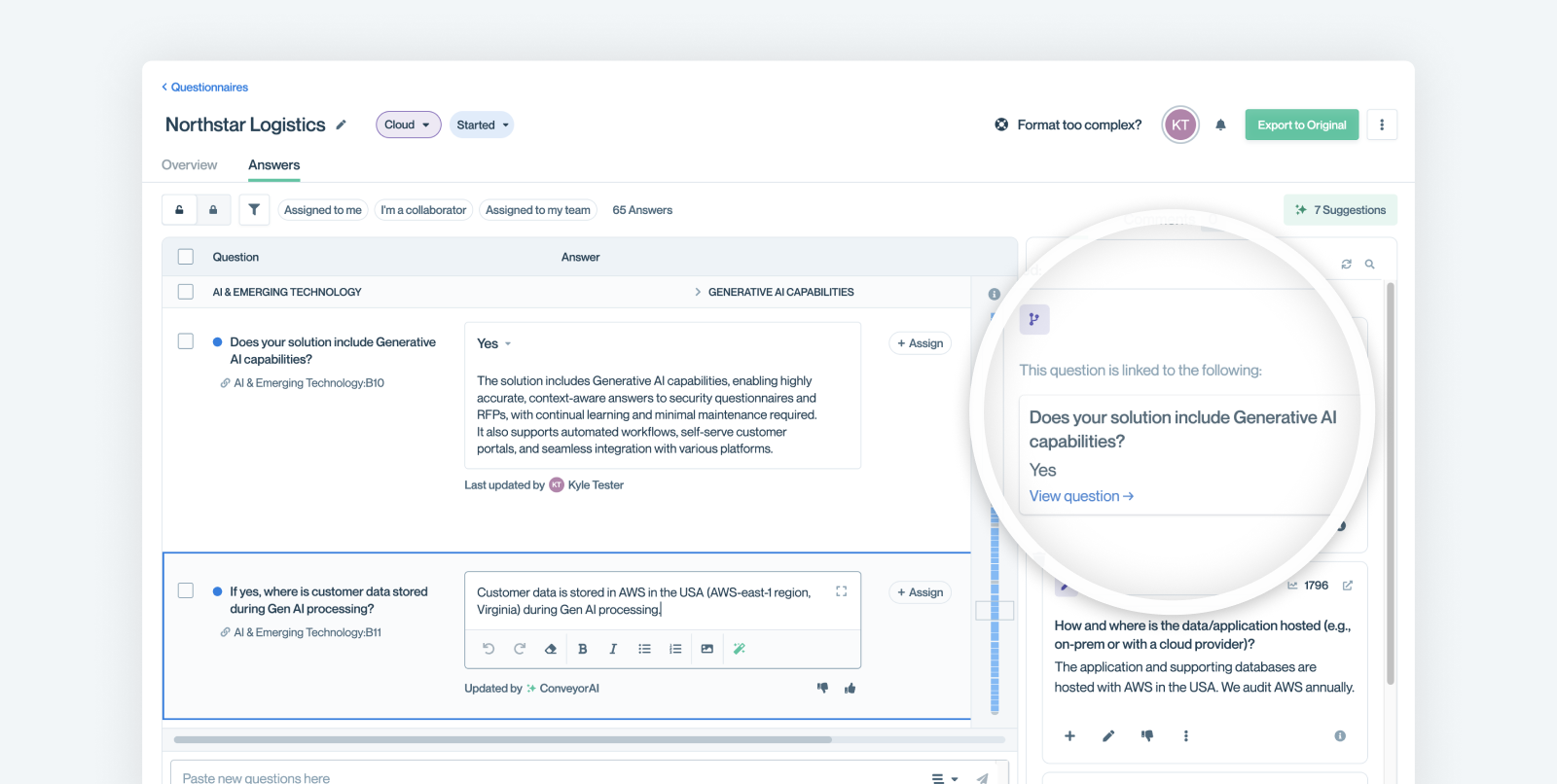
Click "View question" on the card to jump directly to the parent question in Focus Mode.
Changing a Parent Answer
One of the most powerful aspects of conditional questions is what happens when you change a parent answer. If you update a parent question's response, for example, changing it from "Yes" to "No", Conveyor automatically regenerates all affected child answers.
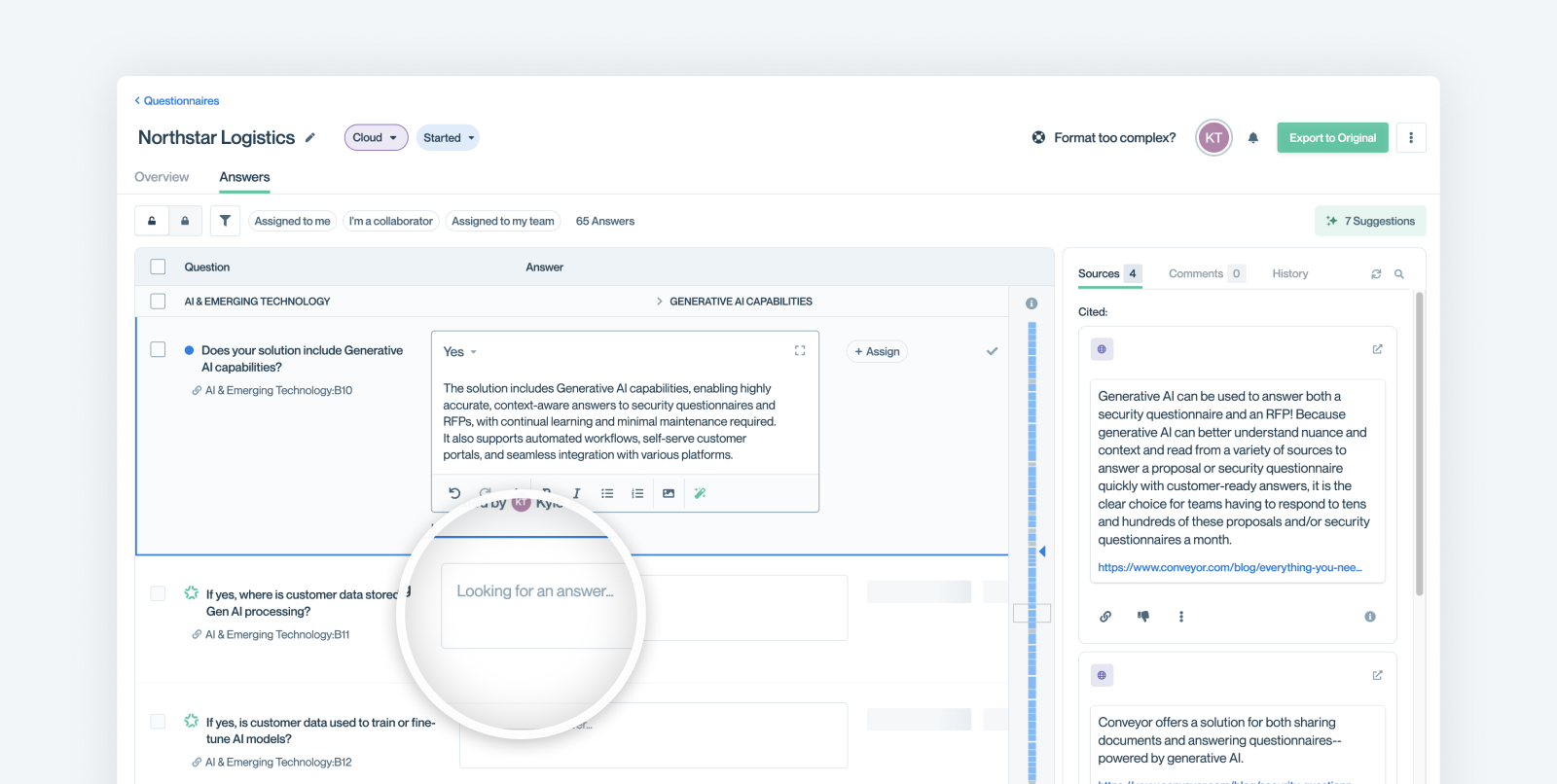
When this happens:
- Child answers are recalculated based on the new parent response.
- If the updated parent answer indicates the section no longer applies, child questions are marked as Not Applicable.
- Regenerated answers display an "Updated by ConveyorAI" tag with a conditional icon, so you can easily spot which answers were affected.
This works in both directions. If you change a parent from "No" back to "Yes," Conveyor regenerates the child answers with full context to provide substantive responses.
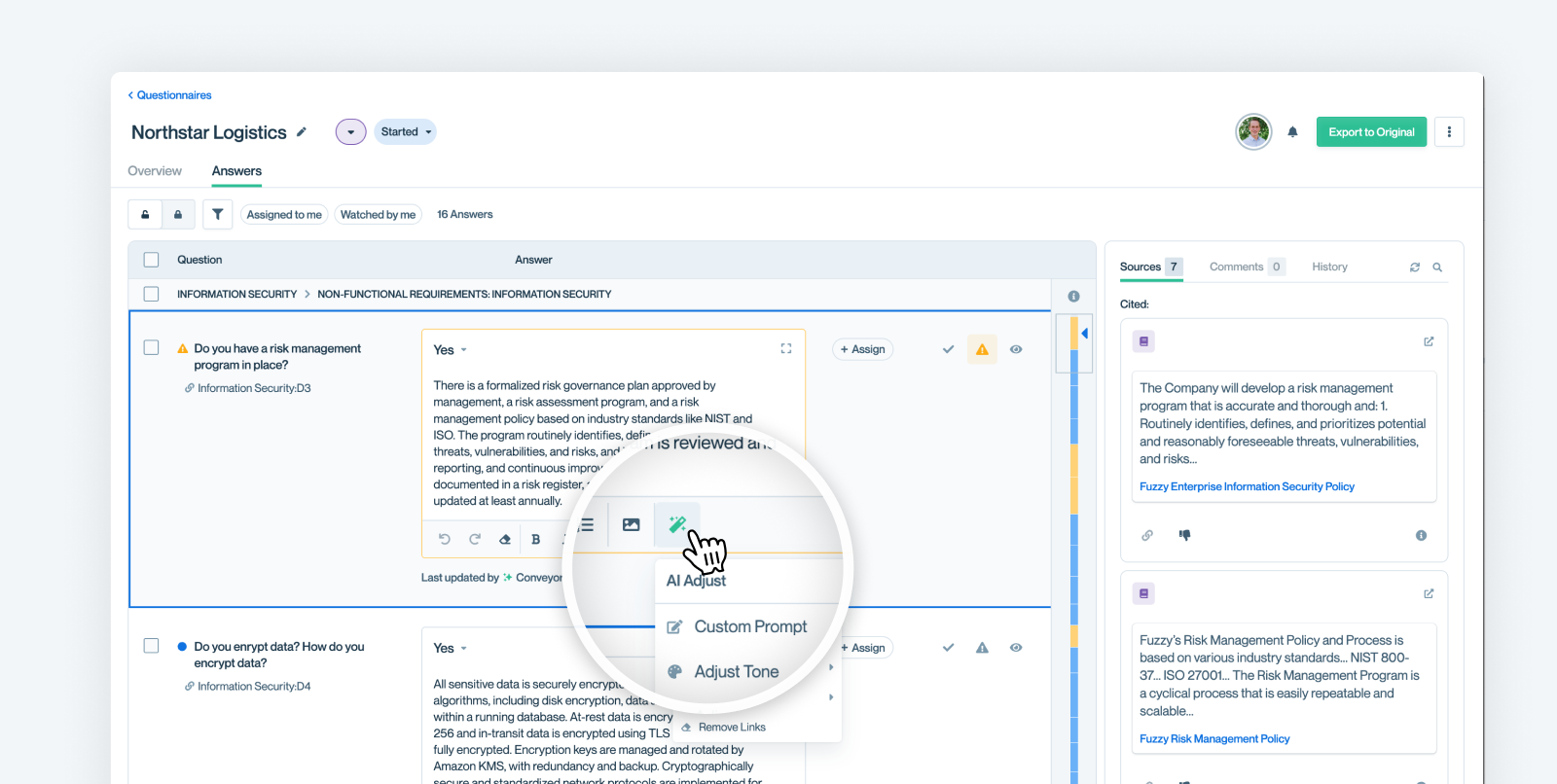
Adjusting ConveyorAI's Settings
Sometime you just don't like how ConveyorAI has phrased a specific answer. Maybe it gave a long response when a more concise answer would work just fine. Underneath every answer you can refine and tune the AI's settings.
Approve or Flag Answers
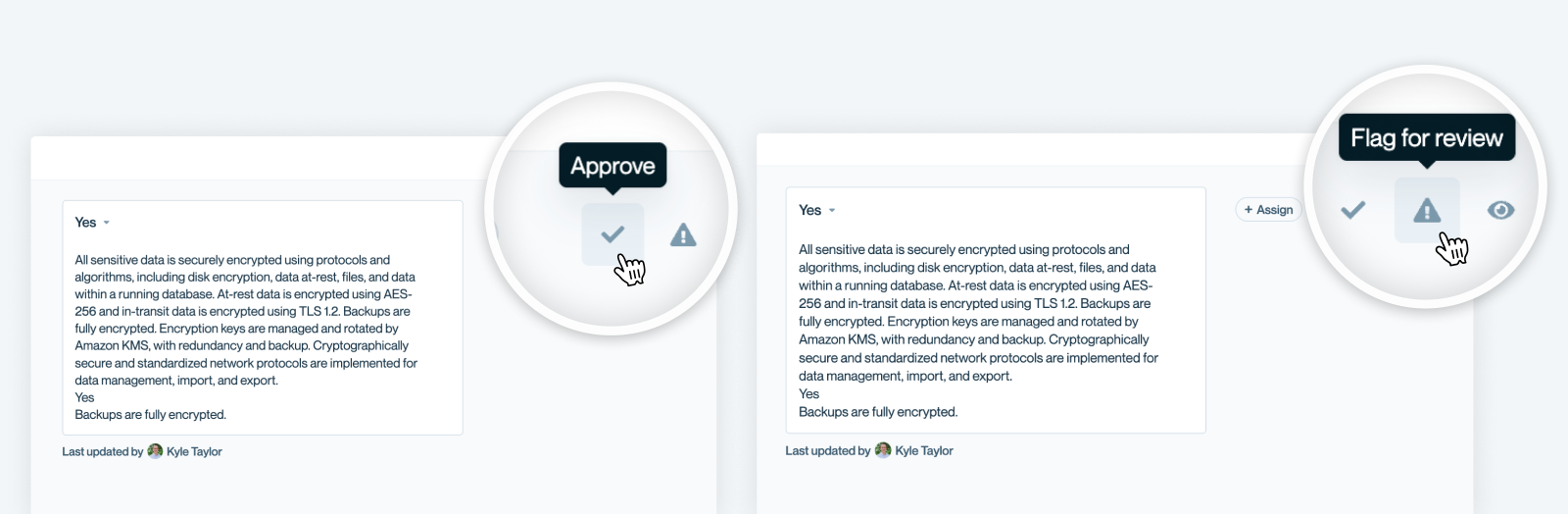
When making a pass through all of ConveyorAI's answered, you have two key actions that can help your workflow: Approve or Flag answers. This helps you know which questions are good to go, and which questions need to be focused on.
What’s next
Need help? If you are feeling stuck contact [email protected].
Updated 6 months ago