

Getting Started
Time to complete: 10–20 minutes
Prerequisites: A Conveyor account. Some steps require permission to add knowledge to your account.
Overview
The Getting Started page is the landing spot for new Conveyor accounts. It walks you through the first actions that get your account ready to answer questions with ConveyorAI, then points you to the tools, integrations, and learning resources that make up the rest of the platform.
You'll find it in the left nav under Getting Started. Click into any other part of the app and you can always come back to it.
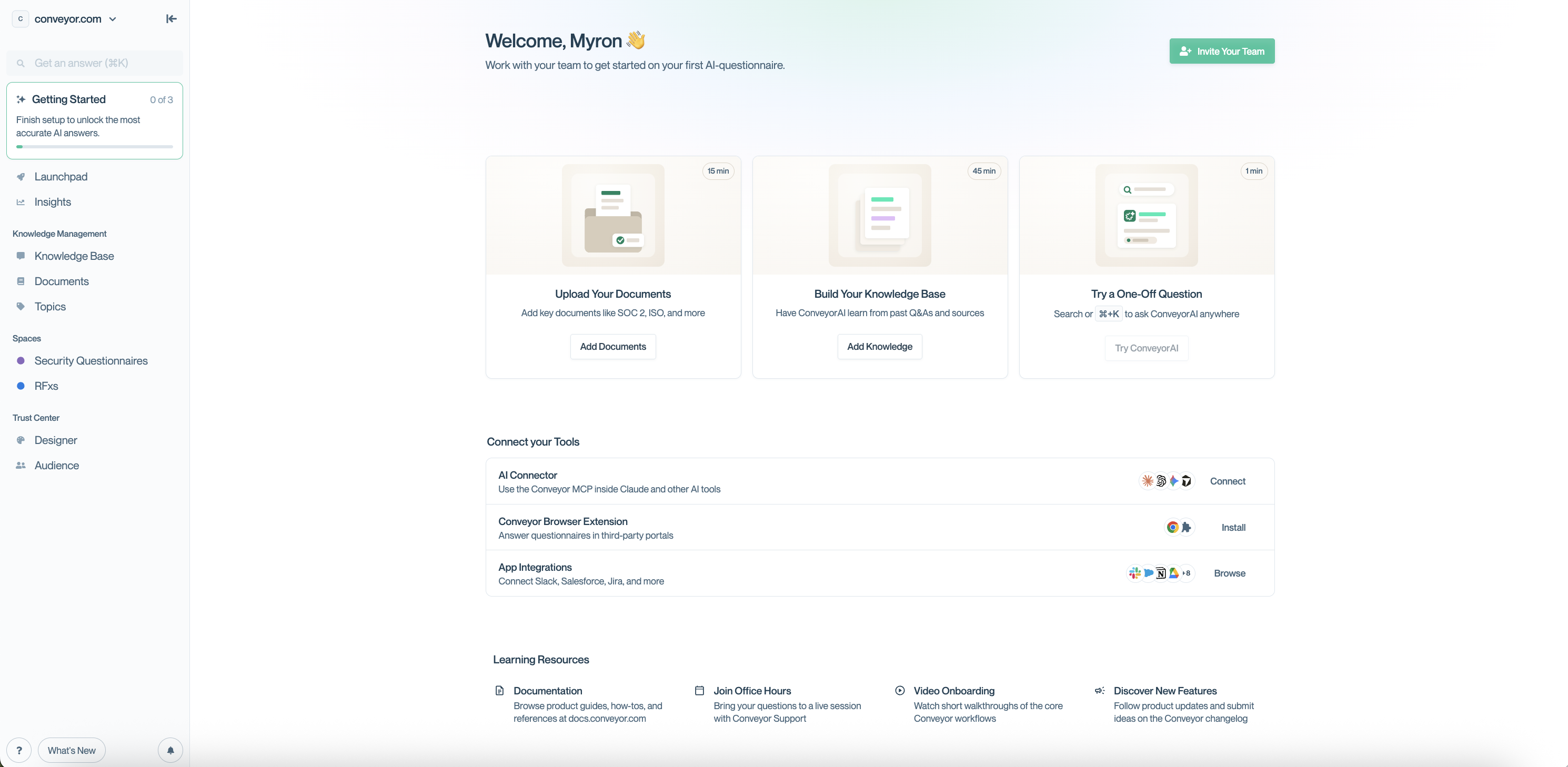
Set Up Your Account
The first section of the page is a short checklist of first actions. The order matters: ConveyorAI answers questions using the knowledge in your account, so you'll need to add some knowledge before you can ask your first question.
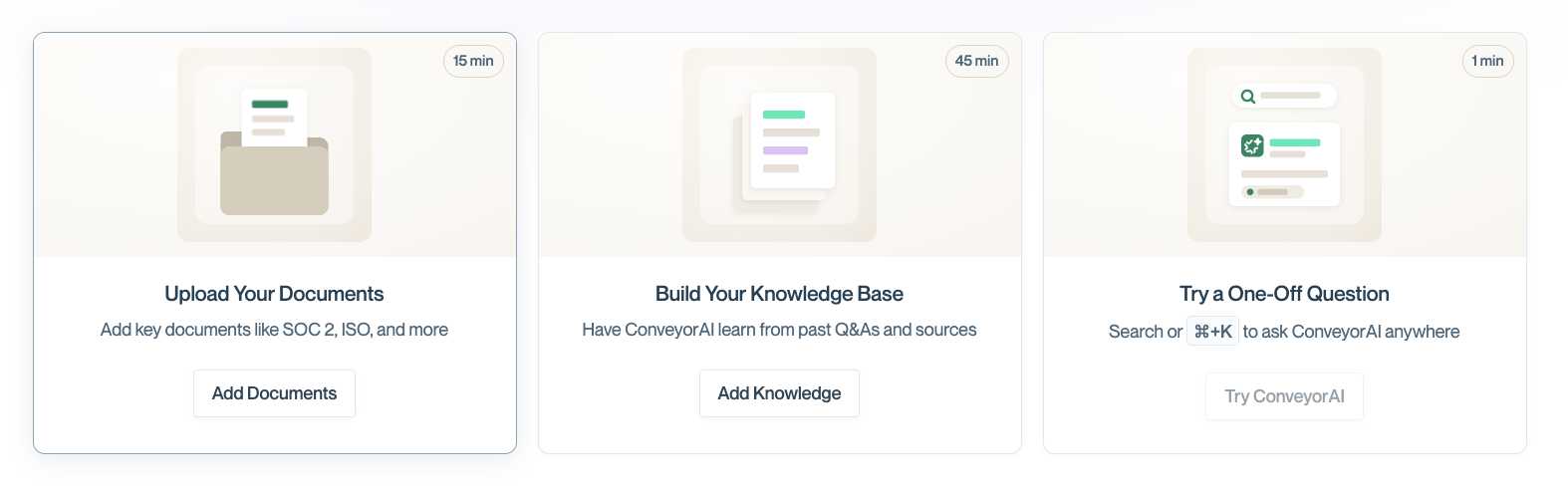
It's easy to start with the documents that you already maintain. Your SOC 2 Type II report, completed standardized questionnaires, pen test summaries, and individual policies give ConveyorAI the broadest coverage for the least effort — documents alone can answer roughly 60% of typical InfoSec questions.
Click Upload documents to go to your document list, then add your files. See Adding new documents for the full walkthrough, and Content Best Practices for which documents to prioritize.
Next, add Curated Q&As — question and answer pairs drawn from past questionnaires and the questions customers ask you most. These sharpen ConveyorAI's answers on the specifics your documents don't cover.
Click Build your knowledge base to go to your Q&As. See Adding Q&As for the steps.
Once your account has knowledge ConveyorAI can use, the third step unlocks and you can ask your first question.
Click Try a one-off question and Conveyor opens the command menu, where you can type your question and get an answer sourced from your knowledge. See Answer one-off questions for more on how this works.
Tip: You can open the command menu anywhere in Conveyor using ⌘K (Ctrl+K on Windows).
Invite Your Team
Getting Started also includes a link to invite teammates — often the most useful first move, since knowledge tends to live across security, legal, and product. See Enterprise Roles and Permissions for how roles and permissions work.
Tools & Connections
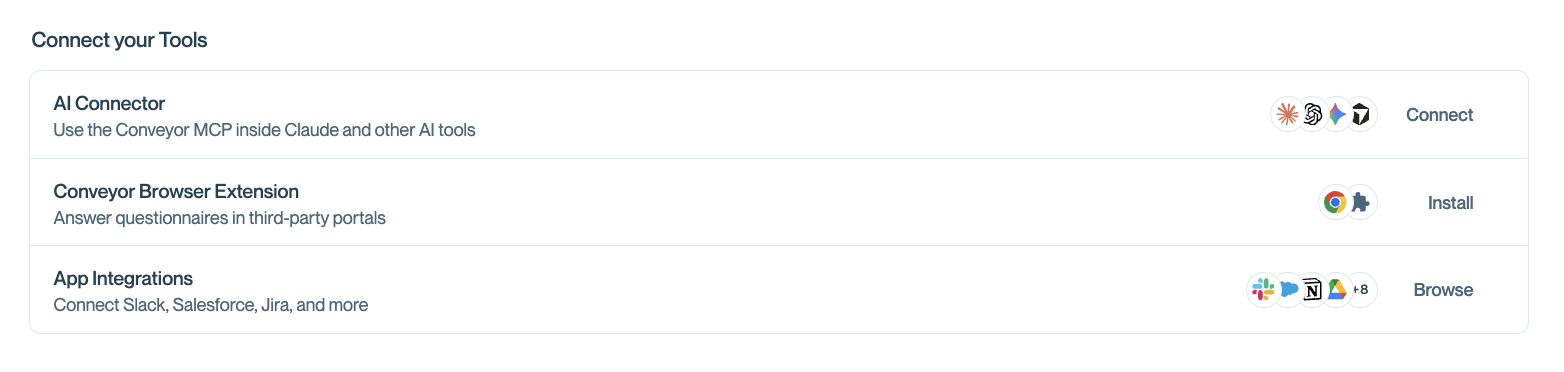
Below the setup steps, this section surfaces three ways to bring Conveyor into the tools you already work in:
- AI Connector — connect Conveyor to AI assistants that support MCP. See AI Connector for more information on setting up the AI connector.
- Browser Extension — answer questions anywhere you're working on them, including automating third-party portals. See Portals & Browser Extension for more information about the browser extension.
- Integrations — opens the integrations catalog, where you can connect Slack, Salesforce, Zendesk, and more. See Integrations Overview for more information.
Learning Resources

The bottom section collects the resources available to you as you get up to speed:
- Documentation — these docs!
- Office hours — regularly scheduled live sessions with the Conveyor team where you can drop in and ask a question.
- Video onboarding — a Loom playlist walking through the core parts of the platform.
- Changelog and new features — what's shipped recently.
What You'll See Based on Your Permissions
The page adapts to what you're able to do in Conveyor.
If You Can Add Knowledge
Admins and anyone with permission to add knowledge see the full page: the three setup steps, the invite link, tools and connections, and learning resources.
If You Can't Add Knowledge
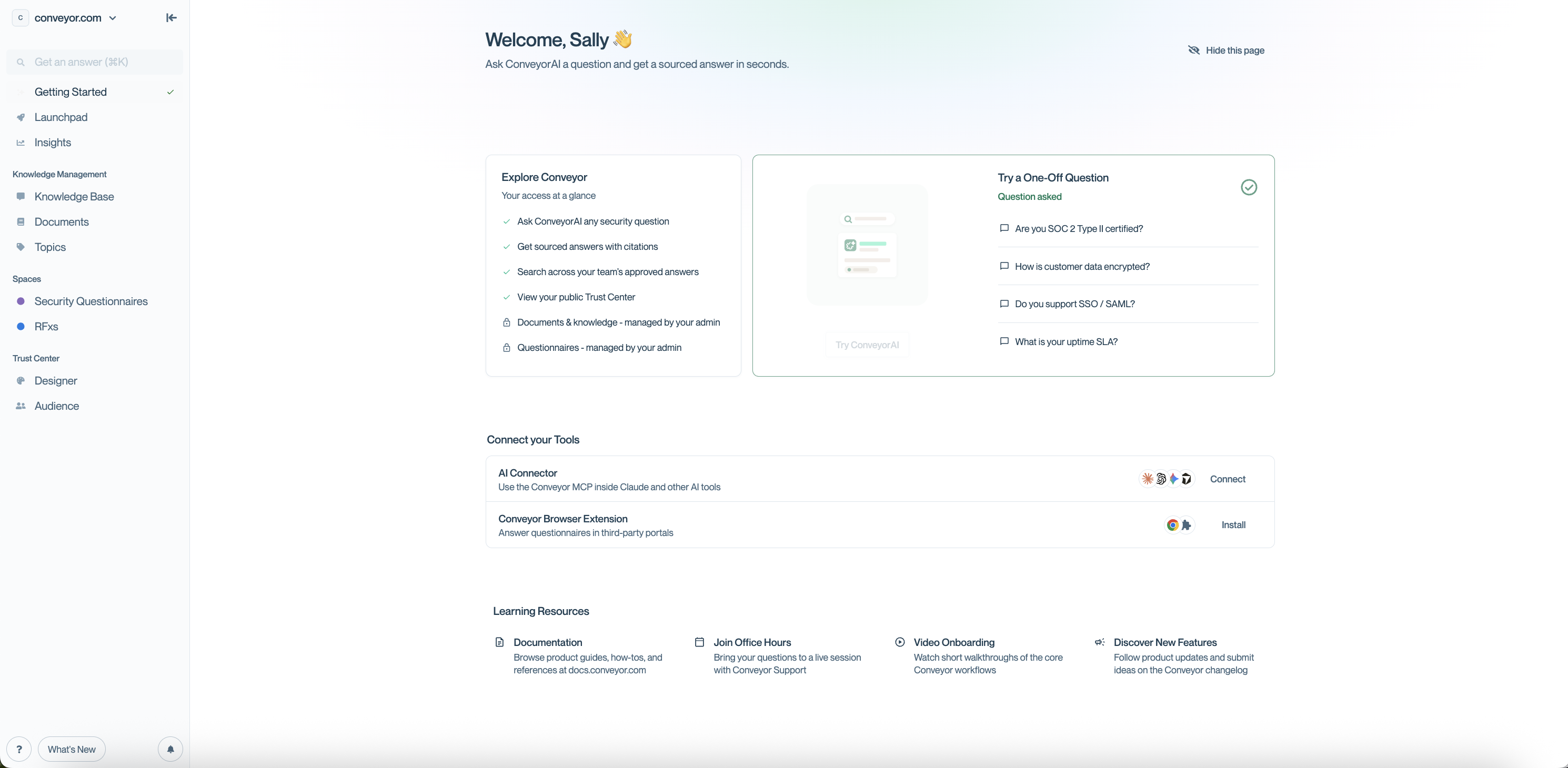
If your role doesn't include adding knowledge, you see a version focused on using Conveyor rather than setting it up. It explains what you can do in your account, points you to your first one-off question, and surfaces the MCP Connector and browser extension so you can work from wherever you already are.
This is the version a new teammate in a least privilege role, like a sales person invited only to use Conveyor for answering questions for their prospects, would land on.
Turning Getting Started On or Off
New accounts: Getting Started is on by default for all new signups. No setup needed.
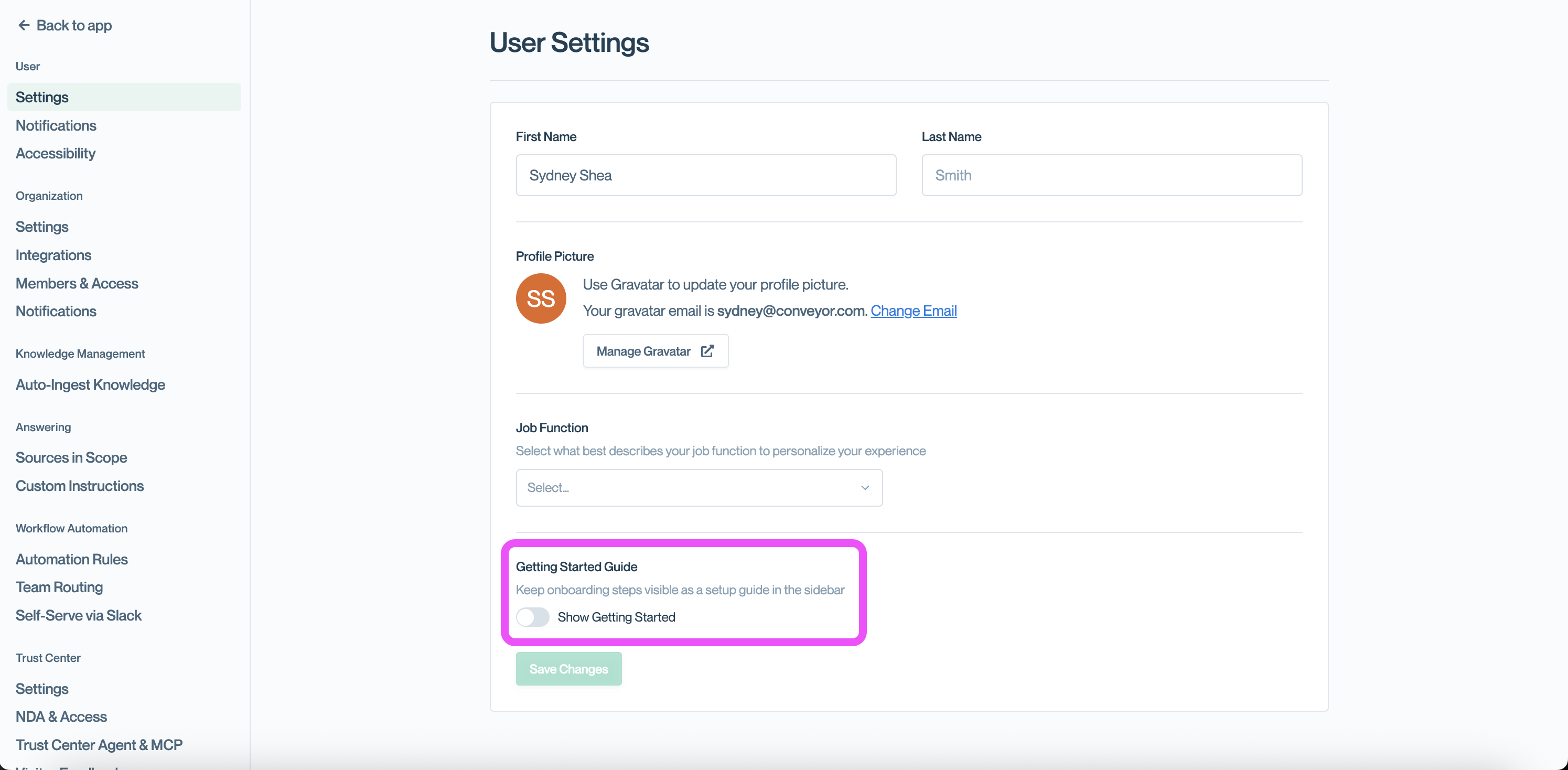
Existing accounts: Getting Started is off. To turn it on, go to your user settings and enable it. You can turn it off again from the same place.
Common Questions
Q: What happens when I finish all three setup steps?
A: Each step checks off as you complete it. Once all three are done, the setup section is complete and you can hide it.
Q: Why is "Try a one-off question" not available yet?
A: ConveyorAI answers from the knowledge in your account, so you need to add at least some usable knowledge first. Complete either Upload documents or Build your knowledge base and the step will become available.
Q: I don't see Getting Started in my nav. Why?
A: Getting Started is on by default only for new signups. If your account existed before it launched, you can turn it on in your user settings.
Q: Do I have to follow the steps in order?
A: No. You can add documents and Q&As in either order — the checklist is a recommended sequence, not a gate. You do need some knowledge in your account before you can try a one-off question.
Q: Can I get back to Getting Started after I've navigated away?
A: Yes. It stays in the left nav.
What's Next?
- Content Best Practices — what to add to your Knowledge Library and in what order
- Overview and Setup — how the Knowledge Library fits together
- Answer one-off questions — get more out of ConveyorAI once you're set up
- Integrations Overview — connect Conveyor to Slack, Salesforce, and more
- Enterprise Roles and Permissions — bring the rest of your team in
Need help? Visit the Troubleshooting guide or contact [email protected].
Updated 2 months ago