

Access request notifications
Time to complete: 5 minutes
Prerequisites: Your Trust Center is live and accepting access requests.
Overview
Access request notifications let you email visitors automatically about the outcome of their request for access to your Trust Center. Today this covers rejection emails — a message sent when you decline a request.
Rejection emails close the loop on requests you turn down for a standard reason: a personal email address instead of a work one, a request that should go through your sales team, or a domain you don't engage with.
You write the subject and body once, and Conveyor sends that message every time a request is rejected. Rejection emails are off by default — nothing goes out to visitors until you turn the toggle on and save.
Turn on rejection emails
- In the Conveyor app, click your organization name in the upper-left sidebar.
- Select Settings.
- In the settings sidebar, under Trust Center, click NDA & Access.
- In the Access Request Notifications section at the top of the page, turn on Send rejection email.
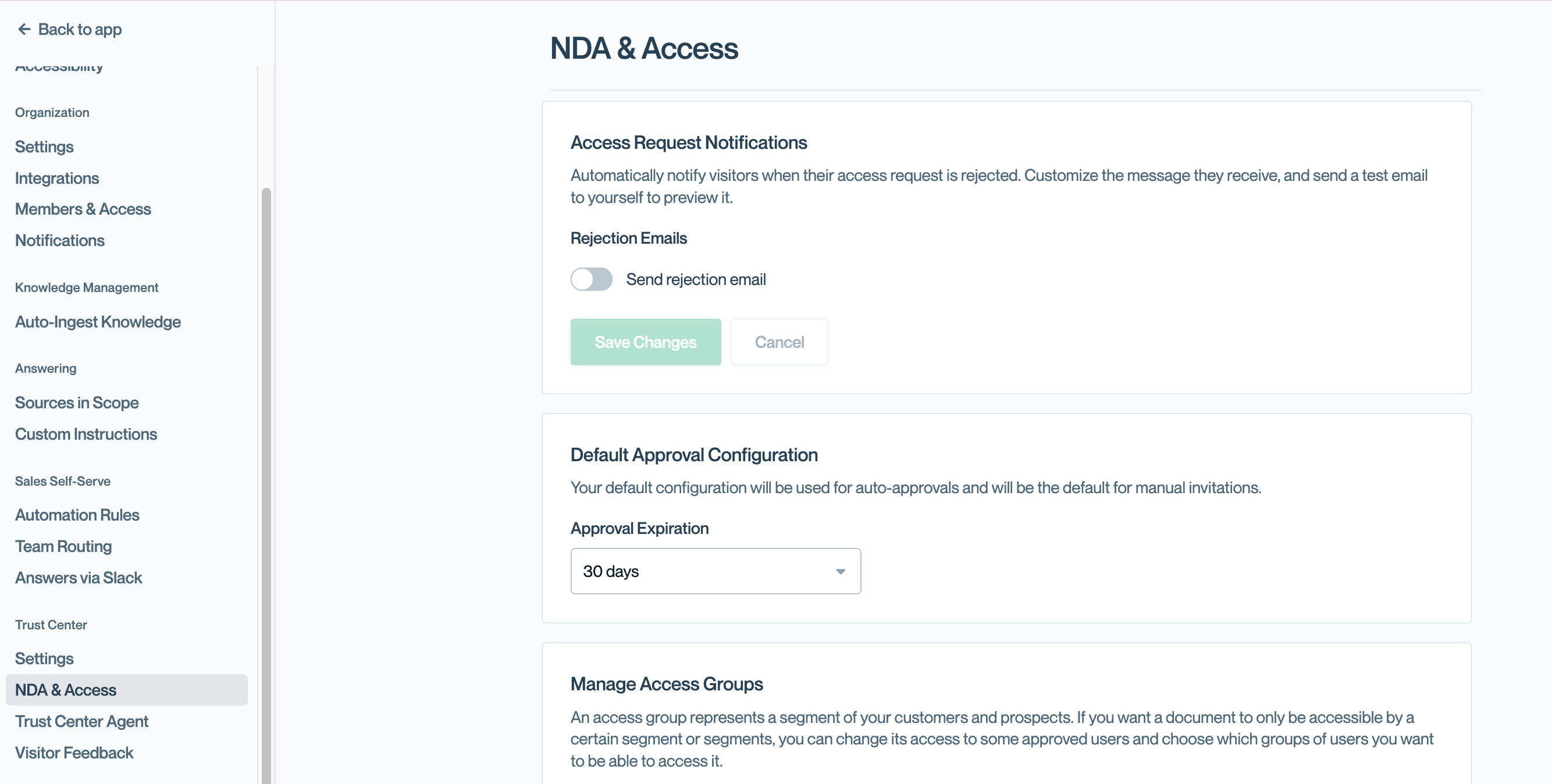
Rejection emails are off by default — the Subject and Body fields appear once you enable the toggle.
Enabling the toggle reveals the Subject and Body fields.
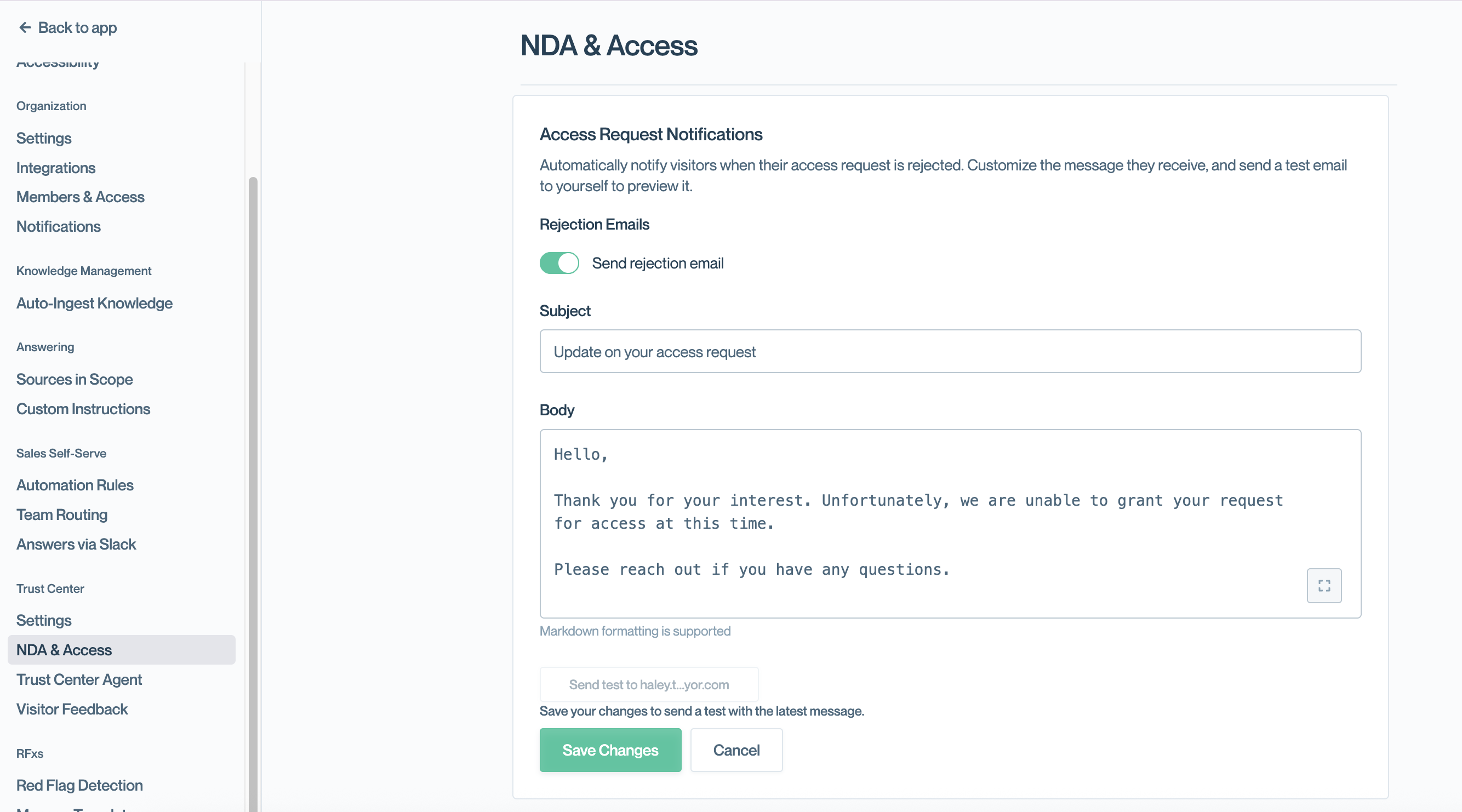
With the toggle on, you can edit the subject and body that rejected visitors receive.
You can jump straight to the page at app.conveyor.com/settings/trust-center/nda-access.
Customize the message
Conveyor prefills a neutral subject and body that you can send as-is or rewrite.
- Edit the Subject line. The default is
Update on your access request. - Edit the Body. Markdown formatting is supported, so you can use bold text, lists, and links.
- Click Save Changes.
The default body reads:
Hello,

Thank you for your interest. Unfortunately, we are unable to grant your request for access at this time.

Please reach out if you have any questions.
Because the same message goes to every rejected requester, keep it general and point people to the right next step rather than explaining a specific decision. A link to your sales team, a support address, or instructions to resubmit with a work email all work well here.
Send yourself a test
Before saving, click Send test to [your email] to preview exactly what visitors will receive — including your Trust Center branding and how your markdown renders.
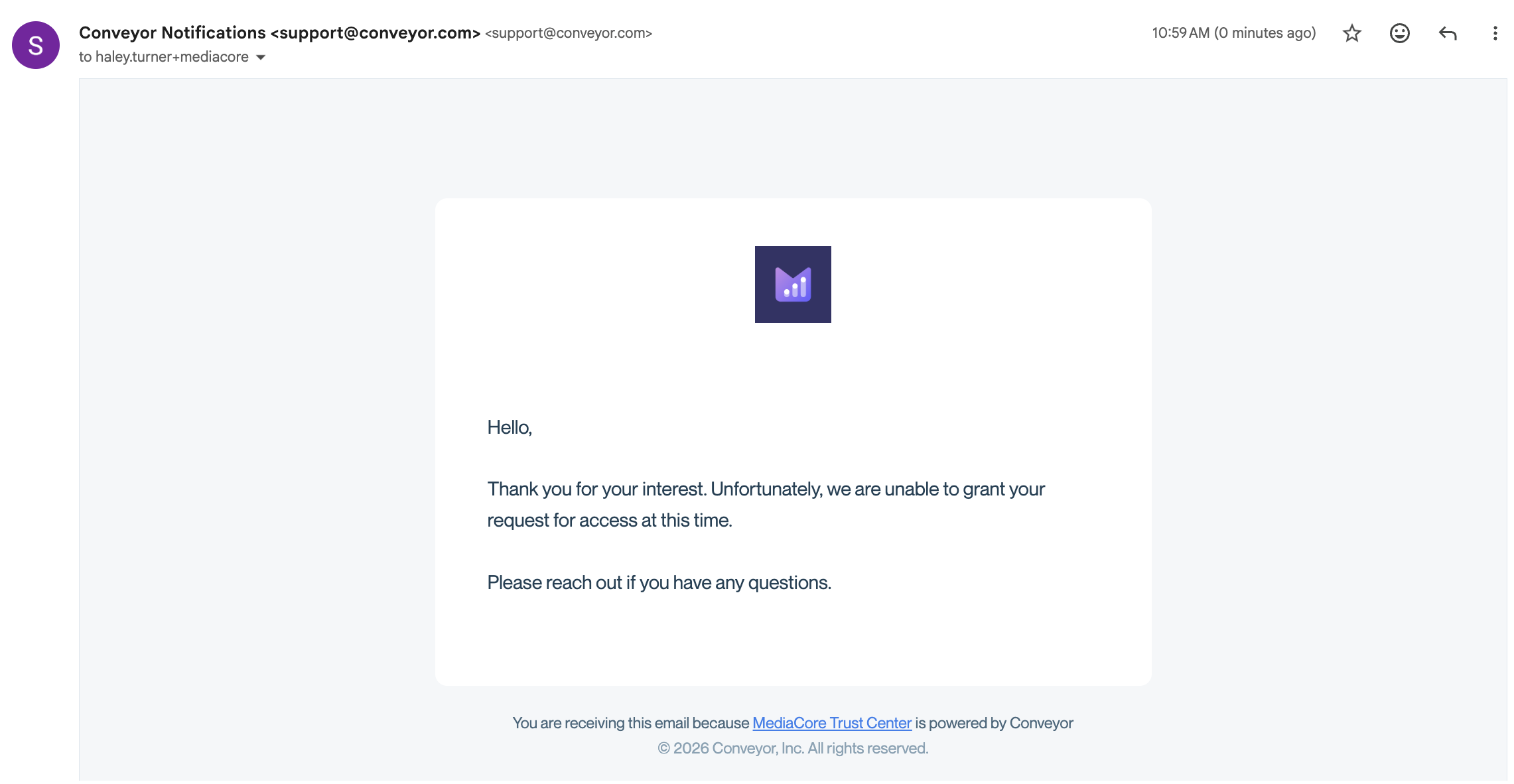
The rejection email carries your Trust Center logo and a Conveyor footer.
The email includes your Trust Center logo and sends from Conveyor's notification address unless you've set up a custom send-from address.
When the email sends
Once enabled, Conveyor sends the rejection email whenever an access request is rejected — whether you did it yourself or a rule did it for you:
- Manual rejections — when you click Reject in Audience → Requests, or reject the request from Slack
- Automatic rejections — when a request is closed because the requester's email belongs to a domain on your blocked domains list
Turning on rejection emails changes what blocked-domain requesters experience. With the toggle off, they receive no notification at all. With it on, they receive your rejection email.
Blocked free email domains are the exception. If you've enabled Block free email domains, those visitors are rejected inline on the request form and no request is ever created — so no rejection email is sent, regardless of this setting. Only domains on your Block specific domains list generate a closed request that triggers the email.
Note: The Notes field on the rejection modal is internal only. It is never included in the rejection email or shared with the requester.
Common questions
Can I write a different message for each rejection?
Not today. The subject and body you save apply to every rejected request. If per-request messaging would help your team, let us know at [email protected] — it's an active request we're tracking.
Will visitors know their request was rejected if I leave this off?
No email is sent. The visitor sees a declined message in the Trust Center but receives no notification — this is the default behavior.
Does this send when I approve a request?
No. Approved visitors receive the standard access email with a secure login link. See Letting visitors request access.
Does markdown really work in the body?
Yes. If formatting appears as raw markdown characters in a received email, contact [email protected].
Can I turn it off later?
Yes. Toggle Send rejection email off and click Save Changes. Your customized subject and body are preserved — if you re-enable the toggle later, your saved wording is still there.
What's next?
- Letting visitors request access - Review and process incoming access requests.
- Blocking domains - Automatically deny requests from free email providers or specific domains.
- Auto-approving connection requests - Reduce the number of requests you review manually.
- Customizing the send-from email address - Send Trust Center email from your own domain.
Need help? Visit the Troubleshooting guide or contact [email protected].
Updated 3 months ago