

Flexible Response Fields & Question Context
Handle questionnaires with any number of response columns and provide ConveyorAI with additional context columns for more accurate answers.
Many Excel-based security questionnaires go beyond the standard "yes/no dropdown + comment" format. Some include five or more response fields per question, along with guidance columns, priority indicators, and other details that help shape how answers should be crafted. Conveyor now fully supports these complex formats — both through automatic mapping and manual configuration.
Quick Note
This feature applies to spreadsheet-based questionnaires (Excel/CSV) imported via the Import Spreadsheets workflow.
How it works
🎥 Watch a video overview here! 🎥
- Upload a spreadsheet questionnaire — the import experience remains the same.
- On the mapping screen, Conveyor automatically detects multiple response fields (free response, dropdowns, etc.) and maps all of them, not just First Answer, Second Answer.
- Conveyor also identifies context columns (e.g., details, instructions, guidance notes, etc.) and maps them as context for ConveyorAI.
- ConveyorAI uses both the question text and all mapped context to craft more accurate, tailored responses for every response field.
- You review answers in an updated UI that displays all response fields and expandable context per question.
What's new
This release introduces two key capabilities:
Multiple response fields per question
Previously, Conveyor could handle one or two response fields (typically a dropdown and a comment). Now, Conveyor supports any number of response fields per question. Whether your questionnaire has two response columns or five, Conveyor maps and answers all of them automatically.
Question context columns
Many questionnaires include columns with additional guidance — instructions for how to answer, priority levels, domain categories, and more. Conveyor now recognizes these as context columns and feeds them to ConveyorAI alongside the question text, resulting in more accurate and relevant responses.
Importing a questionnaire with multiple response fields
The import process is unchanged: upload your spreadsheet, select the tabs to import, and land on the familiar mapping screen. The difference is in what Conveyor maps automatically.
Automatic mapping
When you import a spreadsheet, Conveyor analyzes each tab and automatically maps:
| Column type | How it's mapped | Example columns |
|---|---|---|
| Question | The primary question text | "Question", "Control Requirement" |
| Response fields | All detected answer columns, including dropdowns, free-response fields, mark applicable columns, etc. | "Response", "Yes, No, N/A", "Policy Description", "Control Owner", "Compliance Status", "Comment" |
| Context | Informational columns that help ConveyorAI craft better answers | "Details & Instructions", "Priority", "Domain", "Guidance Notes" |
As each sheet loads on the mapping screen, you'll see Conveyor's automatic mappings — including multiple response fields and context columns identified for each tab.
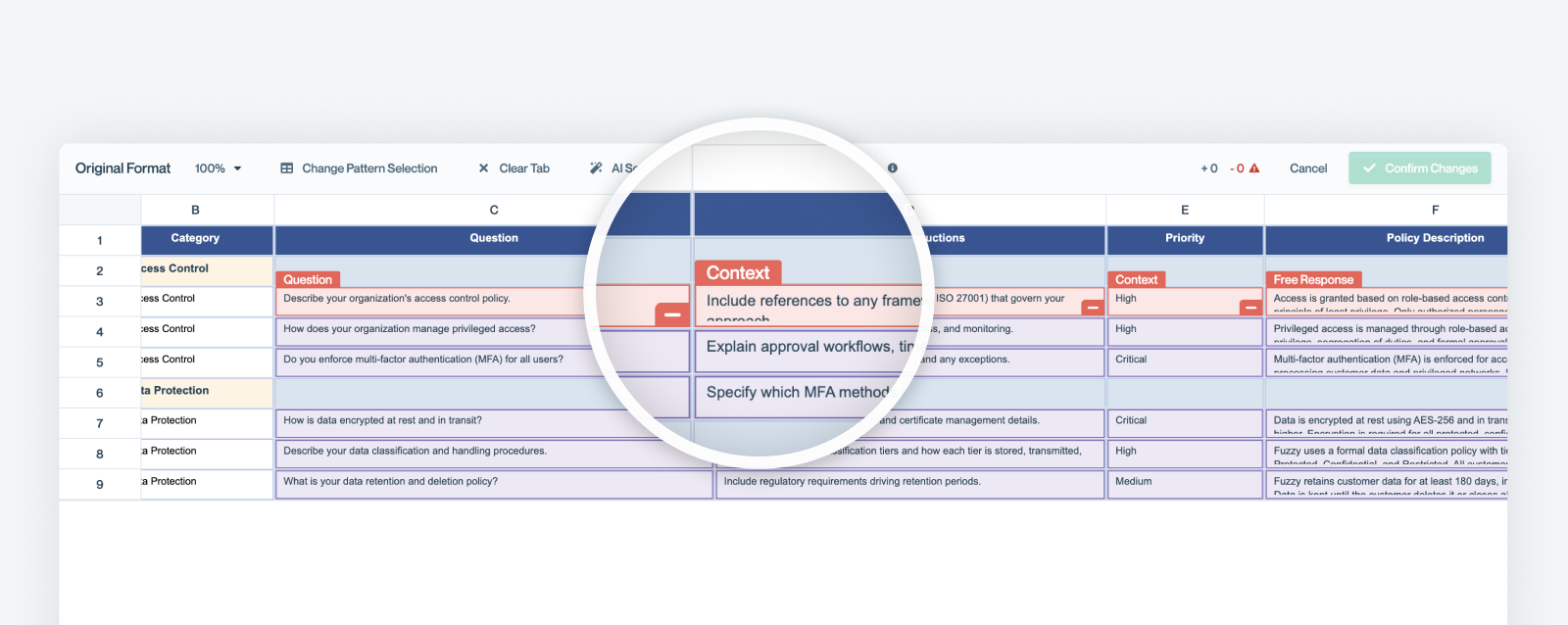
The mapping screen showing automatic detection of question, context, and multiple response columns.
Known limitation: Evidence and artifact columns are not automatically mapped and are not supported for AI-generated responses at this time. These columns will require manual work after export.
Manually mapping columns
If Conveyor's automatic mapping doesn't match your needs, or if you're working with an unusual spreadsheet format, you can manually configure the mapping by clearing the tab or deselecting mapped question rows, and then by using Change Pattern Selection. You can read the summarized steps below, or see the step by step guide to manual mapping.
- Click Change Pattern Selection on the mapping screen for the relevant tab.
- Select a question cell — click on the cell that contains a question.
- Identify response fields — for each answer column, select the format (Multiple Choice / Mark Applicable, Free Response, Dropdown) and click on the corresponding cell:
- Select the format type (e.g., "Free Response").
- Click the reponse cell in the corresponding column.
- Repeat for each additional response field. When prompted "Select the next answer format," continue selecting until all response columns are mapped.
- Add context columns — after mapping response fields, you can optionally select context columns:
- Click on any column you want ConveyorAI to use as context (e.g., "Details & Instructions", "Priority", "Category").
- Each selected column will be tagged as context.
- You can select as many context columns as needed.
- Click Done Selecting Fields to finalize the mapping.
- Confirm answer columns — review the mapped answer columns and click Next.
- Set Pattern — Conveyor detects matching questions throughout the current sheet. Approve the detected matches.
Reviewing answers
Once ConveyorAI finishes answering, you'll land on an updated answers tab designed to handle any number of response fields per question.
Multiple response fields in the UI
Each question block now displays all of its mapped response fields. You can click into any response field to review and edit the AI-generated answer, just as you would with a single response field.
- For questions with a dropdown response field, the dropdown value is shown alongside the free-response fields.
- All response fields are editable inline.
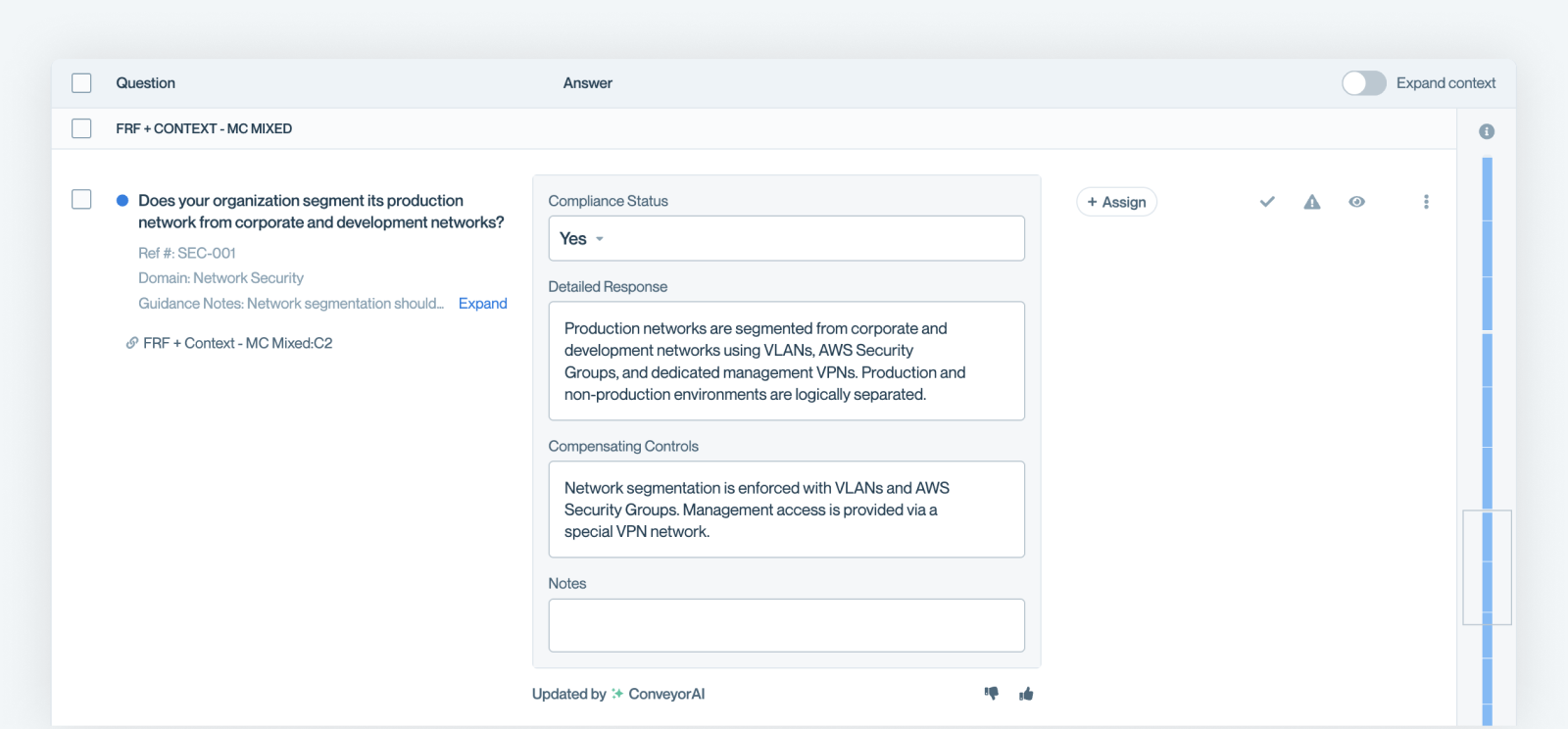
The answers tab displaying multiple response fields per question.
Viewing question context
Each question block includes an expandable context section that shows all of the context columns mapped for that question. This lets you see exactly what information ConveyorAI used — in addition to the question text — when crafting its responses.
Context might include:
- Domain or category labels
- Guidance notes or detailed instructions
- Priority levels
- Any other column(s) that would be beneficial for answering the question or reviewing the answer
You can expand or collapse context for individual questions by clicking the context toggle on each question block. There is also a global toggle at the top of the page to expand or collapse context for all questions at once.
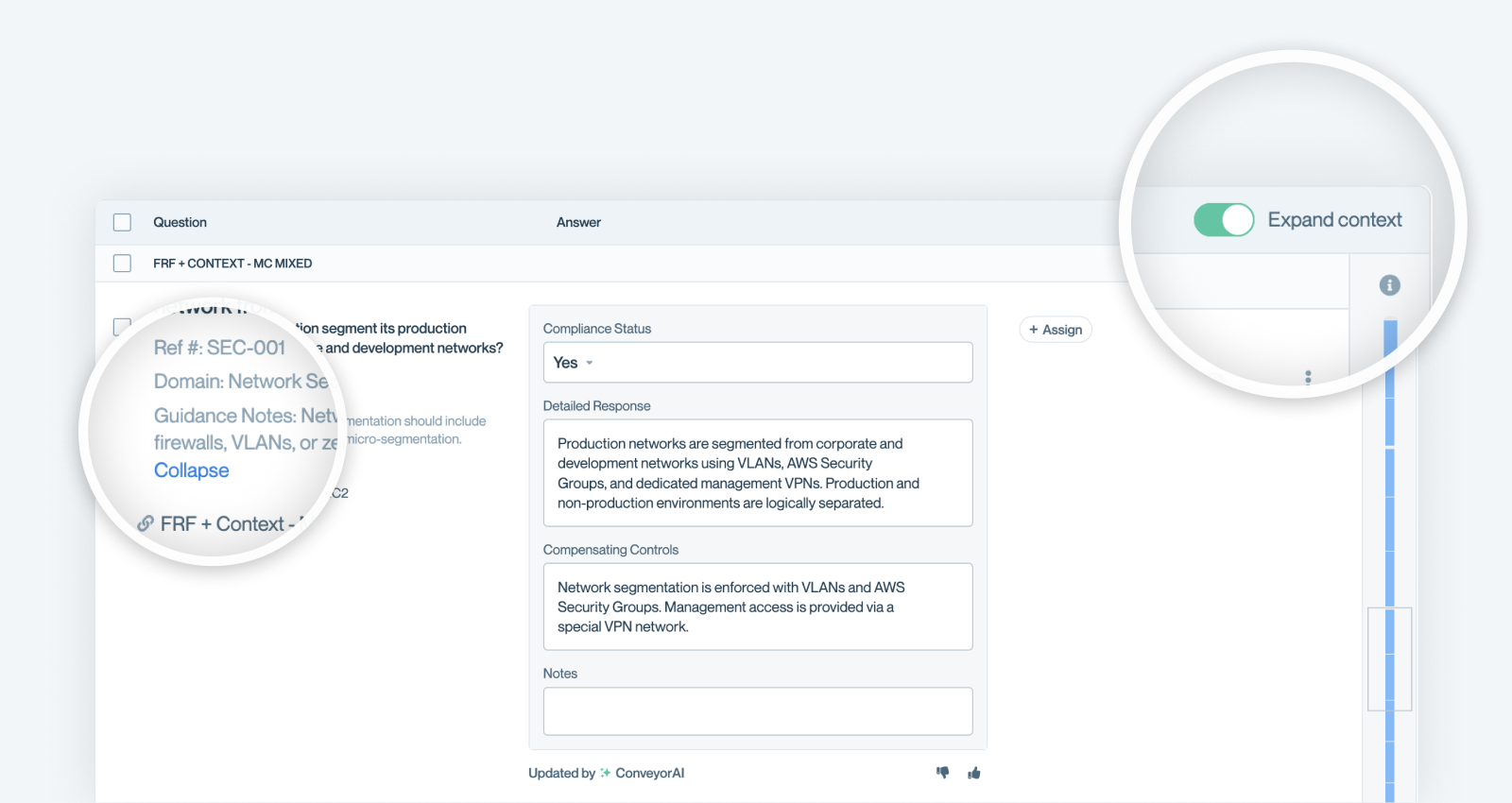
Expanded context showing the additional information ConveyorAI used to generate responses.
Benefits
- Higher answer accuracy - ConveyorAI considers guidance notes, priority levels, domain categories, and other context alongside the question, resulting in more precise and relevant responses.
- Less manual work - Instead of answering additional response columns by hand (or running the questionnaire through Conveyor multiple times), all response fields are handled in a single pass.
- Flexible format support - Whether your questionnaire has two answer columns or five, with or without guidance columns, Conveyor adapts automatically.
Known limitations
| Limitation | Details |
|---|---|
| Evidence & artifact columns | Evidence and artifact columns are not supported for AI-generated responses. These must be completed manually. |
Common questions
Does this work with all spreadsheet formats?
This feature works with any Excel or CSV questionnaire imported through the standard Import Spreadsheets workflow. The mapping engine adapts to your spreadsheet's structure regardless of how many response or context columns it contains.
What if Conveyor maps a column incorrectly?
You can always use Change Pattern Selection to override automatic mappings. This gives you full control over which columns are treated as questions, response fields, or context.
Will context columns appear in the exported questionnaire?
Context columns are used by ConveyorAI during the answering process and are visible in the review UI. They are not added to or modified in your exported file, only the response fields are populated.
Can I add context columns after the questionnaire has been answered?
Context columns are mapped during the import step, before ConveyorAI answers the questions. If you need to change the context mapping, you can Add/Remove Questions and it will re-import and answer those questions.
How many response fields can Conveyor handle per question?
There is no fixed limit. Conveyor supports any number of response fields per question, the mapping engine and review UI scale to accommodate your questionnaire's format.
Need help? If you have questions or feedback, contact [email protected].
Updated 6 months ago