

Creating Smart Documents
Time to complete: 5 minutes
Prerequisites: A current SOC 1 or SOC 2 report to reference in your letter
Most Trust Center documents are files you upload and keep current yourself. A Smart Document is generated from a template instead: each time a customer downloads it, Conveyor produces a freshly dated, signed PDF automatically. Today, Smart Documents are used to create SOC bridge letters — set one up once, and every customer gets a current copy on demand.
Creating a Smart Document
- Go to the Documents page in your Knowledge Base.
- Click New Documents. At the top of the modal, select the Create a Smart Document banner.
- Fill in the Letter content. The field comes pre-filled with a professional starter template you can edit to match your company's language.
- Enter a Signer name and Signer title — the person the letter is signed on behalf of (for example, your CISO or Head of Security).
- Give the letter a Title, and optionally add a description.
- Set the usual document properties — Products, Folder, Curator, and an optional Expiration Date.
- Choose who can see the letter under Share With, just like any other document (see Managing document access).
- Click Save.
As you type, the live preview on the right shows exactly how the finished PDF will look — same layout, fonts, and signature — so there are no surprises for your customers.
Note: Smart Documents are for sharing with customers on your Trust Center. ConveyorAI doesn't use them as a source when answering questionnaires, so you won't see the ConveyorAI option under Share With when creating one.
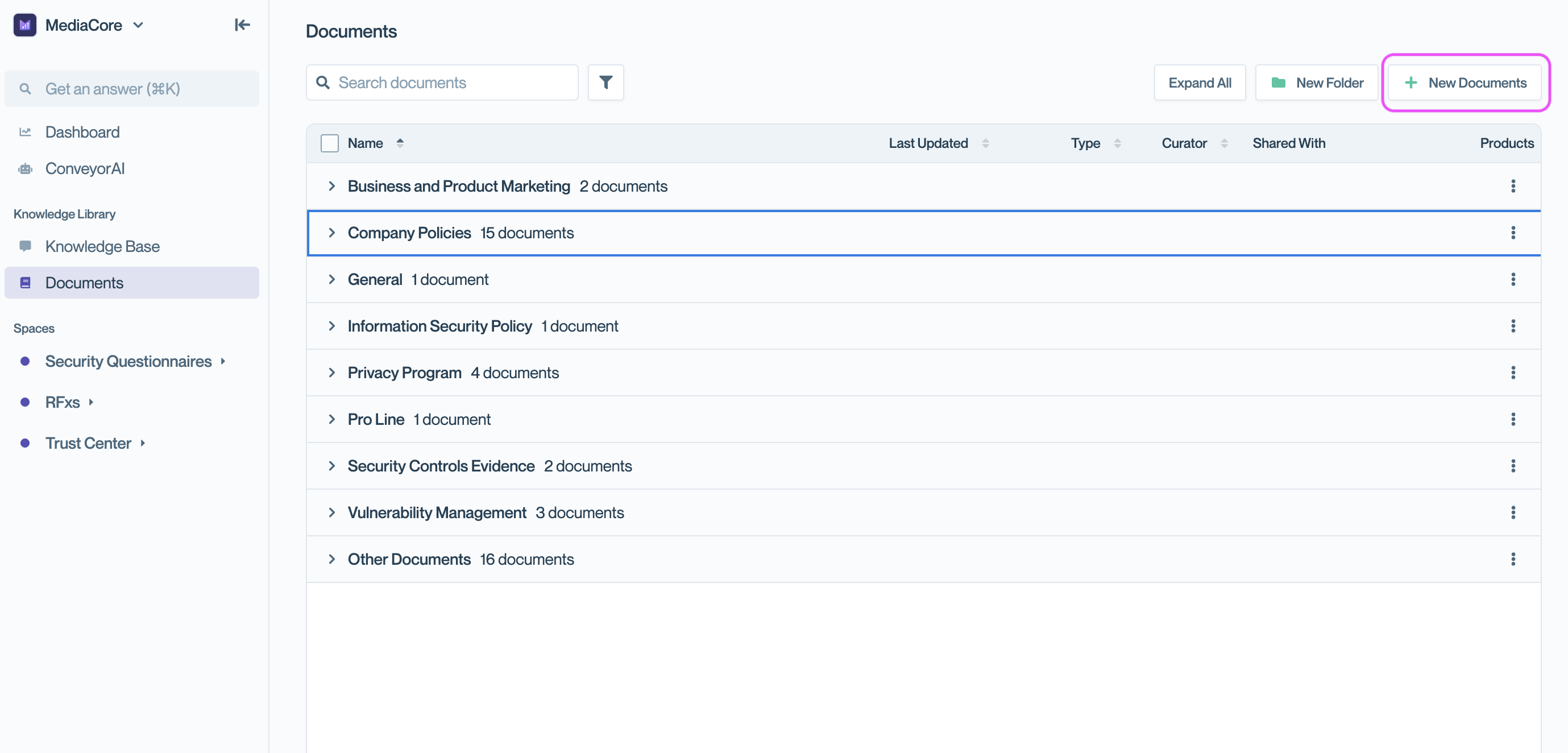
Click New Documents to begin.
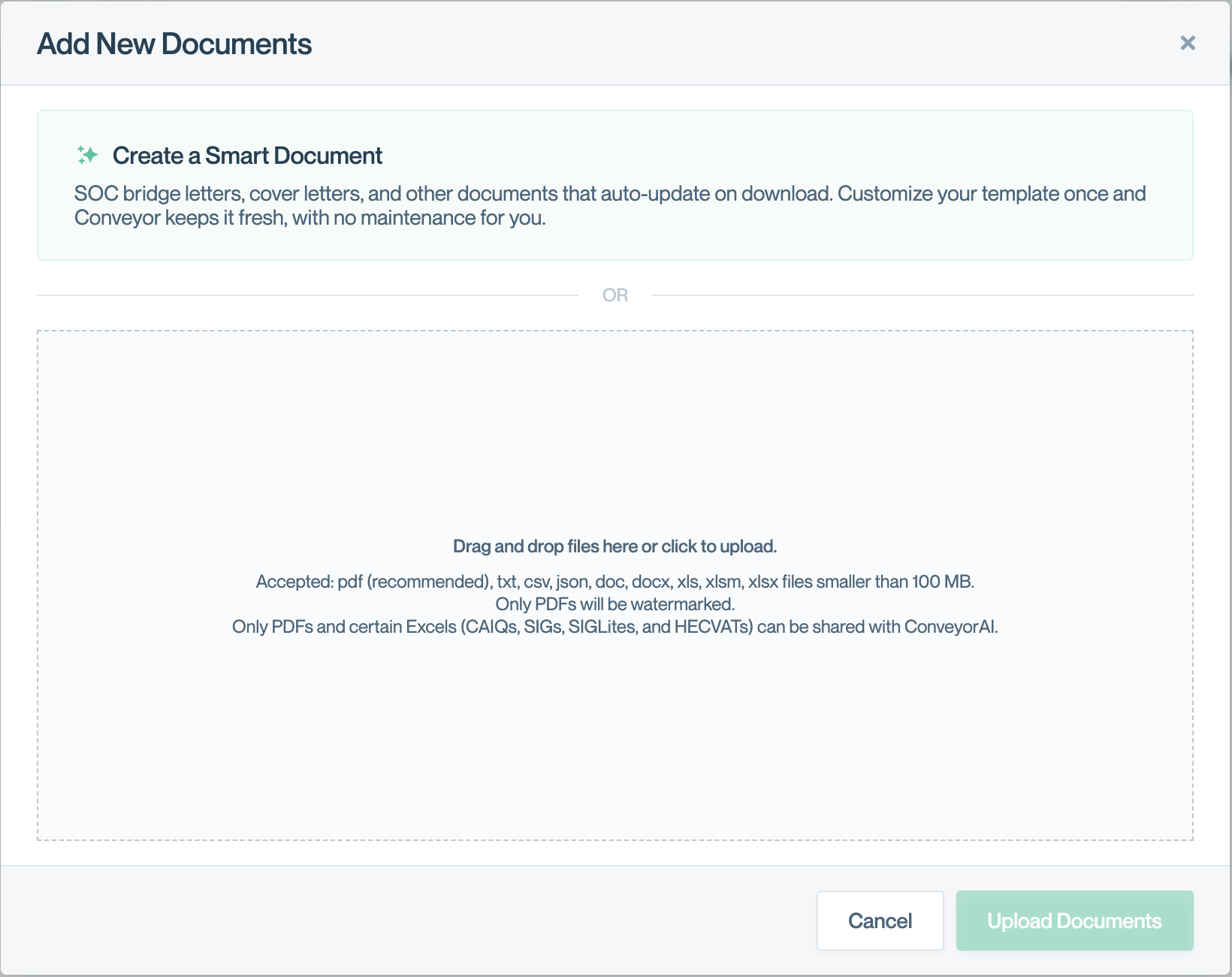
Click the 'Create a Smart Document' banner
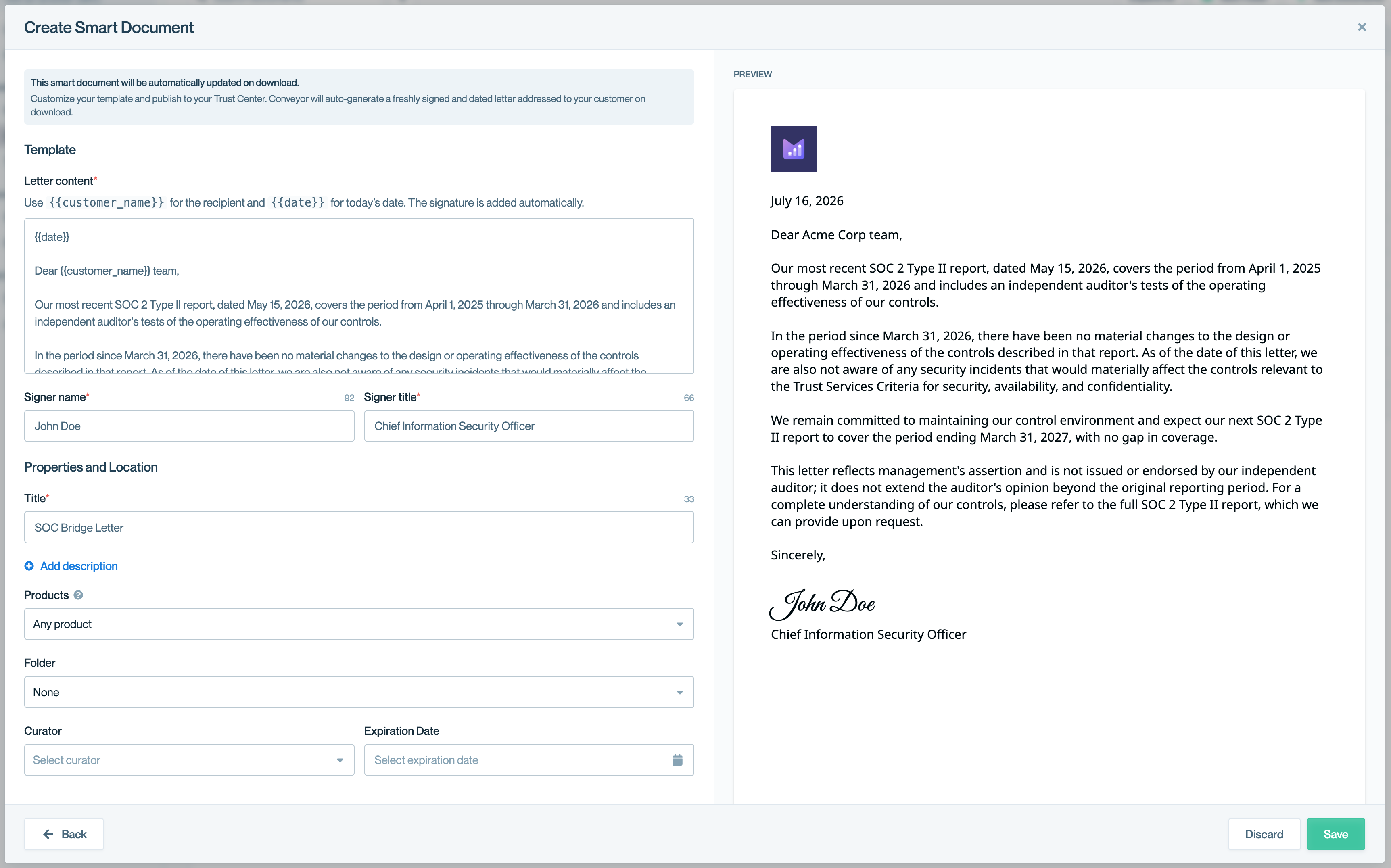
Edit 'Letter content' as needed, and fill in Signer name, Signer title, and Title
Using placeholders
Your letter template can include placeholders that Conveyor fills in automatically each time the letter is generated:
{{date}}— replaced with the current date on download, so every letter is dated the day the customer receives it.{{customer_name}}— When included, it's replaced with the recipient's company name, based on their email address. If a company name can't be determined, it falls back to a neutral greeting, so the letter always reads correctly.
You don't need to add a signature — Conveyor adds it automatically from the signer name you provided.
You'll also see placeholders written in angle brackets, like <report date> and <period end>. These are reminders for you to fill in with details specific to your SOC report before publishing.
How customers receive it
Once published, your bridge letter appears on your Trust Center alongside your other documents. Customers can preview it in the browser or download it, exactly as they would a PDF.
When a customer downloads the letter, Conveyor generates a fresh copy dated that day. Access levels and NDA requirements work the same way they do for any other document, so only the right people can see it.
Editing and version history
You can update your bridge letter at any time by opening it and editing the template. Each time you save a change, Conveyor keeps a version so you can see how the letter has evolved. Customers always receive the latest published version.
Best practices
- Review your report dates. Replace every
<angle-bracket>placeholder with the correct details from your latest SOC report before publishing. - Set an expiration date. This prompts you to revisit the letter after your next SOC report is issued.
- Choose the right access level. It typically makes sense to have the same access settings for your bridge letter as your SOC 2 report.
- Keep the language generic. Avoid naming a specific customer in the body so the same letter works for everyone; let
{{customer_name}}handle personalization if needed.
Common questions
What is a bridge letter?
A SOC bridge letter (sometimes called a "gap letter") reassures a customer that nothing material has changed with your security controls since your last SOC 1 or SOC 2 report was issued. It covers the gap between the end of your report's coverage period and today's date, and it's one of the most common follow-up requests security teams receive.
Do I need to re-date or re-publish the letter?
No. Every download is generated fresh and dated that day, so the letter stays current on its own. You only need to edit the template when its contents change — for example, your report details or company language.
What happens when my next SOC report is issued?
Open the letter and update the report dates in the template — version history keeps your earlier revisions. If you set an Expiration Date, the document's curator is reminded to refresh it, so the letter never quotes a stale report.
What's next
- Managing document access — control which customers can see your letter
- Featuring documents in your Trust Center — showcase the letter on your public view
- Adding new documents — upload the rest of your compliance content
Updated 3 months ago