

Trust Center Announcements
Time to complete: 5 minutes Prerequisites: A live or in-progress Trust Center with the Announcements section enabled
Overview
Announcements let you share security and compliance updates directly on your Trust Center. Use them to notify visitors about new certifications, completed audits, vulnerability disclosures, policy changes, or other trust-related news. Subscribers to your Trust Center receive an email notification when a new announcement is published.
Enabling the Announcements Section
Announcements is a section type in the Trust Center Designer. To enable it:
- Go to Designer in the left sidebar under Trust Center.
- In the right-hand panel, expand Customize Layout.
- Find Announcements in the section list.
- Click the eye icon to toggle the section's visibility on your Trust Center.
You can drag the Announcements section to reorder where it appears on your Trust Center relative to other sections like Badges, Documents, or Q&As.
Creating an Announcement
-
In the Designer, scroll down to the Announcements section in the Trust Center preview.
-
Click the Add an Announcement card.
-
Fill in the following fields:
- Title (required) — A short headline describing what the announcement is about.
- Body (required) — A summary of the update and why it matters to your customers and prospects. You can include links to additional resources. Markdown formatting is supported.
- Publish Date — Choose when to publish the announcement. Leave this empty to publish immediately.
- Notify Audience — Choose whether to notify your subscribers:
- Notify subscribers on the morning of the publish date (9am ET) — Selected by default. Subscribers receive an email notification at 9am ET on the publish date.
- Do not notify subscribers of the announcement — The announcement appears on your Trust Center but no email is sent.
-
Click Save.
The announcement will appear on your Trust Center as a card in the Announcements carousel. If you set a future publish date, the announcement will appear in the Designer in a Scheduled state and will automatically publish on that date.
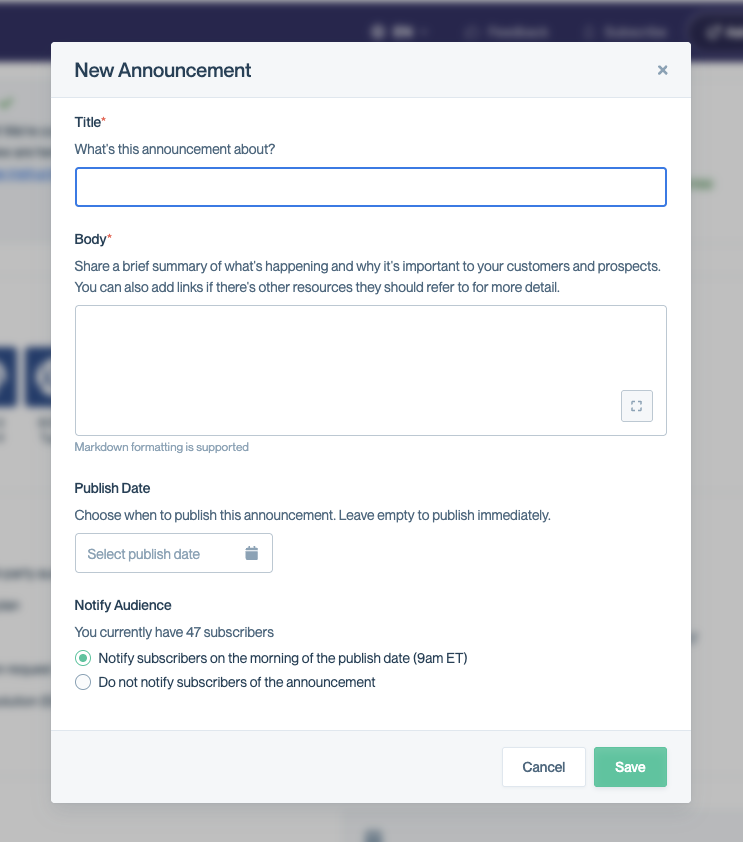
The New Announcement form lets you set a title, body, publish date, and choose whether to notify subscribers.
Tip
Your current subscriber count is shown in the Notify Audience section of the announcement form, so you can see how many people will receive the notification.
Editing an Announcement
- In the Designer, scroll to the Announcements section.
- Hover over the announcement card you want to edit.
- Click the three-dot menu (⋮) in the top-right corner of the card.
- Select Edit Announcement.
- Update the Title, Body, or Notify Audience settings as needed.
- Click Update.
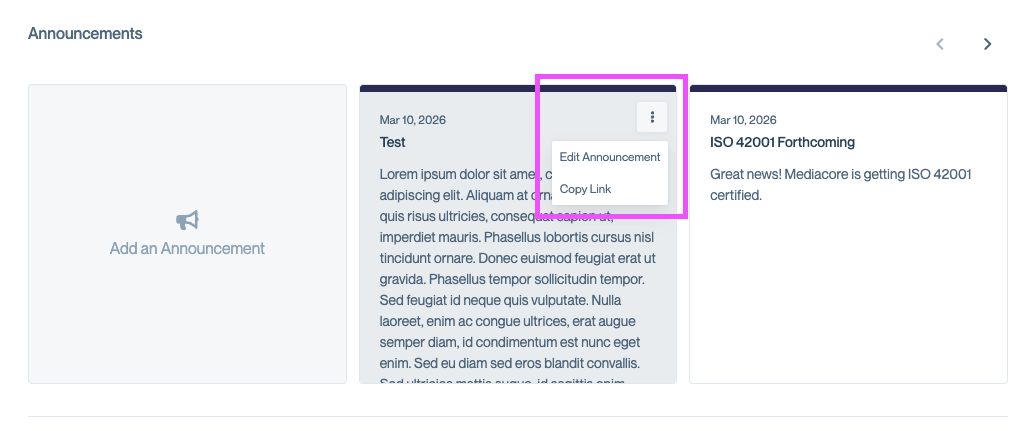
Click the three-dot menu on any announcement card to edit it or copy a direct link.
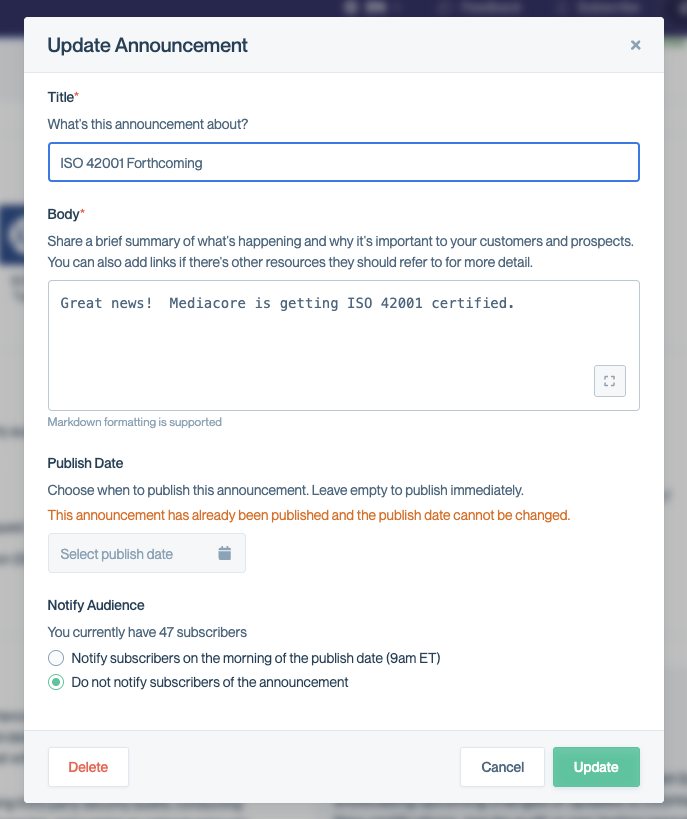
The Update Announcement form. Once published, the publish date is locked and cannot be changed.
Note
If the announcement has already been published, the publish date cannot be changed. You'll see a message confirming this in the edit form.
Deleting an Announcement
- Open the Edit Announcement form for the announcement you want to remove (follow the steps in Editing an Announcement above).
- Click Delete in the bottom-left corner of the form.
Deleted announcements are permanently removed from your Trust Center.
Copying a Link to an Announcement
You can copy a direct link to a specific announcement to share with colleagues or include in other communications.
- Hover over the announcement card in the Designer.
- Click the three-dot menu (⋮) and select Copy Link.
You can also copy a link to the entire Announcements section from the Customize Layout panel by clicking the link icon next to Announcements.
How Visitors See Announcements
Announcements appear as a horizontal carousel on your Trust Center. Each card displays the publish date, title, and a preview of the body text. Visitors can browse through announcements using the left and right arrows on the carousel.
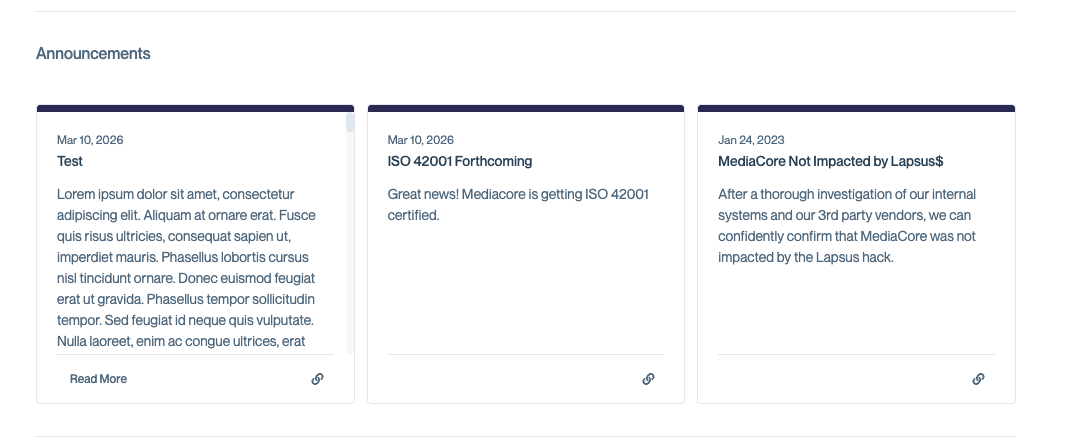
Visitors see announcements as a carousel of cards on your Trust Center.
Each announcement card includes a link icon that visitors can use to copy a direct link to that specific announcement. For longer announcements, visitors can click Read More to expand the full text in an overlay. This expanded view also includes a Copy Link button.
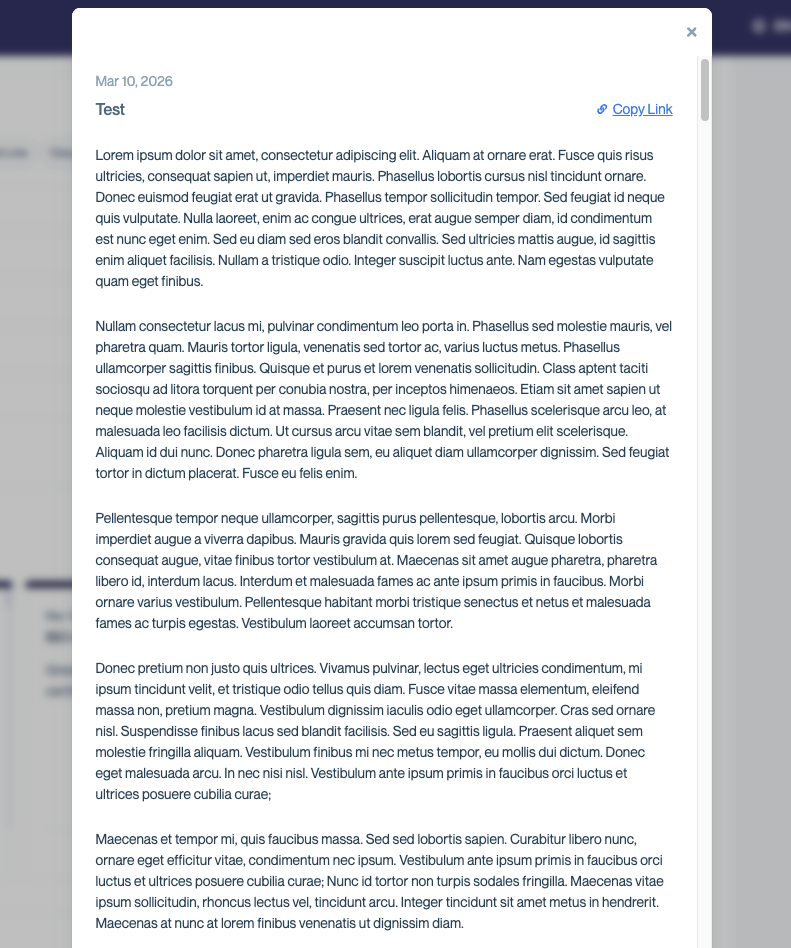
Clicking Read More opens the full announcement in an expanded view with a Copy Link option.
Visitors who want to stay informed can subscribe to your Trust Center updates by clicking Subscribe in the Trust Center header. Subscribers receive email notifications when new announcements are published. Learn more in the Subscribing to Trust Center updates guide.
Use Cases
Here are some common ways companies use announcements:
- New certifications — Let visitors know when you've achieved a new certification, such as SOC 2 Type II or ISO 27001.
- Completed audits — Share that your latest audit report is available for review.
- Vulnerability disclosures — Proactively communicate about security incidents or vulnerabilities and your response.
- Policy updates — Announce changes to your security policies, data processing agreements, or privacy practices.
- Product security releases — Highlight security-related product updates or new security features.
Common Questions
Can I schedule an announcement for a future date? Yes. Use the Publish Date field when creating the announcement to set a future date. The announcement will appear in the Designer in a Scheduled state until it automatically publishes on that date. Leave the field empty to publish immediately.
Can I edit an announcement after it's been published? Yes, you can update the title and body of a published announcement at any time. However, the publish date cannot be changed once the announcement has been published.
Will editing an announcement send another notification? No. Editing an existing announcement does not trigger a new email notification to subscribers.
How do visitors subscribe to announcements? Visitors can click the Subscribe button in your Trust Center header. Once subscribed, they receive email notifications when new announcements are published. See the Subscribing to Trust Center updates guide for more details.
Can I reorder announcements? Announcements are displayed in reverse chronological order (newest first) and cannot be manually reordered.
What's Next
- Subscribing to Trust Center updates — Learn how the subscriber notification system works.
- Customizing Your Trust Center — Explore other sections and layout options available in the Designer.
Need help? Visit the Troubleshooting guide or contact [email protected].
Updated 5 months ago