

Share your Trust Center
Time to complete: ~5 minutes
Prerequisites: The ConveyorAI Slack app is installed, and your Trust Center is ready to share.
Overview
Need a faster way to share your Trust Center with customers and prospects? You can issue invitations and review access requests directly from Slack. For fully hands-off access, we also recommend Auto-approval and NDA bypass via Salesforce — but these two commands save a lot of time on their own.
Invite Someone to Your Trust Center
Run /conveyor invite to open a modal where you can issue a new Trust Center invitation without leaving Slack.
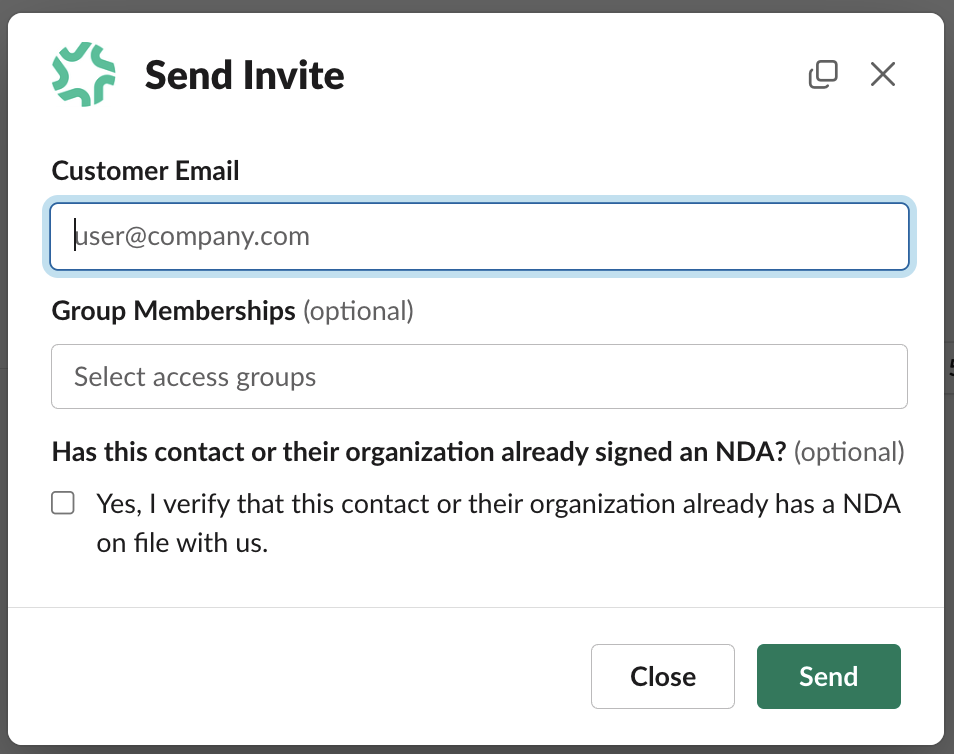
Run /conveyor invite to issue Trust Center invitations directly from Slack.
Review Access Requests in Slack
Run /conveyor subscribe requests to subscribe a channel to Trust Center access requests. Each incoming request posts to the channel with the requester's email, a View Request in Conveyor link, any note they included, and Approve and Reject buttons — so you can act without leaving Slack.
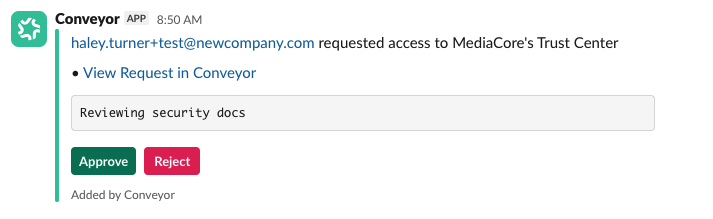
Access requests post to your subscribed channel with Approve and Reject buttons.
Approve a Request
Select Approve to open the Approve Request modal:
- Requestee Email — shown for confirmation.
- Group Memberships (optional) — the access groups to grant.
- Has this contact or their organization already signed an NDA? (optional) — check this to confirm an NDA is already on file; doing so bypasses the NDA step for them.
- Notes (optional).
Click Approve. The channel then confirms who was granted access, the access groups applied, and whether the NDA was bypassed.
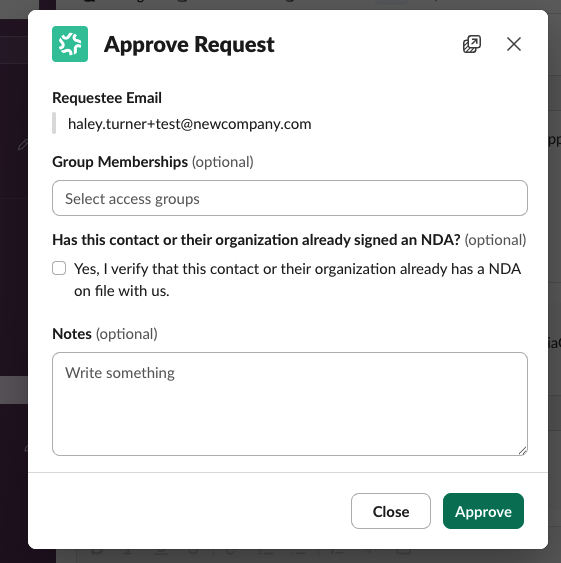
The Approve Request modal: choose access groups, confirm NDA status, and add notes.

After approving, the channel confirms the grant — including access groups and NDA status.
Reject a Request
Select Reject to open the Reject Request modal, add an optional Note, and click Reject. The original notification updates to show who denied the request and the note.
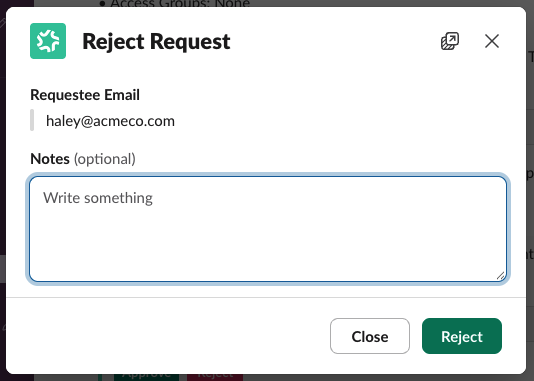
The Reject Request modal with an optional note.
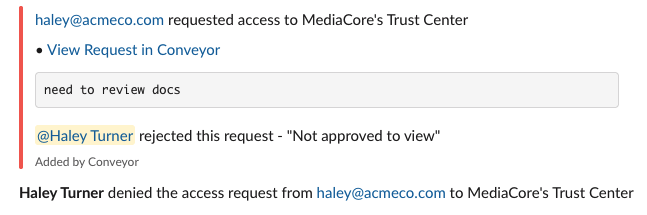
After rejecting, the notification updates with who denied it and the note.
When access is granted automatically instead, the confirmation explains why (for example, via Salesforce, an existing connection, or HubSpot). See Get notified about Trust Center activity.
Common Questions
Q: Who can approve or reject requests from Slack?
A: Users whose role includes the Trust Center Audience permission Manage Invitations and Requests — that's an audience permission set of Manager or higher.
Q: What's the difference between this and auto-approval?
A: These commands are for manual, human review in Slack. To grant access automatically based on rules, set up Auto-approving connection requests or Auto-approval and NDA bypass via Salesforce.
Q: Can I stop the notifications?
A: Yes — run /conveyor unsubscribe requests in the channel.
What's Next?
- Get notified about Trust Center activity — Subscribe channels to customer activity notifications.
- Issuing pre-approved invitations — The full invitation workflow in the web app.
- Sharing your Trust Center — All the ways to share.
Need help? Visit the Troubleshooting guide or contact [email protected].
Updated 3 months ago