

*old version* Answer one-off questions
Have ConveyorAI answer your one-off questions
Time to complete: ~3 minutes
Prerequisites: The ConveyorAI Slack app is installed.
Overview
Mention @Conveyor in Slack to get an AI-drafted answer to a one-off question, generated from the in-scope sources you've provided to Conveyor. It's the same ConveyorAI that answers questions in the web app — now available where your team already works.
Ask a Question
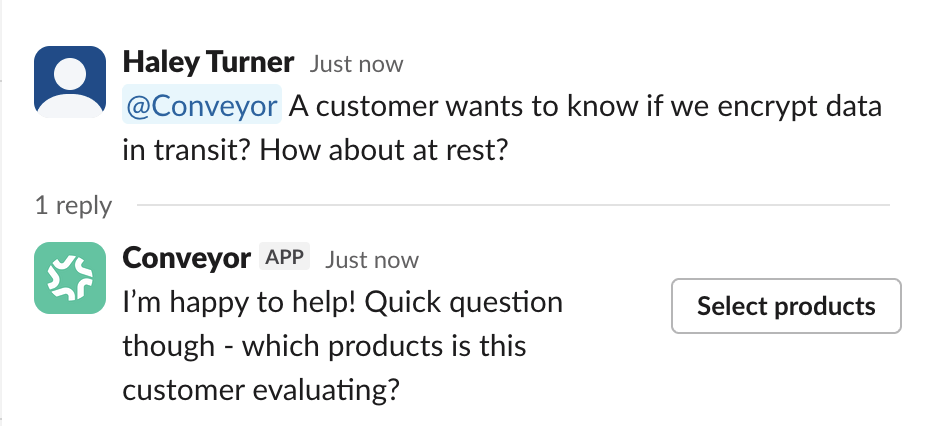
Mention @Conveyor in a public channel or the ConveyorAI app channel with one or more questions. ConveyorAI replies in a thread and works the request there.
@Conveyor {your questions}
Choose the Products in Scope
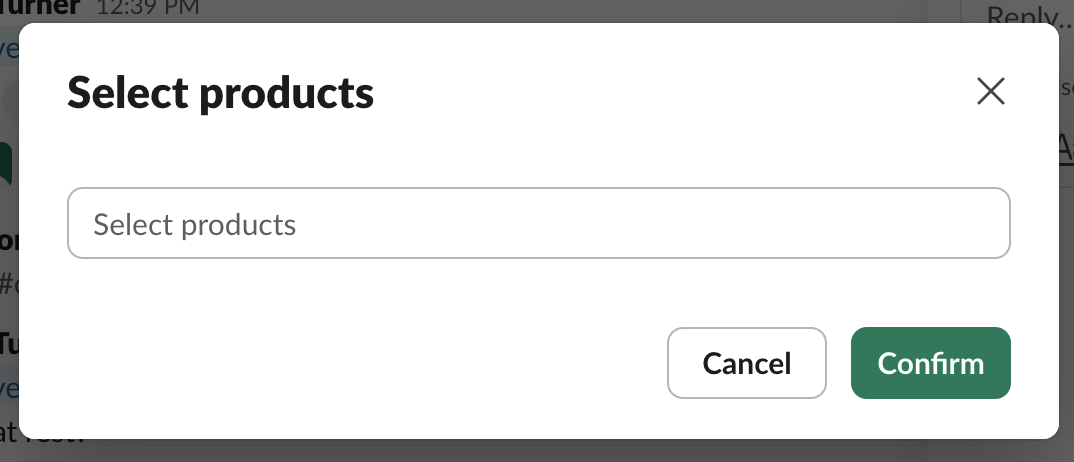
If your organization has more than one product line set up, ConveyorAI first asks which products the customer is evaluating, so it draws from the right sources. Select Select products, choose one or more product lines, and click Confirm. ConveyorAI confirms it will use information from the products you specified. (With a single product line, this step is skipped.)
Get Your Answer
ConveyorAI posts a quick "I'm on it!" while it works, then replies with the answer as a question-and-answer block in the thread.
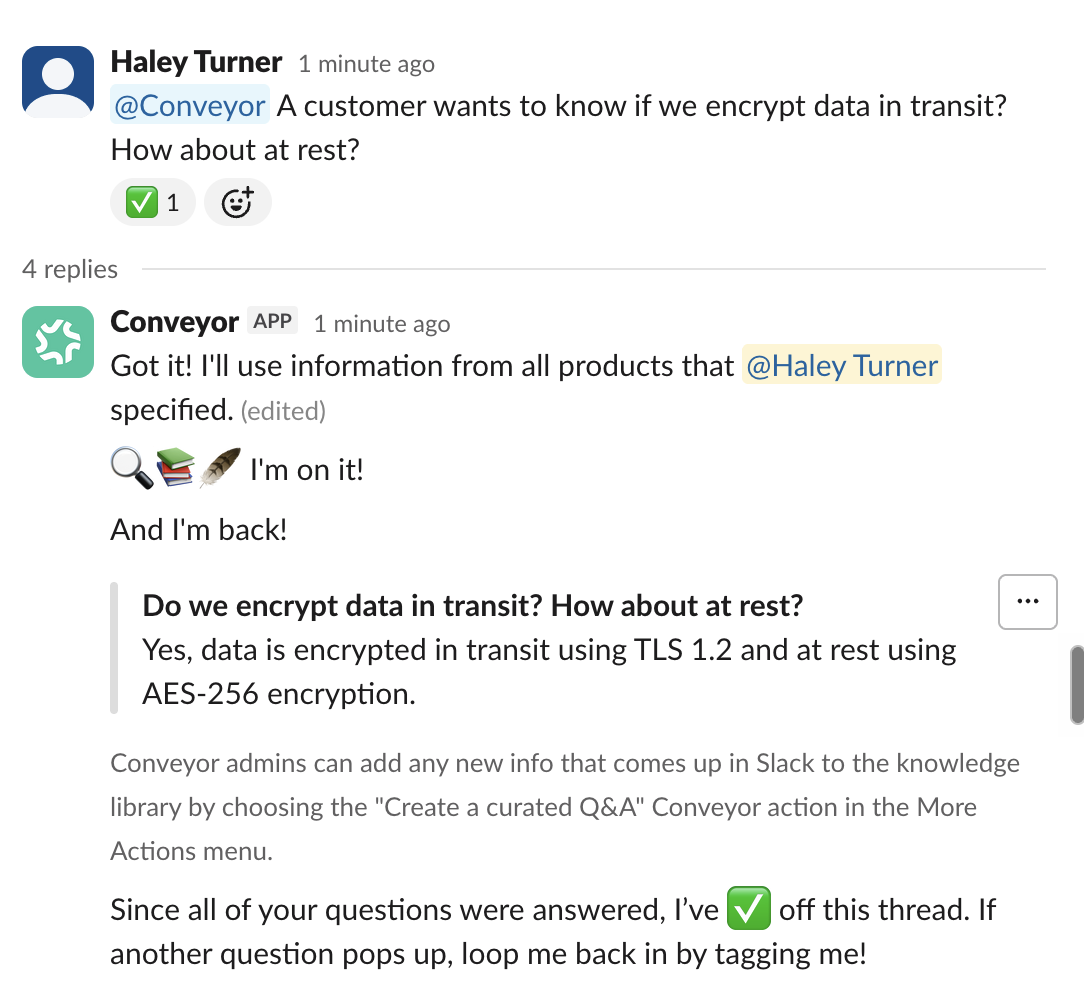
When every question in the thread has been answered, ConveyorAI checks the thread off (✅) and lets you know you can tag it again anytime another question comes up.
If a thread doesn't close out cleanly, ConveyorAI follows up after a configurable time period — for example, "Hey [name], wanted to close the loop here — was your question answered?" — to check whether the question was resolved. Set that delay with the Reminder to Close the Loop option on the Answers via Slack settings.

See a good answer worth keeping? A Conveyor admin can save it to the knowledge library with the Create a Curated Q&A action — see Add knowledge from Slack.
See How an Answer Was Generated
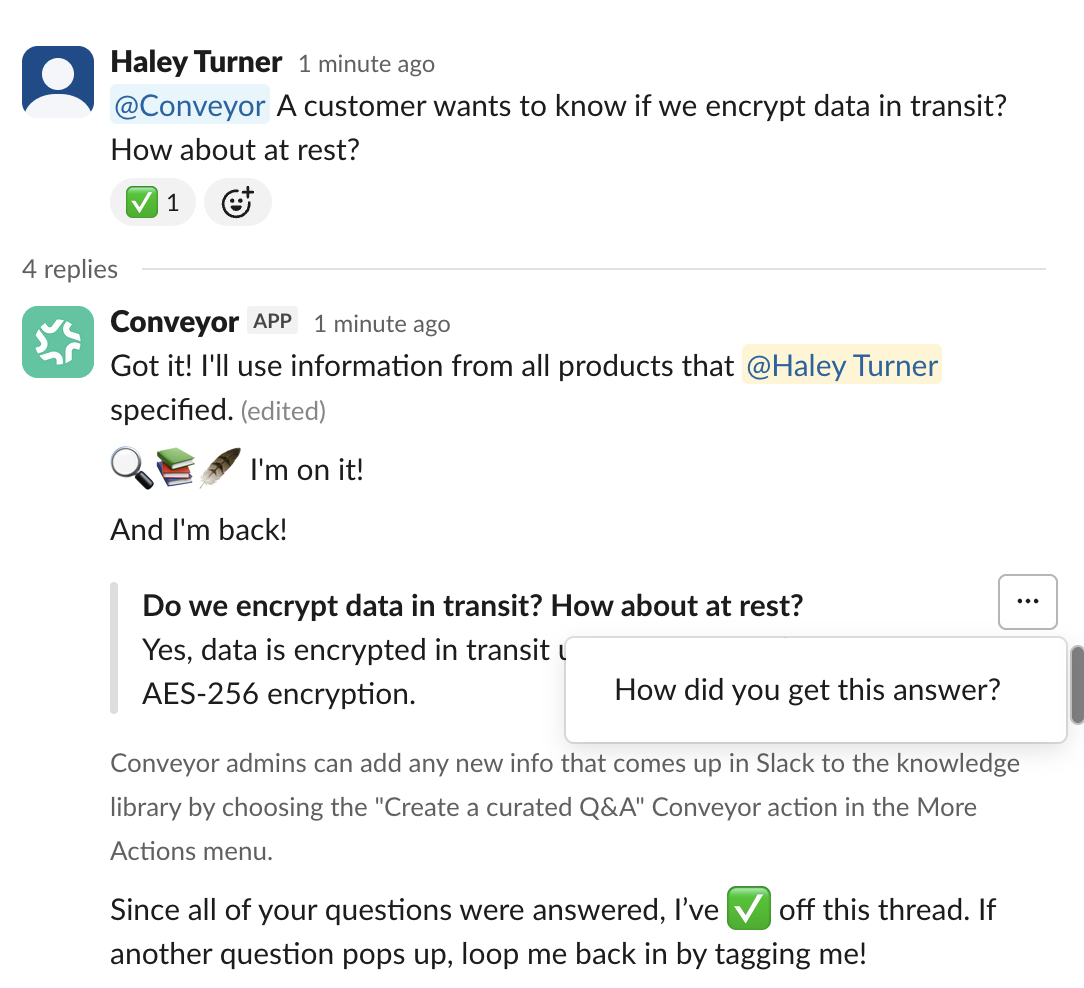
To see the sources behind a response, open the overflow menu (⋯) on the answer and choose How did you get this answer?. ConveyorAI replies with a message visible only to you — "Here are the sources I used to generate this answer" — listing each source, tagged by type such as [Curated Q&A] or [External Source]. Select Show more to see the full list.
![An ephemeral Slack message visible only to you titled 'Here are the sources I used to generate this answer,' listing numbered sources tagged [Curated Q&A] and [External Source], with a Show more link.](https://files.readme.io/e73b5ec6e7f78612196cf7211a1f8ba014e8bfae8672b709748244f3241e1e3b-ShownSources-HowAnswered.png)
Control Which Answers Get Released
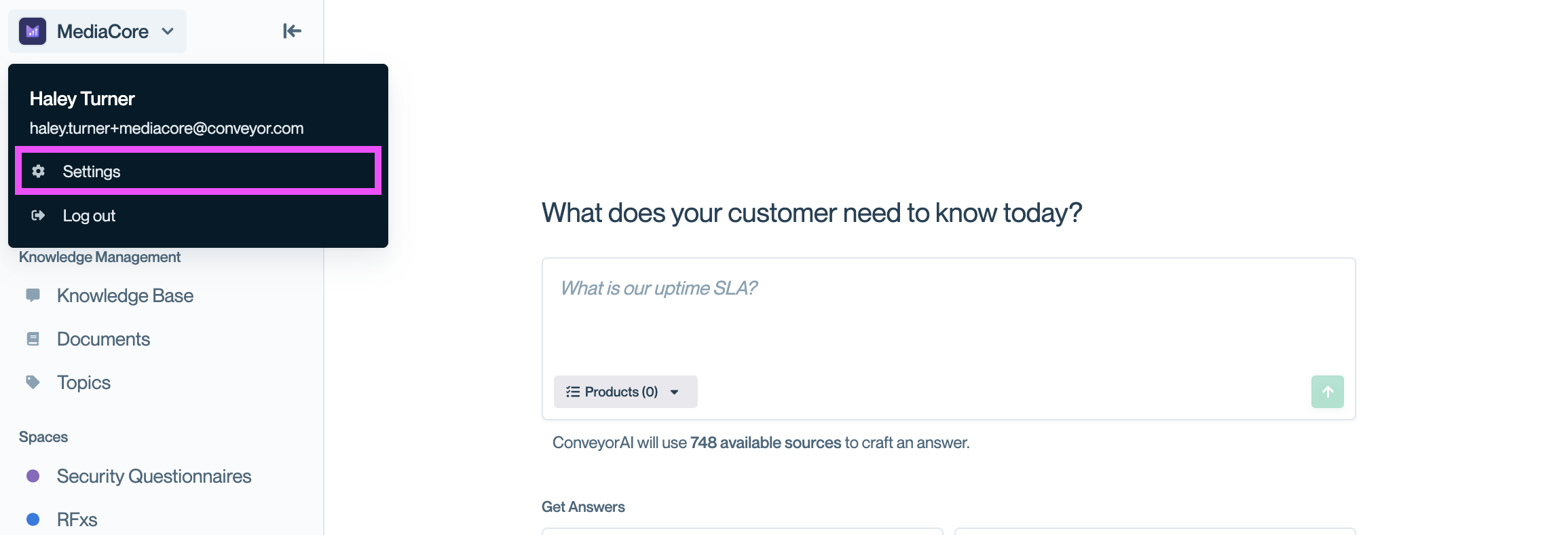
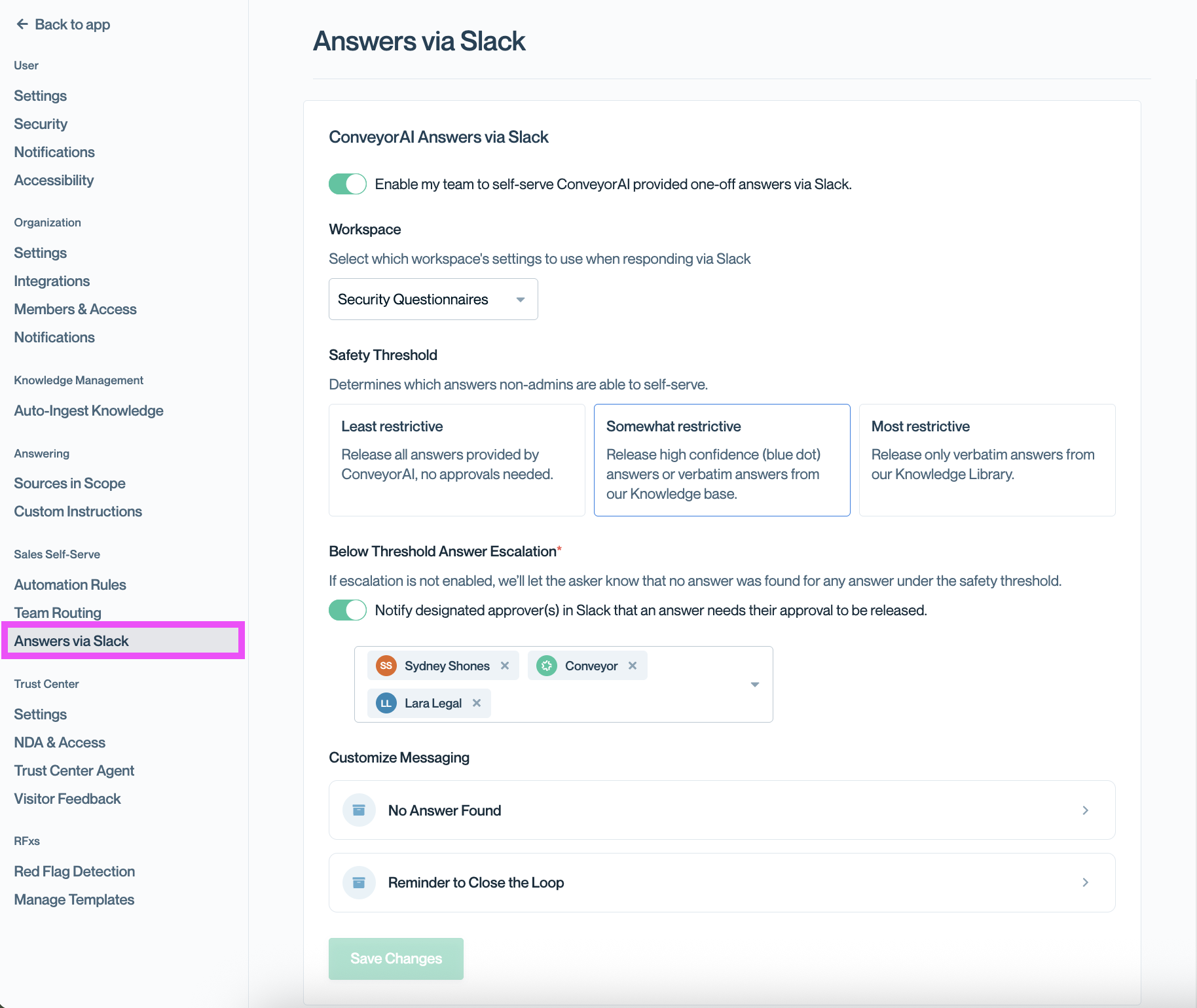
Manage self-serve answers on the Answers via Slack settings page in Conveyor, under Sales Self-Serve in settings. Turn on Enable my team to self-serve ConveyorAI provided one-off answers via Slack, and choose which Workspace's settings to use when responding.
Safety Threshold
The Safety Threshold determines which answers non-admins can self-serve:
- Least restrictive — Release all answers provided by ConveyorAI, no approvals needed.
- Somewhat restrictive — Release high confidence (blue dot) answers or verbatim answers from our Knowledge base.
- Most restrictive — Release only verbatim answers from our Knowledge Library.
Escalate Below-Threshold Answers
Choose what happens to answers that fall below the threshold. Turn on Notify designated approver(s) in Slack that an answer needs their approval to be released, then select the approver(s). If escalation is off, the asker is simply told no answer was found.
When escalation is on, each designated approver receives a Slack message to review the held answer and release it.
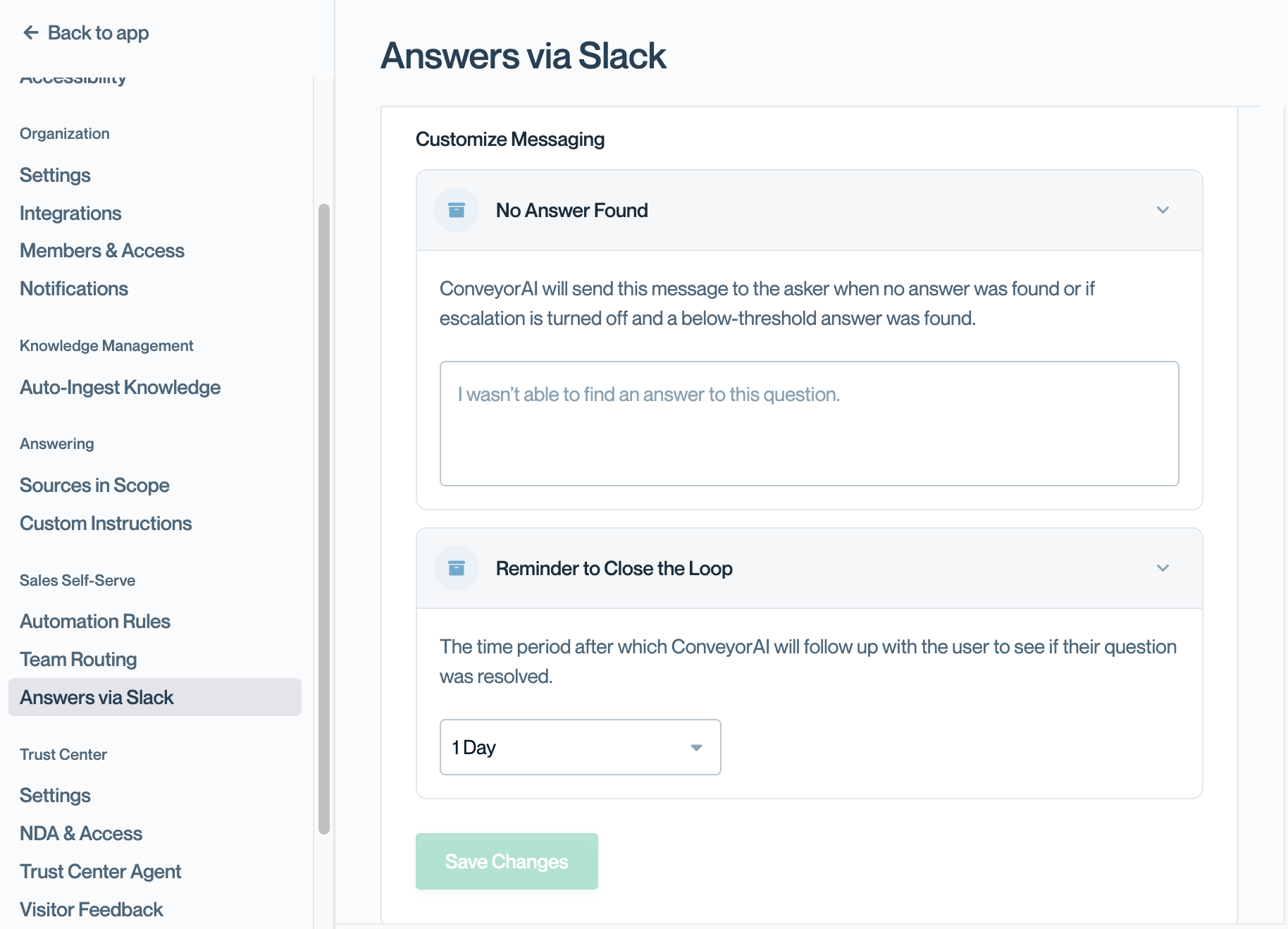
Customize Messaging
From the same page, customize two messages:
- No Answer Found — sent to the asker when no answer is found, or when escalation is off and a below-threshold answer is found (default: I wasn't able to find an answer to this question.).
- Reminder to Close the Loop — the time period after which ConveyorAI follows up with the user to see if their question was resolved (for example, 1 Day).
Common Questions
Q: Where do the answers come from?
A: From the in-scope sources you've connected to Conveyor. Use How did you get this answer? on any response to see the exact sources.
Q: Why does ConveyorAI ask which products to use?
A: When your organization has multiple product lines, ConveyorAI scopes its answer to the products the customer is evaluating so it pulls from the right sources.
Q: Can I turn a good answer into reusable knowledge?
A: Yes — see Add knowledge from Slack.
What's Next?
- Add knowledge from Slack — Save a strong answer as a curated Q&A.
- Slack command & notification reference — Every command and notification in one place.
Need help? Visit the Troubleshooting guide or contact [email protected].
Updated 2 months ago