

Customizing the URL and going live
Time to complete: 10–15 minutes
Prerequisites: Your Trust Center is designed, previewed, and tested. You'll need Admin access to the Designer to publish for the first time.
Why customize your URL
Before you publish your first Trust Center draft and officially go live, it’s a good idea to:
- Test the visitor experience end-to-end
- Set a custom URL (e.g.
https://trust.yourcompany.com) to give customers a polished, on-brand entry point that's easy to remember.
How to set up a custom URL (Optional)
Custom URLs make your Trust Center easier to find and remember, and can help with SEO.
- Contact [email protected] with the domain you'd like to use.
- Add the DNS records we send you with your domain provider.
- Allow 24–48 hours for DNS to propagate.
You don't need a custom URL to go live. Your Conveyor-hosted URL works on its own, and you can add a custom URL later.
Publish your Trust Center
- Go to Trust Center → Designer.
- Click Publish Draft in the upper-right corner.
- Review the summary of changes in the Publish Draft to Live URL? window.
- Optionally, add a Changelog Note describing what you changed.
- Click Publish Live URL.
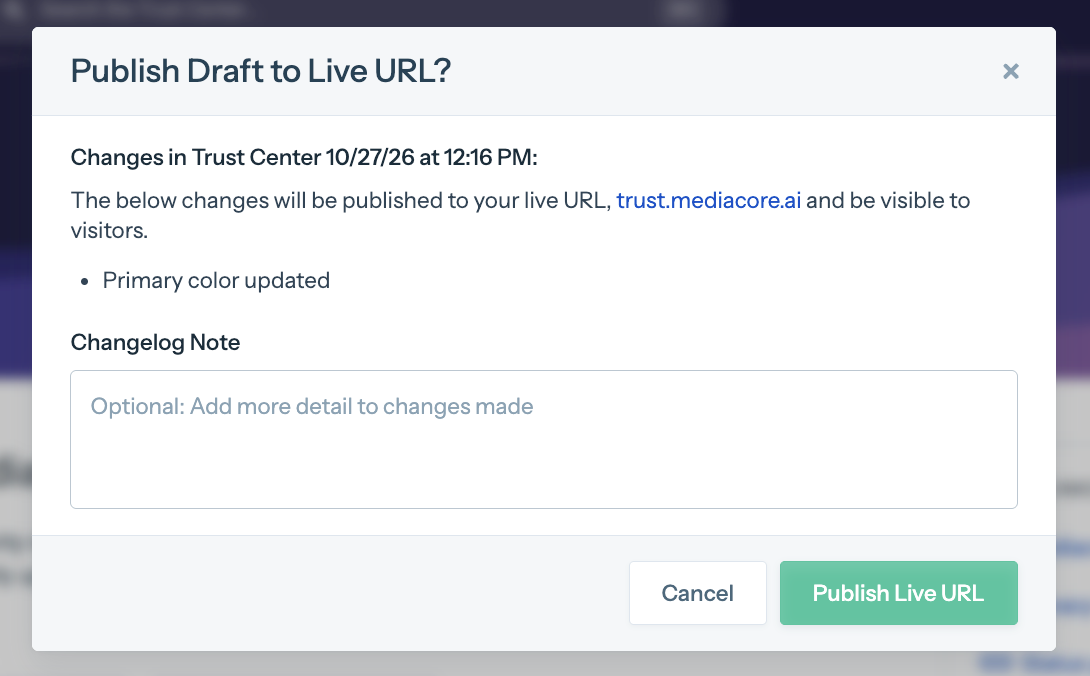
Review your changes and add an optional changelog note before you publish.
Your Trust Center is now live. To find your link, open the Published tab in the Designer's right panel and copy the Live URL, or click Share Live URL in the upper-right corner. Then start sharing it with customers.
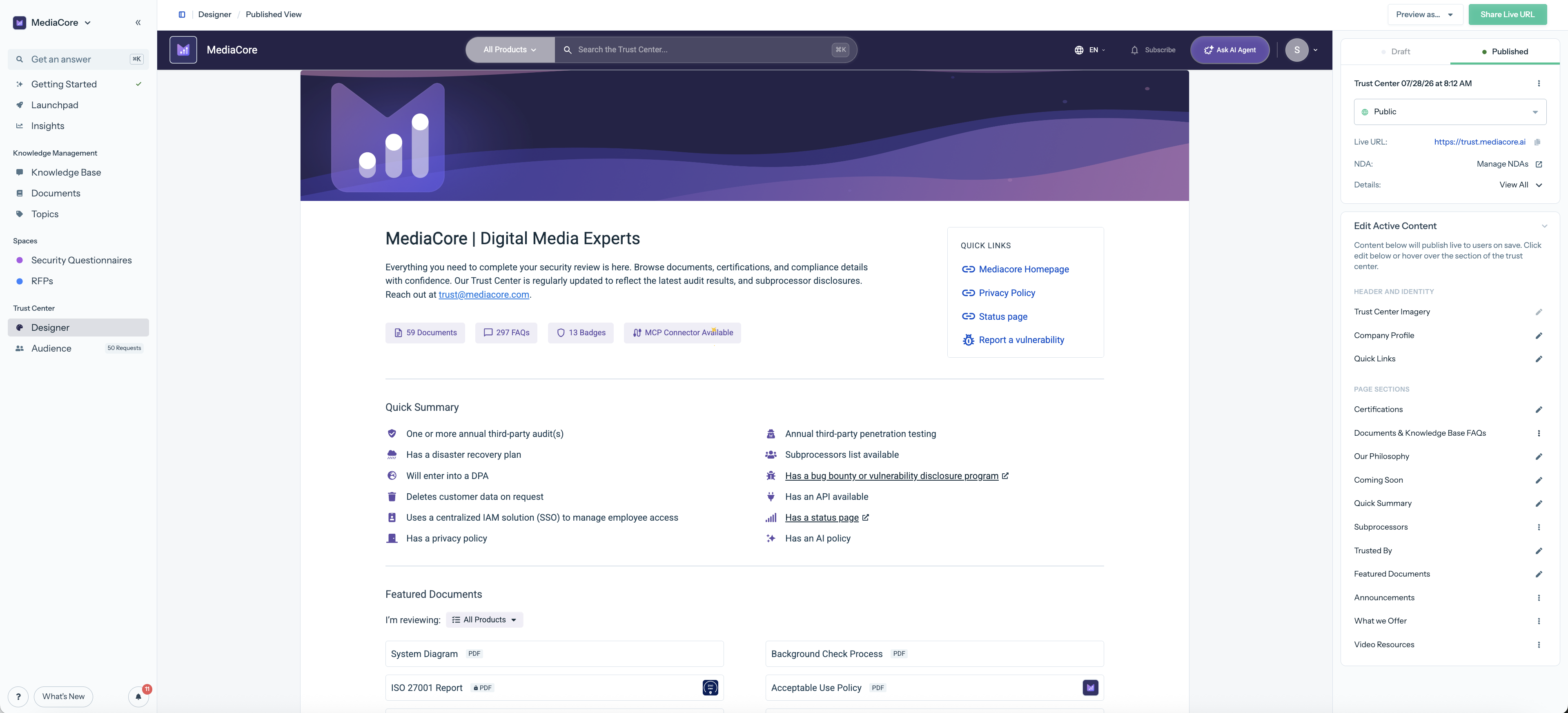
Want to change your layout or branding later? Make the changes in a draft and publish again. Visitors keep seeing your live Trust Center until you do. See Drafting changes to your Trust Center.
Take Your Trust Center Offline
If you need to take your Trust Center down:
- Go to Trust Center → Designer and open the Published tab in the right panel.
- Change the status from Public to Unpublished.
Your branded URL is deactivated and visitors can no longer see your Trust Center. Only Designer Admins can take a Trust Center offline.
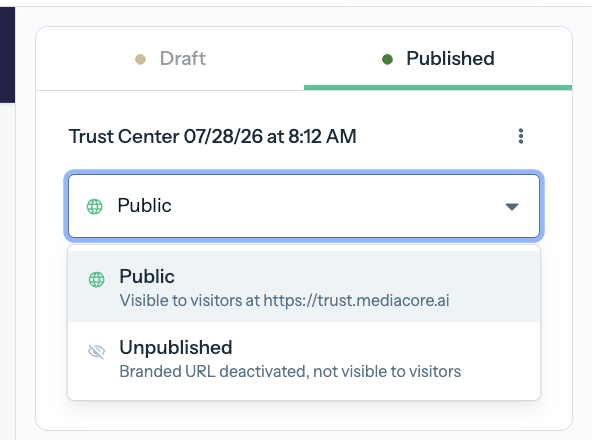
Switch the status to Unpublished to take your Trust Center offline.
Make it discoverable
If you want your public Trust Center to show up in search engines like Google:
- Link to it from your website so it's indexed through normal crawling.
- Submit your Trust Center URL in Google Search Console. You can also use Search Console to see whether — and why — the page isn't appearing in search results.
Some companies keep their Trust Center unlisted and share the link directly instead.
Common questions
Q: I don't see a Go Live toggle. Where did it go?
A: Going live now happens by publishing your draft. In the Designer, click Publish Draft in the upper-right corner. See Drafting Changes to Your Trust Center.
Q: Who can publish?
A: Only Designer Admins can publish a Trust Center for the first time. After it's live, users with Designer Editor access can publish later drafts. Admins can update permissions in Organization Preferences → Roles.
Q: Why is the Publish Draft button disabled?
A: If you see Your account is being verified. Please check back later., we're still verifying your account. See the next question.
Q: How does account verification work?
A: Your Trust Center is how your customers decide whether to trust you, so we confirm that every account is associated with the company it's representing before its Trust Center can go live. Verification can take up to 5 business days. To help it go smoothly:
- Sign up with your work email address, not a personal one.
- Make sure your company's domain (the part of your email after the @) has a live website for your business.
If it's been more than 5 business days and you still need to be verified, contact [email protected].
Q: Do I need a custom URL to go live?
A: No. Your Conveyor-hosted URL works fine — a custom URL just gives customers a more polished experience.
Q: Can I change the URL later?
A: Yes. Contact [email protected] to update your custom URL at any time.
Q: Does publishing notify customers?
A: No. Publishing makes your Trust Center available at its URL. You decide when and how to share it.
What's next?
- Sharing Your Trust Center - Choose how you’ll invite customers.
- Connections overview - Understand how Trust Center visitors are managed.
- Drafting changes to your Trust Center — Update your live Trust Center safely.
- Maintaining your Trust Center - Make a plan to keep your content current.
Need help? Visit the Troubleshooting guide or contact [email protected].
Updated 17 days ago