

How ConveyorAI Answers Questions
Overview
ConveyorAI drafts answers to your questionnaires using your in-scope sources: curated Q&As, past answers, documents and external sources. With the Agentic answer engine, it reviews the whole questionnaire first, searches your sources for each question, drafts an answer, and checks that every claim is backed by a cited source. It answers everything it can and flags anything it isn’t sure about.
For more detail, see ConveyorAI and How Conveyor Utilizes LLMs.
Tip: You can control which sources ConveyorAI referencesChoose its sources in Configuring Answer Sources, and shape its answers with custom instructions.
Understanding answer statuses
Each answer has a status that tells you how confident ConveyorAI is, or whether someone on your team has approved it.
| Status | Description |
|---|---|
 Unanswered (gray) | ConveyorAI couldn’t find a solid source to answer from, so it left the question for your team instead of guessing. Answers you add can be remembered for next time. |
 Flagged (yellow) | ConveyorAI drafted an answer but needs a human to check it: it was unsure, the question or sources were ambiguous or conflicting, it had to infer something, or it couldn’t answer every part of the question. Its reasoning tells you which. Review these first. |
 Answered (blue) | ConveyorAI drafted the answer from your sources with relatively high confidence. Give it a quick spot check. |
 Ready to Approve | ConveyorAI found an exact match to the same question in your Content Library, ready for quick approval. |
 Approved | A team member has reviewed and approved the answer. No further action needed. |
See Why ConveyorAI Answered the Way It Did
Every Agentic answer shows its work, so reviewers can check it quickly:
- Why this answer. A short explanation of how ConveyorAI reached the answer, and the settings it used (products, answering engine and sources).
- How this answer was put together. Expand it to see each step: what ConveyorAI searched for, what it found, and how it drafted the answer.
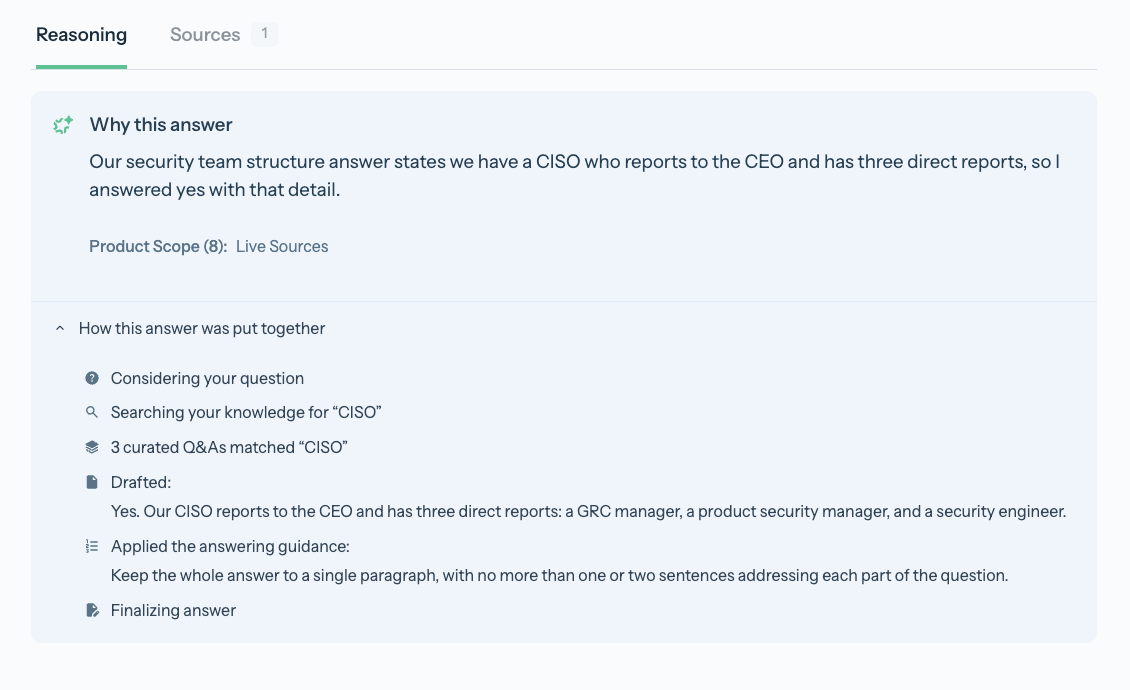
Expand How this answer was put together to see every step ConveyorAI took.
In a questionnaire
Select a question and open the Timeline tab in the right panel:
- Why this answer appears at the top.
- Expand Answer History to see everything ConveyorAI did: reviewed the questionnaire’s instructions, drafted the answer, applied the answering guidance (from the questionnaire or your custom instructions), explained its reasoning, and wrote the final answer.
This shows you exactly where an answer’s content and format came from — useful when you want to know why ConveyorAI answered in a particular way.
The Sources tab lists everything ConveyorAI cited. Snippets from the same document are grouped together.
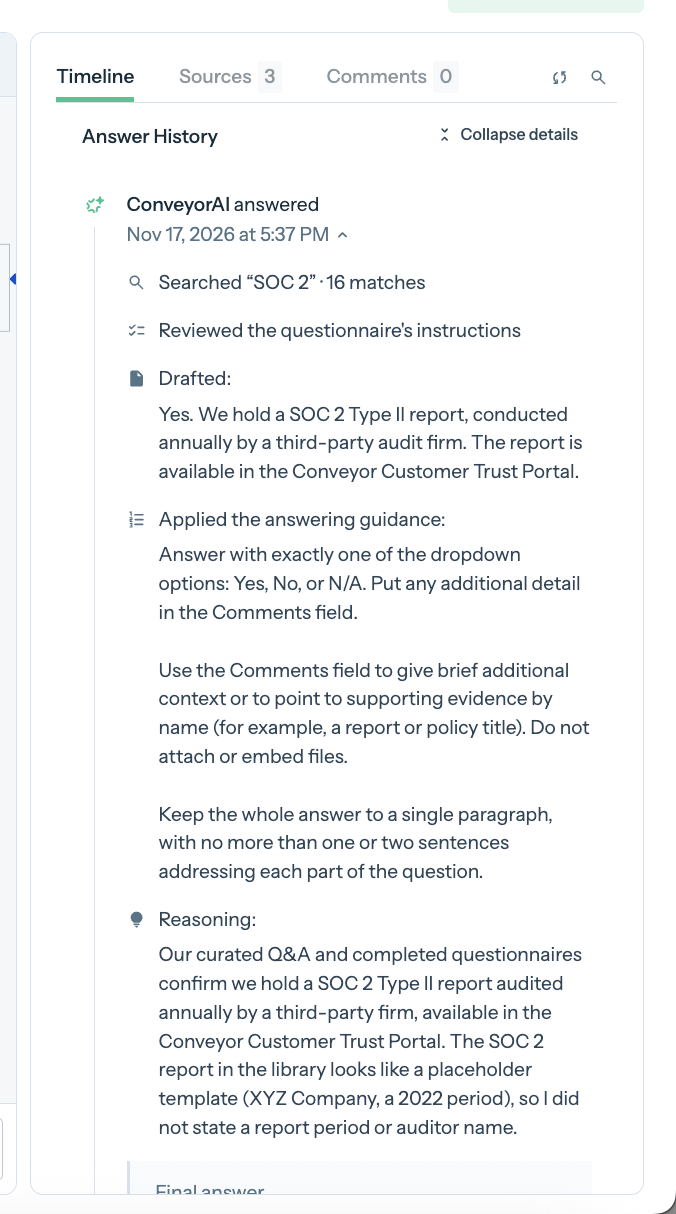
Answer History shows how the questionnaire’s instructions changed the first draft.
Answers from the Legacy answer engine show the sources they used, but not the reasoning behind them.
Common questions
Can I control which data ConveyorAI uses?
Yes — see Configuring Answer Sources for more information. You can also tell it which sources to rely on for specific topics in your custom instructions or by using Topic preferences.
Why are some questions Unanswered when using the Agentic pipeline?
ConveyorAI won’t guess when it can’t find a solid source. Signatures, attestations and deal-specific details (names, budgets, timelines) are the most common. If a question points to a real gap, add the answer to your knowledge base so it’s answered next time.
What if ConveyorAI misses a question?
You can manually search your Knowledge Base or re-run ConveyorAI on individual questions.
What’s next
- Agentic answer engine — check or change your answering engine, and compare it with Legacy
- Configuring Answer Sources — choose what ConveyorAI can use
- Review and Edit Answers — approve, edit and flag answers
Need help? If you are feeling stuck, contact us at [email protected].
Updated 5 days ago