
Bulk actions for documents
Time to complete: 5 minutes
Prerequisites: At least two documents uploaded to your Trust Center
To update multiple documents at once, select documents by clicking the checkbox next to each document name. You can select documents across different folders. A toolbar appears at the bottom of the screen showing the number of documents selected.
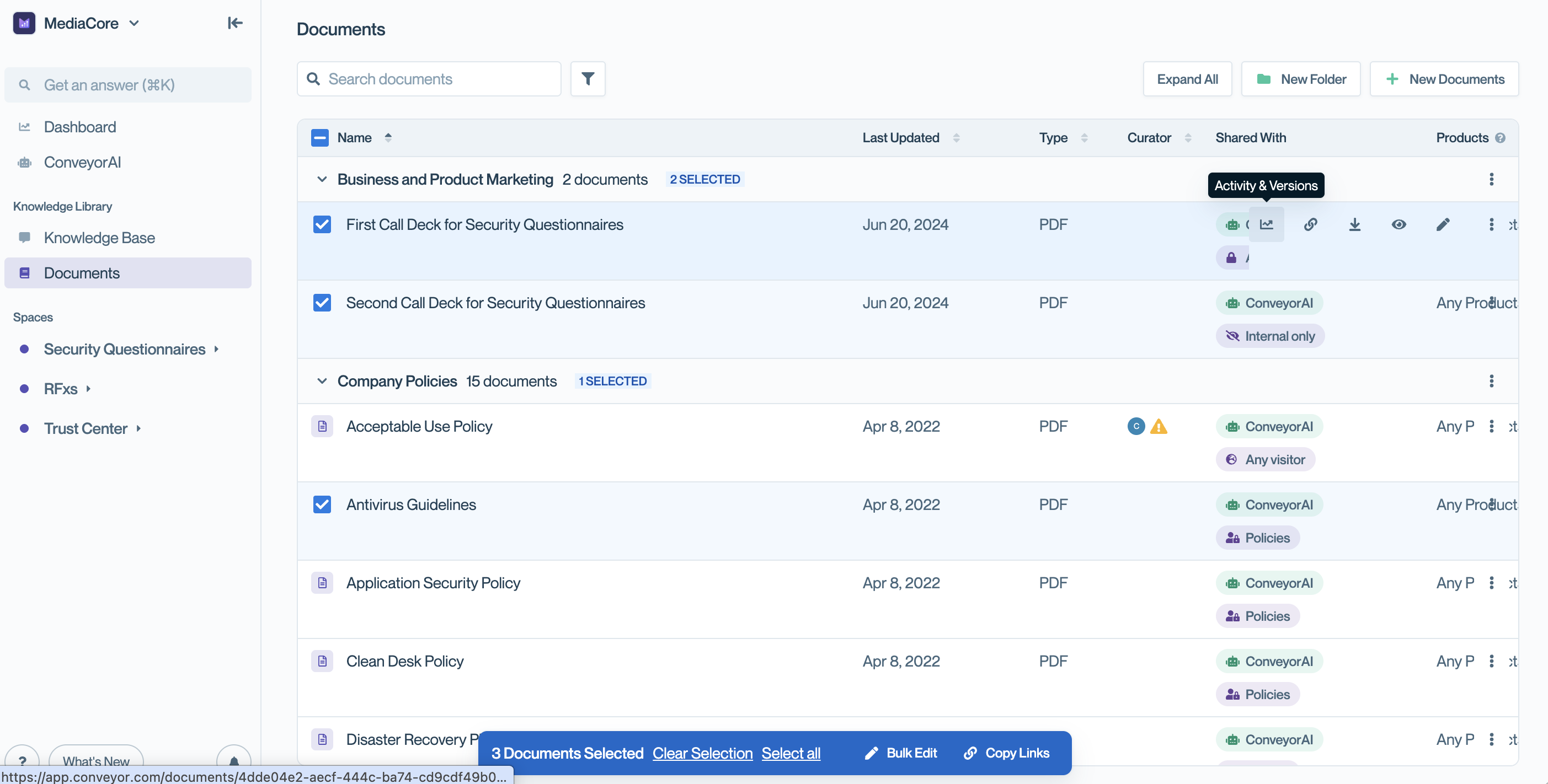
Select multiple documents to enable bulk actions. The toolbar shows how many documents are selected.
Click Bulk Edit to open the bulk update modal. Available actions include:
- Share with ConveyorAI – Enable or disable ConveyorAI access for all selected documents
- Share with Trust Center – Update Trust Center visibility settings
- Move – Move documents to a different folder
- Add Products – Tag documents with product lines
- Remove Products – Remove product line tags
- Delete – Permanently delete all selected documents
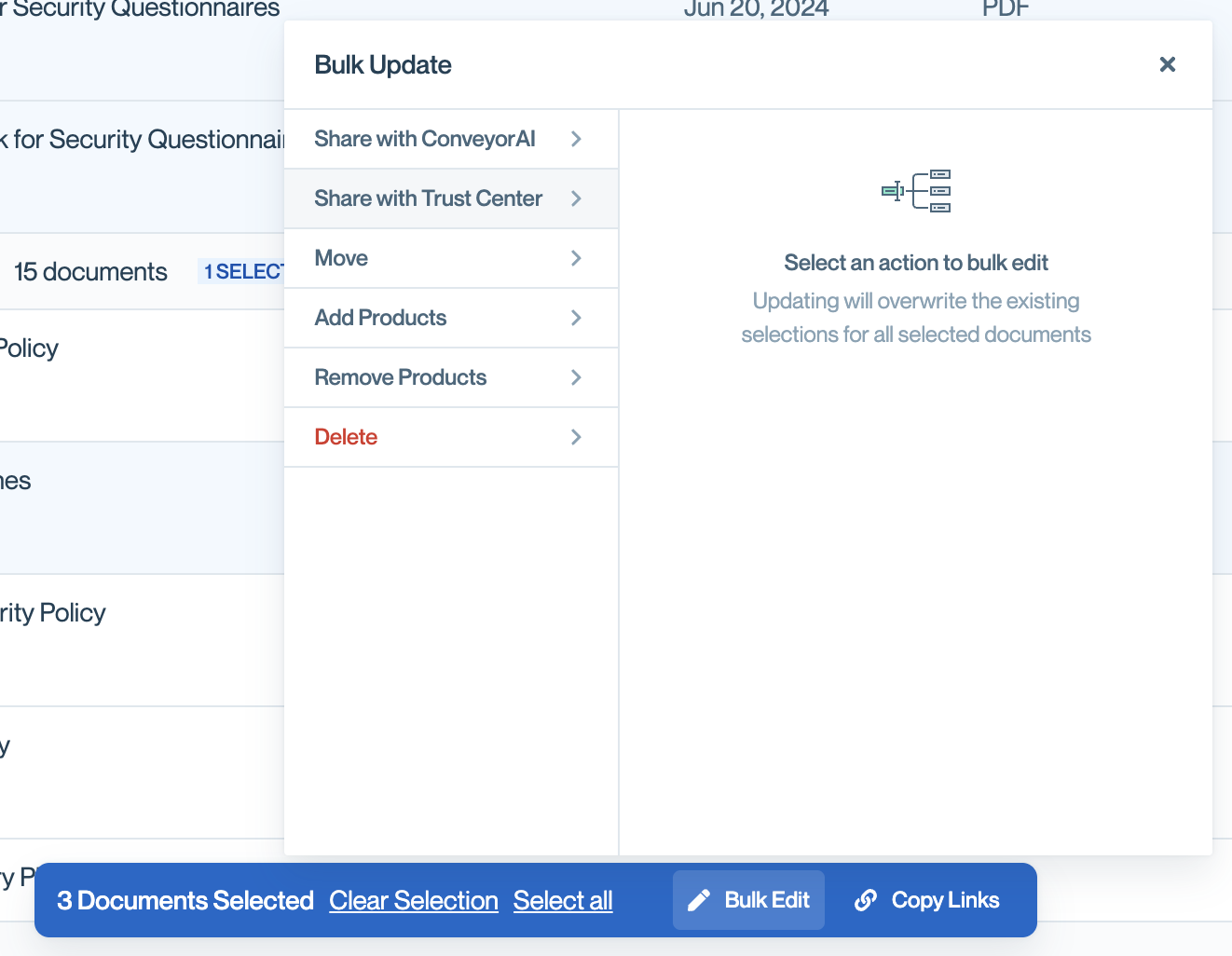
The Bulk Update modal lets you apply changes to all selected documents at once
Note: Bulk updates overwrite existing settings for all selected documents. For example, if you bulk-add a product tag, it will be added to all selected documents regardless of their current product assignments.
Searching and filtering documents
Use search and filters to quickly find specific documents in your library, especially as your collection grows across multiple folders.
Type in the Search documents field to find documents by name. Results update as you type to show matching documents across all folders.
To filter documents, click the filter icon to narrow your list by specific criteria. Available filters include:
- Name: Filter by document name.
- Last Updated: Filter by when the document was last modified.
- Expires: Filter by document expiration date.
- Type: Filter by file type (PDF, Word, etc.).
- Curator: Filter by the assigned subject matter expert.
- Shared With: Filter by access level. Options include:
- Internal only: Documents not shared with Trust Center visitors.
- Any visitor: Documents visible to anyone.
- Approved visitors: Documents visible to all authorized visitors.
- Some approved visitors: Documents restricted to specific access groups.
- ConveyorAI: Documents enabled for AI question answering.
- Access Groups: Filter by specific access groups assigned to documents.
- Products: Filter by product lines the document applies to.
- Badges: Filter by certification badges (SOC 2, ISO 27001, etc.).
Click a filter to expand it and select your criteria. Use Select All to check all options within a filter, or Clear to uncheck all. You can apply multiple filters at once to narrow results further. Click the X on the Filters panel to close it.
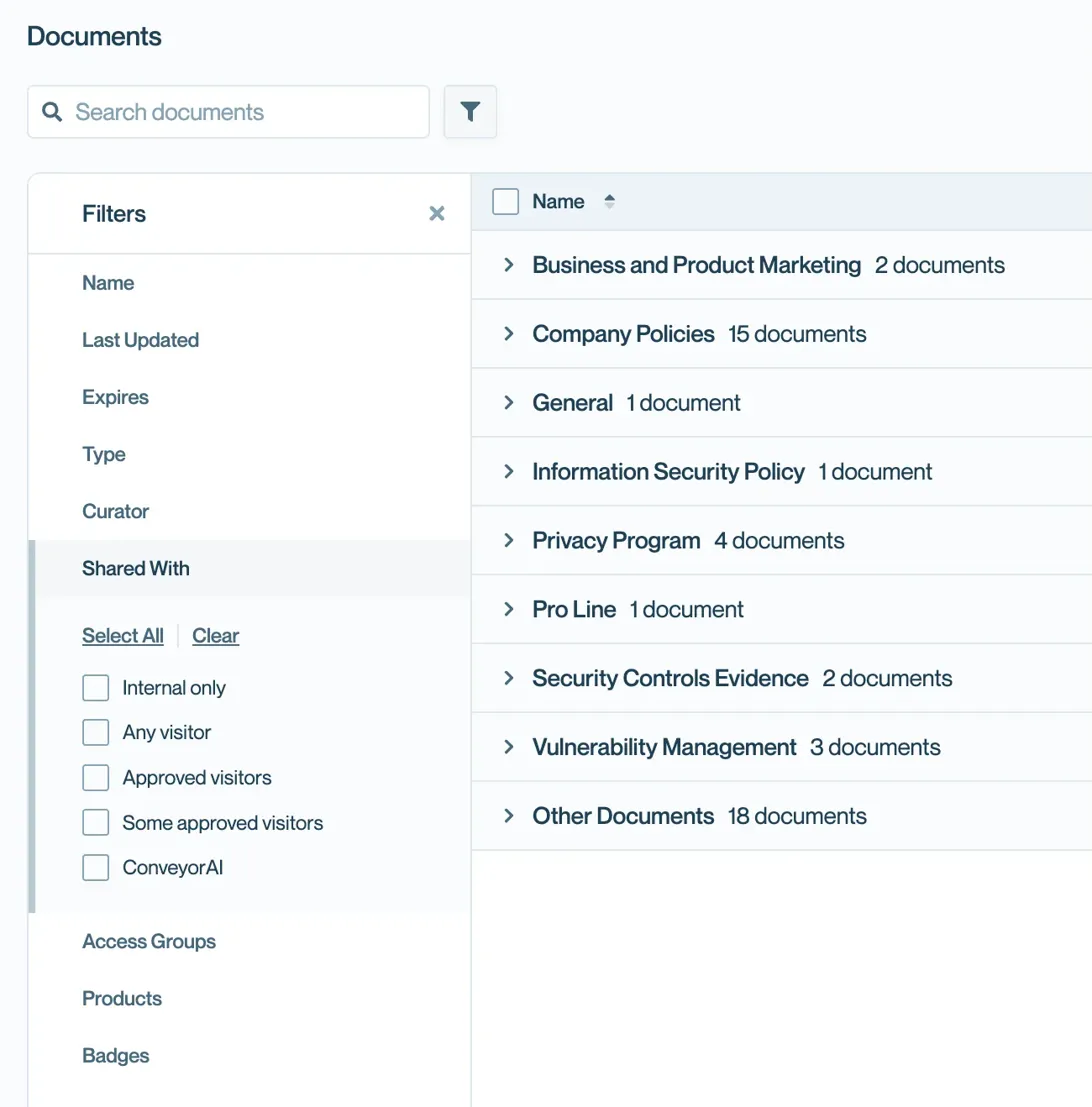
Filter and find specific documents based on properties.
Common questions
Will bulk editing overwrite my existing settings?
Yes. Bulk updates apply the same change to all selected documents. Review your selection carefully before confirming.
Can I select documents from multiple folders?
Yes. Selections persist as you navigate between folders, and the toolbar shows the total count of selected documents.
How do I select all documents at once?
Click Select all in the toolbar at the bottom of the screen after selecting at least one document.
What's next
- Editing documents – Update individual document settings
- Organizing documents with folders – Structure your Trust Center content
- Document Access – Configure access groups for your documents
Need help? Visit the Troubleshooting guide or contact [email protected]
Updated about 13 hours ago