
Bulk actions for Q&As
Time to complete: 5 minutes
Prerequisites: At least two Curated Q&As in your Knowledge Base
Bulk actions let you update multiple Q&As at once, saving time when you need to reassign curators, change access levels, or reorganize content across your Knowledge Library. Instead of editing each Q&A individually, select the ones you want to modify and apply changes in a single operation.
Selecting Q&As
To select Q&As for bulk actions, click the checkbox next to each question you want to include. Selected rows are highlighted, and a toolbar appears at the bottom of the screen showing the number of questions selected.
- Select individual Q&As: Click the checkbox next to each question.
- Select all on current page: Click the checkbox in the header row or click Select all in the bottom toolbar.
- Clear selection: Click Clear Selection in the toolbar to deselect all Q&As.
You can navigate between pages while maintaining your selection—selected Q&As persist as you browse.
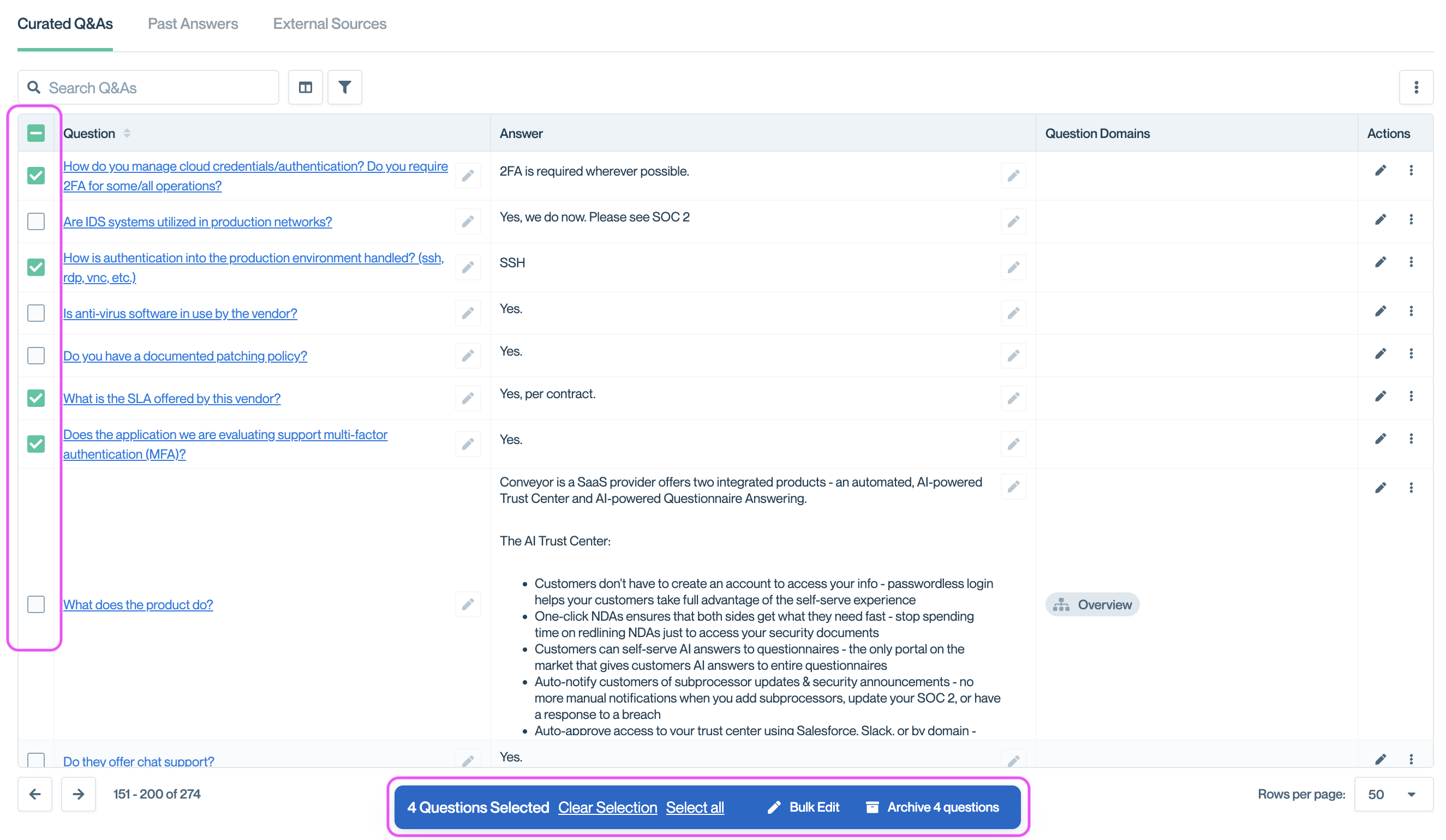
Selecting individual questions to take bulk action.
Bulk edit options
With Q&As selected, click Bulk Edit in the toolbar to open the Bulk Update panel. Choose from the following actions:
- Curator: Reassign the selected Q&As to a different subject matter expert.
- Access: Change the visibility level (Internal only, Approved Customers, etc.) for all selected Q&As.
- Verification: Update the verification status or reset the verification period for selected Q&As.
- Add Products: Assign additional product lines to the selected Q&As.
- Remove Products: Remove product line assignments from the selected Q&As.
- Add Question Domains: Categorize selected Q&As into additional domains.
- Remove Question Domains: Remove domain assignments from selected Q&As.
- Tags: Add or modify tags for the selected Q&As.
👉 Important: Bulk updates overwrite existing settings for all selected Q&As. Review your selection carefully before confirming changes.
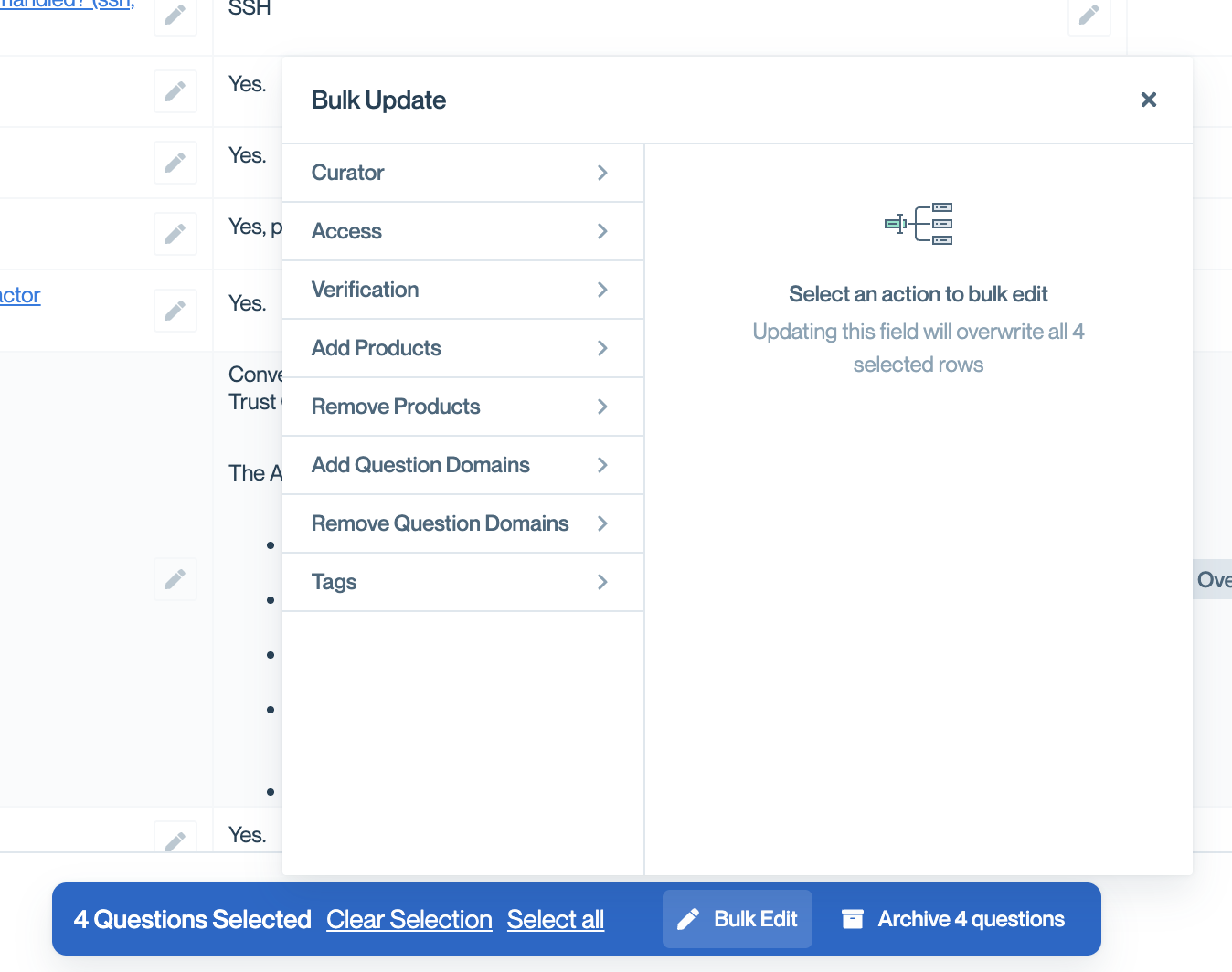
Bulk actions modal at the bottom middle of the page.
Archiving Q&As in bulk
Click Archive [X] questions in the toolbar to archive all selected Q&As at once. Archived Q&As are removed from ConveyorAI's knowledge and hidden from your Trust Center. This is useful for cleaning up outdated content or removing Q&As that are no longer relevant.
Archive your entire Curated Q&As
Archive all Curated Q&As at once:
- Navigate to Knowledge Library → Curated Q&As
- Click the overflow menu (⋮) in the upper-right corner
- Select Archive all Curated Q&As
- Confirm the action
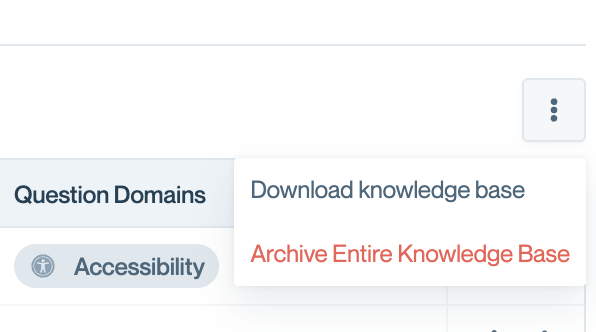
Use the three dot modal on top right to archive all your curated Q&As.
⚠️ Warning: Archiving removes all Curated Q&As from ConveyorAI's use and your Trust Center. Only use this when completely rebuilding your Q&A library or migrating to a new content structure.
Quick actions
For single Q&A actions without leaving the list view, use the controls in the Actions column:
- Pencil icon: Edit the Q&A directly.
- Three-dot menu: Archive an individual question and answer.
See Managing a single Q&A for more details on the type of actions you can take for an individual Q&A.
Common Questions
Do bulk updates overwrite existing values?
Yes. When you apply a bulk edit, the new value replaces existing settings for all selected Q&As. For example, changing the curator will reassign all selected Q&As to the new curator, removing the previous assignment.
Can I select Q&As across multiple pages?
Yes. Your selection persists as you navigate between pages. The toolbar always shows the total count of selected Q&As.
What's the difference between "Add Products" and "Remove Products"?
"Add Products" appends product lines to the selected Q&As without removing existing assignments. "Remove Products" removes specific product lines while keeping others intact.
Can I undo a bulk action?
No. Bulk actions cannot be undone automatically. If you make a mistake, you'll need to manually correct the affected Q&As or perform another bulk action to revert the changes.
What happens when I archive Q&As?
Archived Q&As are excluded from ConveyorAI's responses and hidden from your Trust Center. The content is preserved and can be restored later from the archived items view.
What's Next
- Managing individual Q&As – Edit settings and view history for single Q&As
- Adding Q&As – Create new Curated Q&As
- Setting up curators – Assign subject matter experts across your Knowledge Library
- Ongoing maintenance – Best practices for keeping answers current
Need help? Visit Troubleshooting or contact [email protected].
Updated about 14 hours ago