
Managing individual Q&As
Time to complete: 5 minutes
Prerequisites: At least one Curated Q&A in your Knowledge Base
Click any question in your Knowledge Base to open its detail page. From here you can view usage insights, edit settings, collaborate with teammates through comments, and track the full history of changes. This page is your central hub for maintaining answer accuracy and coordinating with subject matter experts.
Quick actions from the Q&A list
You can take several actions directly from the Curated Q&As list without opening each question's detail page. The list view displays key information at a glance and provides inline editing and quick actions.
Customizing your view
Click the column icon next to the search bar to customize which columns appear in your list. Available columns include:
- Question: The question text (always visible).
- Answer: Preview of the answer content.
- Question Domains: Categories assigned to the question.
- Tags: Custom labels for organization.
- Products: Product lines the Q&A applies to.
- Status: Whether the answer is "Up to Date" or "Needs Verification."
- Curator: The assigned subject matter expert.
- Access: Visibility level (Internal Only, Anyone, etc.).
- Times Used: How often this answer has been copied or referenced.
- Content Updated: Date the answer was last modified.
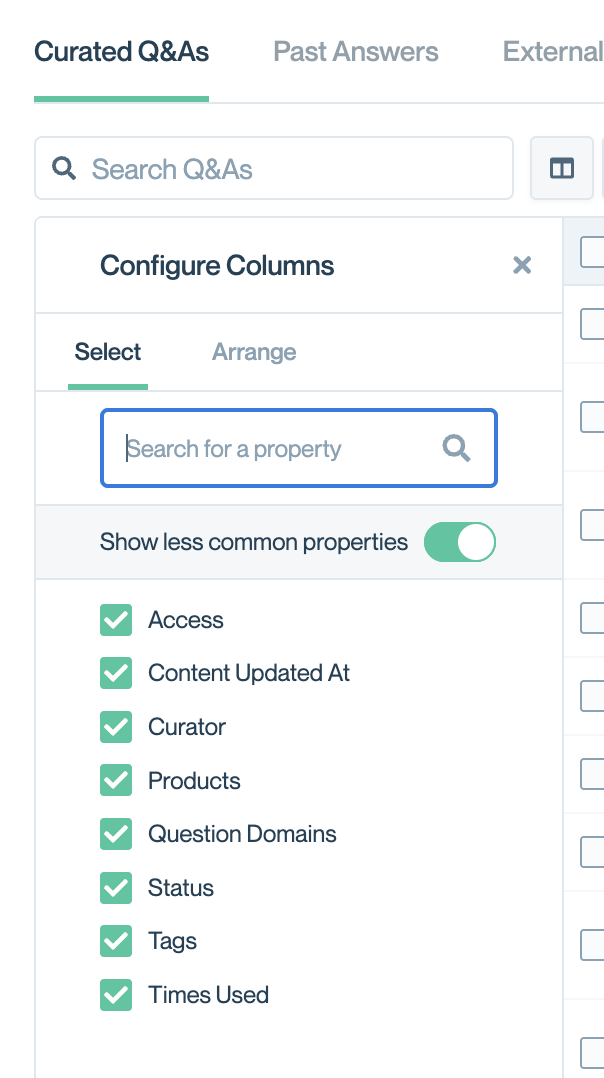
Customize your view by clicking on the icon next to the "Search Q&As"
Inline view and editing
Scroll horizontally to view all columns, or customize your view to show only the fields most relevant to your workflow.
Click the pencil icon next to any field to edit it directly from the list view. Editable fields include the question text, answer content, question domains, tags, products, status, curator, and access level. Changes save automatically.
Row actions
Each row includes an Actions column on the far right with quick access controls:
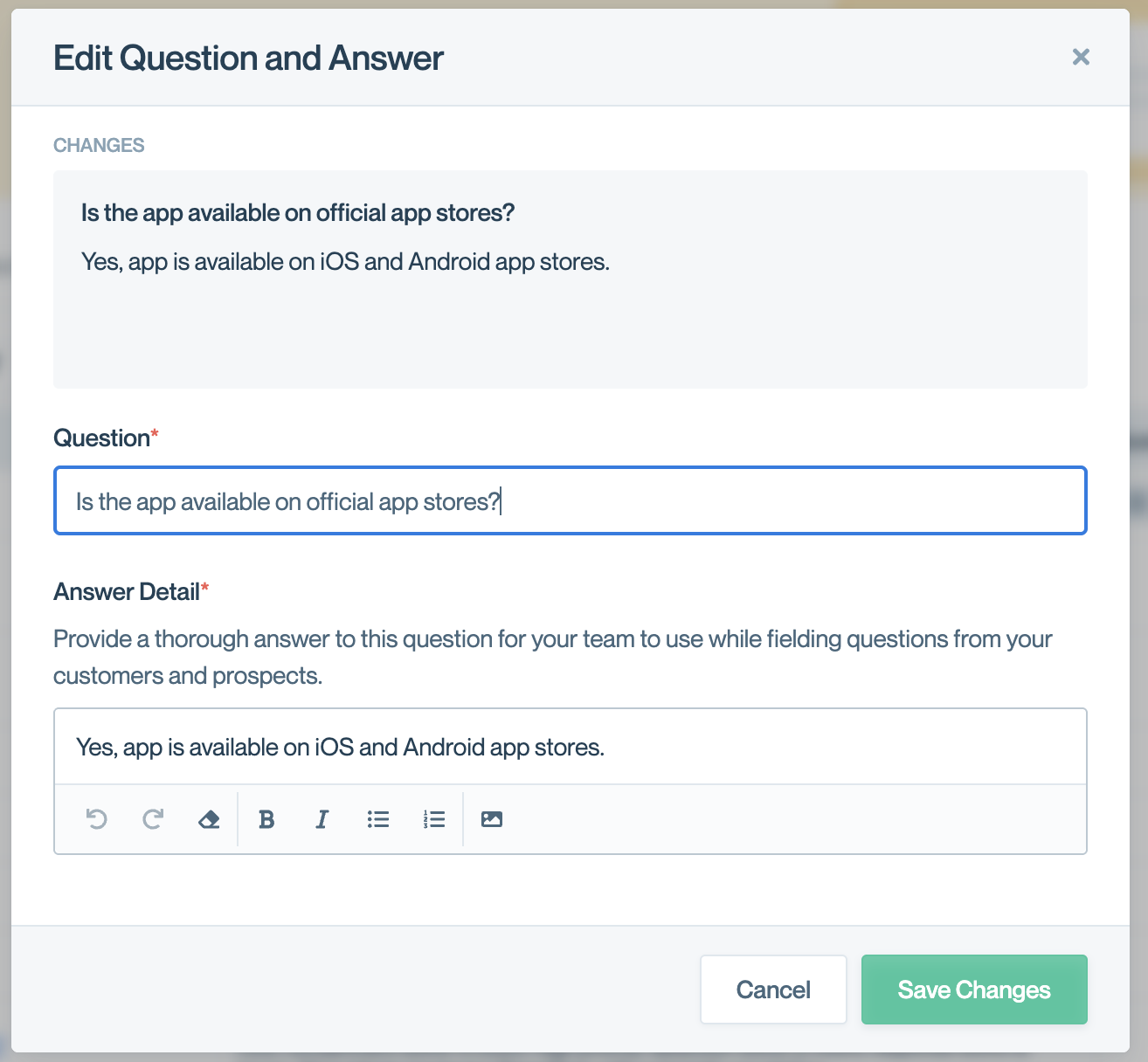
- Pencil icon: Open the Q&A modal for quick changes to the question or the answer.
- Three-dot menu: Access additional options, including Archive Question and Answer to remove the Q&A from active use.
Status indicators
The Status column uses color-coded badges to show verification state at a glance:
- Green "Up to Date": The answer has been recently verified and is current.
- Yellow "Needs Verification": The verification period has expired and the curator should review the content.
Activity indicators
The Content Updated column shows when each Q&A was last modified, with a colored dot indicating recency. Green dots indicate recent updates, while yellow or orange dots indicate older content that may need attention.
Search and Filter
Use search and filters to quickly find specific Q&As in your Knowledge Base. These tools are especially helpful as your library grows to hundreds or thousands of questions.
Type in the Search Q&As field to find questions by keyword. Search looks across question text and answer content to surface matching results. Results update as you type.
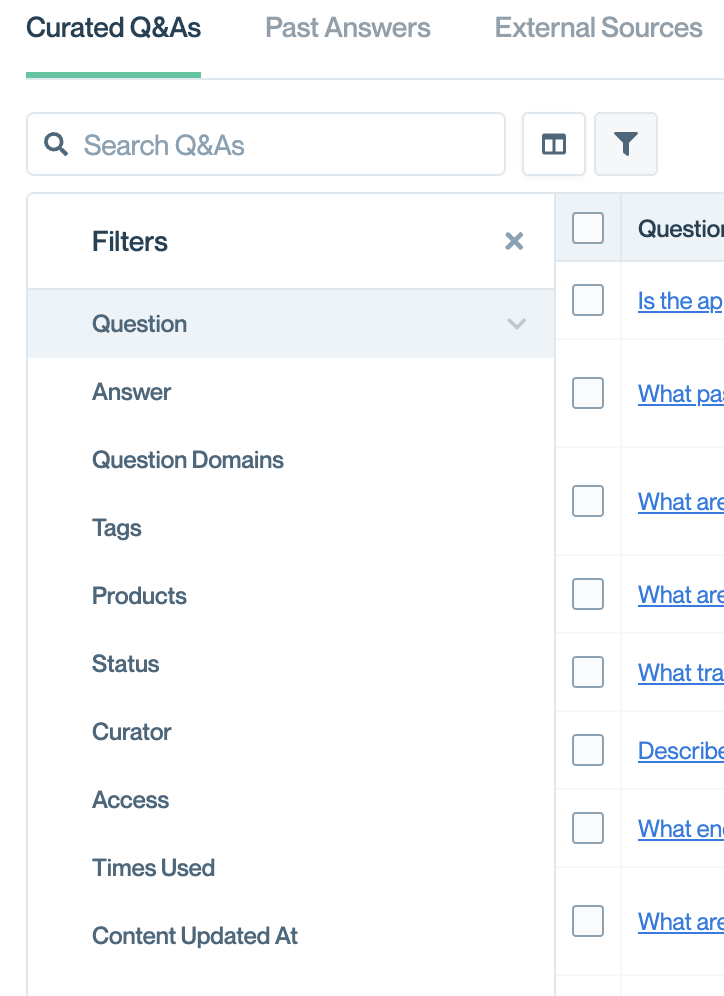
To filter Q&As, click the filter icon next to the search bar to narrow your list by specific criteria. Available filters include:
- Question: Filter by text in the question.
- Answer: Filter by text in the answer content.
- Question Domains: Show Q&As assigned to specific categories.
- Tags: Filter by custom labels.
- Products: Show Q&As for specific product lines.
- Status: Show only Q&As that are "Up to Date" or "Needs Verification."
- Curator: Filter by assigned subject matter expert.
- Access: Filter by visibility level (Internal Only, Anyone, Approved Customers, etc.).
- Times Used: Filter by how often the answer has been copied or referenced.
- Content Updated At: Filter by when the Q&A was last modified.
Click a filter to expand it and select your criteria. You can apply multiple filters at once to narrow results further.
Click the X on the Filters panel to close it, clear individual filters to broaden your results, or click Clear All at the bottom of the filters list to clear all filters.
Viewing and managing Q&A details
When you click on the text of any Q&A, you will see a detailed page with two tabs: Overview and History.
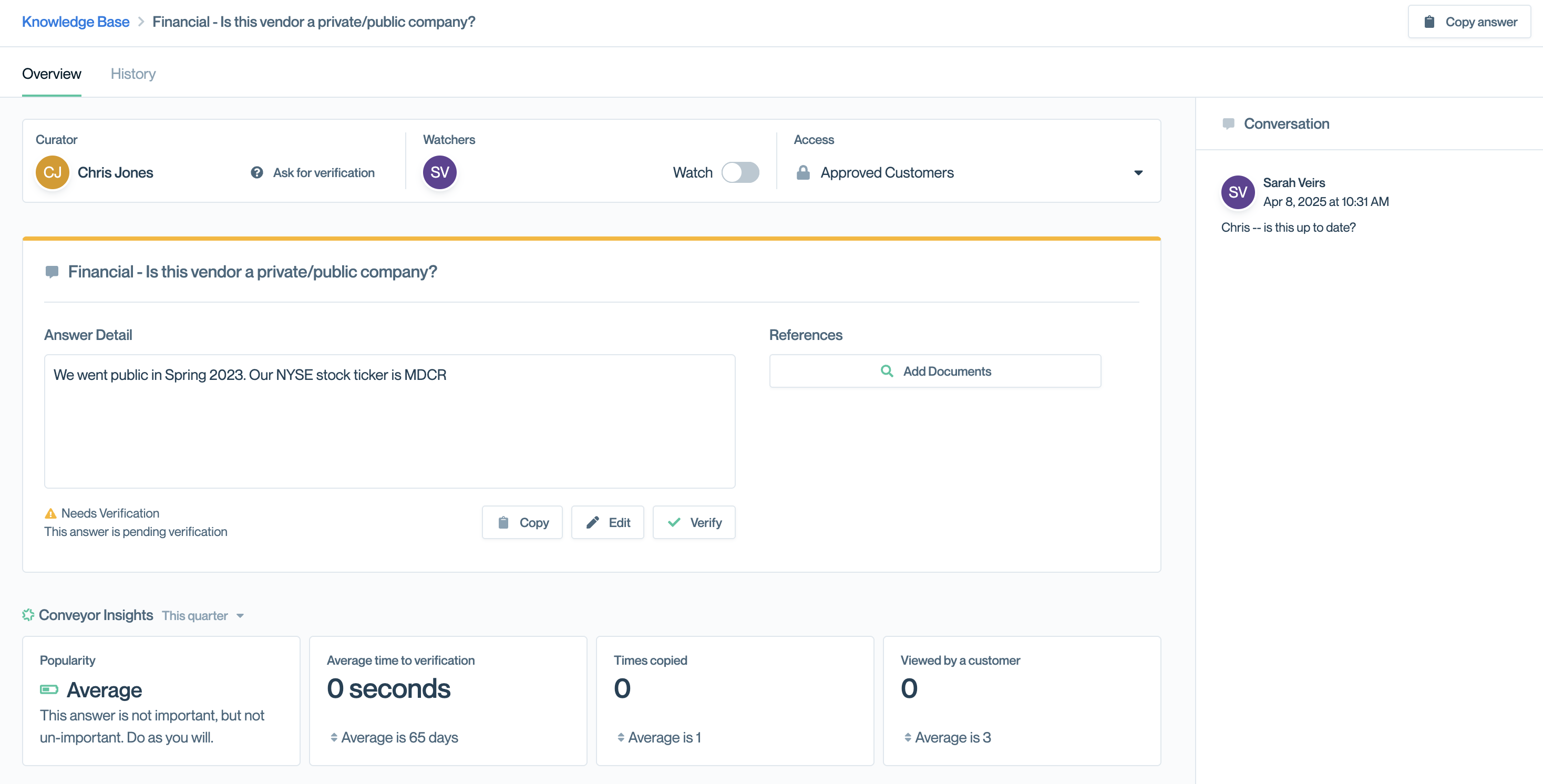
Overview tabs gives you rich information on the question answer, references, usage insights, settings and more.
Overview tab
The Overview tab displays the question and answer content along with key metadata and actions.
- Curator: The assigned subject matter expert responsible for this Q&A. Click Ask for verification to request they review the answer.
- Watchers: Team members following this Q&A. Toggle Watch on to receive notifications when changes are made.
- Access: The current visibility level for this Q&A.
- Answer detail: The current answer text displayed in the main content area.
- References: Supporting documents from your Trust Center. Click Add Documents to attach relevant materials.
- Copy: Copies the answer to your clipboard.
- Edit: Opens the answer for changes.
- Verify: Marks the answer as reviewed and up to date. Use this when you see a yellow "Needs Verification" warning indicating the verification period has expired.
- Conveyor Insights: Usage metrics for this Q&A, filterable by time period:
- Popularity: How often this question is asked relative to others
- Average time to verification: How quickly answers get reviewed
- Times copied: How often team members copied this answer
- Viewed by a customer: Trust Center views
- Conversation: The right sidebar where team members can leave comments to discuss the answer, ask questions, or flag issues. The curator and all watchers are notified of new comments.
Editing Q&A settings
Scroll down on the Overview tab to access additional settings.
- Products: Assign to specific product lines if the answer only applies to certain products. Leave as "Any product" if it applies universally.
- Question Domains: Categorize the question into predefined domains that help organize content for Trust Center visitors.
- Tags: Add custom labels for internal organization and filtering.
- Curator: Change the subject matter expert responsible for maintaining this answer. The curator receives verification reminders and is the point person for questions.
- Maximum age before needing verification: Set how long an answer can remain in "Up to Date" status before automatically changing to "Needs Verification." Options range from 3 months to 1 year.
- Archive question and answer: Click this to remove the Q&A from active use. Archived Q&As are excluded from ConveyorAI and the Trust Center but can be restored later.
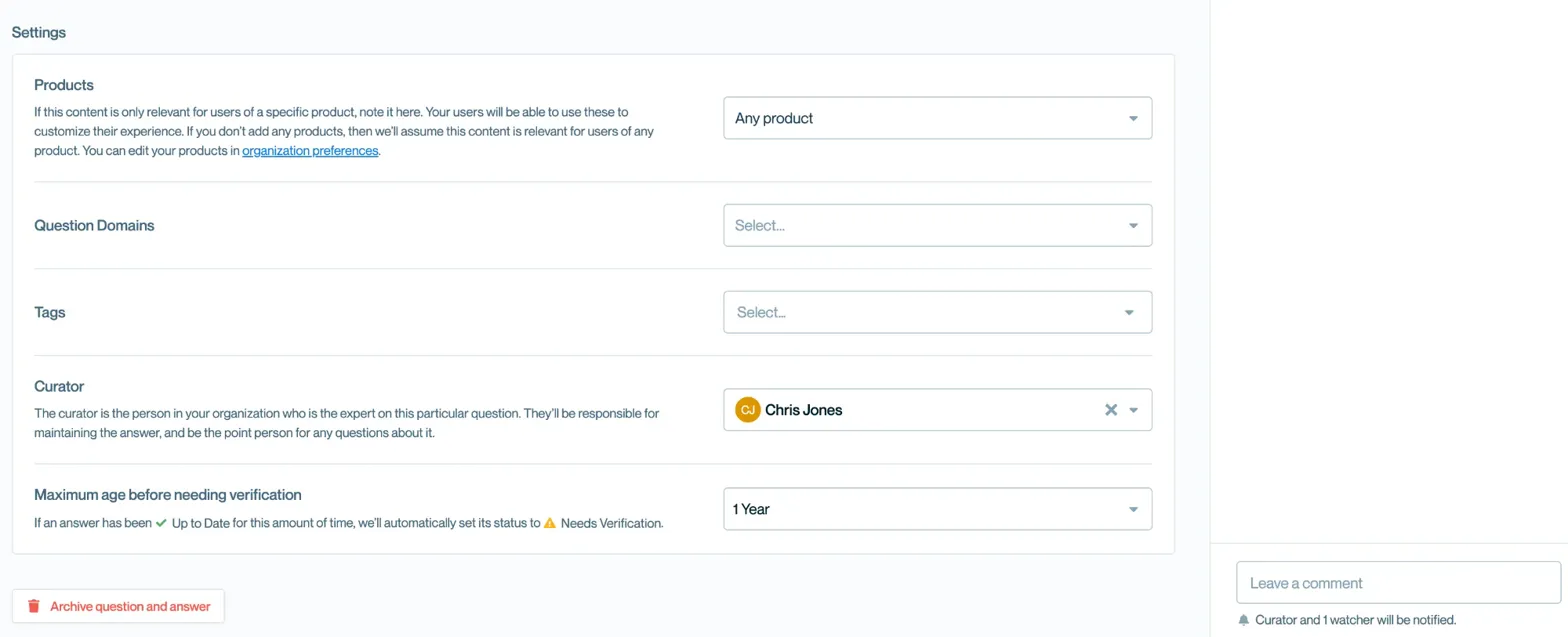
Q&A settings under the Overview section.
History tab
Click the History tab to view a complete audit trail of all changes made to this Q&A. The history log shows the date, team member, event type, and details for each action.
Event types include adding the question, editing the question or answer, verifying the answer, publishing to Trust Center, and adding watchers. For edits, the Details column shows the before and after text so you can see exactly what changed.
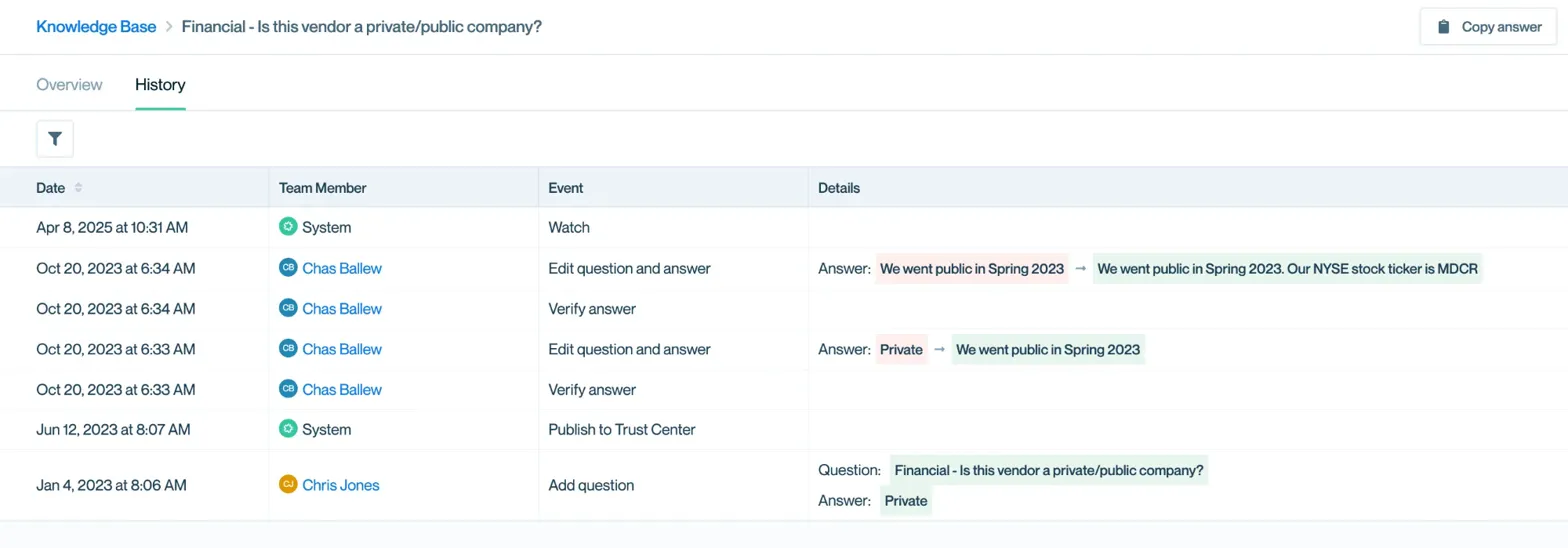
View the history of changes to the Q&A
Common Questions
What's the difference between a Curator and a Watcher?
The Curator is the single owner responsible for maintaining the answer and receives verification reminders. Watchers are additional team members who want to stay informed about changes but aren't responsible for updates.
How do I know when an answer needs review?
Answers display a yellow "Needs Verification" badge when they exceed the maximum age setting. The assigned curator also receives an automatic notification.
Can I see who made specific changes to an answer?
Yes. The History tab shows every edit with the team member's name, timestamp, and exactly what changed.
What happens when I archive a Q&A?
Archived Q&As are removed from ConveyorAI's knowledge and hidden from your Trust Center. The content is preserved and can be restored if needed.
Do comments notify the whole team?
Comments notify the curator and all watchers. Other team members won't see notifications unless they're watching the Q&A.
What's Next
- Adding Q&As – Create new Curated Q&As
- Ongoing maintenance – Best practices for keeping answers current
- Setting up curators – Assign subject matter experts across your Knowledge Library
- Troubleshooting inaccurate answers – Fix issues with ConveyorAI responses
Need help? Visit Troubleshooting or contact [email protected].
Updated about 13 hours ago